Canon T1i Operation
Like the XSi before it, the Canon T1i relies on its large, color LCD screen for all user interaction. This makes for a very clear, highly visible user interface, but probably does contribute to slightly shorter battery life, since the large LCD has to be fired up any time you want to change a setting. One feature we do like very much is the infrared proximity sensor that turns off the LCD screen when you hold the Canon T1i up to your eye.
Overall, the control layout places a few main controls (Power, Shutter button, Command dial, and Mode dial) on the right side of the Canon T1i's top panel, with most of the other controls on the back of the camera. Let's take a closer look at some of the user-interface elements:
Canon T1i Rear-Panel LCD Display
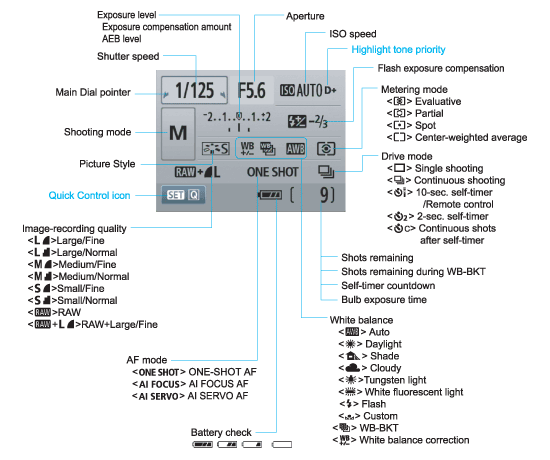
Let's take a closer look at the Canon T1i's rear-panel display: The image below shows callouts for all the information shown in the default display. (Illustration courtesy Canon USA.)
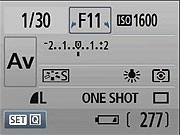
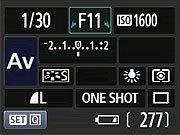
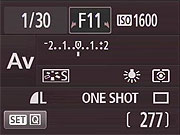
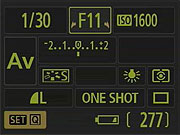
There are four Screen color options on the Status display, adjustable in the first Settings menu, under Screen color. The color choices on the Canon T1i are different from those on the XSi; we found ourselves liking some more, some less than those on the XSi, but generally found the redesigned layout on the Canon T1i a bit more readable. We found the color scheme shown at bottom right in the group of shots above particularly useful for shooting at night. The lower contrast was a bit easier on our eyes in dim lighting.
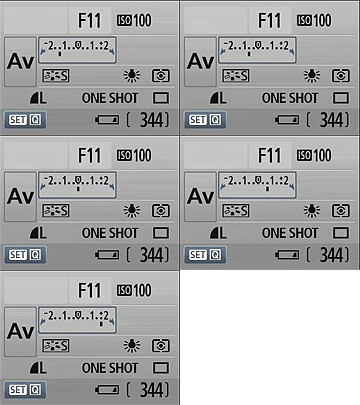
Whatever exposure parameter is currently being controlled by the Canon T1i's Main Dial is highlighted with arrows in the corners of its box, to indicate that it can be changed by rotating the dial. Here, we're adjusting the exposure compensation, marked by the outlined box. Note the arrows. (They're pretty subtle; we would have liked to see them a bit more prominent.)
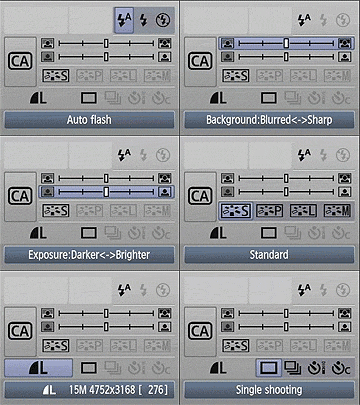
One marked difference between the new Canon T1i and the previous XSi is that the rear-panel display on the Canon T1i is part of a Quick Menu system. Whereas the SET button served to toggle Live View on and off on the XSi, pressing the SET button on the Canon T1i while in capture mode takes you to the Quick Menu system, where you can adjust various settings shown on the rear-panel display. You navigate between the various setting options with the arrow keys, and the chosen setting will be highlighted as shown above. Once a setting has been selected, you can change it either by rotating the Canon T1i's Main Dial, or by pressing the SET button again, and then using the arrow keys to choose from the available options.
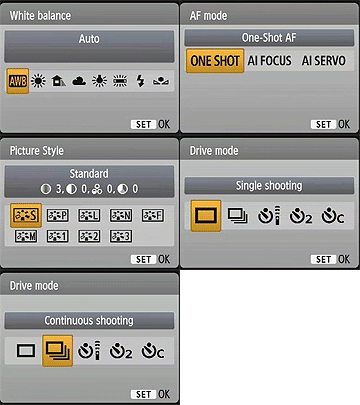
Pressing any of the arrow keys to the right of the Canon T1i's LCD screen immediately brings up a screen for the exposure parameter associated with that button. Once the option screen is displayed, you can use either the arrow keys or the Main Dial to scroll the cursor highlight through the options presented. When you've made the choice you want, pressing Canon T1i's Set confirms it and returns you to the main shooting display. Alternately, you can just continue to press the same arrow-key button and the highlight will scroll through all the options, wrapping around when it gets to the end of the list.
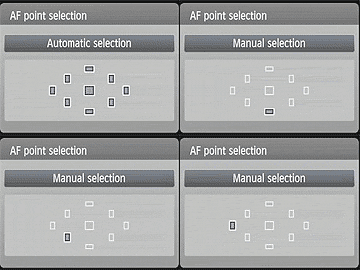
The AF-point selection screen is also very clear and straightforward. When you press the AF-point selection button in the upper right corner of the back panel, the display shown above appears. The arrow keys let you select one of the available points manually, while the Canon T1i's SET button selects the center point. With the center point already selected, the SET button toggles between Manual and Auto AF point selection. Lightly pressing the Canon T1i's shutter button returns you to the main shooting display.
Canon T1i Playback & Record Review Displays
Like the Rebel XSi, the Canon T1i shows each image as it's captured, though you can turn off this function through the Camera menu. The display mode in Record Review defaults to the same as was last used in Playback mode, or you can hit the DISP button to cycle to a different mode. Likewise, in Playback mode, you can cycle between the available display options by pressing the Canon T1i's DISP button repeatedly. (Display mode selection is persistent across both record and playback modes, no matter which mode you make the selection in.) You can also select between the normal luminance-based histogram and the RGB histogram option via a Playback-mode menu item. The screenshots below show the various displays and options available.
| Canon T1i Image Display Options | |
 |
 |
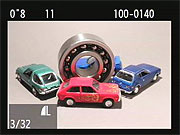
This is the default display in playback mode. The file number is displayed upper right, the shutter speed and aperture in the upper left, and file sequence number and quality are shown below left. |
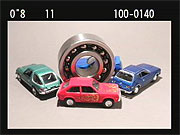
Pressing the DISP button cycles through the three available displays. This is the second option, image with no overlay. |
 |
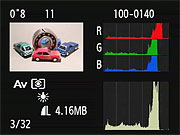 |
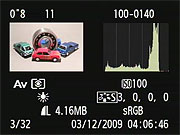
The Canon T1i's third playback display option shows a histogram and more detailed exposure information. If there are any blown highlights, they'll blink in this mode. |
A Custom Settings Menu option lets you choose between a conventional luminance-only histogram, or the separate red, green, and blue displays as seen above. |
 |
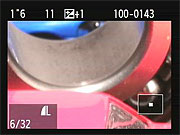 |
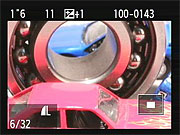
You can also zoom in on an image, up to 10x at the highest resolution. The small navigator window in the lower right-hand corner shows you what part of the larger image you're currently viewing. The arrow keys let you navigate around the full image, and the zoom in / zoom out keys increase or decrease the magnification level. |
|
 |
 |
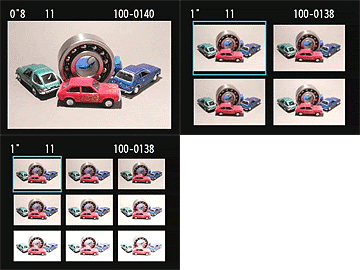
If you press the Zoom Out button while viewing a single image on the LCD screen, it'll take you first to a 4-image thumbnail display, and then to a 9-image one, if you press it once again. The arrow keys let you navigate among the thumbnail images. The text above the thumbnails displays the same basic exposure info for the currently-selected image as does the default single-image display. Pressing the DISP button in this mode overlays the image size/quality and file number for the currently selected image, as in normal playback mode. |
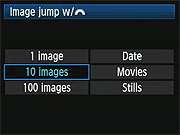
The Canon T1i handles "jumping" through images differently from the XSi. On the XSi, you'd press the JUMP button to switch between options of 1, 10, or 100 images for scrolling through the images on a card. On the Canon T1i, rapid scrolling through images is accomplished via the Main Dial (on the camera's top panel), and an option on the Playback menu sets options of jumping through images 1, 10, or 100 images at a time, or on jumping between shots captured on different dates, between groups of movies, or groups of still shots.
|
 |
 |
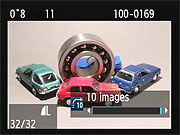
The jump menu setting only applies when we were in single-image playback mode, displaying a screen like that above when we used the Main Dial to scroll between stored images. In thumbnail display mode, the Main Dial always jumped ahead one screen of thumbnails at a time, regardless of the menu setting for the Jump option. |
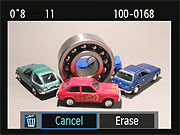
Pressing the Delete button brings up this display, giving you the option to erase the current image, or cancel out of the delete option. The Delete display will show either the full image or a thumbnail plus histogram, depending on the playback mode you've selected. In thumbnail display mode, the current thumbnail is highlighted, but won't be shown full-screen. |
 Fujifilm GFX 50S Review
 Fujifilm X-T3 Review
 Olympus E-M5 III Review


Follow Imaging Resource