


Overview
Digital Camera Home > Digital Camera Reviews > Kodak Digital Cameras > Kodak EasyShare DX7590The Imaging Resource
Quick Review
Kodak EasyShare DX7590 Digital Camera
 |
Camera QuickLook | |
|
Review Date |
10/22/2004 | |
|
User Level |
Novice to experienced amateur | |
|
Product Uses |
Family / Travel / Special Events | |
|
Digicam Design |
Point and Shoot / Some Manual Control | |
|
Picture Quality |
High, 5.0-megapixel CCD | |
|
Print Sizes |
Good prints to 8x10 and 11x14 | |
|
Availability |
July, 2004 | |
| Suggested Retail
Price (At introduction) |
$499 | |
NOTE:This camera is currently known as the Kodak EasyShare Z7590. DX7590 was replaced by the Z7590 in early 2005. The two cameras' controls and internal electronics are identical, so this review of the DX7590 is 100% representative of the Z7590. The only physical changes between the cameras were an updated connector to mate with current-model Printer Docks, and the "Z" model branding, to tie it in to the rest of Kodak's current "super zoom" camera model line.
Introduction
|
||||||||||
Camera Overview
|
||||||||
Boasting a 5.0-megapixel CCD (2,576 x 1,932 pixels), a full range of exposure control, and a compact body style, the Kodak EasyShare DX7590 updates the EasyShare line that's proven so popular among consumers. Similar in style to a traditional point-and-shoot 35mm film camera, the DX7590 measures 3.9 x 3.2 x 3.2 inches (100 x 81 x 80 millimeters), without the lens extended. The camera's all-plastic body helps keep the weight down, although the good-sized battery brings the overall weight back up to a comfortable heft of 13.5 ounces (383 grams) with the battery and memory card loaded. The DX7590 squeezes into larger shirt and coat pockets, and comes with a wrist strap for carrying. Its compact design includes a retractable lens, protected by a clip-on lens cover that tethers to the camera body with a short nylon lanyard. The 5.0-megapixel CCD captures high resolution, print quality images (up to 8x10 or 11x14 with good detail, even allowing for some cropping), as well as smaller image sizes better suited for distributing via email.
Built into the DX7590 is a 10x zoom lens, equivalent to a 38-380mm zoom on a 35mm camera, with accessory threads on the body ring for attaching an adapter for accessory conversion lenses and filters. The camera's autofocus mechanism uses a multi-zone system to "find" the primary subject closest to the lens. The AF area is highlighted in the LCD display with a set of brackets. You can change the AF area to read only the center of the frame through the Record menu, or choose Selectable AF, which lets you set the AF area at center, or to the left or right of center. Additionally, you can choose between Continuous and Single AF modes. The DX7590 has a maximum aperture ranging from f/2.8 to f/3.7, depending on the zoom position. Focus ranges from 24 inches (60 centimeters) to infinity in normal mode, with a Wide Macro mode ranging from 4.7 to 27.6 inches (12 to 70 centimeters). Telephoto Macro mode focuses from 3.9-6.9 feet (1.2-2.1 meters). A Landscape focus mode fixes focus at infinity, for distant subjects and scenery. In addition to the 10x optical zoom, the DX7590 also offers as much as 4x Advanced digital zoom, which effectively increases the camera's zoom range to a total of 40x. Keep in mind though, that digital zoom decreases the overall image quality, since it just stretches the center pixels of the CCD image. For composing images, the DX7590 offers both a real-image optical viewfinder as well as a generous, 2.2-inch color LCD monitor.
The DX7590 offers optional full manual exposure control, as well as a range of partial manual and automatic exposure modes. The Mode dial on the rear panel offers options of Scene, Action, Portrait, Auto, Program, Aperture Priority, Shutter Priority, Manual, Custom, and Movie exposure modes, as well as a Favorites setting for viewing images saved as "Favorites". While Auto mode is best for general use, leaving all of the exposure decisions up to the camera for true "point and shoot" photography, the Program mode lets you control options such as white balance and exposure compensation while the camera handles the basic aperture and shutter speed settings. Aperture and Shutter Priority modes let you control either aperture or shutter speed, while the camera selects the appropriate corresponding variable. As you'd expect, Manual mode provides complete user control over the exposure, with shutter speeds ranging from 1/1,000 to 16 seconds. The camera is capable of up to 1/1,500 second in auto modes, but only when the aperture is set between 5.6 and 8.0. Finally, the Custom mode lets you save a group of exposure settings that can be instantly recalled. For example, if you frequently shoot indoors under a specific lighting setup, you can save the exposure settings for that exposure situation. The Scene exposure mode offers no less than 16 preset shooting modes, including Landscape, Close-up, Night Portrait, Night Landscape, Snow, Beach, Text, Fireworks, Flower, Manner/Museum (for indoor settings without flash or sounds), Self-Portrait (for pointing the camera back at you), Party, Children, and Backlight. The available scenes appear at the bottom of the LCD display upon entering the mode, and the Multi-Controller selects the scene.
The DX7590 employs a Multi-Pattern metering system, which bases the exposure on several light readings taken throughout the frame, taking into consideration both brightness and subject contrast to arrive at the optimum exposure. Also available are Center-Weighted and Center-Spot modes. You can increase or decrease the overall exposure from -2 to +2 exposure equivalents (EV) in one-third-step increments. An Exposure Bracketing mode takes a series of three images, at different exposure settings, letting you decide which exposure is best. (You can designate whether the exposure varies by +/- 0.3, 0.7, or 1.0 EV increments through the Record menu.) White balance options include Auto, Daylight, Tungsten, and Fluorescent settings, which take advantage of Kodak's proprietary Color Science technology to achieve an accurate color balance under most lighting. An ISO setting option offers equivalent settings of 100, 200, 400, and 800 (with the 800 setting only available at the 1.7-megapixel resolution). An Auto ISO setting is also available. The DX7590 also offers a range of color settings (High, Natural, and Low color), as well as Black and White and Sepia modes. You can also adjust the in-camera sharpening. The built-in flash is effective from 2.0 to 16.1 feet (0.6 to 4.9 meters) depending on the setting of the zoom lens, and features Auto, Fill, Red-Eye Reduction, and Off operating modes. You can also adjust the flash intensity, from -1.0 to +1.0 EV in one-third-step increments. (At telephoto focal lengths, I found it to have a range of at least 14 feet, somewhat greater than Kodak's claimed 12 foot range at that lens setting. In general though, you'll get greater range with the lens set to the wide angle end of its range.) A 10-second Self-Timer mode provides a delay between the time the Shutter button is pressed and when the shutter actually opens, so you can get into your own shots.
In addition to its still photography modes, the DX7590 also offers a Movie recording mode for capturing moving images with sound. Recording stops and starts with a brief, full press of the Shutter button, but if you hold the button down for more than a second or two, the camera will automatically stop recording when you let it back up again. The recording duration can also be set via a menu option to fixed intervals of 5, 15, or 30 seconds. As you record, the duration of the movie appears in a running counter on the LCD monitor. Maximum movie lengths depend on the amount of memory space available. (The 32 megabytes of internal memory will let you record movies up to three minutes and seven seconds in length.) Movies can be recorded at 320 x 240 pixels at 24 frames/second.
A Burst photography mode lets you capture as many as four frames in rapid succession while you hold down the Shutter button, with First and Last settings. First saves the first four images taken, while Last saves only the last four in the series. The four-frame maximum number applies regardless of resolution, but actual burst length may be further limited by the available space on the memory card or internal memory, if either is nearly full.
In addition to its normal camera-related functions, the DX7590 offers a unique "Favorites" feature that Kodak pioneered relatively recently. Observing consumer behavior, Kodak realized that many people use their digicams for "portable slide shows," keeping some of their favorite photos on them, and passing them around to friends and family to share their pictures. Recognizing this as a popular usage pattern, Kodak developed the "Favorites" function, which lets you store reduced-resolution copies of your favorite images on the camera's internal memory. The reduced image resolution (roughly one megapixel in size) lets you carry around many more images than you'd otherwise be able to, yet still provides enough image data to make good-looking 4x6 prints from, should a friend want prints of one or more of your Favorites.
In practice, the Favorites function works in conjunction with Kodak's EasyShare software, installed on your computer. To save an image as a Favorite, you mark it as such by pressing the Share button on the camera's back in Playback mode, selecting the "Favorite" option that appears on the Share menu. The next time you connect the camera to your computer running the EasyShare software, any images marked as Favorites will be download, resized to the Favorites resolution, and then re-uploaded to the camera, to a set-aside portion of its memory. (The EasyShare software also lets you select how much of the camera's internal memory should be devoted to storing Favorites.) All in all, a very slick feature that directly addresses a very common digicam usage.
The DX7590 is compatible with Kodak's EasyShare camera and printer docks, which offer hassle-free image downloading and printing. You simply put the camera into the dock (the DX7590 comes with a plastic insert that fits the camera bottom snugly into the dock) and press the Connect button on the dock. The dock station also serves as an AC adapter and in-camera battery charger. Built into the DX7590 are 32 megabytes of internal memory, but the camera also features an SD/MMC memory card slot so you can expand the camera's memory capacity. I highly recommend picking up at least a 64-megabyte card (preferably a 128 MB one) right away, given the camera's 2,576 x 1,932-pixel maximum resolution size. For power, the DX7590 uses a Kodak EasyShare Li-Ion battery pack, or the optional AC adapter. Since the camera does not accommodate AA-type batteries, I highly recommend picking up a spare battery pack and keeping it on-hand and freshly charged. That said though, the DX7590's battery life is excellent, with a worst-case runtime of a two hours and 45 minutes in record mode with the LCD on, and almost 14 hours when the camera "sleeps." The camera comes with a battery charger in case you don't have the accessory dock. Also packaged with the DX7590 are USB and AV cables, as well as a software CD loaded with the EasyShare software for downloading and managing images.
Basic Features
- 5.0-megapixel CCD delivering images as large as 2,576 x 1,932 pixels.
- Electronic optical viewfinder (EVF).
- 2.2-inch color LCD monitor.
- 10x, 38-380mm (35mm equivalent) lens.
- 4x digital zoom.
- Auto, Program, Aperture Priority, Shutter Priority, and Manual exposure modes, plus 16 preset Scene modes.
- White Balance with four settings.
- Maximum aperture of f/2.8 to f/3.7, depending on lens zoom position.
- Shutter speeds from 1/1,500 to 16 seconds, depending on exposure mode.
- Built-in flash with four modes and an adjustable intensity setting.
- 32MB internal memory.
- SD/MMC card storage (optional, card not included).
- Power supplied by one Kodak EasyShare Li-Ion pack, or optional AC adapter.
- Compatible with optional Kodak EasyShare camera and printer docks (not included).
- Kodak EasyShare software included for both Windows and Mac platforms.
Special Features
- Movie mode (with sound).
- Burst photography mode.
- Auto Exposure Bracketing mode.
- Custom exposure mode for saving frequently-used settings.
- Black and White, Sepia, and three color modes.
- Adjustable ISO from 100 to 800, with an Auto setting (ISO 800 only available at 1.7MP res).
- 10-second Self-Timer for delayed shutter release.
- Image sharpness adjustment.
- Three AF area modes, plus Single and Continuous AF modes.
- Macro (close-up) lens setting.
- Accessory lens thread.
- DPOF (Digital Print Order Format) compatibility.
- USB cable for connection to a computer (driver software included).
Recommendation
Like the rest of Kodak's EasyShare line, the DX7590 boasts
a simple-to-understand user interface that keeps the fun in point-and-shoot
digital photography. The DX7590's range of exposure modes is perfect for all
experience levels though, combining optional advanced exposure modes with the
ease of use that's made the EasyShare line so popular with consumers. The DX7590's
versatile setup is a good option for novice users who want to quickly learn
more about photography, while more experienced users will enjoy the compact
size and flexible controls. Its long zoom lens lets you reach out and bring
distant subjects close, great for some sports and nature photography, although
it's shutter lag at full telephoto means you'll do best with slower-moving subjects
or landscapes. The combination of fully automatic controls with more advanced
options makes the DX7590 a good camera for users looking for a camera that's
easy to use, yet has advanced features that they can grow into as their skills
develop. Combined with one of Kodak's EasyShare "Printer Docks", the
DX7590 offers an all-in-one solution to digital photography, letting you go
from the camera directly to great-looking prints without the use of a computer.
Design
A
modest handful, the DX7590 measures 3.9 x 3.2 x 3.2 inches (100 x 81 x 80 millimeters),
too large for shirt pockets, but a possibility for larger coat pockets. The
DX7590 has a comfortable heft, weighing in at 13.5 ounces (383 grams) with the
battery and memory card loaded. A wrist strap comes with the camera, but I'd
recommend a soft carrying case for travel.

The telescoping lens takes up the right side of the camera's front panel, surrounded by a thick, plastic lip complete with a set of threads that accept an optional lens adapter for use in mounting filters and accessory lenses. The lens extends outward about an inch when the camera is powered on. A plastic lens cap rides out with the lens when the camera is powered on, and an included tether keeps it from being lost when you remove it. Also on the front panel are the optical viewfinder window, autofocus sensor, self-timer lamp, light sensor, and tiny microphone grille. A gently-sculpted finger grip on the side of the camera features a soft, rubbery pad for your fingers to cling to. I prefer grips with a steeper inside angle for long-term holding, but the one on the 7590 works pretty well nonetheless. Just above the grip is a small control wheel, used to change camera settings.

On the right side of the camera (as viewed from the rear) is a polished silver eyelet for attaching the wrist strap, and the door for the memory card compartment.

The opposite side of the camera features the DC In, AV Out, and USB jacks, beneath a flexible, rubbery flap that remains attached to the camera. A useful feature for eyeglass wearers, a dioptric adjustment knob on the side of the viewfinder is visible in this view.

The Shutter, Flash Open, Flash, Macro/Landscape, and Drive buttons are all on the camera's top panel, as well as a small grille for the speaker.

The rest of the camera controls are on the rear panel, along with the optical viewfinder and 2.2-inch LCD monitor. A slight bulge on the right side gives your thumb something to rest against as you hold the camera, reinforcing the front handgrip. Just above this bulge, the toggle control that actuates the zoom lens is easily accessible for your thumb. A large Mode dial takes up the lower right portion of the rear panel, with a joystick-like multi-controller button in its center and a small button between two finger ridges that releases the dial for turning. The multi-controller navigates through menu settings, and confirms selections when pressed. Lined up below the Mode dial are the Delete, Menu, and Review buttons. Across the top of the camera, the EVF/LCD switch is visible at the far left, next to the viewfinder eyepiece. This switch alternates the viewfinder display between the Electronic Viewfinder (EVF) and the rear-panel LCD. The main power button is just to the right of the viewfinder eyepiece, with the Info and Share buttons just below it.
The optical viewfinder eyepiece is fairly large, but has only a moderately high eyepoint to accommodate eyeglass wearers. (I could see the full frame while wearing my glasses, but found that I often ended up with the viewfinder eyepiece lightly touching my lenses.) As noted earlier, the DX7590 provides a dioptric adjustment on the viewfinder eyepiece, a feature found on the earlier DX7440, but dropped from the DX7630. The DX7590's viewfinder is notable for the range of dioptric adjustment that it offers, as it accommodated my own 20/180 uncorrected vision with ease, still having some adjustment available beyond that point. Unlike the DX7630, the DX7590 uses a red or green dot on the viewfinder display to indicate focus and/or flash status, rather than an LED next to the viewfinder eyepiece. This works well enough, since both viewfinders on the 7590 are LCD-based, and so always available for the display of status information.

On the bottom panel of the DX7590 are the metal tripod mount (kudos for the use of metal here), dock jack, and battery compartment. The threaded tripod mount is a little off-center and too close to the battery compartment for quick battery changes while working with a tripod. The battery compartment features a locking, hinged door, which slides to the side to open under spring pressure. Inside, there's no latch holding the battery in place once the door is opened, so you need to pay attention when opening the compartment, so the battery doesn't accidentally fall on the floor. The dock connection jack connects the camera directly to the EasyShare dock for quick image downloading.
Camera Operation
As I've come to expect from Kodak's EasyShare digicam line, the DX7590 has a very user-friendly interface. The full range of available exposure control options give users a lot of flexibility when they want it, while the camera's automatic systems do an excellent job of capturing good-looking photos under a wide range of conditions entirely without user intervention when that's the order of the day. The Jog dial on the front of the camera's grip lets you quickly change exposure settings, such as exposure compensation, shutter speed, ISO, etc., without delving into the LCD menu system - quite a handy feature. The LCD menu system itself is short and simple to navigate though, and the plain-English descriptions of menu items are a welcome change from the too-common cryptic icons on so many other cameras. A Mode dial lets you change camera modes quickly, and once again, plain-English descriptions displayed on the LCD screen make operation straightforward even for rank beginners. Given the simple interface and limited controls, you should be able to start snapping images right away, with hardly a glance at the manual. For more advanced functions, it shouldn't take more than a half an hour to an hour (depending on your level of expertise) to get the gist of things.
Record-Mode Display
 Depending
on the exposure mode, the DX7590's LCD display shows the center autofocus area
along with currently-selected options for image size/quality, macro and flash
mode, the number of images of the current size and quality that can be stored
in the remaining space on the memory card. In Program, Aperture Priority, Shutter
Priority, Manual, and Custom modes, the LCD display also includes shooting mode,
aperture, shutter, ISO, flash exposure compensation, and exposure compensation
settings. Pressing the Display button once in a record mode cancels the information
display, pressing it again brings the information display back. (Because it's
an EVF-equipped camera, there's no option to turn the LCD off, because the LCD
(or EVF) is the only way you can see what the camera is shooting.
Depending
on the exposure mode, the DX7590's LCD display shows the center autofocus area
along with currently-selected options for image size/quality, macro and flash
mode, the number of images of the current size and quality that can be stored
in the remaining space on the memory card. In Program, Aperture Priority, Shutter
Priority, Manual, and Custom modes, the LCD display also includes shooting mode,
aperture, shutter, ISO, flash exposure compensation, and exposure compensation
settings. Pressing the Display button once in a record mode cancels the information
display, pressing it again brings the information display back. (Because it's
an EVF-equipped camera, there's no option to turn the LCD off, because the LCD
(or EVF) is the only way you can see what the camera is shooting.
Playback-Mode Display
 In
Playback mode, you can use the DX7590's Zoom lever to zoom in or out on an image,
with a maximum enlargement of 8x. A thumbnail display of the images on the card
is also available, through the camera's Playback menu. The Info button offers
a more detailed information display, reporting the exposure settings used to
capture the current image. The normal Playback display reports the image number,
and any sharing settings pertaining to the current image.
In
Playback mode, you can use the DX7590's Zoom lever to zoom in or out on an image,
with a maximum enlargement of 8x. A thumbnail display of the images on the card
is also available, through the camera's Playback menu. The Info button offers
a more detailed information display, reporting the exposure settings used to
capture the current image. The normal Playback display reports the image number,
and any sharing settings pertaining to the current image.
External Controls

Shutter Button: Located on the camera's top panel, this button sets focus
and exposure when halfway pressed, and fires the shutter when fully pressed.
In Playback mode, pressing this button returns the camera to the selected
Record mode.

Flash Open Latch: Just to the right of the camera's flash, this control
releases the flash head when slid to the right, letting it pop open to its
deployed position. (The flash can be closed again at any time, simply by pressing
it down until it latches.)

Flash Button: Just behind the flash open latch, this button cycles through
the Auto, Fill, Red-Eye Reduction, and Flash Off flash modes.

Focus Button: To the left of the Flash button, this button controls
the camera's focus mode, cycling between Normal autofocus, Macro, and Landscape
focus settings.

Drive Button: Next to the Focus button, this button cycles through
the First Burst, Last Burst, and Exposure Bracketing drive settings.
Zoom Lever: Located in the top right corner of the camera's rear panel, this lever controls the optical and digital zoom in any record mode. In Playback mode, the lever controls the amount of digital enlargement applied to captured images, to a maximum of 8x.

Delete: Just below and to the left of the mode dial on the camera's rear
panel, this button calls up the Delete menu in Review mode. You can delete
individual images or all images on the card. There's also an option to cancel.

Menu Button: To the right of the Delete button, this button displays the
settings menu in Playback or Record modes.

Review Button: Directly to the right of the Menu button, this button activates
Playback mode when pressed in any record mode. Once in Playback mode, pressing
the button again, or the Shutter button, returns to the Record display.

Jog Dial: Positioned just above the camera's front handgrip, this
ridged dial controls a handful of camera settings when rotated. In Program,
Aperture Priority, Shutter Priority, Manual, or Custom exposure modes, turning
the dial moves a triangular yellow cursor between different exposure variables
on the LCD monitor, while a full press of the dial selects the current exposure
option for adjustment. Once selected, you can change the setting by changing
the dial. Pressing the dial again de-selects the current option, so you can
choose a different parameter to adjust. Available exposure settings (depending
on the particular exposure mode you're in) are exposure compensation, flash
exposure compensation, ISO, shutter speed, and aperture.

Share Button: Located adjacent to the top right corner of the LCD monitor,
this button lets you tag images for printing, emailing, or as a favorite image.
(A heart icon appears on "favorite" images.) Pressing this button
in Review mode automatically enables Playback mode, and displays the Share
menu with the following options:
 Cancel
Prints: Cancels a print order.
Cancel
Prints: Cancels a print order.- Print All: Prints one copy of each image on the memory card or internal memory.
- Print: Designates the number of copies of the current image to be printed.
- E-Mail: E-mails a low-resolution copy of the image to a recipient, based on a saved address book.
- Favorite: Marks the current image as a "favorite."
 Cancel
Prints: Cancels a print order.
Cancel
Prints: Cancels a print order.
Mode Dial: Taking up the lower right corner of the rear panel, this large
dial features a small locking button that releases it for turning. The following
camera modes are available:
- Favorites: Displays any images that have been saved as favorites.
- Scene Mode: Offers 16 preset shooting modes, including Landscape, Close-up, Night Portrait, Night Landscape, Snow, Beach, Text, Fireworks, Flower, Manner/Museum, Self-Portrait, Party, Children, and Backlight.
- Sports Mode: Biases the exposure system to use faster shutter speeds, to freeze fast action.
- Portrait Mode: Biases the exposure system to use larger apertures, to isolate the subject in front of a slightly blurred background.
- Automatic Record: Best for most average shooting conditions, this mode places the camera under automatic exposure control, with limited user options available through the Record menu.
- Program Mode: Offers a range of exposure options for the user, though the camera remains in control of aperture and shutter speed.
- Aperture Priority Mode: Lets the user adjust the lens aperture setting, while the camera controls the shutter speed. All other exposure options are available.
- Shutter Priority Mode: Opposite of Aperture Priority mode, this mode puts the user in control of the shutter speed and the camera in charge of aperture.
- Manual Mode: This mode offers full user control over the exposure.
- Custom Mode: Lets the user save a selection of exposure settings for quick recall.
- Movie: Records moving images with sound, for as long as the memory card has available space.
Multi-Controller: Located in the center of the Mode dial, this joystick-like controller navigates through menu options in any settings menu. When pressed, it confirms menu selections. (In Scene Mode, pressing the multi-controller calls up a menu listing the available Scene options.)
In Playback mode, the controller scrolls through captured images, when moved left and right. Pressing the button down activates the index display mode.

Display/Info Button: Positioned left of the LCD monitor and above the Share
button, this button changes the display during Record mode, first showing setting
info and live image, then the live image only, then cancels the display. In
Playback mode, it toggles between full information, control information, and
no information overlaying the images.
Camera Modes and Menus

Favorites Mode: An album icon with a heart on its cover indicates
this mode on the Mode dial. In this mode, any images that have been designated
as "favorites" are displayed. (Note that it only displays Favorites
that have been processed through the EasyShare software on a computer, so newly-capture
images marked as Favorites will not appear until the camera is synchronized
with a computer.)

Scene Mode: The letters "SCN" indicate this mode on the Mode
dial, which offers 16 preset shooting modes. Available "scenes"
are Portrait, Sports, Landscape, Close-up, Night Portrait, Night Landscape,
Snow, Beach, Text, Fireworks, Flower, Manner, Self-Portrait, Party, Children,
and Backlight.

Sports Mode: Marked with an icon of a running person, this mode biases the
exposure system to use faster shutter speeds, to freeze fast action.

Portrait Mode: Indicated by an icon of a woman's head, this mode adjusts
the exposure system to use larger apertures, to isolate the subject in front
of a slightly blurred background.

Auto Mode: Marked with a camera icon and the word "Auto," this
mode is best for most average shooting conditions. Exposure is automatically
controlled, but a small selection of user options is available through the Record
menu.

Program Mode: A single letter "P" notes this mode, which
provides basic user control over Record menu options, but leaves the camera
in charge of shutter speed and aperture settings.

Aperture Priority Mode: The initial "A" stands for Aperture Priority
mode, where the user has control over the lens aperture setting. The camera
maintains control over the shutter speed.

Shutter Priority Mode: Like Aperture Priority mode, this mode places the
user in charge of one exposure variable. Here, the user can set the shutter
speed, while the camera selects the best lens aperture. An "S" marks
this mode on the Mode dial.

Manual Mode: Indicated with an "M" on the Mode dial, this mode
provides complete user control over both shutter speed and lens aperture simultaneously.

Custom Mode: This mode lets you save a selection of exposure settings
for recall later.

Movie Mode: The final mode on the Mode dial, Movie mode is indicated by
a movie camera icon. In this mode, you can record 320 x 240-pixel resolution
movies with sound, at 24 frames per second.
Playback Mode: Accessed by pressing the Review button, this mode lets you review captured images and movies, as well as manage files.
Record Menu: The following menu items appear whenever the Menu button is pressed in any Record mode. However, not all menu options are available in all modes.
- Custom
Mode: Selects which exposure mode (Program, Aperture Priority, Shutter
Priority, or Manual) is activated in Custom mode (this menu item is only active
when the Mode dial is set to Custom Mode, and is not shown in the screen shots
at right).
- Self-Timer: Activates the 10-second Self-Timer, or disables it.
- Picture Size: Sets the resolution for still images. Choices are 5.0MP (2,856 x 2,142), 5.4MP (3:2 aspect ratio), 4.0 MP (2,304 x 1,728 pixels), 3.5 MP 3:2 ratio (2,304 x 1,536 pixels), 3.1 MP (2,048 x 1,536 pixels), or 1.7 MP (1,200 x 900 pixels).
- Compression: Sets the JPEG compression to Standard or Fine.
- White Balance: Sets the color balance to Auto, Daylight, Tungsten, or Fluorescent settings.
- Exposure Bracketing Interval: Designates the exposure equivalent (EV) step size that images vary by when the Auto Exposure Bracketing feature is used. Choices are +/- 0.3, 0.7, or 1.0 EV.
- Exposure Metering: Sets the camera's metering mode to Multi-Pattern, Center-Weighted, or Center-Spot.
- Focus Zone: Controls what portion of the frame the camera's AF system determines focus from. Choices are Multi-Zone, Center-Zone, or Selectable-Zone (either center, left, or right).
- AF Control: Sets the autofocus to Continuous or Single modes, or to Accessory Lens.
- Color Mode: Allows you to record images in High, Natural, or Low Color, or in Black and White or Sepia tones.
- Sharpness: Controls the in-camera sharpening, with options of High, Normal, or Low.
- Reset to Default: Resets all camera settings to their defaults.
- Set Album (Still, Video): The DX7590 lets you set up albums through its interface software on a computer. If albums have been set up and downloaded to the camera, you can associate images with an album as they are recorded.
- Video Length (Video mode): Sets the default video length to Continuous, or to 5, 15, or 30 seconds
- Image Storage: Dictates where images are stored, either in the 32MB
internal memory or SD card. If Auto is selected, the camera automatically
stores images to a memory card if one is present.
- Setup Menu: Displays the following Setup options:
- Return:
Returns to the previous menu display.
- Quickview: Turns Quickview on or off. Quickview automatically displays the most recently captured image, with options to delete or Share.
- Advanced Digital Zoom: Controls how digital zoom is accessed. The Continuous setting allows you to seamlessly zoom from the optical zoom range into the digital range. "Pause" tells the camera to pause between ranges. "None" disables digital zoom altogether.
- Print Warning: If activated, this feature turns the zoom indicator on the LCD screen red if the digital zoom is set too high to render an acceptable 4x6-inch print.
- Sound Themes: Selects the camera's operating sounds. Choices are Shutter Only, Default, Classical, Jazz, and Sci-Fi. (All sounds are disabled in the camera's Manner scene mode.)
- Sound Volume: Sets the volume to Low, Medium, or High, or turns sound off.
- Mode Description: If enabled, displays a description of each camera mode on the LCD monitor when first accessed.
- Date & Time: Sets the camera's internal clock and calendar.
- Video Out: Specifies PAL or NTSC as the Video Out signal.
- Orientation Sensor: Controls the camera's orientation sensor, which detects when the camera is held vertically. Vertical-format images captured when the Orientation Sensor is enabled are rotated to their correct orientation on-screen when they're played back.)
- Date Stamp: Turns the date stamp function on or off, which records the date over the image. You can choose from a selection of date formats as well.
- Video Date Display: Like the Date Stamp option above, imprints the date and time on video files, with a choice of display formats.
- Language: Sets the menu language to one of nine languages.
- Format: Formats the SD memory card or internal memory.
- About: Displays the camera's firmware information.
 Custom
Mode: Selects which exposure mode (Program, Aperture Priority, Shutter
Priority, or Manual) is activated in Custom mode (this menu item is only active
when the Mode dial is set to Custom Mode, and is not shown in the screen shots
at right).
Custom
Mode: Selects which exposure mode (Program, Aperture Priority, Shutter
Priority, or Manual) is activated in Custom mode (this menu item is only active
when the Mode dial is set to Custom Mode, and is not shown in the screen shots
at right).
 Return:
Returns to the previous menu display.
Return:
Returns to the previous menu display.
Playback Menu:
- Album:
Adds images to an image album, created on a computer with the camera's interface
software.
- Protect: Write-protects the displayed image, preventing it from being accidentally erased or manipulated (except via memory or card formatting). Also removes protection.
- Image Storage: Selects between the internal memory or the SD card for image storage.
- Slide Show: Enables a slide show of captured images, with user-adjustable intervals between images.
- Copy: Copies files from the internal memory to the SD card, or the reverse.
- Multi-Up: Enables a index display of images on the memory card or stored in the internal memory.
- Setup Menu: Displays the same settings as under the Record menu.
 Album:
Adds images to an image album, created on a computer with the camera's interface
software.
Album:
Adds images to an image album, created on a computer with the camera's interface
software.
In the Box
In the box are the following items:
- Kodak EasyShare DX7590 digital camera.
- Kodak EasyShare Li-Ion battery pack with charger.
- USB cable.
- A/V cable.
- Wrist strap.
- EasyShare dock insert.
- Software CD-ROM.
- Operating manual and registration card.
Recommended Accessories
- Large capacity SD memory card. (I'd recommend 64MB as a bare minimum.)
- Additional battery pack.
- AC adapter.
- Small camera case.
- EasyShare camera dock.
Recommended Software: Rescue your Photos!
Just as important as an extra memory card is a tool to rescue your images
when one of your cards fails at some point in the future. I get a lot of email
from readers who've lost photos due to a corrupted memory card. Memory card
corruption can happen with any card type and any camera manufacturer, nobody's
immune. A surprising number of "lost" images can be recovered with
an inexpensive, easy to use piece of software though. Given the amount of
email I've gotten on the topic, I now include this paragraph in all my digicam
reviews. The program you need is called PhotoRescue, by DataRescue SA. Read
our review
of it if you'd like, but download the program now, so you'll have it.
It doesn't cost a penny until you need it, and even then it's only $29, with
a money back guarantee. So download PhotoRescue
for Windows or PhotoRescue
for Mac while you're thinking of it. (While you're at it, download
the PDF manual
and quickstart
guide as well.) Stash the file in a safe place and it'll be there when you
need it. Trust me, needing this is not a matter of if, but when...
PhotoRescue is about the best and easiest tool for recovering digital
photos I've seen. (Disclosure: IR gets a small commission from sales of
the product, but I'd highly recommend the program even if we didn't.)
OK, now back to our regularly scheduled review...
Sample Pictures
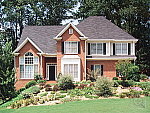
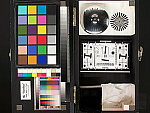
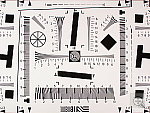
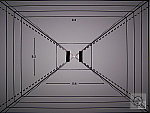
See our test images and detailed analysis here. The thumbnails below show a subset of our test images. Click on a thumbnail to see the full-size photo.





"Gallery" Photos
For those readers interested in a set of less "standardized" photos from the Kodak EasyShare DX7590, we've put together a "photo gallery" of more pictorial shots captured with the DX7590.
Specifications
See the specifications sheet here.
In keeping with my standard test policy, the comments given here summarize only my key findings. For a full commentary on each of the test images, see the EasyShare DX7590 Zoom's "pictures" page.
Not sure which camera to buy? Let your eyes be the ultimate judge! Visit our Comparometer(tm) to compare images from the DX7590 with those from other cameras you may be considering. The proof is in the pictures, so let your own eyes decide which you like best!
As with all Imaging Resource product tests, I encourage you to let your own eyes be the judge of how well the camera performed. Explore the images on the pictures page, to see how DX7590 Zoom's images compare to other cameras you may be considering.
- Color: Pleasing color, with a tendency toward slight
reddish casts. The DX7590 Zoom tended to produce slightly reddish color
casts, under most of my test lighting, although the effect wasn't too extreme,
to the point that most users will probably be unaware of it. The slight
reddish cast is most evident in the form of skin tones that are a little
more pink than in real life. Apart from the slight color cast though, the
DX7590's color was generally accurate and appealing, with the slight oversaturation
that's common among consumer cameras. One of the DX7590's notable characteristics
is that it does very well with household incandescent lighting, a very difficult
light source for many digicams to cope with. The DX7590 left the Indoor
Portrait shots a little warm-toned, but the net result was photos that nicely
evoked the warmth of the original scene, without seeming too yellow or red.
All in all, a nice job.
- Exposure: Generally accurate exposure, but high contrast.
The DX7590 Zoom did a pretty good job with exposure, requiring lower
than average positive exposure compensation on the "Sunlit" and
Indoor portraits. The main issue I had with the 7590's images were that
they tend to be quite contrasty. This makes for bright, snappy-looking photos
with well-lit subjects, but leads to lost highlight detail and/or very dark
shadows when the camera is faced with harsh lighting such as direct sunlight.
- Resolution/Sharpness: Good but not startling resolution
for a 5-megapixel digicam. The DX7590 Zoom performed well on the "laboratory"
resolution test chart. It started showing artifacts in the test patterns
at resolutions as low as 800 lines per picture height, in both horizontal
and vertical directions. I found "strong detail" out to at least
1,150 lines, although some reviewers might argue for 1,200 lines or higher.
(I tend to be more conservative than some in my evaluation of res-target
results, being unwilling to credit cameras for resolution levels at which
artifacts begin to dominate over subject detail.) "Extinction"
of the target patterns didn't occur until about 1,500 lines.
- Image Noise Low image noise, but a fair bit of subtle subject detail traded away to manage it. In common with a lot of consumer digicams these days, the DX7590 shows very low noise levels, but it's obvious from its photos that it is trading away a lot of subtle (and some not-so-subtle) subject detail to achieve this. This effect isn't too noticeable in shots at ISO 80 and 100, but by the time you get to ISO 200, areas of the subjects characterized by subtle contrast are very visibly smudged-looking. (Marti's hair in the Outdoor and Indoor Portrait shots is a good example of this.) The camera works well enough under good lighting at low ISOs, but I really don't consider it usable at ISO 400, and even ISO 200 is a bit of a toss-up.
- Closeups: A small macro area with great detail, though
the flash really isn't usable up close. The DX7590 Zoom performed pretty
well in the macro category, capturing a minimum area of only 2.18 x 1.63
inches (55 x 41 millimeters). Resolution was very high, and a lot of fine
detail was visible in the brooch, coins, and dollar bill. Details were fairly
sharp overall, but softened in the four corners of the frame. (The brooch
and coins are already slightly soft from the shallow depth of field at such
a close shooting range.) Color and exposure both looked good. The DX7590's
flash had a very hard time here though, as it was almost entirely blocked
by the long lens, and underexposed the shot with a very strong shadow in
the lower portion of the frame. (Definitely plan on using external lighting
for macro shots.)
- Night Shots: Good low-light shooting performance,
with fairly low noise and good color. Autofocus works down to very low light
levels. The DX7590 Zoom produced clear, bright, usable images down to
the 1/16 foot-candle (0.67 lux) limit of my test, with good color at the
200, 400, and 800 ISO settings. At ISOs 80 and 100, however, images were
bright only as low as 1/8 foot-candle (1.3 lux). Noise was actually pretty
low at ISOs 80 to 200, though it became more apparent at the 400 and 800
settings, as you might expect. At ISO 800, the camera restricts the image
size to the 1.7 megapixel size, reducing image noise levels by averaging
together the data from adjacent sensor pixels. Overall, I was surprised
by how little the image noise seemed to increase at low light levels relative
to levels I saw under daylight conditions. Apparently, having taken the
hit for reduced subject detail up front, few additional tradeoffs had to
be made at low light levels. Another positive note: The DX7590's autofocus
system works very well at low light levels, producing sharp images at the
lowest light level we test at, for all ISOs above 80.
- Viewfinder Accuracy: A very accurate electronic optical
viewfinder and LCD monitor. The DX7590 Zoom's electronic "optical"
viewfinder (EVF) was very accurate, showing almost exactly 100 percent frame
accuracy at both wide angle and telephoto zoom settings. The LCD monitor
was also very accurate, since it shows the same view, just on a larger screen.
Given that I like LCD monitors to be as close to 100 percent accuracy as
possible, the DX7590 Zoom's viewfinder systems performed very well here.
- Optical Distortion: Lower than average barrel and
pincushion distortion, variable chromatic aberration. Optical distortion
on the DX7590 Zoom was lower than average at the wide-angle end, where I
measured approximately 0.6 percent barrel distortion. The telephoto end
fared even better, as I couldn't find even one full pixel of barrel or pincushion
distortion. (On average, consumer digicams tend to show about 0.8 percent
barrel distortion at wide angle, and from 0.0-0.3 percent pincushion at
telephoto. The DX7590's lens thus did better than average, unusual for a
long-zoom design.) Chromatic aberration was moderate at wide angle and medium
focal lengths, but high at the telephoto end, showing eight or more pixels
of moderate coloration on either side of the target lines. (This distortion
is visible as a slight colored fringe around the objects at the edges of
the field of view on the resolution target.)
- Shutter Lag and Cycle Time Shutter lag is fast in the default AF mode, cycle times are on the slow side. With a full-autofocus shutter delay that ranges from 0.53 to 1.03 second, the DX7590's shutter response spans a range from fast to average. (Most consumer digicams have shutter lag in the range from 0.8-1.0 second, which is still too slow, in my opinion.) BUT, unlike most cameras I test, the DX7590's continuous-autofocus mode (its default setting) is a good bit faster, delivering shutter lag times at the telephoto end of the lens' range of only 0.55 seconds, which is a good bit better than the majority of digicams on the market. Shutter delay is very short (0.086 second), when the camera is "prefocused" by half-pressing and holding down the shutter button before the actual exposure. Cycle times are unimpressive, at 3.6 seconds between shots in large/fine mode, and 2.6 seconds in small/basic. The 7590's buffer memory holds only two shots at either size, so the camera slows pretty dramatically after snapping only two images. Continuous-mode performance is quite a bit better, at 2 frames/second, for up to four frames. All in all, good shutter response, especially for a long-zoom camera, it'd just be nice if it had a larger buffer memory in single-shot mode. (Note that this paragraph has been revised from the initial posting of this review. I initially gave the DX7590 poor marks for its shutter lag at telephoto focal lengths. It turned out that (a) the roughly 2-meter distance I'd shot the telephoto lag tests at was close enough that it resulted in longer AF times, and (b) I was concentrating on normal single-AF mode, when it turned out that the faster continuous-AF mode was in fact the camera's default. In continuous-AF mode, the camera's shutter response is in fact much better than average.)
- Battery Life: Very good battery life. With a worst-case
run time of almost two and three-quarter hours with the rear LCD illuminated
in capture mode, and over four and a half hours of continuous run time in
playback mode, the DX7590's battery life is a fair bit better than average.
I still recommend purchasing a second battery along with the camera, but
more casual shooters may find that the battery supplied with the camera
will pack enough power for their usage.
- Print Quality: Sharp 11x14 prints, acceptable 13x19 ones, high-ISO much less of an issue in 4x6 prints. Viewing images onscreen only tells part of the story of a digital camera's performance. That's why I encourage readers to download our images and print them out on their own printers. Recently, I've begun adding a Print Quality section to some of my reviews, to hopefully save some of you that trouble. As I write this, I'm just in the early stages of doing this, and am going back to a number of cameras of various types and price points that I've reviewed in the recent past, to see how their prints fare against each other. I looked at the Kodak DX7590 and a few other cameras because I'd been somewhat critical of their noise-suppression technology in my initial reviews, but they're models that have enjoyed very high customer satisfaction ratings among people who own them. Looking back at the 7590 and printing a wide variety of its photos on our "reference standard" Canon i9900 studio printer and the Canon Pixma iP5000 in our office, I found that the loss of fine detail that I complained about onscreen is much less apparent even in fairly large prints. Most users would be quite hard pressed to see it in 8x10s, and even 13x19s, while a little soft-looking, would be acceptable for wall display. What really stood out in the 7590's prints was its excellent, vibrant color. - Its photos were just exceptionally bright and colorful (and quite sharp-looking), yet they invariably looked quite natural despite the high saturation. Skin tones were very nice, healthy-looking without appearing overly pink, and the camera's white balance system just nailed the color in shot after shot. (The minor color casts I noticed on-screen were again much less apparent in high-quality inkjet prints.) Likewise, the rather high contrast that caused the camera to lose detail in strong highlights was part and parcel of the exceptionally vibrant prints it produced. Image noise was still somewhat of an issue at ISO 400, but even there, 4x6 prints would almost certainly be acceptable to the majority of consumers. All in all, very nice-looking prints, enough so to move me to award it "Dave's Picks" status.
Conclusion
| Free Photo Lessons |
 |