Sony Cyber-shot DSC-F828Sony extends their high end to encompass 8(!) megapixels and a sharp 7x Zeiss zoom lens. - And Sony's new RGB+E sensor technology for more accurate color!<<Image Storage & Interface :(Previous) | (Next): Test Results & Conclusion>> Page 11:Video, Power, SoftwareReview First Posted: 08/15/2003, Updated: 02/05/04 |
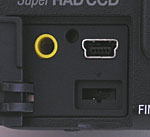 Video
Out
Video
Out
The F828 comes equipped with an Audio / Video cable for connection to a television
set. (Through the Setup menu, users can select NTSC signal format for U.S.
and Japanese systems and PAL for European systems.) Once connected to the
TV, you can review images and movies or record them to videotape.
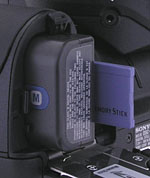 Power
Power
The F828 is powered by an NP-FM50 InfoLITHIUM battery pack (M series) and
comes with an AC adapter which doubles as an in-camera battery charger. InfoLITHIUM
battery packs contain a chip that exchanges information with the camera,
allowing the camera to report approximately how many minutes of battery life
are left at the current drain level. This information is displayed on the
LCD monitor and the electronic viewfinder with a small battery graphic. The
AC adapter plugs into a small socket on the camera's back panel (lower left
corner). It can run the camera without a battery inserted, or charge the
battery when the camera isn't in use.
The Li-Ion battery packs used in Sony cameras prevent me from making my usual
direct power measurements, but the good news is that the InfoLITHIUM system
reports projected camera runtime while the battery is being used in the camera.
Despite the F828's excellent battery life (even better than that of the F717)
and the excellent feedback provided by the InfoLITHIUM system, I still recommend
users purchase and pack along a second battery, though. (Another advantage
of the Li-Ion technology used in the InfoLITHIUM batteries is that they don't
"self-discharge" like conventional NiMH rechargeable cells do,
and so can hold their charge for months on the shelf or in your camera bag.)
| |
|
| Capture Mode, w/LCD | 193 minutes |
| Capture Mode, w/EVF | |
| Image Playback, w/LCD | |
| Image Playback, w/EVF | |
Included Software
The F828 ships with a pair of CDs in the box. The first is the standard Sony
disc that accompanies all their cameras, containing USB drivers for both
Mac and Windows (not needed for Mac OS 8.6 and later, or Windows XP), Image
Transfer, a PC-only automated image download utility, and Pixela ImageMixer
1.5, a basic tool for browsing, creating albums, and making Video CDs containing
slide shows. These applications are very basic, so I won't spend the time
here to describe them. (Frankly, I don't think either is terribly useful.)
Of greater interest is Sony's new Image Data Converter (IDC for short), a Windows-only utility to manipulate the F828's .SRF RAW format files and convert them to either JPEG or TIFF formats after adjustment. IDC seems to be a reasonably capable application in terms of its ability to adjust images, but is so slow that I question how many people will actually use it. The screen shots below give you an idea of what the IDC user interface and controls look like.
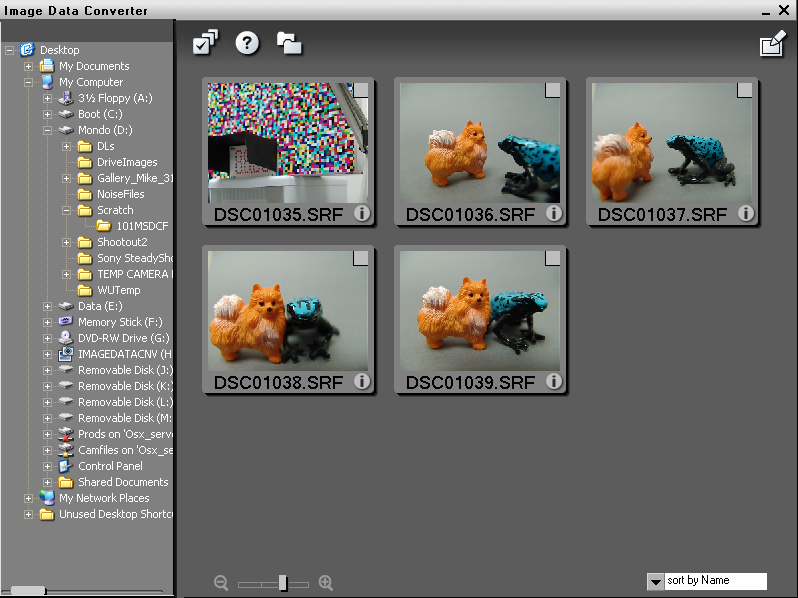
When you launch IDC, you land in a browser screen that shows only .SRF files. You can navigate the usual Windows directory tree in the lefthand pane, and view thumbnails of SRF files in the righthand one. If you want, you can dismiss the lefthand pane to see the thumbnails panel full-screen. I mentioned above that IDC is no speed demon: Even though I think it's just extracting thumbnails embedded in the SRF files, it took over a second apiece to put them up on my 2.4 GHz PIV-equipped Sony VAIO desktop.
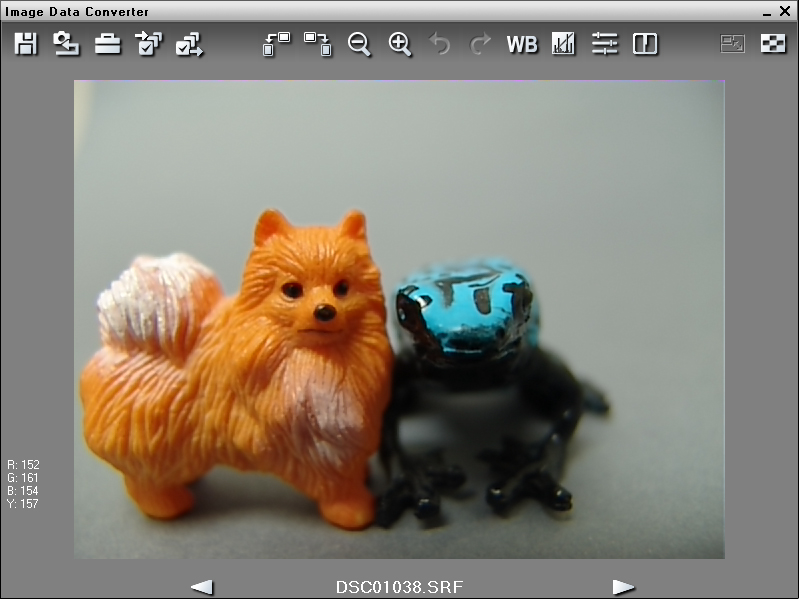
Double-clicking on a thumbnail brings the image up full-screen. Depending on the preview mode you've selected in the setup menu on the previous screen, you'll either see a somewhat fuzzy view, shrunk to fit the viewing window, or a portion of the full-sized image, shown 1:1. Well, eventually you'll see the full-size image. - IDC's preview update can best be described as "glacial". On my 2.4 GHz machine (still pretty fast by current standards), any refreshing of the "normal" (full-sized) image preview took 35.5 seconds. (!) This would be bad enough, but any change of a tool or a setting forced a redraw, taking the full 35.5 seconds each time. - And the image redrew some times when it clearly didn't need to, such as when an adjustment control was being dismissed without any changes having been made, etc.
The one upside to the full-sized image preview is that the computer apparently doesn't have to re-render the image before saving it, so "save as" operations happen almost instantly when you're proceeding from a normal preview. If you had instead been working from the "fast" preview mode, you'll incur the 35-second (depending on your machine's clock speed) delay when you go to save an image.
While I haven't shown the dialog boxes here, IDC does have one minor saving grace, in that it lets you batch-process images from the thumbnail display window, applying a set of saved image-adjustment settings to all images being converted. This could save a lot of human time, but is limited in that you're forced to apply the same adjustments to all images in the batch.
RAW file adjustment controls
Image Data Converter does offer a fairly complete set of adjustment controls, and would be quite useful if only Sony could manage about a 10x speed improvement in the full-sized preview refresh. (Even that could be a little painful, waiting several seconds to see the result of each adjustment.) If you can live with the rather low quality of the preview image in the "fast" mode, it's actually fairly usable.
Here are some screen shots of the control panels for each adjustment available within Image Data Converter:
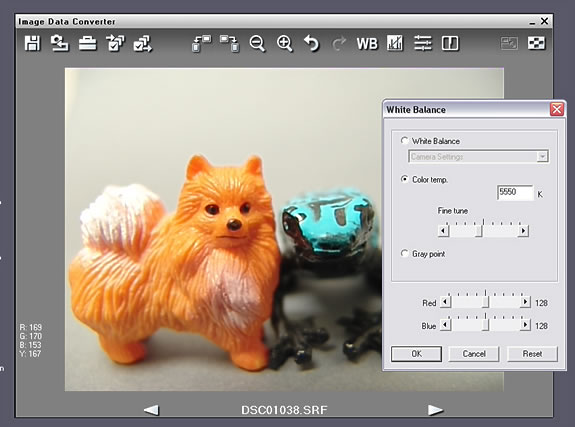
The white balance adjustment control panel lets you select either the original camera white balance setting, one of the various presets available (daylight, incandescent, etc), a color temperature between 3000 and 10000K, or choose a reference gray point on the subject with an eyedropper tool. Alternatively, you can adjust the red or blue channels of the image interactively. All of this worked as expected, with the exception of the color temperature adjustment, which broke sharply to the blue at a setting of 5000K (A setting of 5550K produced a normal-looking picture, while a setting of 5000K resulted in a very blue-looking image.) Apart from this one (fairly serious) bobble though, the white balance controls worked very well.
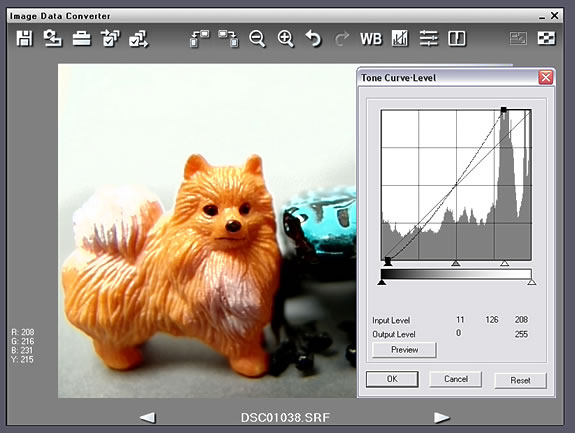
Image Data Converter's tone control offers an interesting and highly usable combination of a basic "levels" (histogram) control and a tone curve on which you can set multiple control points, which serve as handles to drag the curve around. This tool worked very smoothly, but I had a bit of a cognitive disconnect because the highlight nd shadow points can only be controlled by the sliders under the histogram display, even though they look like the handles that result from clicking on the tone curve manually, and which can be adjusted simply by clicking and dragging them.
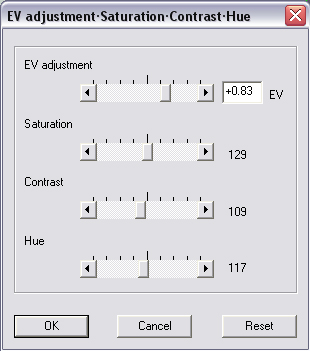
Exposure compensation, color saturation, contrast and overall hue are all controlled from a single panel, shown above. Here again, the controls work pretty much as you'd expect them to. My only comment is that the saturation adjustment is very tweaky -- even very small adjustments have a large impact on the appearance of the image.
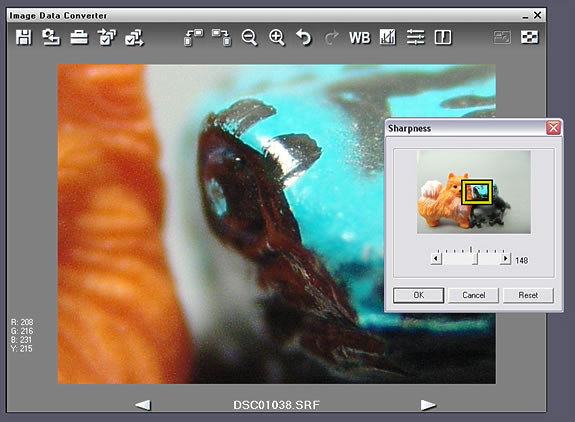
Not much to talk about here: This control panel has only a single slider, which adjusts the amount of algorithmic sharpening applied to the image, in arbitrary units. As an aid to understanding the effects of any setting change you make here, a portion of the image is shown full-screen, even if you don't have the "normal" image preview function enabled. The portion of the image being shown 1:1 can be selected by dragging a small yellow rectangle around a thumbnail of the image.
Overall, Sony's Image Data Converter program is a very good first attempt, with the glaring exception of its glacially-slow image rendering. Its utility is unfortunately severely limited until such time as Sony can dramatically improve its image rendering speed.
In the Box
Included with the DSC-F828 are the following items:
- Neck/shoulder strap
- Lens cap with tether
- "Flower" lens hood
- NP-FM50 InfoLITHIUM battery pack
- AC adapter
- AV Cable
- USB cable
- Software CD
- User Guide and registration information
- NO memory card (You'll want to purchase your own, high-capacity card, if you don't own one already.)


Follow Imaging Resource: