Quick Review
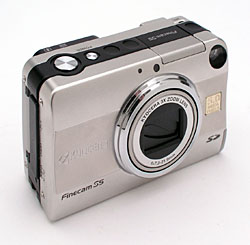
Kyocera Finecam S5 Digital Camera
 |
Camera QuickLook | |
Review
Date |
06/04/03 | |
|
User Level |
|
|
|
Product Uses |
|
|
|
Digicam Design |
|
|
|
Picture Quality |
High, 5.0-megapixel CCD | |
|
Print Sizes |
4x6, 5x7, 8x10, 11x14 inches | |
|
Availability |
|
|
| Suggested Retail
Price |
|
|
Introduction
|
||||||||||
Although the Kyocera name is not a household word for most consumers (it's actually best known for its semiconductor development), both serious amateur and professional photographers will immediately recognize the names Contax, Yashica, and Carl Zeiss. All are camera and optics manufacturers marketed by 45-year-old Kyocera Optics Inc., and all are highly regarded in the field of fine photographic systems and lenses. Although these camera lines are best known in the field of conventional film imaging, Kyocera has made inroads in the digital realm as well, with digicam models reaching as early as 1999, and the ultra-miniature S3 and S4 models found a good many homes with style-conscious consumers.
Kyocera has now expanded their line with the Finecam S5, a five-megapixel update to the previous four-megapixel S4 model (billed as the "world's smallest four-megapixel camera with 3x zoom" by Kyocera). The S5 is likewise quite small, and features the same 3x optical zoom and handful of exposure controls. New exposure options on the S5 include a Night Backdrop (slow-sync) flash mode, expanded ISO options (Auto, 100, 200, and 400), sound recording ability, and Chroma and Sharpness image adjustments, among others. Besides the enhanced controls, my tests show that Kyocera has also significantly improved the image quality in the S5 as well. Read on for the details.
Updating Kyocera's line of tiny digicams is the new Finecam S5, with practically identical dimensions to the previous S4 (touted by Kyocera as the "world's smallest 4.0-megapixel camera with 3x zoom") but a larger, 5.0-megapixel CCD. Although only slightly larger than the S4, the S5 is still quite tiny and pocket-friendly with a low-profile front panel that slips in and out of pockets without snagging. The camera fits easily into one hand, and comes with a wrist strap to keep it securely in-hand. The matte-finish, silver body is metal with black, plastic accents, and is fairly lightweight. Exposure control is mainly automatic, although a handful of manual settings are available, with a fair amount of external controls as well. The S5's five-megapixel CCD delivers high resolution images, which yield 8x10 and 11x14 prints with good detail. Lower resolution settings create images better suited for email distribution to family and friends.
Equipped with a 7.3-21.9mm lens, equivalent to a 35-105mm lens on a 35mm camera, the S5 features true, 3x optical zoom. Maximum aperture ranges from f/2.8 to f/4.8, depending on the zoom setting, and remains under automatic control most of the time. However, through the Manual exposure menu, you can manually set the aperture to f/2.8 or f/9.6, but nowhere in between. Focus ranges from 1.96 feet (60 centimeters) to infinity in normal AF mode, and from 6.69 to 23.6 inches (17 to 60 centimeters) in Macro mode. A manual focus mode option is available, although the S5's distance readout on the LCD monitor makes it a little tough to accurately gauge focus. The image in the LCD monitor doesn't enlarge, so it's tough to know whether or not you have a "tight" lock on focus. Additionally, only a few distance numbers appear on the monitor, making it difficult to judge actual distances between markers. (And there seems to be only 7 separate focus settings available.) Still, I always appreciate the option for manual focus control, especially in low-light shooting situations when a camera's AF system often has trouble. The S5 also offers Wide and Spot AF areas. A Landscape mode sets focus at infinity, for shots of expansive scenery. In addition to the 3x optical zoom, the S5 also features as much as 4x digital zoom. Remember although, that digital zoom often decreases the overall image quality because it simply enlarges the center pixels of the CCD image, and shouldn't be relied on for sharp details and high image quality. For composing shots, the S5 has both a (somewhat tight) real-image optical viewfinder and a (very accurate)1.6-inch TFT, color LCD monitor. The LCD monitor's information display includes basic camera information, such as the shooting mode and image quality setting, as well as the current image capacity of the memory card. A set of focus/exposure bracketsin the center of the display helps line up shots.
The S5 offers automatic exposure control, as well as a handful of manual adjustments. Through the LCD menu, the Manual menu option calls up a sub-menu of exposure options. An AE Mode setting lets you choose between Program mode and two individual aperture settings for aperture-priority metering, as well as a Long Exposure mode that offers two-, four-, and eight-second exposure times. However, in all other cases, shutter speed and aperture remain under automatic control. The S5's full shutter speed range extends from 1/2,000 to eight seconds, although the two-second and longer times are only available in Long Exposure mode. The S5 employs a Multi-Area Evaluation metering system by default, which divides the image area into sections to determine the best overall exposure. Through the LCD menu, Spot and Center-Weighted options are also available. You can adjust the overall exposure from -2 to +2 exposure equivalents (EV) in one-third-step increments, also through the LCD menu. ISO sensitivity options include 100, 200, and 400 equivalent settings to increase low-light shooting performance, with an Auto adjustment as well. White balance options include Auto, Daylight, Tungsten, Cloudy, Fluorescent, and Preset (manual setting). There's also a Color mode for capturing images in black-and-white or sepia tones, and Chroma and Sharpness adjustments. The camera's built-in, pop-up flash automatically releases when the camera is powered on (retracting only when the camera is powered off), and operates in either Auto, Red-Eye Reduction Auto, Fill-In, Flash-Off, Night Backdrop (slow-sync setting), or Red-Eye Reduction Forced modes. The Flash button cycles through each mode, and an icon appears on the LCD display indicating the selection.
The S5 also features a Movie mode, which records as much as 120 seconds of moving images with sound at the 160 x 120-pixel resolution. At 320 x 240 pixels, movies can be a maximum of 30 seconds each. (The actual amount of recording time may also depend on the available memory card space, if your card is nearly full.) The S5's Movie mode also provides an option for recording movies without sound. (When sound recording is disabled, you can adjust the zoom lens during movie recording.) For self-portraits or timed shots, the S5's Self-Timer counts down from either two or 10 seconds after the Shutter button is fully pressed before the shutter fires.
The S5 stores images on SD/MMC-type memory cards, and comes with a 16MB card. I highly recommend picking up a larger memory card, given the S5's 2,560 x 1,920-pixel maximum resolution setting, as SD cards are readily available in capacities as large as 512MB these days (with 1GB capacities announced but not yet shipping). The camera utilizes either a lithium-ion battery pack or the AC adapter for power, both of which come with the camera. The included AC adapter acts as an in-camera battery charger as well. Battery life is on the short side, as is common for compact digicam models. Since the S5 doesn't have any AA-type battery capacity, I strongly advise getting an additional battery pack, and keeping it freshly charged and on-hand. The S5 will automatically shut itself down after a short period of inactivity, which can be set through the Set-up menu to one, three, or six minutes. (You can also turn the Power Save function off.) A USB cable allows quick downloading of captured images to a computer, and USB drivers and Pixela ImageMixer software are included on CD (compatible with Windows and Macintosh operating systems). For connecting to a television set, the S5 comes with a video cable. (The camera offers both NTSC and PAL video modes.) The S5 is DPOF (Digital Print Order Format) compatible, with a handful of print settings available in Playback mode.
Basic Features
- 5.0-megapixel CCD.
- 1.6-inch color LCD monitor.
- Real-image optical viewfinder.
- Glass, 3x 35-105mm lens, with apertures from f/2.8 to f/9.6.
- 4x digital zoom.
- Automatic exposure control, with Long Exposure mode for exposures up to eight seconds.
- Full shutter speed range from 1/2,000 to eight seconds.
- Multi-Area Evaluation, Spot, and Center-Weighted metering modes.
- ISO adjustable to 100, 200, and 400 equivalents.
- Built-in flash with six operating modes.
- Adjustable white balance with six modes, including a manual setting.
- SD-type memory card storage.
- Power supplied by rechargeable lithium-ion battery pack or AC adapter, both included.
Special Features
- Movie with sound recording mode.
- Adjustable Color mode, with black-and-white and sepia settings.
- Two- and 10-second Self-Timer.
- Manual focus option.
- Wide and Spot AF area options.
- Landscape (infinity) and Macro focus modes.
- Chroma and Sharpness adjustments.
- DPOF (Digital Print Order Format) compatibility.
- USB cable for connection to a computer.
- Software CD with interface software and USB drivers.
- Video Out jack for connection to a television set.
Recommendation
Operating mainly under automatic exposure control, the Finecam S5 is a great option for novice consumers who want to let the camera do all the work. That said, two available aperture settings and a Long Exposure mode provide a small amoung of exposure control for those who want to step outside the camera's automatic boundaries. This plus the ability to manually adjust white balance and ISO sensitivity helps the camera accommodate more difficult shooting situations. The 5.0-megapixel CCD captures high-resolution images, meaning you can print your snapshots as large as 8x10 inches with excellent quality, even with a fair bit of cropping of the images. The S5's small, compact design is excellent for travel and inconspicuous shooting. The low-profile camera can easily be slipped into a pocket quickly when on the go. The user interface is fairly uncomplicated, and won't require much downtime to learn. Overall, the S5 is a good choice for a "travel" camera, with good image quaity and simple controls for novice users or more savvy shooters simply looking for a compact, stylish camera.
Tiny and lightweight, the Finecam S5 definitely ranks among the smaller digicams out in the marketplace. Measuring 3.62 x 2.26 x 1.30 inches (92 x 58 x 33 millimeters), the S5 easily fits most standard shirt pockets and small purses. The telescoping lens retracts almost flush with the camera front, keeping the front profile fairly smooth. The camera's wrist strap is great when holding the camera in-hand, but I recommend a small camera bag to protect the camera's attractive silver finish when traveling. The metal body is a matte-silver with black, plastic accents, and is lightweight at just 5.8 ounces (165.5 grams), with the battery and memory card.
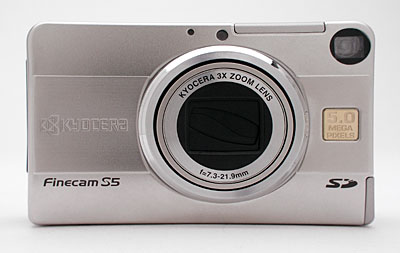
The S5's front panel is reasonably smooth with the lens retracted, leaving just a small protrusion around the outside ring of the lens barrel. A protective shutter automatically opens as the lens telescopes outward when the camera is turned on (thus eliminating the need for a lens cap). Fully extended, the lens protjects about one and a quarter inches from the camera body. The camera's pop-up flash also automatically opens when the camera is powered on, making the flash visible from the front. (The flash closes itself as well, whenever the camera is shut off.) Below and to the right of the flash compartment is the front of the optical viewfinder window. On the opposite side of the flash compartment are the camera's light sensor and the Self-Timer LED lamp.
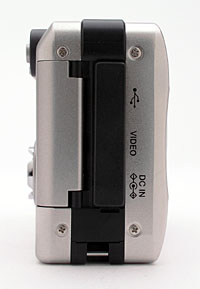
The right side of the S5 (as viewed from the rear) holds the connector compartment, protected by a flexible, rubbery flap that remains tethered to the camera at the top. Beneath the cover are the Digital, Video, and DC In jacks. Directly below the connector compartment is an eyelet for attaching the wrist strap. Also on this side of the camera is the SD memory card slot, which opens from the back panel. The hinged memory compartment door is released by a button on the back panel before swinging open to reveal the card slot.
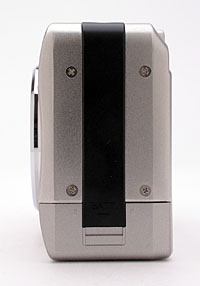
The only feature on the S5's left side is the battery compartment, covered by a locking plastic door. The door slides downward before opening, and snaps back into place securely (the pressure from the door locks the battery into position).
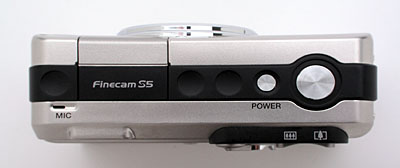
The Shutter and Power buttons share the S5's top panel with the pop-up flash. There's also a tiny microphone just behind and to the left of the flash.
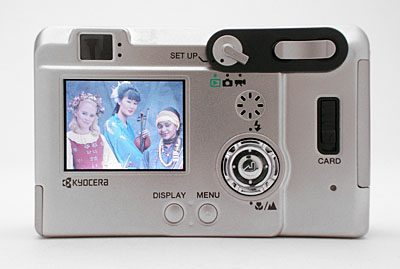
The majority of the S5's controls are on the back panel, along with the LCD monitor and optical viewfinder. A set of LED lamps next to the optical viewfinder eyepiece report camera status, such as when focus and exposure are set, the battery is charging, or the flash is charging. The viewfinder eyepiece is very small, with a somewhat low eyepoint, which might be difficult for some eyeglass wearers to contend with. I could only see the full view with my own glasses mashed against the viewfinder bezel, and would recommend that eyeglass wearers use the LCD monitor for the most accurate framing. In the top right corner of the back panel are the Zoom lever and a Mode switch (which offers Set Up, Playback, Record, and Movie modes). Beneath the Mode dial is a small speaker that plays back camera sounds and recorded audio. A Four-Way Arrow pad just below the speaker controls a variety of functions, with an OK button in the center to confirm camera settings. Also on the back panel are the SD compartment release lever, and Menu and Display buttons.
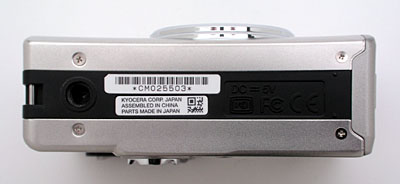
Finally, the S5 has a fairly flat bottom panel, with just the plastic-threaded tripod mount on the far left side. The position of the tripod mount could potentially make for a slightly tilted connection on some tripod heads, although this could easily be accommodated by adjusting the tilt of the tripod head itself.
The S5 operates under automatic exposure control most of the time, but an on-screen LCD menu system offers a handful of exposure options, including a few aperture and shutter speed settings. External controls include flash mode, Macro mode, zoom, and the main camera mode, but the remaining camera settings rely on the LCD menu system. The LCD menu system itself is fairly simple to navigate however, as a set of menu options appear along the bottom edge of the display, and the arrow keys navigate the choices. (You have to press the OK button to actually change and cycle through settings.) The only multi-page menus are under the Manual settings record-mode option and the setup-mode menu, but both are fairly straightforward as well. With the instruction manual in hand, I estimate that it will take most users between a half-hour and an hour to get familiar with the camera.
Record-Mode Display
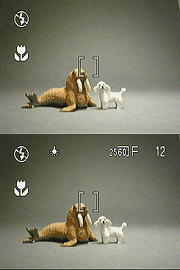 In
record mode, the LCD monitor displays the subject with a small amount of overlaid
information, indicating flash mode, white balance, focus mode (macro, landscape,
or manual), any currently-selected exposure compensation setting, ISO setting,
the current size/quality setting, and number of images that can be stored on
the remaining memory card space at the current size/quality. Pressing the Display
button beneath the LCD once removes the information overlay, pressing it again
turns the LCD off entirely, and pressing it a third time restores the default
display. When you half-press the shutter button, a small dot appears in the
top center of the LCD indicating whether the camera is focused (solid green
dot) or not (blinking green dot). The currently active focus area is shown in
the middle of the display by a pair of brackets. In spot autofocus, they're
fairly closely spaced (as shown in the screenshots above right), while in normal
wide-area focus, they are space a bit further apart. (When the camera is in
manual focus mode, the focus brackets disappear and a tiny focusing scale appears
along the bottom of the display.)
In
record mode, the LCD monitor displays the subject with a small amount of overlaid
information, indicating flash mode, white balance, focus mode (macro, landscape,
or manual), any currently-selected exposure compensation setting, ISO setting,
the current size/quality setting, and number of images that can be stored on
the remaining memory card space at the current size/quality. Pressing the Display
button beneath the LCD once removes the information overlay, pressing it again
turns the LCD off entirely, and pressing it a third time restores the default
display. When you half-press the shutter button, a small dot appears in the
top center of the LCD indicating whether the camera is focused (solid green
dot) or not (blinking green dot). The currently active focus area is shown in
the middle of the display by a pair of brackets. In spot autofocus, they're
fairly closely spaced (as shown in the screenshots above right), while in normal
wide-area focus, they are space a bit further apart. (When the camera is in
manual focus mode, the focus brackets disappear and a tiny focusing scale appears
along the bottom of the display.)
Playback-Mode Display
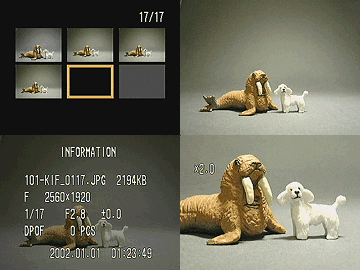 In playback mode, pressing the default image display shows the most recently
captured image, with no information overlay present. Pressing either the up
or down keys of the arrow pad toggles an information overly on or off. Pressing
the left or right arrow keys scrolls to the next or previous image. Pressing
the telephoto side of the zoom lever magnifies the image 2x, after which the
arrow pad keys let you scroll around within the image. Pressing the wide-angle
side of the zoom lever restores the normal-sized display. Unlike most cameras,
the "index" display of six tiny thumbnails is accessed via a menu
option, rather than by way of the wide-angle side of the zoom control. The screenshot
above right shows all the available display options in playback mode.
In playback mode, pressing the default image display shows the most recently
captured image, with no information overlay present. Pressing either the up
or down keys of the arrow pad toggles an information overly on or off. Pressing
the left or right arrow keys scrolls to the next or previous image. Pressing
the telephoto side of the zoom lever magnifies the image 2x, after which the
arrow pad keys let you scroll around within the image. Pressing the wide-angle
side of the zoom lever restores the normal-sized display. Unlike most cameras,
the "index" display of six tiny thumbnails is accessed via a menu
option, rather than by way of the wide-angle side of the zoom control. The screenshot
above right shows all the available display options in playback mode.
External Controls

Shutter Button: This large, silver button on the front panel sets focus
and exposure when halfway pressed, and fires the shutter when fully pressed.

Power Button: On the left side of the Shutter button, this smaller, silver
button turns the camera on or off (triggering the pop-up flash to open and the
lens to telescope forward when the camera is powered on).

Mode Switch: To the right of the optical viewfinder window, this switch
controls the camera's main operating mode:
- Setup: Displays the camera's Setup menu on the LCD, which adjusts basic camera settings.
- Playback: Lets you review captured images and movies on the SD card.
- Still Image Record: Sets up the camera to record still images, with a handful of exposure options available.
- Movie Record: Records moving images with or without sound, with some exposure options available.
Zoom Rocker Button: This rocker button is in the top right corner of the
back panel, and controls the optical and digital zoom while the camera is in
Record mode. (Zoom is disabled when recording sound in Movie mode.)
In Playback mode, this button controls the digital enlargement of captured images, as much as 2x.
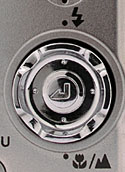
Four-Way Arrow Pad: Located beneath the speaker on the camera's rear panel,
this four-way rocker button features an arrow pointing in each direction, and
the center of the button functions as the "OK" to confirm selections.
In all mode menus, the arrow keys navigate through menu selections.
In Record mode, when manual focus is enabled, the right and left arrows control the focus setting. The up arrow controls the flash mode, cycling through Auto, Red-Eye Reduction Auto, Fill-in, Forced Off, Night Backdrop, and Red-Eye Reduction Forced settings. The down arrow cycles between Macro, Landscape, and normal AF modes.
In Playback mode, the left and right arrows scroll through captured images on the card. When an image has been digitally enlarged, the arrow keys move around within the enlarged view. The up arrow displays and dismisses an information screen about the currently-displayed image.

SD Card Release Lever: All the way on the far right of the back panel, this
sliding lever releases the SD compartment door.

Menu Button: At the bottom of the rear panel, this button displays the settings
menu in both Playback and Record modes. It also dismisses the menu display.

Display Button: To the left of the Menu button, this button controls the
LCD image and information display, in all modes except Set Up.
Camera Modes and Menus
Record Mode: Designated on the Mode switch by a small camera symbol, this mode sets up the camera for capturing still images. Pressing the Menu button pulls up the following settings menu:
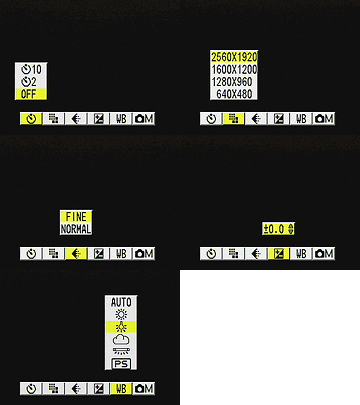 Self-Timer:
Offers two- and 10-second self-timer modes, or returns to the normal capture
mode.
Self-Timer:
Offers two- and 10-second self-timer modes, or returns to the normal capture
mode.
- Pixels: Sets resolution to 2,560 x 1,920; 1,600 x 1,200; 1,280 x 960; or 640 x 480 pixels.
- Quality: Adjusts the image quality to Fine or Normal compression settings.
- Exposure Compensation: Increases or decreases exposure from -2 to +2 EV in one-third-step increments.
- White Balance: Offers Auto, Daylight, Tungsten, Cloudy, Fluorescent,
and Preset (manual) white balance settings.
- Manual Details: Displays the following sub-menu:
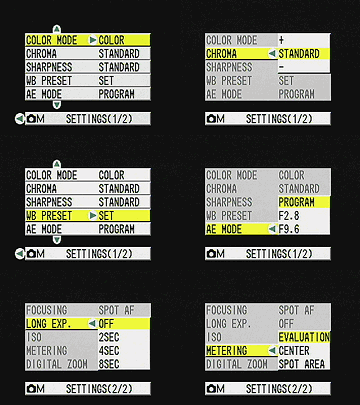 Color
Mode: Records images in Color, Black-and-White, or Sepia tones.
Color
Mode: Records images in Color, Black-and-White, or Sepia tones.
- Chroma: Adjusts chroma to Standard or "+" and "-" settings.
- Sharpness: Controls the amount of in-camera sharpening. Options are Standard, or a range from -1 to +3 settings in full units.
- WB Preset: Adjusts the manual white balance setting, based on a white card held in front of the camera.
- AE Mode: Sets the exposure control to Program, and offers f/2.8 or f/9.6 aperture settings.
- Focusing: Offers Manual, Wide AF, and Spot AF modes.
- Long Exposure: Offers two-, four-, and eight-second shutter times, or deactivates the mode.
- Sensitivity: Sets the camera's ISO sensitivity to Auto, or to 100, 200, or 400 ISO equivalents.
- Metering: Controls the camera's exposure metering mode. Options are Evaluation, Spot, and Center-Weighted.
- Digital Zoom: Activates or deactivates the 2x digital zoom.
Movie Mode: Indicated on the Mode switch with a movie camera symbol, this mode captures moving images with or without sound. The following menu options are available:
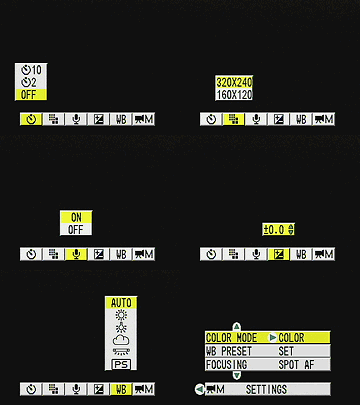 Self-Timer:
Offers two- and 10-second self-timer modes, or returns to the normal capture
mode.
Self-Timer:
Offers two- and 10-second self-timer modes, or returns to the normal capture
mode.
- Pixels: Sets resolution to 320 x 240 or 160 x 120 pixels.
- Sound: Turns audio recording on or off.
- Exposure Compensation: Increases or decreases exposure from -2 to +2 EV in one-third-step increments.
- White Balance: Offers Auto, Daylight, Tungsten, Cloudy, Fluorescent,
and Preset (manual) white balance settings.
- Manual Details: Displays the following sub-menu:
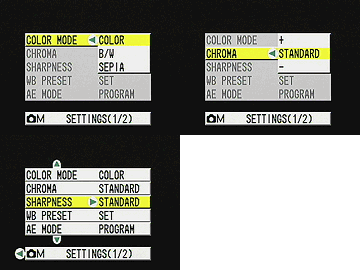 Color
Mode: Records images in Color, Black-and-White, or Sepia tones.
Color
Mode: Records images in Color, Black-and-White, or Sepia tones.
- WB Preset: Adjusts the manual white balance setting, based on a white card held in front of the camera.
- Focusing: Offers Manual, Wide AF, and Spot AF modes.
Playback Mode: This mode lets you review captured images on the memory card, as well as erase them, write-protect them, or set them up for printing on a DPOF device. Menu options in this mode include:
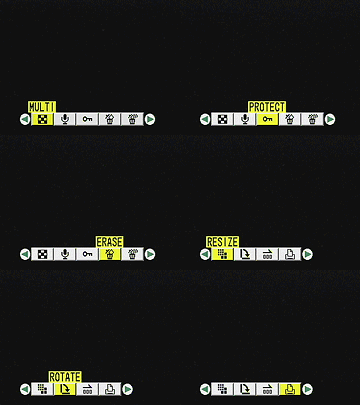 Multi:
Displays the six-image index display of previously-captured images. Also switches
back to Single display mode.
Multi:
Displays the six-image index display of previously-captured images. Also switches
back to Single display mode.
- Sound Recording: Records a short sound clip to accompany the current image (maximum of 30 seconds).
- Protect: Write-protects the currently-displayed image, preventing it from being erased or manipulated (except via card formatting). This option can also remove protection.
- Erase: Deletes the current image from the memory card.
- Erase All: Erases all images from the memory card, except for write-protected images.
- Resize: Displays the Resize menu, with options of Execute Resizing, Resized Image Playback, and Return. Execute Resizing lets you specify the cropped area and then save a new copy at the lower resolution. The playback option confirms the resize, with an option to delete the file. (Oddly, the resized images don't appear in the main playback displays, but can only be seen by navigating to an image that has a resized version available for it, and then calling up a display of the resized images via this menu option again.)
- Rotate: Rotates the displayed image in 90-degree increments clockwise or counter-clockwise.
- Auto Play: Enables an automatic slide show playback of all images on the memory card. You can adjust the interval and starting frame.
- Print: Displays the DPOF settings options, which let you set the
number of prints to be made, designate an index print, or reset all print
settings.
Setup Mode: This mode automatically displays the following camera settings:
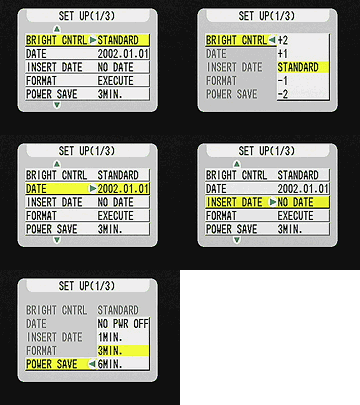 Bright
Control: Adjusts the overall brightness of the LCD display. Options
are Standard, or +/- 2 in full units.
Bright
Control: Adjusts the overall brightness of the LCD display. Options
are Standard, or +/- 2 in full units.
- Date: Sets the camera's internal calendar and clock, as well as the display format.
- Insert Date: Lets you insert a date overlay over captured images.
- Format: Formats the SD memory card, erasing all files, even write-protected ones.
- Power Save: Turns off the Power Save function, or sets the time period
to one, three, or six minutes.
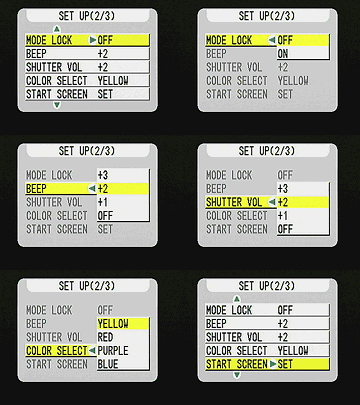 Mode
Lock: Activates the Mode Lock function, which saves the current exposure
settings whenever the camera is powered off, so that they are instantly recalled
when the camera is switched back on.
Mode
Lock: Activates the Mode Lock function, which saves the current exposure
settings whenever the camera is powered off, so that they are instantly recalled
when the camera is switched back on.
- Beep: Turns the camera's beep sounds off, or adjusts the volume to +1, +2, or +3.
- Shutter Volume: Controls the camera's shutter noise, turning it off or adjusting it from +1 to +3 in volume.
- Color Select: Designates the display color of selected menu items. Choices are Purple, Red, Yellow, or Blue.
- Start Screen: Sets the startup screen to a Kyocera logo
image, an image from the SD card, or turns the startup-screen feature off.
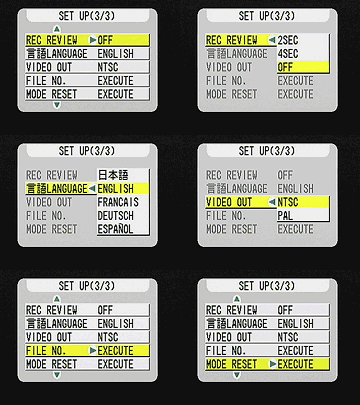 Record
Review: Activates a post-capture review screen for two or four seconds
after each shot is captured, or disables image review.
Record
Review: Activates a post-capture review screen for two or four seconds
after each shot is captured, or disables image review.
- Language: Sets the camera's menu language to Japanese, English, French, German, or Spanish.
- Video Out: Establishes the Video Out signal as NTSC or PAL.
- File Number: Resets the file numbering for new SD cards.
- Mode Reset: Returns all camera settings to their defaults.
In the Box
The S5 arrives with the following items:
- Hand strap.
- AC adapter and cable.
- Lithium-ion battery pack.
- Video cable.
- USB cable.
- 16MB SD memory card.
- Software CD.
- Instruction manual, Quick Start Guide, and registration kit.
- Large capacity SD memory card.
- Additional lithium-ion battery pack.
- Soft case for travel.
Recommended Software: Rescue your images!
Just as important as an extra memory card is a tool to rescue your images when
one of your cards fails at some point in the future. I get a lot of email from
readers who've lost photos due to a corrupted memory card. Memory card corruption
can happen with any card type and any camera manufacturer, nobody's immune.
A surprising number of "lost" images can be recovered with an inexpensive,
easy to use piece of software though. Given the amount of email I've gotten
on the topic, I now include this paragraph in all my digicam reviews. The program
you need is called PhotoRescue, by DataRescue SA. Read our review of it if you'd like, but download the program now,
so you'll have it. It doesn't cost a penny until you need it, and even then
it's only $29, with a money back guarantee. So download PhotoRescue for
Windows or PhotoRescue for
Mac while you're thinking of it. (While you're at it, download the PDF
manual and quickstart
guide as well.) Stash the file in a safe place and it'll be there when you need
it. Trust me, needing this is not a matter of if, but when... PhotoRescue
is about the best and easiest tool for recovering digital photos I've seen.
(Disclosure: IR gets a small commission from sales of the product, but I'd highly
recommend the program even if we didn't.) OK, now back to our regularly
scheduled review...
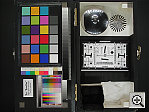
See the full set of my
sample pictures and detailed analysis
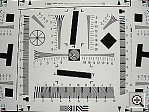
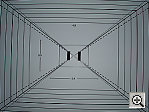
here. The thumbnails below show a subset of my standardized test
images. Click on a thumbnail to see the full-size photo.

|

|

|
| |
|
|
|
|
|
|
| |
|
|
|
|
|
|
| |
|
|

"Gallery" Photos
For those readers interested in a set of less "standardized" photos
from the S5, here are some thumbnails of more random shots snapped with it.
Click on one any of the thumbnails below for a larger view. Click on the larger
view again to see the original image from the camera. (Photos in this gallery
were shot by Gibbs Frazeur or Stephanie Boozer. Thanks Gibbs and Stephanie!)
NOTE: that these are big files, so be aware that (a) they'll take a while to download, and (b) they'll chew up a pretty good chunk of bandwidth on us. (Read the "support this site" blurb at the top the carrier pages, and think about it while you're waiting for the images to download.
NOTE TOO: Some browsers have difficult with very wide images, and distort them a lot when they display them. (I don't know about others, but IE 5.0 on the Mac definitely does this. If the full-sized images appear to be stretched horizontally, you may need to just download them to your hard drive and view them in an imaging application, or possibly try another browser.)
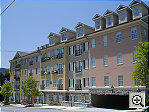
2,229.8 KB Shutter: 1/ 350 Aperture: F6.7 Exposure EV: 13.9 ISO Speed: 200 |
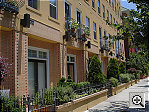
2,016.0 KB Shutter: 1/ 250 Aperture: F6.7 Exposure EV: 13.4 ISO Speed: 200 |
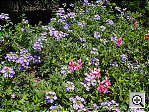
1,918.5 KB Shutter: 1/ 250 Aperture: F6.7 Exposure EV: 13.4 ISO Speed: 200 |
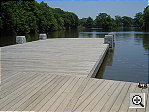
2,165.0 KB Shutter: 1/ 500 Aperture: F6.7 Exposure EV: 14.4 ISO Speed: 200 |
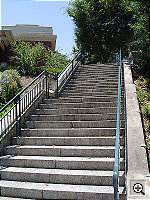
2,019.5 KB Shutter: 1/ 180 Aperture: F6.7 Exposure EV: 12.9 ISO Speed: 200 |
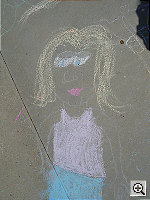
2,354.2 KB Shutter: 1/ 1000 Aperture: F6.7 Exposure EV: 15.4 ISO Speed: 200 |
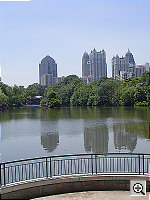
2,324.1 KB Shutter: 1/ 180 Aperture: F6.7 Exposure EV: 12.9 ISO Speed: 200 |

1,963.7 KB Shutter: 1/ 350 Aperture: F6.7 Exposure EV: 13.9 ISO Speed: 200 |

2,280.2 KB Shutter: 1/ 500 Aperture: F6.7 Exposure EV: 14.4 ISO Speed: 200 |
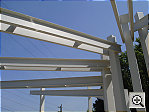
2,008.6 KB Shutter: 1/ 500 Aperture: F6.7 Exposure EV: 14.4 ISO Speed: 200 |
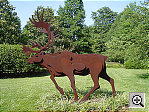
2,217.1 KB Shutter: 1/ 90 Aperture: F6.7 Exposure EV: 11.9 ISO Speed: 200 |

2,181.8 KB Shutter: 1/ 250 Aperture: F6.7 Exposure EV: 13.4 ISO Speed: 200 |

2,074.1 KB Shutter: 1/ 250 Aperture: F6.7 Exposure EV: 13.4 ISO Speed: 200 |
See camera specifications here.
Cycle times, shutter lag, battery life, etc. can be found here.
- Kyocera Finecam S5 user reviews on PriceGrabber.com
- Kyocera Finecam S5 user reviews on PC PhotoREVIEW
Test Results
In keeping with my standard test policy, the comments given here summarize only my key findings. For a full commentary on each of the test images, see the Kyocera Finecam S5's "pictures" page.
As with all Imaging Resource product tests, I encourage you to let your own eyes be the judge of how well the camera performed. Explore the images on the pictures page, to see how the S5's images compare to other cameras you may be considering.
- Color: Color rendition seems to be an area where Kyocera has made significant strides since their previous round of digicam designs. The S5's color is now quite pleasing, with good hue accuracy and appropriate saturation under a variety of light sources. Although it required using the Manual white balance setting, the S5 even handled the very difficult household incandescent lighting of my Indoor Portrait test. All in all, very nice color, kudos to Kyocera fot the improvement.
- Exposure: The S5's exposure system performed fairly well, though it had a tendency to overexpose high-key shots like the Outdoor Portrait just slightly. Shadow detail was typically good, but I found I had to sacrifice highlight detail to get good midtones. On my "Davebox" test, the S5 distinguished the subtle pastel tones on the Q60 target well. On the other hand, the indoor portraits required slightly more exposure compensation than average.
- Resolution/Sharpness: The S5 performed fairly well on the "laboratory" resolution test chart. It started showing artifacts in the test patterns at resolutions as low as 900 lines per picture height, in both horizontal and vertical directions. I found "strong detail" out to at least 1,150 lines. "Extinction" of the target patterns didn't occur until about 1,350 lines.
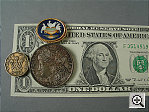
- Closeups: The S5 captured a slightly large macro area, measuring 5.1 x 3.8 inches (128 x 96 millimeters). Resolution was high, however, with good detail in the dollar bill, coins, and brooch. Details were just a hint soft, but still well defined. Corner softness was present, and stronger on the right side of the frame. The camera's flash throttled down a little too well for the macro area, with falloff at the corners of the frame. There was also a small shadow from the camera's lens in the lower right-hand corner. An acceptable performance, but not likely to be your first choice if you do much macro shooting.
- Night Shots: The S5's a Long Exposure mode, which allows
exposure times of 1, 2, 4, and 8 seconds, resulted in good low-light exposure
capability, but the results were marred by high noise levels. The S5 produced
bright, usable images down to the 1/16 foot-candle (0.67 lux) limit of my
test, with good color at the 400 ISO settings. (Though you could arguably
use the ISO 200 shot at this light level, which was just a little dim.) At
ISO 100, shots were bright as low as 1/4 foot-candles, (2.7 lux). The main
limitation of the S5 for low light shooting is that there's no noise-reduction
system at work on long exposures. (This is definitely a camera that would
benefit from Mike Chaney's excellent Qimage
Pro program, with its sophisticated noise-reduction processing.)
- Viewfinder Accuracy: The S5's optical viewfinder is tight, showing only about 83 percent of the final frame area at wide angle, and approximately 87 percent at telephoto. The LCD monitor is much more accurate, showing approximately 97 percent accuracy at wide angle, and close to 100 percent at telephoto. Given that I like LCD monitors to be as close to 100 percent accuracy as possible, the S5's LCD monitor performs well in that respect, but I'd like to see a more accurate optical viewfinder.
- Optical Distortion: Optical distortion on the S5 is high at the wide-angle end, where I measured an approximate 1.0 percent barrel distortion. The telephoto end fared somewhat better, as I measured a 0.5 percent pincushion distortion. Both numbers are higher than average among competing cameras. (Typical numbers are 0.8% barrel and 0.1-0.3% pincushion, still too much barrel distortion IMHO.) As I observed in other tests I shot, there's quite a bit of softness in the corners of the image, particularly along the left-hand edge. The good news is that there's almost no chromatic aberration though, with almost no coloration along the edges of the res target elements. (This distortion is visible as a very slight colored fringe around the objects at the edges of the field of view on the resolution target.)
- Battery Life: The S5 has slightly better than average battery life among the subcompact digicams I've tested, with projected run times of 81 minutes in capture mode with the LCD on, 101 minutes in capture mode with the LCD off, and 187 minutes in playback mode. I still definitely recommend that you purchase a second battery along with the camera though, as 81 minutes in capture mode with the LCD on will fly by faster than you'd expect.
| Free Photo Lessons | |
|



Follow Imaging Resource: