
Scanner Review: Epson Perfection V700

Imaging Resource is reader-supported. When you buy through links on our site, we may earn an affiliate commission. How this works.
From the Imaging Resource archive, first published June 2007. Prices, availability and software versions may have changed since.
FROM 35MM TO PREPRESS
Epson V700 Scanner — Top of the Line

By MIKE PASINI
Editor
The Imaging Resource Digital Photography Newsletter
Review Date: June 2007
We’ve been working with an Epson V700 in the bunker since July of last year, thanks to a quite generous loan from the company. Its distinctive dark gray and silver squared-off design takes up a corner of our large equipment table, connected to our main systems via a USB 2.0 port, the recommended configuration.
Epson sells this scanner in two versions: the $549.99 V700 Photo and the $799.99 V750-M Pro. It’s the same hardware (except the V750 has an anti-reflection optical coating applied to the CCD glass and comes with a fluid mount accessory). The real difference is in the bundled software. Both come with Epson Scan software and Adobe Photoshop Elements, but the V700 includes LaserSoft SilverFast SE6 while the V750 adds Monaco EZ Color and SilverFast Ai 6.
We’ve used the V700 for nearly all our scanning, from simple copier tasks through high resolution film scans for prepress. No matter what we threw at it, it never missed a beat.
With one of the highest scan resolutions available in a desktop model at 6400 dpi and a dual lens design that can digitize a slide at 2400 dpi in a minute, that’s no surprise. Indeed, VueScan author Ed Hamrick cites it as one of the best high-end flatbeds. Let’s take a look at what makes this Epson the state of the art.
FEATURES | Back to Contents
Highlights of the Epson V700 include:
- A scan resolution of 6400 dpi optical resolution, thanks to an exclusive arrangement for that size CCD
- A dual lens system that automatically selects the lens based on the resolution required
- A Dmax of 4.0
- Digital ICE to remove dust and scratches from film and reflective material
- Batch scanning of slides, negatives and medium format film using plastic carriers that slip into place on the scanning bed
Epson Scan software includes a Color Restoration function, but so does SilverFast and VueScan. It also includes a Dust Removal feature in addition to the Digital ICE technology (which takes a bit longer) used in SilverFast. VueScan also has a dust removal function, incidentally, which relies on the scanner’s ability to make an infrared scan of physical defects like Digital ICE.
ABOUT SCANNING | Back to Contents
Those are impressive highlights. If you need some help to appreciate them, take a look at Kim Brady’s Guide to Desktop Scanners (http://www.imaging-resource.com/ARTS/SCANG/SCANG.HTM) from our Sept. 21, 2001 issue. Meanwhile, let’s review how this game is played and the features that matter.

V700. Takes up the usual real estate for a full-sized flatbed.
An inexpensive flatbed may have an optical resolution as low as 1200-dpi (although the trend is upward). If you scan a 35mm film frame at that resolution, your maximum enlargement for a 300-dpi dye sub printer is 4×6. To get an 8×10, you have to be able to scan 2400 dpi. So the low number of the scanner’s optical resolution should be a least 2400 for film, which happens to be the current limit for 8.5-inch wide non-Epson flatbeds. Other manufacturers achieve resolutions greater than that by stacking CCDs at a half-pixel offset. Epson has enjoyed an exclusive arrangement for higher resolution CCDs (which apparently is expiring this year).
To capture as much detail as possible from film, you need a very high Dmax, the maximum density at which shadow detail can be distinguished. Most flatbeds brag about a 3.x Dmax, which is more than enough for reflective material. But dedicated film scanners have as high as 4.2 Dmax.

Jaws. The transparency unit is exposed for illumination on top.
Density range is calculated by subtracting the Dmin, or minimum density at which detail can be distinguished, from the Dmax. Dmax numbers are often inflated by cranking up the exposure so high that highlight detail is burned out (which would be represented by a much higher than normal Dmin). But it’s hard to find a range rating from a scanner manufacturer, even when they underwrite independent tests. A report Epson sponsored by the independent testing organization NSTL noted, “Epson Perfection V700 Photo was tested at both 6400 dpi and 4800 dpi resolutions. This scanner yielded consistent OD (maximum optical density) values for each scan at both the resolutions. The SNR (signal to noise) values for all the scanned images for Epson Perfection V700 Photo scanner were found to be greater than one. NSTL observes from these measurements that the average maximum OD value for this scanner is greater than 4.0.” Nothing there about density range.

Scanner Bed. Both reflective and transmissive material is scanned through the glass platen.
High resolution scans result in large files, so you need a fast connection to transfer that data from the scanner to your computer. With both Hi-Speed USB 2 and FireWire ports, the V700 has that covered.
A flatbed like the V700 can batch scan up to 12 35mm slides or negatives at a time, which beats loading individual slides or small holders of four or less.
Scanning software remains a good bit behind the times, much as if no one has done anything interesting yet in user interface design. The hardware control is there and the options, too, but you just can’t find them, remember them or set them. It remains a black art full of frustrations. Even for us.

Top. A blue light indicates the status of the transparency unit.
One solution to this is to buy and stick with Ed Hamrick’s VueScan (http://www.hamrick.com/vuescan). It works with nearly every scanner ever sold and can squeeze more juice out of scan by accident than most programs can with infinite tweaking and twiddling. VueScan now has the added benefit of being able to save its Raw scans as Adobe DNG files.
Another solution we’ve long recommended is LaserSoft’s SilverFast Ai. Only the V750 comes with Ai, but it’s worth purchasing separately. The latest version creates a high density file from two samples (one exposed for the highlights and another for shadow detail) that is faster and more effective than most multi-pass approaches. It can also automatically calibrate the scanner using a special IT8 target barcoded by LaserSoft.
We don’t use any other software to test scanners.
Much as we like to see the inclusion of IT8 reflective and transparent targets (with the associated data files on CD) with any scanner, it’s a rare thrill. More companies should simply supply IT8 targets with their scanners. If not, you have to buy these tools to actually calibrate your scanner. And that’s not an optional step. Follow your scanning software’s instructions to do it — and do it regularly.
SPECIFICATIONS | Back to Contents
The full specifications for the V700/V750 are:
Scanner Type: Flatbed color image scanner with Epson Dual Lens System and Digital ICE Technologies
Photoelectric Device: Color Epson MatrixCCD line sensor
Optical Resolution: Epson Dual Lens System, 4,800 dpi and 6,400 dpi
Hardware Resolution: 4,800×9,600 dpi, 6,400×9,600 dpi with Micro Step Drive technology
Maximum Resolution: 12,800×12,800 dpi with software interpolation
Effective Pixels: 40,800×56,160 (4,800 dpi), 37,760×62,336 (6,400dpi)
Color Hardware Bit Depth: 48-bits per pixel internal, 48-bits per pixel external (External bit depth is selectable to 48 bits depending on the image editing software.)
Grayscale Hardware Bit Depth: 16-bits per pixel internal, 16-bits per pixel external (External bit depth is selectable to 16 bits depending on the image editing software.)
Optical Density: 4.0 Dmax
Transparency Unit: 8×10 Transparency Adapter built-in lid with four film holders: 35mm slides (12 frames), 35mm film strips (24 frames), medium format strips 2-1/4, 120/220, 6x20cm (2 to 6 frames) and 4×5 film (2 frames); 8×10 film area guide
Buttons: One button: Start
Maximum Read Area: 8.5×11.7
Light Source: White cold cathode fluorescent lamp
Interface: Hi-Speed USB 2.0, IEEE 1394 (FireWire)
Scanning Speed: 4,800 dpi high-speed mode: Monochrome 12.3 msec/line; Full color 12.3 msec/line
Reliability: MCBF of 100,000 cycles
Environment Condition: Temperature: Operating 41 F to 95 F (5 to 35*C), Humidity: Operating 10 percent to 80 percent, storage 10 percent to 85 percent (no condensation)
Power Requirements: Voltage: AC100-120V, Frequency: 50-60hz, Power Consumption: 32W
Windows Requirements: Pentium III equivalent or higher processor with 256-MB RAM (512-MB recommended) and 350-MB HD space (1-GB recommended) plus a CD-ROM drive. USB 1.1 with Windows 98/ME/2000/XP or Hi-Speed USB 2.0 with Windows 2000/XP or IEEE 1394 (FireWire) with Windows ME/2000/XP (Hi-Speed USB 2.0 recommend for optimum performance).
Macintosh Requirements: PowerPC G4 500 MHz or higher with built-in USB, 256-MB RAM (512-MB recommended), 732-MB HD space (1-GB recommended) and a CD-ROM drive. USB 1.1 with Macintosh OS X 10.2.x to 10.4.x or Hi-Speed USB 2.0 with Macintosh OS X 10.2.7 to 10.4.x or IEEE 1394(FireWire) with Macintosh OS X 10.2.x to 10.4.x.
Physical Dimensions: Width: 12, Depth: 20, Height: 6, Weight: 14.5 lb.
Software (V700): LaserSoft Imaging SilverFast SE 6, Adobe Photoshop Elements, ABBYY FineReader Sprint Plus OCR, Epson Copy Utility, Epson Scan with Epson Easy Photo Fix Technology (Epson Scan and LaserSoft Imaging SilverFast SE 6 will run on Windows XP x64 Edition)
Software (V750): LaserSoft Imaging SilverFast Ai 6, Monaco EZ Color, Adobe Photoshop Elements, ABBYY FineReader Sprint Plus OCR, Epson Copy Utility, Epson Scan with Epson Easy Photo Fix Technology (Epson Scan and LaserSoft Imaging SilverFast Ai 6 will run on Windows XP x64 Edition)
Warranty: One year limited warranty in the U.S. and Canada
IN THE BOX | Back to Contents
Included in the box with the Epson V700 are:
- The Epson V700 scanner
- 8×10 transparency unit built into the lid
- Four film holders: 35mm negatives, 35mm slides, medium format and 4×5
- 8x 10 Film Area Guide
- CD-ROM with Epson Scan software and productivity applications
- CD-ROM with Adobe Photoshop Elements
- CD-ROM with LaserSoft Imaging SilverFast SE6
- Hi-Speed USB 2.0 cable
- Epson Setup Sheet
- AC adapter and power cable
Included in the box with the Epson V750 are:
- The Epson V750 scanner
- 8×10 transparency unit built into the lid
- Fluid mount accessory (fluid and supplies not included)
- Four film holders: 35mm negatives, 35mm slides, medium format and 4×5
- 8×10 Film Area Guide
- CD-ROM with Epson Scan software and productivity applications
- CD-ROM with Adobe Photoshop Elements
- CD-ROM with LaserSoft Imaging SilverFast Ai6
- Monaco EZ Color
- Hi-Speed USB 2.0 cable
- Epson Setup Sheet
- AC adapter and power cable
INSTALLATION | Back to Contents
Following a trend we really like, the Epson V700 package includes a large poster titled “Start Here” to guide you through the installation in just half a dozen steps:
- Unpack. All the contents are illustrated clearly, including the spare film height adjusters.
- Unlock. There are two locks on this scanner. One is on the main unit at the back and the other is on the transparency unit, which you have to lift to access the lock.
- Assemble. There are just three minor things to assemble. First, the document mat cover has to be slipped over the transparency unit’s light source. Then the cable between the transparency unit and the main scanner has to be connected. Finally, you connect the AC adapter and power cable to the scanner.
- Install software. Options depend on the model, but the V700 includes Epson Scan with Easy Photo Fix, ABBYY FineReader Sprint Plus OCR software, Epson Copy Utility and the User Guide in HTML on one CD and LaserSoft SilverFast SE on another.
- Connect and turn on. Plug in either a USB cable or FireWire cable and connect it to your computer. Then turn on the scanner using the Power button under the front panel.
- Scan a photo. Either press the large Start button on the front panel or open your preferred scanning application to initiate a scan after loading the platen with an image.

Main Lock. It’s on the back but you can’t miss it. There’s a lock for the transparency unit, too.
And it really is that simple. Just be sure to never move the scanner without first locking both the transparency unit and main unit.
A TOUR OF THE HARDWARE | Back to Contents

Front Panel. Brushed aluminum.
The V700 enjoys an attractive and simple two-tone design. The thick cover is also the transparency unit. A large Start button on the front panel is the only function button. The Power button below the panel turns the scanner on or off.

Two buttons. Start button on top and Power button below.
With the lid open, you can see the document mat covering the transparency light source in the lid itself. At the lower left is the transparency unit lock which you want to secure before moving the unit and release for scanning. On the main unit, the document table or platen contains the carriage.

Ports. FireWire, Transparency Unit, USB 2.0 and Power.
On the rear of the unit is a set of four ports: IEEE 1394/FireWire, the transparency unit interface connector, USB 2.0 and the Power connector. In the right corner is the main unit lock which should be secured before moving the scanner and released for scanning.
Just above the Power button, the scanner light indicates the scanner’s status, flashing red for an error, green when working and steady green when ready to scan. The cover also has a long slit which lights up green when scanning film or slides.
The transparency unit can actually be removed to accommodate large or thick documents. Remember to disconnect its data cable first. It also shifts up a bit to accommodate material that is not quite flat.
UNDER THE HOOD | Back to Contents
There are several interesting technologies at work in the V700/V750 worth highlighting.


Film Holders. The top image shows mounting system for 35mm film strips. Middle shows medium format negative holder. Bottom shows 12-up slide holder pinned (white triangles) to scanner bed.
Epson’s Dual Lens System employs two lenses mounted on a single carriage that switch automatically depending on the resolution required. Reflective art up to 4800 dpi is scanned in the High Resolution Lens Mode and film at 6400 dpi is scanned in the Super Resolution Lens Mode.
In Super Resolution Mode, the larger diameter lens and a higher f-stop optimize the modulation transfer function to capture the highest possible level of detail and sharpness. But Super Resolution Mode is limited to a maximum width of 5.9 inches instead of the full 8.5 width of High Resolution.
The scanners also implement Digital ICE, which scans the original with infrared light to identify physical defects on prints and color film.
The film holders use hard rubber height adjusters to adjust how far off the glass platen they sit, allowing you to slightly alter focus. This can be helpful with curled film where the subject is not sitting in the expected plane of focus. It may also be worth experimenting with to find the optimum height setting for your particular scanner.
USING THE SCANNER | Back to Contents
A big part of the scanning experience — both frustration and thrill — is the software. As we noted, we confine ourselves to using VueScan and LaserSoft Ai, both of which get our recommendation, although we would really like to see better user interfaces.
Batch scanning with these applications has been a bit more trouble than with the manufacturer supplied software (which knows just where the holders put the images). But LaserSoft Ai in version 6.5 can recognize the mounted images automatically. And VueScan does have a batch scan option, although it isn’t automated (you have to crop each image individually).
None of these solutions is perfect. Sometimes annoyingly so, as when you meticulously crop a thumbnail preview only to get a misregistered high resolution scan. But you can learn to work around most of the imperfections.
On the hardware side, scanning with the V700 is simple. You start by turning on the scanner using its Power button.
Even though it has a large Start button, we prefer to control the scan from the software. There are previews and high resolution scans to do that which a simple button can’t control.
The border of the glass platen is clearly marked to align reflective material. And the holder system uses plastic pins on the right side of the document bed to align the holders on the platen. Pin registration, in short. You mount film in various holders, place them on the glass, aligning the holder’s pins to a couple of holes in the bed frame. To scan film using the holders, you simply remove the white document mat from the lid of the scanner so it can backlight the film.
Getting the film into the holder can be a bit of a trial, though. There isn’t much of a margin on the film for the holder to grab. And film tends to have a slight curve, the emulsion a bit tighter than the base. The Epson holders don’t stretch the film flat as much as close tightly down on the film. So a curved emulsion stays curled.
Slides were easier to mount and scan. There’s very little curve to a single frame of 35mm film held captive by a slide mount. Be careful not to scratch the slides as you slide them under the stiff plastic springs. It’s not a great design for slide mounting, but it works.
The medium format holder gave us the most trouble. You have to walk the frame down, pinching in each fastener one side at a time. And still it’s easy to miss a fastener. This one left the most curl in the film, too.
But we did like the 35mm film strip holder. It held the strips flat and securely without much trouble closing the more flexible frame back down on them. And all of the holders have a convenient finger catch to lift the holder off the glass without touching anything.

Height Adjuster. Note the different height of the bumps on the outside legs. That’s the secret. One bump engages the holder at one height. The other, when reversed to latch into the same hole, engages at another height.
Information about the height adjusters is not easily discovered. But they aren’t hard to use. They are simply four or six feet that snap into place on each holder. They each have an embossed arrow on them to indicate which of two options they have been positioned in. If you look at the bottom of a film holder at either end of the slots for the height adjusters, you’ll see two symbols: a plus and a circle. They weren’t left there by aliens.
When installed with the arrow facing the plus, the holder rides 0.14 inch (3.5mm) off the document table. With the arrow facing the circle (as shipped), the holder sits 0.12 inch (3.0mm) from the table. With no height adjusters installed, the gap is 0.1 inch (2.5mm). They are easier to push out than pull out and when you do, you’ll see the small notches on either leg are not the same height. So when you turn them around, the notches click into the holder at a different depth.

Height Adjuster Installed. The holder is upside down (note the pin at top center for registration to the bed) and the installed height adjuster’s embossed arrow points to the plus sign (not the circle behind it). Note also the upside down thumb lift at top right for easy removal of the holder from the bed.
There’s no magic height setting, we found. With two different lenses engaging without your control (except for your decision about resolution), it isn’t easy to know what to do. An autofocusing scanner would be the better solution to this issue, but at least Epson provides something. For what it’s worth (not much at all, frankly), we found the default setting to be sharpest.
The holders also have white squares underneath them for registration of the holders in auto scan mode operation.
You can buy excellent after-market holders from http://www.betterscanning.com where a single frame can adapt to several film sizes. They can also do either dry or wet mounting and have infinitely variable height adjustments, although that’s accomplished using nylon screws in the corners that have to be manually cranked a quarter turn at a time.
Once you get your originals on the scanner, it’s time to perform the actual scan. Both applications were careful to warm up the scanner light source before scanning the first image. After that, scans were really quite quick.
Then, of course, you’re at the mercy of your scanning software.
CASE STUDIES | Back to Contents
In the course of our short marriage to the scanner, we scanned everything from prints to film. But three case studies serve to illustrate why you might want to pay $500 for a scanner.
The Cheap Seats. In our review of the inexpensive HP G3010, we compared that scanner’s scan of a 35mm slide of Yosemite taken in the 1970s with the V700 scan of the same slide. It was no contest. “Our Yosemite scan was soft and lacked detail in the shadows,” we concluded, “as if the scanner had been unable to focus on the slide. We weren’t happy with the color either. For comparison, we scanned the image on the high-end Epson V700 to see what it might have looked like. Compare the detail in the shadows of the trees, the sharpness, the detail in the snow bank. And note the difference in color.”

HP Scan. Enlarging 300%
by default.

Epson Scan. We matched
the HP settings.
We’ll compare for you. The V700’s color is natural, not oversaturated. The highlight detail — the snow bank — was not blown out, even with just a straight scan (no high density range or multi-exposure scanning). There was detail in the shadows of the trees. It was a pleasing scan, inviting you into the scene, rather than a garish one that looked like it was printed with Crayolas.
You wouldn’t see such a dramatic difference in print scans between the two devices, but film really separates the pretenders from the champs. Its film scanning capability is also why — with its demands for resolution, bit depth and things like calibration — the V700 costs more.
The difference is really between a flatbed copier that can perform a film scan trick and a camera that can accurately photograph either film or prints. Buy the camera if your film is important to you.
Medium Format Negatives. An inexpensive scanner like the G3010 doesn’t even try to scan film larger than 35mm. But that’s no problem for the V700. It has a full 8×10 film scanning area with holders to match.
The trouble with larger film is curl. Scanners tend to have a very shallow depth of field (and why not since everything they scan is rather thin?). That’s where the holder plays an important role, not only aligning the film to the scanner (so scanner software can find the image in the frame) but also stretching the film taut to remove the curl.
Unfortunately, there usually isn’t much area to grip the film, and holders consequently don’t do much flattening. Enter wet mounting. Or simply better holders. Sometimes just taping film down to the glass holder will do the job, too.
Our medium format scanning was of black and white view camera negatives which we’d processed ourselves. We were really quite pleased with the results, although we avoided scanning at the highest resolution to keep the file sizes manageable. A 10-MB file size, more or less, provided sufficient resolution to print up to 13×19. To test the highest resolution, we cropped only a very small area of a 35mm slide.

Medium Format. Smells as sweet.
Our negatives were generally low contrast, so single pass scanning was sufficient to hold highlights and see what detail there was in the shadows. What we particularly liked about our image of the roses was the delicate modulation of those low-contrast tones. The image was quite sharp as well.
That image was short with a view camera using a studio setup, not much of a challenge to scan and reproduce well.
But another medium format black and white was a copy of an old photo print. There was a lot wrong with the original, which must have been captured by a Kodak Instamatic in the early 1960s. And the medium format copy managed to capture every problem.
It also introduced a few problems having been processed by hand. The defects scanning software can identify in an infrared scan are not the same sort of thing that can occur in the course of loading, shooting and processing film by hand. In the former case, these are physical defects. In the latter, the defects are images of physical obstructions. And even more so when you copy a print that has scratches or fading.
So automatic software repair isn’t always a solution. You may need to spend some time spotting the image. And that’s really the way we prefer to fix defects because it alone engages one’s intelligence.
We scanned our copy print several times using several different techniques. None of them were outright failures, but the last was a real winner, adding contrast without losing detail. It helps to dodge and burn a bit, too, we confess. But the scanner gets credit for giving us more to work with than we usually get.
Going to Press. We usually confine our scanning experiments to visual analysis of the scanned image file and analysis of large inkjet prints. But we used the V700 to scan a couple of old 35mm dupe slides to accompany an article which was published in a magazine.
We spent 30 years in magazine production, including lithography and platemaking, and have tried very hard to stay away from it since. There never seems to be quite as much expertise as the task demands. Which tends to spoil the fun.

Two Epson Scans. Both images printed well with more detail and better color than our Cibachromes.
One of the great mysteries of print production is exactly how many pixels per inch you need for various line screens. If, for example, the magazine uses 133 line screens (which is fairly typical), 300 pixels an inch is overkill and 125 (which works fine for your FM screening inkjet) is not enough. But what’s enough? It’s a mystery.
But that’s a mystery Brian Lawler (http://www.thelawlers.com/essays.html) has unraveled in his essay on halftone resolution. While setting the ceiling at a 2:1 ratio (so a 133 halftone screen would get no more than a 266 pixel-per-inch file), he notes that people pictures do quite well at less than that (portraits at 200 ppi, say) while highly detailed subjects require the full 2:1.
Once you have that, scanning for press isn’t much different from any other kind of capture. You want highlight and shadow detail and good contrast — to the degree appropriate to the subject.
Our subjects were two portraits of children. The Epson scans were remarkable in recovering both color and detail that were lost on our large Cibachrome prints of these images. And those attributes, we’re glad to say, showed up on the printed page as well.
Sharpness. A few months into our V700 testing, a reader wrote asking about the sharpness of the i900 we reviewed. He’d bought one but was shocked at how soft the images were. He sent us a crop of the IT8 target to show us what he meant and asked if we would compare it to our scanners. Since the i900 comes with a target, we were able to compare not only the i900 we reviewed to his but also the V700.

Sharpness. A crop of the IT8 target.
All three were different, his being the softest and the V700 the sharpest. But even the V700 was soft at the default height setting for the holder. It’s worth pointing out that you should expect to do some sharpening to a scan. It’s always an option (with several degrees) in the scanning software but we prefer to do it after. But you may want to sharpen what the scanner sees just as you might prefer a crisper image from your camera.
The height adjusters muddle the sharpness discussion a bit. Different settings can have a significant effect on sharpness (well, either you have it or you don’t). But we have to say that even as we marvel at the sharpness of our dSLR images, we are always a bit disappointed in what comes out of the scanner, any scanner. The Epson V700 disappointed us the least, however.
CONCLUSION | Back to Contents
Our experience with the Epson Perfection V700 has been a happy one. It’s fast. But it also delivers one of the highest quality captures we’ve seen in a flatbed. Sharp with good color.
Our reservations start with the need for the height adjusters. We just don’t like that approach — or the need for it. We’d much prefer being able to adjust focus, as you can with a film scanner. And even more, we’d prefer an autofocusing scanner.
But the single platen flatbed design itself is an issue that still disturbs us. It seems to disturb Epson, too, since the company offers this scanner with an anti-reflection optical coating applied to the CCD glass in the V750 model. Only Microtek, with its unique dual bed design that scans film with no glass in the way, seems to have a good approach to this issue.
And yet this scanner can undeniably handle the demands of film. As we said a few thousand words ago, it handled everything we threw at it. Which defines state of the art and explains why we’ve had no problem recommending it to anyone who has asked what’s the best scanner to buy.
More in Scanner Reviews
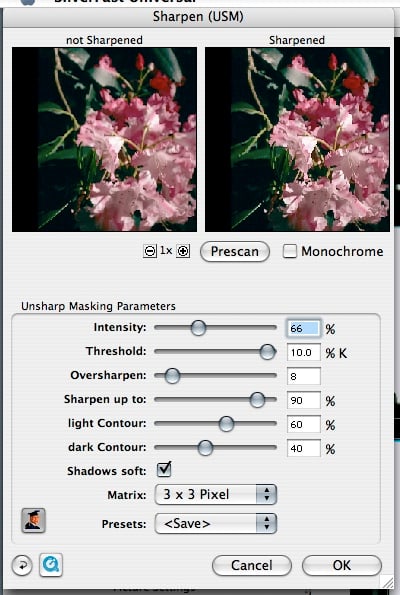 ArchiveScanner Review: Microtek ArtixScan M11 Jan 2008ArchiveScanner Review: Microtek ArtixScan M11 Dec 2007
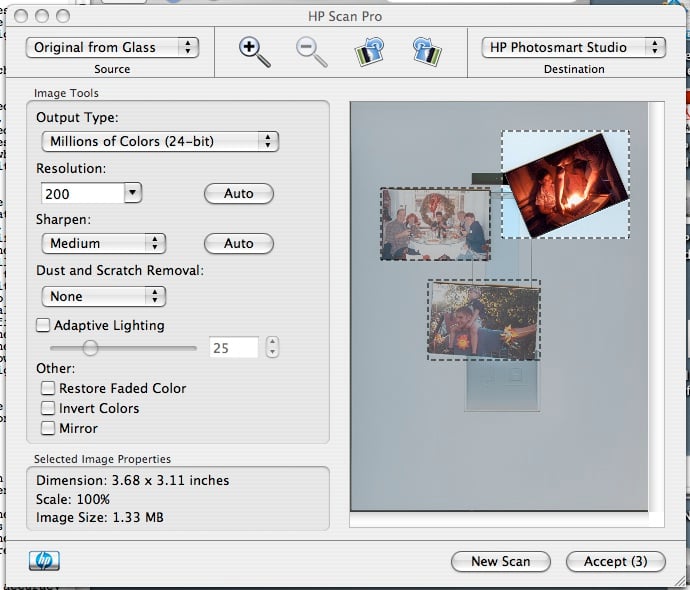 ArchiveScanner Review: HP Scanjet G30101 Feb 2007
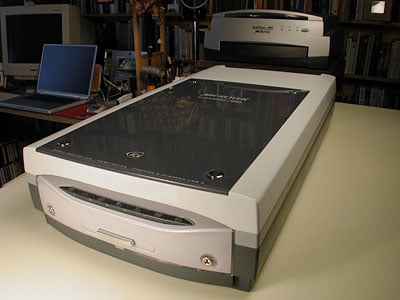 ArchiveScanner Review: Microtek ScanMaker i8001 Feb 2006
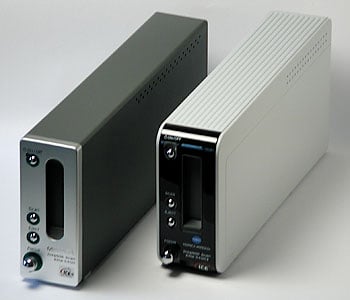 ArchiveScanner Review: Konica Minolta DiMAGE Scan Elite 5400 II1 May 2005