


Overview
Canon PowerShot A640 Overview
by Mike Pasini
Hands-On Preview: 11/15/06
Full Review: 12/21/06
The Canon PowerShot A640 couples a 10 megapixel CCD imager sensor with a 4x optical zoom lens that offers a 35mm-equivalent focal range of 35 to 140mm. That's a moderate wide-angle that reaches to a somewhat more generous telephoto than you'll find on most compact cameras. Maximum apertures vary from f/2.8 to f/4.1 across the zoom range. The A640's sensor yields an ISO range of 80 to 800, with shutter speeds of 1/2,500 to 15 seconds.
Designed with ease of use in mind, the Canon A640 offers both a range of features that make it approachable to beginners, as well as the ability to exert more control over the photographic process. For the former category of users, there's a fully automatic mode, and a generous selection of 13 Scene modes. For the latter, you'll find Manual, and Aperture/Shutter Priority exposures possible, plus preset, or manual White Balance, and three Metering modes. A VGA-or-below Movie mode captures videos at a maximum of 30 frames per second, for up to one hour (or one gigabyte) per clip.
A USB connection allows easy offload of images from the SD, or MMC card to a Mac, or PC -- and unlike some manufacturers who are still clinging to the older USB 1.1/2.0 Full Speed standard, Canon has adopted a much swifter USB 2.0 High Speed interface in the Canon A640. For users without a computer (or those who like to make quick prints without the hassle of touching their PC), you can bypass the extra step completely, and print directly from the PowerShot A640 to a Canon, or other PictBridge-enabled printer via the same USB connection.
Though the Canon A640 has a relatively large 2.5 inch LCD, Canon retained a real image optical viewfinder in the A640's design. Not only can optical viewfinders save battery life if you turn off the LCD display, but they're also useful when ambient light makes it tough to see many LCDs properly. Power comes from four AA batteries, and Canon includes single-use alkaline disposables in the product bundle. Also included with the Canon A640 is a 32MB MultiMediaCard -- perhaps slightly larger than average, but still not sufficient for more than a handful of photos at the highest resolution and lowest compression. If you don't already have some, you'll want to purchase some rechargeable batteries and a larger flash card along with the camera.
Canon PowerShot A640 User Report
The Canon lineup is so rich with options it's often hard to tell one model from another. If you want a camera powered by AA batteries, Canon's A-Series is the one for you. The A-Series digicams all use batteries you can find anywhere, and give you a decent grip, too. Yes, they're a bit bigger than the Digital ELPHs, but their heft makes them more stable for handheld shots, and they have more exposure options.

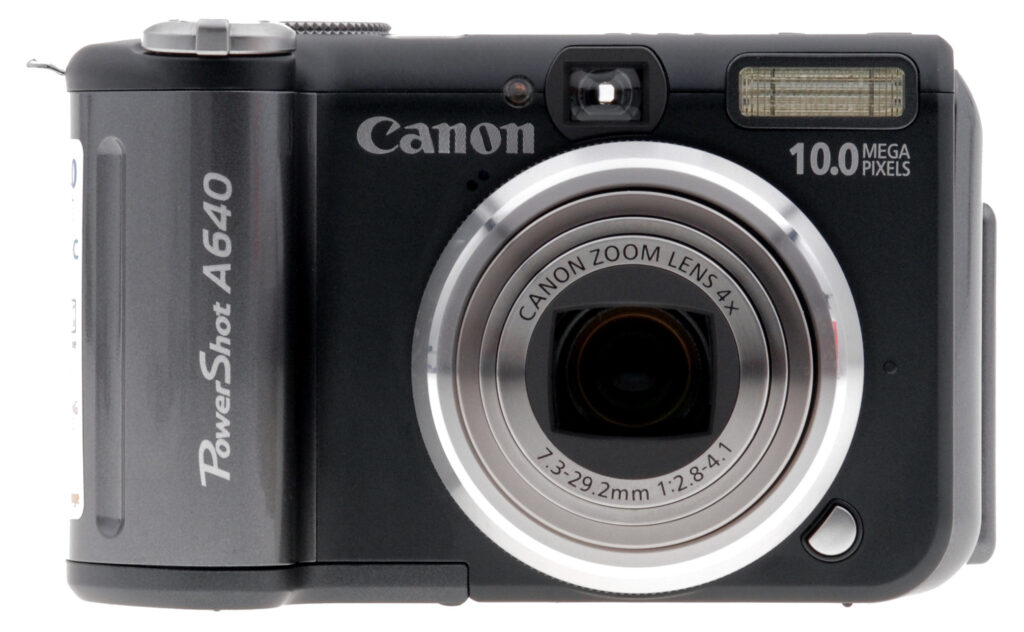
Front. The lens is fully extended. I call that a black body, but you may discern a very dark gray.
But even within the A-Series, you have options. The Canon A640 might, for example, be easily confused with the A630, except it has a 10 megapixel sensor, a black body, support for remote capture, and costs $100 more. But it shares the same lens, controls and body design, including a variable LCD you can swivel for a more comfortable view of your subject.

Back. The control layout is simple (not too many buttons) and easily managed with just your thumb. Luke was particularly happy to see that the Mode switch toggles between Playback and Record only, with Video moved to the Mode dial. In this shot, I flipped the LCD around so it looks like any other digicam.
Design. A large 2.5-inch LCD is always welcome, but the Canon A640's is what Canon calls a Variable LCD (an articulated one, that is, that swings out and rotates up or down so you can compose a shot with the camera over your head or below your belt). Canon has also included an optical viewfinder, which despite its approximate rendering of the scene is indispensable when the glare of the sun makes it impossible to see what's on the Canon A640's LCD. Although here again, having an LCD you can move independently of the lens means you can often eliminate that glare.

Battery/Card Compartment. The hinge is right next to the plastic tripod mount, but it's very easy to access either the card or batteries.
As with other A-Series Canons, the A640 has a grip you can get your hands on thanks to the four AA batteries it uses for power. Although it's substantial, the grip isn't too fat to keep the A640 out of your pocket, although I tended to prefer to simply swing it from my wrist so it was ready for action.
The Canon A640 doesn't cheat on exposure options either. There's green Auto for those times when you have other things on your mind. And Program when you want to have at least EV control over exposure. But there are also Shutter and Aperture Priority modes. And -- drum roll -- a full Manual mode as well. Add a Custom mode to save a special configuration and there's really little you can't do with this digicam.
On the other end of the Canon A640's Mode dial, you have Movie, Panorama and Special Scene modes. There're also the primary Scene modes Portrait, Landscape, and Night Scene.

Top. An unobstructed view of the top panel, showing all the controls on the right, where the wrist strap attaches.
The controls and menu system have, by now, evolved into a package that's really comfortable to use once you learn how to play the game. In Auto, you don't worry about the buttons at all. In Program, just hit the EV button and change the exposure with the Left or Right arrow keys. Shutter and Aperture Priority modes use those arrow keys to adjust their values, too. The Canon A640's Manual mode uses the EV button to toggle between aperture and shutter speed, both adjusted with those same arrow keys.
In short, the Canon A640 is a well-designed machine.

Grip. My actual shooting grip with the LCD articulated so it can be swiveled up or down. Very comfortable with the Mode dial easy to check.
Once you've used an articulated LCD, you'll never want to be without one.

LCD. I'm holding the camera well below eye level to focus on the book spines, but I can easily see them because the LCD swivels.
Often you just want to shoot from a lower or higher angle than eye level. After all, everyone knows what things look like from eye level. But drop the Canon A640 down to floor level, angling the LCD up so you don't have to lie flat on the floor, and you'll get some marvelous shots of children at play in the low-rise world they inhabit. And when you're straining your neck to look over the crowd in front of you, just raise your arm with the LCD angled down to get an unobstructed shot from above.
One of my favorite photo tricks is to shoot at angles other than eye level. An articulated LCD makes this easy to remember and fun to do.
Luke, who shot the lab test shots with the Canon A640, didn't like the optical viewfinder. But kudos to Canon for including one. The sun can be just too bright to see the LCD when you've got the camera pointed in the right direction. Even an inaccurate optical viewfinder will give you some idea where your subject is floating in the frame.
Performance. I'm sensitive to slow startups and reluctant shutdowns. They actually change my behavior. If they're really slow, I leave the camera behind. If they're annoyingly slow, I leave the power on and hope the thing wakes up from sleep fast. But I prefer to manage my battery life by shutting down when I won't be taking a shot for a while and turning the camera on just before I want to shoot.
The Canon A640 is, I'm happy to say, responsive enough that I can do that. I never seemed to miss a shot waiting for it to start up and I certainly never hesitated to shut it down for fear starting it up again would take too long.
Shutter lag is increasingly a thing of the past, and the Canon A640 is responsive here, too. I didn't happen to shoot any action shots with it, but from the time I decided to press the Shutter button and the actual trip of the shutter were not far from simultaneous.
And, as Luke observed, the cycle times are really pretty good. The Canon A640 clears the buffer after every shot in every mode.
Shooting. I took the Canon A640 on a bike ride up Twin Peaks with the A630 to shoot my usual cityscapes. It was an usually clear Fall day, so the A640 took some fabulous shots, among the best I've gotten there. If you want to know the difference in resolution between the 10 megapixel A640 and 8 megapixel A630, just study these shots.
One of the things I like to try up there is digital zoom. Canon's digital zoom isn't bad at all, a far cry from the old resamplings that led Dave to warn against ever using the thing. It may not be quite as satisfying as a few other companies manage (you can tell a digital zoom shot from a telephoto one), but don't feel like you have to avoid it.
Maybe it was the clarity of the air, but my shots of very distant objects came out much better than I'm used to. The Bay Bridge and the Golden Gate Bridge are usually disappointing. They're flat here (nothing Auto Levels can't fix in a mouse click) but they fill the frame with detail.


Zoom. Four times optical, plus 4x digital.
You see this particularly in the three-shot sequence that starts at wide angle and includes the rock wall right in front of me. There just happens to be an accommodating post right there that lets me steady the camera without hauling a tripod up the hill. From that same position, the next shot shows the full telephoto crop. And the last in the sequence shows full digital zoom. That's really quite a range at 16x (4x optical with 4x digital) and, as the bridge shots show (see the gallery), on a sunny day you don't need image stabilization to enjoy it.
I took the Canon A640 to a friend's home for a party and got some interesting shots. Unfortunately, none of my friends would sign model releases, so I can only show you the shot with everyone facing away from the camera <g>. But I took it two ways and you can learn something from each of them.


Two Approaches. The powerful flash lit up this room, while the 1/10 sec. natural light shot wasn't too blurry.
The first shot of the kids interacting with the TV's videocam was taken with the Canon A640's flash. And it pretty nicely lights up the room -- from the next room. Not many digicams have that kind of range. The far wall is evenly lit and the pictures on the mantel are all clear.
But I'm not a fan of flash (the Canon A640 took about five seconds to recharge; too long for real life, if not very long for such a powerful flash). So I shot the scene again using natural light.
The first surprise was that the shot was well exposed under the ceiling cans. The custom white balance I used yielded a very warm scene, not the rendering Canon's auto white balance would have delivered. But the ISO 100 setting at 1/10 sec. was surprisingly usuable. Sure, there's some blur from both the kids' movement and a little camera shake. But considering there's no image stablization, it's remarkable what the Canon A640 was able to do. Shooting wide angle, no doubt made the difference.


Two Tough Shots. EV compensation was required for the top one, but Auto did fine for the bottom.
I noticed a crystal door knob in the sunlight, where it had acquired a purple cast from exposure to the sun over some 50 years, unlike its mate on the inside of the door. I used the Canon A640's Program mode so I could adjust the EV to capture the purple of the sunlit knob, and that worked very well, dipping down as much as two stops to get what I wanted.
I missed having a live histogram for a shot like that, but the histogram available during playback was good enough to tell me where I was. After all, that knob wasn't going anywhere; not after 50 years.
But a more standard shot, like the back of a Photoflex Starflash strobe we're testing, showed another impressive aspect of the Canon A640. It's a pretty high-contrast shot taken at wide angle with a shutter speed of 1/103 sec. (so you know it was Auto mode). But there's detail in the shadows and the highlights aren't blown out. The dynamic range this camera captures is excellent.
In fact, we weren't disappointed at all by our Canon A640 shots. The color was natural, the dynamic range didn't lose detail, and the camera seemed to get shots in situations that were not very promising.
Basic Features
- 10.0 megapixel CCD delivering image resolutions as large as 3,648 x 2,736 pixels
- 2.5-inch color LCD monitor
- Optical viewfinder
- Glass, 4x, 7.3-29.2mm lens (equivalent to 35-140mm zoom on a 35mm camera)
- 4x digital zoom
- Auto-focus and manual focus modes
- Auto-focus assist light
- Full Automatic, Program auto-exposure, Shutter Priority, Aperture Priority, and full Manual exposure modes, as well as three Scene modes, several Special Scene modes, and Movie mode
- Manually adjustable aperture setting ranging from f/2.8 to f/8.0, depending on lens zoom position and shutter speed
- Shutter speed range from 1/2,500 to 15 seconds, depending on aperture
- Built-in flash
- SD Card memory storage
- Power supplied by four AA batteries or optional AC adapter
Special Features
- Audio notes with still images
- Stitch-Assist mode for panoramic shots
- My Color mode for color adjustment
- Color swap mode
- Custom Setting mode for saving frequently used settings
- Remote capture
In the Box
The A640 ships with the following items in the box:
- PowerShot A640 digicam
- Wrist Strap WS-200
- USB Cable IFC-400PCU
- 32MB Memory Card
- AV Cable AVC-DC300
- Four AA alkaline batteries
- Canon Digital Camera Solution Disk
- Manuals
Recommended Accessories
- Large capacity SD/MMC memory card. These days, 512MB to 1GB is a good tradeoff between cost and capacity.
- Small camera case for outdoor and in-bag protection
- Waterproof case WP-DC8
- Conversion lens adapter LA-DC58F
- Wide Converter WC-DC58N
- Tele Converter TC-DC58N
- High power external flash HF-DC1
Conclusion
| Pro: | Con: |
|---|---|
|
|
Canon PowerShots have always been big favorites of our readers, valued for their user-friendly design, excellent photo characteristics, and good build quality. The Canon PowerShot A640 follows suit, sporting an impressive 10 megapixel CCD and a very good quality 4x optical zoom lens. The Canon A640 offers everything from full automatic to full manual exposure control, with a healthy set of Scene modes thrown in to make it easy to bring back great-looking photos from what might otherwise be challenging situations. The Canon A640's articulating LCD is now bigger and still just as useful as past iterations, and its reliance on AA batteries is a critical factor for many who want to have a ready supply of compatible batteries no matter where they travel. Thanks to the Canon A640's high-speed DIGIC-II processing chip, it is also very responsive, and its movie capability is impressive as well. Its the Canon A640's image quality that makes the sale, however, with its lens delivering superb sharpness across the frame. The A640 is arguably the first 10 megapixel digicam to meet the potential that the impressive size implies; and high ISO shots are also very good across the range of options. Bottom line, the Canon A640 is destined to become a classic. The Canon A640 is just an excellent all-around digital camera, an easy choice as a Dave's Pick, and we'll go further and give it our heartiest recommendation as a great all-around performer for almost anyone.
Design
Canon A640 Design
A bit larger than palm size, the Canon A640 has an attractive plastic black shell with chrome highlights. It doesn't pretend to be jewelry. It's a camera and proud to be one. The grip and lens predominate from the front and the LCD and controls dominate the back. Simple as that. At 11.89 ounces (337 grams) it is neither heavy nor light, and its measurements of 4.31 x 2.60 x 1.93 inches (109 x 66 x 49 millimeters) are large; but it should fit into larger coat pockets and purses. The good news is that you won't induce camera shake merely by pressing the Shutter button, as you do with featherweight digicams. But you won't need a massage after carrying it around all afternoon, either. It's a well-balanced design.

The front panel is composed of the grip on the left and the telescoping lens to the right of it. At the bottom right of the lens is a small Ring Release button that allows you to replace the plastic ring around the lens with a lens adapter that can mount a conversion lens on the Canon A640 body. At the top left of the lens is a grill of two small holes for the microphone. Almost directly above the lens is the Viewfinder Window, to the left of which is the AF-assist/Red-Eye Reduction/Self-Timer lamp. In the top right corner is the Flash.

The right side of the A640 has a small chrome eyelet for the wrist strap at the top. Under that is the flexible rubber cover to the USB, DC In, and AV Out ports.

The left side of the Canon A640 has no functional parts except for the LCD hinge.

The Canon A640's top panel has the Shutter button surrounded by the Zoom lever on the top of the protruding handgrip. Behind those to the right is the speaker grill. Just left and rear of that is the Mode dial with 12 shooting positions divided into three basic categories: Auto Exposure, Image Zone, and Creative Zone. The elongated Power button is just left and forward of that.

 The Canon A640's rear panel is dominated by the 2.5-inch LCD housing that flips away from the back. Once opened all the way, the LCD monitor can swivel around to face the front of the camera, or point toward the bottom panel. What's nice about this design is that you can turn the LCD monitor in toward the camera back and close it, thereby protecting it from scratches and smudges when not in use. The eye-level optical viewfinder features two LED lamps that report camera status. To the right of the LCD are the main controls. At the top, just left of the thumb grip, is the Mode switch (with Record or Playback options). Below that are the Exposure Compensation/Erase and Print/Share buttons. The larger control just below these is the navigator ring, which rocks up and down, left and right. The up button cycles through the Flash modes in Record mode or displays the Jump menu in Playback mode. The down button cycles through the focusing modes of Macro, Manual, or Auto. The left and right buttons adjust parameters depending on the shooting mode. In the middle of the navigator is the Func./Set button that confirm menu choices and calls up the Function menu in Record mode. Below the controller are the Display and Menu buttons.

The bottom panel of the Canon A640 is flat with small feet to stabilize it when you set it down. The plastic tripod mount is in the center of the camera adjacent to the hinge of the battery/memory card compartment. A slide switch releases the catch on the cover to reveal the four AA batteries and memory card slot.
Canon A640 External Controls

Shutter Button: Positioned far forward on the Canon A640's top panel, this button sets focus and exposure when halfway pressed, and fires the shutter when fully pressed.
Zoom Lever (see image above): Surrounding the Shutter button on the top panel, this lever controls the optical and digital zoom while in Record mode. In Playback mode, the wide setting displays a nine-image index display of all images on the memory card, and accesses a Jump function that lets you scroll through index display screens quickly. Alternatively, the telephoto position enlarges the currently displayed image as much as 10x, so that you can check on fine details.

Mode Dial: Also on the Canon A640's top panel, this large, notched dial is used to select the camera's shooting modes. Canon divides these functions into three categories: Auto, Image Zone, and Creative Zone. The options are as follows:
 Auto: The camera controls everything about the exposure, except for Flash and Macro modes, image size, and quality settings. Shutter speeds range from 1/2,000 to 1/8 second in Auto mode.
 Program AE (P): Places the camera in control of
shutter speed and lens aperture, while you maintain control over everything
else (i.e., white balance, ISO, metering, exposure compensation, flash, etc.).
Shutter speeds range from 1/2,500 to one second.
Program AE (P): Places the camera in control of
shutter speed and lens aperture, while you maintain control over everything
else (i.e., white balance, ISO, metering, exposure compensation, flash, etc.).
Shutter speeds range from 1/2,500 to one second. Shutter-Speed Priority AE (Tv): Allows you to control
the shutter speed settings from 1/2,500 to 15 seconds, while the camera controls
the aperture. All other exposure settings are available.
Shutter-Speed Priority AE (Tv): Allows you to control
the shutter speed settings from 1/2,500 to 15 seconds, while the camera controls
the aperture. All other exposure settings are available.- Aperture Priority AE (Av): Allows you to set the lens aperture from f/2.8 to f/8.0, while the camera controls the shutter speed, over a range from 1/2,500 to 15 seconds. The maximum aperture depends on the zoom setting, ranging from f/2.8 at the wide angle end to f/4.1 at the telephoto position. In this mode, you maintain control over all other exposure variables.
 Manual (M): Provides complete control over all exposure settings, including shutter speed and lens aperture. As with aperture-priority mode, the maximum aperture varies with the zoom setting from f/2.8 at wide angle to f/4.1 at telephoto. The fastest shutter speed varies with the aperture and zoom setting:
- 1/1,250 at f/2.8-3.2 (wide) or f/4.1-4.5 (tele)
- 1/1,600 at f/3.5-4.0 (wide) or f/5.0-6.3 (tele)
- 1/2,000 at f/4.5 (wide)
- 1/2,500 at f/5.0-8.0 (wide) or f/7.1-8.0 (tele)
- Custom (C): This position recalls exposure settings previously-saved via the Menu system.
 Portrait: Uses a large aperture setting to blur the background while
keeping the primary subject in sharp focus.
Portrait: Uses a large aperture setting to blur the background while
keeping the primary subject in sharp focus.
 Landscape: Employs a small aperture setting to keep both the background,
and foreground in focus. (May use a slower shutter speed, so a tripod is recommended.)
Landscape: Employs a small aperture setting to keep both the background,
and foreground in focus. (May use a slower shutter speed, so a tripod is recommended.) Night Scene: Uses slower shutter speeds, and flash to even out nighttime
exposures. The slow shutter speed allows more ambient light to be recorded
in the low-light areas, while the flash freezes the subject. The Red-Eye Reduction
mode can be used with this exposure mode to eliminate Red-Eye in night portraits.
Night Scene: Uses slower shutter speeds, and flash to even out nighttime
exposures. The slow shutter speed allows more ambient light to be recorded
in the low-light areas, while the flash freezes the subject. The Red-Eye Reduction
mode can be used with this exposure mode to eliminate Red-Eye in night portraits. Scene: Accesses more specific preset shooting modes, including Night
Snapshot, Kids & Pets, Indoor, Foliage, Snow, Beach, Fireworks, Underwater,
Color Accent, and Color Swap. (Color accent lets you dim, or brighten a specific
color in the scene, while color swap lets you pick a color in the scene, and
another color you want to swap it with in your photos. The results can be
pretty bizarre, but could be a lot of fun if you're creatively-minded.)
Scene: Accesses more specific preset shooting modes, including Night
Snapshot, Kids & Pets, Indoor, Foliage, Snow, Beach, Fireworks, Underwater,
Color Accent, and Color Swap. (Color accent lets you dim, or brighten a specific
color in the scene, while color swap lets you pick a color in the scene, and
another color you want to swap it with in your photos. The results can be
pretty bizarre, but could be a lot of fun if you're creatively-minded.) Stitch-Assist: Allows you to record a series of images, either horizontally,
vertically, to be "stitched" together into one large image, or panorama on
a computer.
Stitch-Assist: Allows you to record a series of images, either horizontally,
vertically, to be "stitched" together into one large image, or panorama on
a computer. Movie: Records up to 640x480-pixel 30-fps moving images with sound
while space remains on the storage card.
Movie: Records up to 640x480-pixel 30-fps moving images with sound
while space remains on the storage card.
 Auto: The camera controls everything about the exposure, except for Flash and Macro modes, image size, and quality settings. Shutter speeds range from 1/2,000 to 1/8 second in Auto mode.
 Program AE (P): Places the camera in control of
shutter speed and lens aperture, while you maintain control over everything
else (i.e., white balance, ISO, metering, exposure compensation, flash, etc.).
Shutter speeds range from 1/2,500 to one second.
Program AE (P): Places the camera in control of
shutter speed and lens aperture, while you maintain control over everything
else (i.e., white balance, ISO, metering, exposure compensation, flash, etc.).
Shutter speeds range from 1/2,500 to one second. Shutter-Speed Priority AE (Tv): Allows you to control
the shutter speed settings from 1/2,500 to 15 seconds, while the camera controls
the aperture. All other exposure settings are available.
Shutter-Speed Priority AE (Tv): Allows you to control
the shutter speed settings from 1/2,500 to 15 seconds, while the camera controls
the aperture. All other exposure settings are available. Aperture Priority AE (Av): Allows you to set the lens aperture from f/2.8 to f/8.0, while the camera controls the shutter speed, over a range from 1/2,500 to 15 seconds. The maximum aperture depends on the zoom setting, ranging from f/2.8 at the wide angle end to f/4.1 at the telephoto position. In this mode, you maintain control over all other exposure variables.
 Manual (M): Provides complete control over all exposure settings, including shutter speed and lens aperture. As with aperture-priority mode, the maximum aperture varies with the zoom setting from f/2.8 at wide angle to f/4.1 at telephoto. The fastest shutter speed varies with the aperture and zoom setting:
 Custom (C): This position recalls exposure settings previously-saved via the Menu system.
  Portrait: Uses a large aperture setting to blur the background while
keeping the primary subject in sharp focus.
Portrait: Uses a large aperture setting to blur the background while
keeping the primary subject in sharp focus.
 Landscape: Employs a small aperture setting to keep both the background,
and foreground in focus. (May use a slower shutter speed, so a tripod is recommended.)
Landscape: Employs a small aperture setting to keep both the background,
and foreground in focus. (May use a slower shutter speed, so a tripod is recommended.) Night Scene: Uses slower shutter speeds, and flash to even out nighttime
exposures. The slow shutter speed allows more ambient light to be recorded
in the low-light areas, while the flash freezes the subject. The Red-Eye Reduction
mode can be used with this exposure mode to eliminate Red-Eye in night portraits.
Night Scene: Uses slower shutter speeds, and flash to even out nighttime
exposures. The slow shutter speed allows more ambient light to be recorded
in the low-light areas, while the flash freezes the subject. The Red-Eye Reduction
mode can be used with this exposure mode to eliminate Red-Eye in night portraits. Scene: Accesses more specific preset shooting modes, including Night
Snapshot, Kids & Pets, Indoor, Foliage, Snow, Beach, Fireworks, Underwater,
Color Accent, and Color Swap. (Color accent lets you dim, or brighten a specific
color in the scene, while color swap lets you pick a color in the scene, and
another color you want to swap it with in your photos. The results can be
pretty bizarre, but could be a lot of fun if you're creatively-minded.)
Scene: Accesses more specific preset shooting modes, including Night
Snapshot, Kids & Pets, Indoor, Foliage, Snow, Beach, Fireworks, Underwater,
Color Accent, and Color Swap. (Color accent lets you dim, or brighten a specific
color in the scene, while color swap lets you pick a color in the scene, and
another color you want to swap it with in your photos. The results can be
pretty bizarre, but could be a lot of fun if you're creatively-minded.) Stitch-Assist: Allows you to record a series of images, either horizontally,
vertically, to be "stitched" together into one large image, or panorama on
a computer.
Stitch-Assist: Allows you to record a series of images, either horizontally,
vertically, to be "stitched" together into one large image, or panorama on
a computer. Movie: Records up to 640x480-pixel 30-fps moving images with sound
while space remains on the storage card.
Movie: Records up to 640x480-pixel 30-fps moving images with sound
while space remains on the storage card.
Power Button: To the left of the Mode dial, this button turns the camera
on, or off.

Mode Switch: In the top right corner of the rear panel, this switch
selects between Record and Playback modes.

Multi-Controller Rocker Button: This four-way rocker button actuates
left, right, up, and down, simulating arrow keys to navigate through settings
menus. In Record mode, the left and right buttons adjust available exposure
settings, as well as manual focus, when enabled. The up button controls flash
mode, while the down button accesses Macro and Manual Focus modes. In Playback
mode, the left and right buttons scroll through captured images, while the up
button accesses the Jump menu. When an image has been enlarged, all four arrows
pan within the view.
Function/Set Button (see image above): In the center of the Multi-Controller, this button confirms menu selections. It also switches between available exposure adjustments in Manual mode. It also displays the following Function menu while in Record mode:
 ISO Speed: Sets the camera's sensitivity to Auto, or Auto Hi (except
in Manual), or to 80, 100, 200, 400, or 800 ISO equivalents.
ISO Speed: Sets the camera's sensitivity to Auto, or Auto Hi (except
in Manual), or to 80, 100, 200, 400, or 800 ISO equivalents.- White Balance: Controls the color balance of images. Options are Auto, Daylight, Cloudy, Tungsten, Fluorescent, Fluorescent H, Underwater, and Custom (manual setting).
- Drive Mode: Accesses Continuous Shooting and High Speed Continuous Shooting modes, and the three Self-Timer modes (a two-, or 10-second delay, or the adjustable timer, which lets you program both the delay, from zero to 30 seconds, and the number of shots to be taken once the delay expires from one to 10).
- My Colors: Enables Vivid Color, Neutral Color, Sepia, Black-and-White, Positive Film, Lighter Skin Tone, Darker Skin Tone, Vivid Blue, Vivid Green, Vivid Red, or Custom Color picture effects. Custom effects include five-step adjustments for Contrast, Sharpness, Saturation, Red, Green & Blue hues, and Skin Tone.
- Flash Output: Adjusts the overall flash intensity from -2 to +2 EV in one-third step increments. In Manual mode, the flash fires only a single pulse, handy when you want to use the A640 with conventional slave triggers for external flash units.
- Metering System: Sets the metering mode to Evaluative, Center-Weighted Average, or Spot.
- Compression (Still): Quality options are Superfine, Fine, or Normal.
- Frame Rate (Movie): Sets movie frame rate to 30 or 15 frames per second.
- Resolution: Specifies the image resolution, and quality settings. Still image resolutions are 3,648 x 2,736, 2,816 x 2,112, 2,272 x 1,704, 1,600 x 1,200, and 640 x 480 pixels. Postcard mode also offers 1,600 x 1,200 pixel resolution but greys out a portion of the screen top, and bottom, showing the part of the image that won't fit on a standard 4x6 print. Wide Screen mode captures 3,648 x 2,048. Movie resolutions are 640 x 480 or 320 x 240 pixels.
 ISO Speed: Sets the camera's sensitivity to Auto, or Auto Hi (except
in Manual), or to 80, 100, 200, 400, or 800 ISO equivalents.
ISO Speed: Sets the camera's sensitivity to Auto, or Auto Hi (except
in Manual), or to 80, 100, 200, 400, or 800 ISO equivalents.
Exposure Compensation/Erase Button: Directly above left of the Multi-Controller,
this button lets you increase or decrease the exposure from -2 to +2 EV in one-third-step
increments in Record mode. Not available in either Auto or in Manual mode since
the user controls the exposure variables directly there. In Playback mode, it
displays the single-image erase menu.

Print/Share Button: To the right of the Canon A640's Exposure Compensation/Erase button, is the Print/Share button. When connected to a printer, or Windows computer, this button lights up, indicating that sync, or printing is one button away.
While the PowerShot A640 will work with any PictBridge-enabled printer, when connected to a Canon-brand printer, printing options are particularly robust. With a Canon-brand printer, options include print quality, selection of paper type, a range of paper sizes, and borderless, or bordered page layouts. You can also crop images for printing directly from the camera, to improve their composition. Finally, you can choose to have the camera boost the color saturation, and/or apply noise reduction to the image as it's printed.

Display Button: Below left of the Multi-Controller, and adjacent to
the lower right corner of the LCD monitor, this button controls the information
and image display modes in Record and Playback modes.

Menu Button: Left of the Exposure Compensation/Erase button, this button
calls up the settings menu in Record and Playback modes. It also dismisses the
menu screen, and backs out of menu selections.

Battery Compartment Latch: Nestled in the center of the battery compartment
door on the bottom of the camera, this sliding switch unlocks the door, so that
it can slide forward to open.

Lens Ring Release Button: Tucked under the lens on the camera's front panel, this button releases the lens ring. Once unlocked, the lens ring can then be turned, and removed to accommodate the accessory lens adapter.
Operation
Canon A640 Operation
While the Canon A640's user interface may seem a little strange at first approach, it's easy to master. Things you set once (like sounds or instant review) are accessed by pressing the Menu button in the lower right corner. Settings that might change for a particular outing (like image size, ISO settings, etc.) are accessed by pressing the Function button in the center of the navigator. Options you might change from shot to shot have their own buttons, like EV, Flash mode, Macro mode. The left and right arrow buttons are reserved for changing the value of a setting. There's a Mode switch to toggle Record and Playback and a Mode dial to select among Record modes. It's very efficient, once you learn your way around. Give yourself an hour to do that and you'll be fine without the manual.
 Record Mode LCD Display: In Record mode, the Canon A640's LCD reports
various exposure settings, including camera modes, the resolution and quality
settings, number of available images, etc. Half-pressing the Shutter button
reports the aperture and shutter speed settings, in all modes except Manual.
(Aperture and shutter speed are displayed continuously in Manual mode, whether
the Shutter button is pressed or not.) Pressing the Display button cycles through
the available display modes, including the image with no information, the image
with information, and no display at all. Through the settings menu, you can
enable a gridline or 3:2 aspect ratio display guide.
Record Mode LCD Display: In Record mode, the Canon A640's LCD reports
various exposure settings, including camera modes, the resolution and quality
settings, number of available images, etc. Half-pressing the Shutter button
reports the aperture and shutter speed settings, in all modes except Manual.
(Aperture and shutter speed are displayed continuously in Manual mode, whether
the Shutter button is pressed or not.) Pressing the Display button cycles through
the available display modes, including the image with no information, the image
with information, and no display at all. Through the settings menu, you can
enable a gridline or 3:2 aspect ratio display guide.
 Playback Mode LCD Display: In Playback mode, the LCD reports the image sequence number on the card, resolution and quality setting, file name, and the date and time of image capture. Pressing the Display button once calls up an enhanced information display, with a histogram for checking the exposure. A third press cancels the information overlay entirely. The Canon A640 remembers your preference, too. The telephoto side of the zoom toggle lets you zoom in on a portion of the image, while the wide-angle side backs you out again, and lets you step out to an index view of captured images, displayed as nine thumbnails at a time. Zooming out one step past the point at which the index display appears adds a jump bar to the bottom of the screen, letting you jump forward or back nine images at a time, rather than scrolling from each image to the next individually. (You can control the behavior of Jump mode by pressing the Jump button, or up arrow, and adjusting the settings.)
Canon A640 Modes and Menus
Record Mode: Pressing the Canon A640's Menu button in Record mode pulls up the following options (not all options are available in all modes):
- AF Frame: Selects three different auto focus modes. AiAF
selects the focal point from one of nine focus areas arrayed in the display.
Center focuses on a small area in the center of the image. FlexiZone lets
you manually select to one of nine points of focus within the viewing frame.
- Digital Zoom: Controls the digital zoom, options are Standard (4x), 1.4x, 2.3x, or Off.
- Flash Sync: Selects whether the flash fires when the shutter opens (1st-curtain) or just before the shutter closes (2nd-curtain).
- Slow Synchro: When switched on, lets you use a slow shutter speed with the flash.
- Flash Adjust: Puts the flash under Automatic or Manual control, meaning that the Auto setting will automatically control flash power based on the exposure conditions.
- Red-Eye Reduction: Turns the Red-Eye Reduction pre-flash on or off, which works with all flash modes.
- Spot AE Point: Sets whether the exposure is measured either at the center of the image, or at the same point as the auto-focus focal point (AF Frame menu item above must be set to Center or Flexi-zone to access this option).
- Safety Shift: If enabled, the camera will automatically
correct the exposure in Aperture Priority or Shutter Priority exposure modes,
if the value you've selected will result in a poor exposure.
- MF-Point Zoom: Turns the MF Point zoom option on or off.
If on, the center of the frame is enlarged on the LCD display for better viewing
while adjusting the manual focus.
- AF Assist Beam: Turns the AF Assist light on or off. If on, the light automatically illuminates in dark shooting conditions.
- Review: Turns the instant image review function on or off, with available image display times from two to 10 seconds in one second steps. The Hold option displays the image until you press the shutter release halfway down.
- Save Original: In Color Swap and Color Accent modes, this
option lets you save a copy of the original image without any alterations,
in addition to the altered image.
- Reverse Display: Turns on or off the function that automatically flips the image in the LCD when the LCD is pointed toward the front of the camera.
- Disp. Overlay: Turns on a framing grid, 3:2 Guide, or Both.
- Date Stamp: Specifies whether the date and time are overlaid
on the image. (Only available in Postcard mode.)
- Save Settings: Saves the current setting to the Custom mode.
 AF Frame: Selects three different auto focus modes. AiAF
selects the focal point from one of nine focus areas arrayed in the display.
Center focuses on a small area in the center of the image. FlexiZone lets
you manually select to one of nine points of focus within the viewing frame.
AF Frame: Selects three different auto focus modes. AiAF
selects the focal point from one of nine focus areas arrayed in the display.
Center focuses on a small area in the center of the image. FlexiZone lets
you manually select to one of nine points of focus within the viewing frame. MF-Point Zoom: Turns the MF Point zoom option on or off.
If on, the center of the frame is enlarged on the LCD display for better viewing
while adjusting the manual focus.
MF-Point Zoom: Turns the MF Point zoom option on or off.
If on, the center of the frame is enlarged on the LCD display for better viewing
while adjusting the manual focus. Date Stamp: Specifies whether the date and time are overlaid
on the image. (Only available in Postcard mode.)
Date Stamp: Specifies whether the date and time are overlaid
on the image. (Only available in Postcard mode.)Playback Mode: This mode lets you review captured images and movies on the memory card, as well as erase them, protect them, or tag them for printing and transfer. The traditional green Playback symbol denotes this mode on the Mode switch. Pressing the Menu button displays the following options:
- Auto Play: Automatically plays all captured images in a
slide show.
- My Colors: Adds the available My Colors effects to a captured image (Vivid Color, Neutral Color, Sepia, Black-and-White, Positive Film, Lighter Skin Tone, Darker Skin Tone, Vivid Blue, Vivid Green, or Vivid Red)
- Sound Memo: Records a short sound clip to accompany a captured image.
- Protect: Marks the current image for write-protection, or removes write-protection. Protected images cannot be deleted or manipulated, except through card formatting, which erases all files.
- Rotate: Rotates the current image 90 or 270 degrees clockwise.
- Erase All: Erases all files on the memory card, except protected
ones.
- Transfer Order: Marks images to be transferred to a computer
later.
 Auto Play: Automatically plays all captured images in a
slide show.
Auto Play: Automatically plays all captured images in a
slide show.  Transfer Order: Marks images to be transferred to a computer
later.
Transfer Order: Marks images to be transferred to a computer
later.Print Menu: This menu is available in Playback mode, simply by pressing the Menu button and selecting the Print tab. The bottom line of the display shows how many images are selected for printing and the print method that is active.
- Print: Sends images tagged for printing to the printer.
- Select Images & Quantity: Allows you select images for printing, and set the number of prints for each image selected.
- Select All Images: Selects all images on the memory card for printing.
- Clear All Selections: Clears all print selections.
- Print Settings: Brings up a menu of these options:
- Print Type: You can specify whether to print one image per page, an index of the images, or both.
- Date: Set printing of the date, and time on, or off.
- File No.: Set printing of the file number on, or off.
- Clear DPOF data: Set the option to clear the DPOF tag on, or off.
 Print: Sends images tagged for printing to the printer.
Setup Menu: This menu is available in all exposure modes, simply by pressing the Menu button and selecting the Setup tab.
- Mute: Turns the camera's start-up, operation, self-timer,
shutter and playback sounds on and off.
- Volume: Adjusts the volume settings for the camera's start-up, operation, self-timer, shutter, and playback sounds.
- Power Saving: Sets the camera's Auto Power Down and Display Off settings. Power Down can be enabled or disabled, and Display Off can be set to 10/20/30 seconds, or 1/2/3 minutes.
- Date/Time: Sets the camera's internal calendar and clock.
- Format: Formats the SD/MMC card, erasing all files (even those marked for write-protection). A low-level format option is available for memory cards whose writing speed has slowed.
- File Numbering: Auto Reset resets file numbering with each new SD/MMC card. Continuous continues numbering in sequence, regardless of memory card.
- Create Folder: Creates a new folder on the memory card.
You can also select Auto mode, which automatically creates new folders based
on time and date.
- Auto Rotate: Specifies whether images appear vertically in the LCD monitor when the camera is held vertically.
- Distance Units: Sets the manual focus indicator to meters/centimeters or feet/inches.
- Lens Retract: Controls the lens retraction time when switching from Record to Playback modes to zero second or one minute.
- Language: Sets the camera's menu language to one of 25 choices. English is the default setting.
- Video System: Designates the camera's video-out signal as
NTSC or PAL.
- Print Method: Specify either Auto or PictBridge-enabled as the print method.
- Reset All: Resets the camera to its default settings.
 Mute: Turns the camera's start-up, operation, self-timer,
shutter and playback sounds on and off.
Mute: Turns the camera's start-up, operation, self-timer,
shutter and playback sounds on and off. Create Folder: Creates a new folder on the memory card.
You can also select Auto mode, which automatically creates new folders based
on time and date.
Create Folder: Creates a new folder on the memory card.
You can also select Auto mode, which automatically creates new folders based
on time and date. Video System: Designates the camera's video-out signal as
NTSC or PAL.
Video System: Designates the camera's video-out signal as
NTSC or PAL.My Camera Menu: This is the third menu tab on the menu screen, and appears in every mode.
- Theme: Selects a common theme for each My Camera menu settings
item. Four options are available, the first one being Off. When a theme is
selected, all of the following settings automatically adjust to that theme.
- Startup Image: Sets the startup image when you turn on the camera to: Black screen, Canon logo, Canon logo with sunset, nature scene. The latter two startup images can be overwritten with an image of your own. You can apply your personal image in playback mode by pressing the Display button and choosing an image from the SD card. The image is copied to the camera's internal memory, and is still displayed when the SD card is removed.
- Startup Sound: Sets the startup sound when you turn on the camera to: No sound, musical tone (1), musical tone (2), or birds chirping. You can apply your own sounds in playback mode by using the cameras audio recording function. The sound is copied to the camera's internal memory, and is retained even when the SD card is removed.
- Operation Sound: Sets the sound when any control or switch is used (except the Shutter button). Options include beep, zing, or chirp. You can also record your own custom sound by the same method as the startup sound.
- Self-Timer Sound: Sets the sound that signals you when the shutter release is two seconds away. Options include fast beeps (1), telephone ring, or a Coyote howl. Like the startup and operation sound, you can record a custom tone.
- Shutter Sound: Sets the shutter sound that you hear when you depress the shutter button (there is no shutter sound in Movie mode). Options include beep, zing, bark and custom user sound.
 Theme: Selects a common theme for each My Camera menu settings
item. Four options are available, the first one being Off. When a theme is
selected, all of the following settings automatically adjust to that theme.
Theme: Selects a common theme for each My Camera menu settings
item. Four options are available, the first one being Off. When a theme is
selected, all of the following settings automatically adjust to that theme.Optics
Canon A640 Optics
Lens
Zoom
A generous 4x optical zoom range, with good performance.


The Canon A640 zooms 4x over the equivalent of a 35-140mm range, a bit better than the 3x range typical of its class. The 4x digital zoom takes it out to 16x total with a bit less loss of quality than I'm accustomed to seeing from digital zoom.
Macro
A small macro area with good detail and high resolution. Flash does not throttle down well at this range, so plan on using external flash for macro shots.


The Canon A640's macro setting performs very well, capturing a small minimum area of 0.87 x 0.65 inches (22 x 17 millimeters). Detail is strong and resolution high, with only a moderate amount of softening in the corners from the lens. (Most cameras have some softening in the corners in Macro mode.) The flash doesn't throttle down well, nor can it evenly illuminate the field at such close range. (Plan on using external lighting for your closest macro shots with the A640.)
Distortion
Moderate barrel distortion, low pincushion.
This is the tendency for the lens to bend straight lines outward (like a barrel--usually at wide angle) or inward (like a pincushion--usually at telephoto). The Canon A640's 0.61% barrel distortion at wide angle is lower than average among the cameras I've tested. At the telephoto end, the A640's 0.14% pincushion distortion is also lower than average. An excellent performance.
| Barrel distortion at 35mm is 0.61% |
 |
| Pincushion distortion at 140mm is 0.14% |
 |
Chromatic aberration
Pretty low at both wide angle and telephoto, showing just a small effect on images at edges.


Chromatic aberration is rather low at wide angle, showing very few pixels of moderately bright coloration on either side of the target lines, decreasing to very low levels at telephoto focal lengths. Considering the high resolution, this is another very good performance. (This distortion is visible as a very slight colored fringe around the objects at the edges of the field of view on the resolution target.)
Corner Sharpness
Some softening in the lower corners of the frame, strongest effect in the lower right corner.


The Canon A640 showed only a slight loss of sharpness in the corners of the frame, quite a bit less than is average among cameras of its class. The center of the frame was slightly sharper at wide angle than telephoto, but the difference between the two was minor indeed. This is another impressive result.
Viewfinder
Coverage
Optical viewfinder tight and skewed to the upper right. Very good accuracy from the LCD monitor.


The A640's optical viewfinder was quite tight, showing only about 80% frame accuracy at wide angle and 78% at telephoto lens settings. However, the LCD monitor showed close to about 100% frame accuracy.
The images above were taken from our standardized test shots. For a collection of more pictorial photos, see our Canon PowerShot A640 Photo Gallery .