


Overview
Olympus Stylus 1000 Overview
by Mike Pasini
Review Date: 03/30/07
The Olympus Stylus 1000 features a 1/1.8 inches CCD imager with a resolution of 10 megapixels, the highest of any Stylus digital camera to date. This is coupled with an Olympus-branded 3x optical zoom lens with a pretty standard 35 to 105mm equivalent focal length range, and f/2.8 to f/4.7 maximum aperture, plus a 2.5 inch LCD display with a higher-than-average resolution of 230,000 pixels. As is common on many digicams these days, the LCD is the sole method of framing images, as the Stylus 1000's pocket-friendly all-weather chassis forgoes any form of optical viewfinder.
Autofocus is via contrast detection, and ISO sensitivity ranges from 64 to 6,400 equivalent (controlled automatically, or manually). The Olympus Stylus 1000 also offers what the company calls "Digital Image Stabilization" mode -- which should not be mistaken for true hardware image stabilization, where either lens elements, or the image sensor are moved based on sensors that detect camera shake. The 1000 does have a gyroscopic sensor to detect the amount of camera shake, but the correction is made in software by compensating with blur removal after the exposure, plus increased sensitivity, faster shutter speeds, tweaks to sharpening, etc. You can also make some corrections after a photo has been captured, using the Digital Image Stabilization Edit function.
By default, exposures are determined with Olympus' Digital ESP multi-pattern metering, with spot metering also available. Users can also tweak the exposure with +/-2.0 EV of exposure compensation, in 1/3 EV steps. Shutter speeds range from 1/1,000 to 4 seconds, and the Olympus Stylus 1000 offers automatic, or preset white balance control courtesy of six presets, but no custom white balance mode. The Stylus 1000 also includes a four-mode internal flash good to a distance of 17.1 feet at wide-angle, and it offers beginner-friendly control over images courtesy of 23 scene modes.
The Olympus Stylus 1000 can capture movies at VGA or lower resolution, at a rate of 30 frames per second. The Stylus 1000 also has a twelve second self-timer to let you get into your own pictures. The camera stores images on xD-Picture cards, or 28.5MB of built-in memory, and also offers both video, and USB 2.0 Full Speed computer connectivity (rather slower than the USB 2.0 High Speed connections on many cameras these days). Power comes from a proprietary Lithium Ion battery, of Li-12B type.
The Olympus Stylus 1000 ships from September 2006 in the US, priced at $400.
Olympus Stylus 1000 User Report
by Mike Pasini
Intro. Ten megapixels. ISO 6400. Weatherproof. Those three attributes define the Olympus Stylus 1000. But there's more to like about the Stylus 1000. Its Guide mode and Help button are among the best tools of their kind; and if you think 10 megapixels is just for detail, Olympus has some surprises for you.
High sensitivity is just one, but the question is whether such high ISO numbers as 3,200 and 6,400 will deliver usable pictures. These are settings that most digital SLRs shy away from, can a small point-and-shoot manage? In theory, with the Olympus Stylus 1000, you can shoot at these remarkably high settings to catch the kids in action without using the flash and dealing with red-eye. Unfortunately, according to our test shots and personal experience, the Stylus 1,000's settings are better kept below ISO 800. More on that later.
The Stylus 1000 can offer a 3x optical zoom with 5x digital zoom for a 15x zoom range without image blur. Olympus gets rid of the blur with its built-in digital (not optical) image stabilization. Which means you can also apply the effect after you shoot the image, editing the blur away.

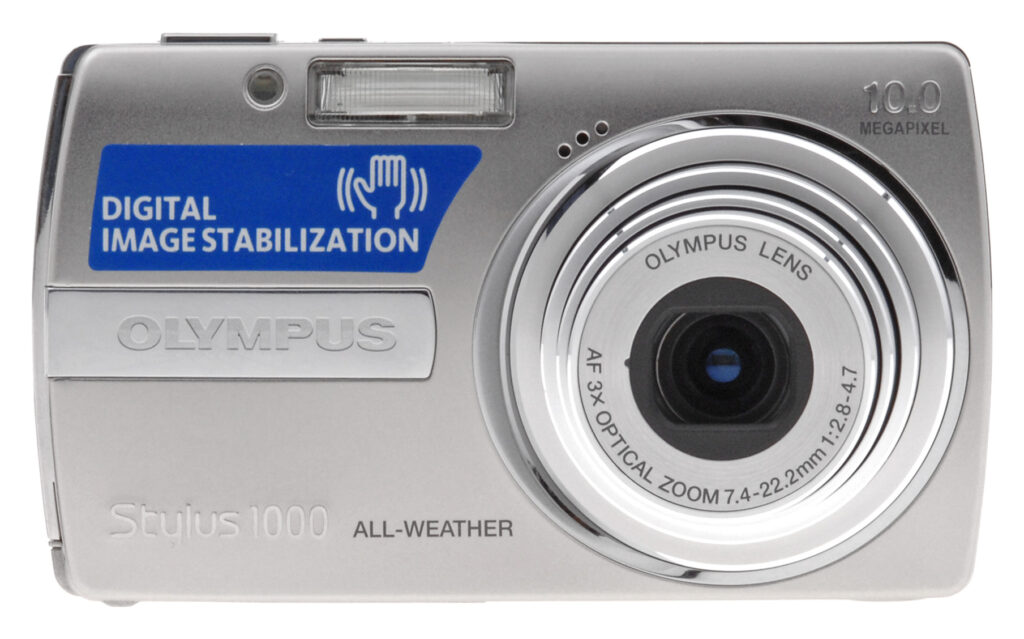
Front. With the lens extended, the Stylus 1000 is an attractive digicam from the front.
Design. The Stylus 1000 seems like it was shaved off a hunk of aluminum. At the thin end of the slice, the lens is tucked into the tapered curl. The design hides the greater-than-average thickness of this compact, but that thickness makes a very handy grip without the usual thumb pads and finger bars of other compacts. And it's still small enough that you can easily find a place for it in any pocket.
Attractive as it is, the most appealing feature of the Stylus 1000 is its weatherproof design. You no longer have to worry in the rain, at the beach, or on the slopes. You can't submerge the Stylus 1000, but a splash of soda or a sudden downpour won't make it play dead.

Back. A Mode dial and four-way navigator with Menu and Function buttons control the camera.
There are very few controls to learn, but everything you need is within easy reach. The top panel has just the Power and Shutter buttons. Alongside the generous 2.5 inch LCD, the control panel uses the familiar combination of a Mode dial and four-way navigator, flanked by four additional buttons. While the array itself is not new, the buttons themselves are smaller and more usable than we've seen on other recent Stylus models.

Controls. The Olympus Stylus 1000 has the best layout of the Stylus series. Here you can see that the USB port is sealed against moisture with a slim, black O-ring gasket.
To the upper right of the four-way controller is a Help button that, when pressed, explains any Menu selection. Even better, Guide mode helps you set the camera for any situation, so you don't have to remember what Scene modes are available to solve a photographic problem. You just have to remember to invoke this surprisingly helpful mode. There are also 20 Scene modes built into the camera with a nice explanation and sample photo of what they do.
Display/Viewfinder. The LCD is the only viewfinder on the camera, and it's large enough for the job, if not the largest LCD available. It has enough resolution with 230,000 pixels to give a good accounting of the image. It's a little hard to see in bright light, like other Stylus LCDs, even when you shade it. But it does offer a live histogram to help judge exposure.

The LCD is large, with excellent resolution, here showing the live histogram.
Olympus' Bright Capture technology comes into play when you're shooting a dark scene. The display is brightened so you can see what you're shooting (something I think wouldn't much be appreciated by the people sitting around you at the school pageant).
Luke found telephoto shots shifted vertically in the LCD, but you're not likely to notice the small difference unless you're trying to take precisely aligned shots (like Luke does in the Imaging Resource test lab).
Performance. Despite its protruding lens design, the Olympus Stylus 1000 has above average startup and shutdown times. Its pre-focus shutter lag time (press the Shutter button halfway) and cycle time between shots are also above average for its class. Its autofocus shutter lag is average, but that's about it.

Grip. The thick end makes an excellent, very natural grip.
The Olympus Stylus 1000 is about average weight, too, but that's a good thing. Very lightweight digicams can be impossible to hold steady when you press the Shutter button. Better to have a little resistance, and the Stylus 1000 has it.
Both wide-angle and telephoto lens distortion is very low, with no noticeable pincushion at all in telephoto. I liked most of the images I shot with the camera, though it did tend to oversaturate and blow out the highlights like most cameras in this class.

Card/Battery Compartment. Weatherproof cover, too.
Powered by a small proprietary lithium-ion battery, the Olympus Stylus 1000 never ran out of juice, and the battery topped off pretty quickly. The battery charger itself is small, but surprisingly bulky.
Shooting. I took the Stylus 1000 downtown on a clear winter day, and put its 10 megapixels to work on what were pretty contrasty subjects. Blue sky, white concrete, silhouetted leaves, reflective windows, shiny marble.

Top. Excellent and simple button layout for Power and the Shutter.
The detail it captured was refreshing. You can even see the pit marks in the brass plaque marking the old shoreline of the city; and that image was taken at f/2.8, wide open.
The supermacro shot of bacopa is particularly stunning at the center (see the small white flowers in the Gallery shots). You can see some distortion in the corners, but that is not unusual.

Pitted Brass. Nice detail in this wide open shot.
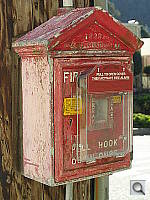
More interesting, perhaps, is my fire hydrant test. It seems every camera blows out the highlights on our fire hydrant, which stands in front of a dark hedge. Detail is good, and you can certainly make out the leaves in the hedge. Auto mode set the Olympus Stylus 1000 to 1/250 second, f/4.7, and ISO 64 -- not bad choices since the camera didn't know if the hydrant, or the hedge was the subject -- but it still lost more highlights than shadows. You'll want to turn on the fill flash in bright outdoor shots of people to fill in around the eyes, as the Stylus 1000 unfortunately blows highlights yet leaves skin tones dark without a little help.
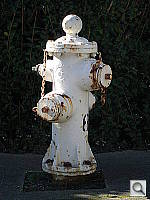
Fire Hydrant. Blown highlights but not a bad representation of the scene.
On a very bright day, I took the Olympus Stylus 1000 to the beach and finally saw some Auto mode shots that closed the lens down to f/8, and even f/13.3 at ISO 64. But this Stylus, like others in the line, prefers to keep the lens open and speed up the shutter. My shot of the Golden Gate bridge with digital zoom was 1/1,000 second at f/4.7, and ISO 64.
When I did get an f/13.3 shot (by practically facing into the sun at the beach), I got very nice depth of field showing a small bird at the waterline, spume from the waves, and a line of surfers waiting for the next set of waves.

Surf's Up. The deepest depth of field we were able to get birds on the shore and surfers in the water.
High ISO. As I mentioned, most images above ISO 800, and 1,600 at the outside, were really too soft to use right out of the camera. While Olympus did well maintaining color saturation and fidelity, a difficult task, the noise suppression required destroys all semblance of detail, producing an image that is similar to opening your eyes underwater even at 4x6. With a little tweaking, you can process these high ISO images to make them usable at web-resolution, but even then they're quite soft. Some might be happy that they could get any shot at all, but spies won't likely be able to read those secret documents captured by lamplight unless they're large print.
Image stabilization seemed to work better with digital zoom than in low light situations. None of my doll shots in very dim light were sharp. At ISO 6,400 I was able to get a 1/50 second shutter speed, which should have done the trick, but even then the image is blurred. This wasn't blur from a slow shutter speed, to be sure, as even our lab test shots done in good light on a tripod are similarly fuzzy.

Color. Accurate and bright color with just a little more saturation than necessary, but certainly welcome in this shot.
If you leave the Olympus Stylus 1000 in Auto ISO mode, you won't often need to worry about these extreme ISO settings. The camera seemed reluctant to move from ISO 64, or to close down the lens in Auto mode. That'll keep the detail in your shots, and give a good experience in most lighting situations.
Exposure. We found that the Auto flash mode with the Auto ISO turned on was a little off, raising the ISO when it should lower it, and lowering when it should raise. You really can't expect much from a small flash like this, though, so keep it at ISO 100 and keep your subjects close and you'll be fine. See our lab results in the Exposure section for more.
Appraisal. I haven't been very happy with other recent Olympus Stylus digicams (the 730, 740, and 750, to be specific), but the Stylus 1000 is the best of the litter. The control buttons are just right, and should percolate down to the other models suffering those odd buttons. Image resolution was good, and lens distortion was very low. On the downside, some shots were oversaturated and lost highlight detail. I actually liked having ISO 3,200, and 6,400 options, despite the soft images and smaller file size. I have the ability and inclination to fix these images with anti-noise and sharpening software. But we think most will be dissatisfied with even 4x6 shots at these sizes. Digital Image Stabilization was a disappointment, and is rather disingenuous despite the anti-blurring processing; but having some form of motion blur compensation is better than nothing.
Basic Features
- 10.0 megapixel, 1/1.8 inches CCD
- 35-105mm zoom (35mm equivalent) with 6 lenses in 4 groups, 4 aspherical lenses
- Maximum aperture f/2.8-f/4.7
- 2.5 inch LCD with 230,000 pixels
- Shutter speed from 1/1,000 sec. to 1/2 sec. with up to 4 sec. in Night Scene mode
- 24 Scene modes
- 28.5MB internal memory
- USB 2.0 Full Speed connection
Special Features
- High ISO sensitivities of 3,200, and 6,400
- Digital Image Stabilization
- All-weather seals and gaskets, making it splash-proof, dust-proof, and snow-proof
- Bright Capture technology to boost LCD brightness in dim scenes
- TruePic TURBO image processor for quick start-up and fast shutter response
- Perfect Fix in-camera image editing
In the Box
The Stylus 1000 ships with the following items in the box:
- Stylus 1000 digital camera
- LI-12B Lithium-ion rechargeable battery and charger
- USB Cable
- Audio/Video Cable
- Wrist strap
- Quick Start Guide
- Basic Manual
- Two CD-ROMs (Olympus Master Software, and Advanced Manual)
- Warranty card
Recommended Accessories
- Large capacity xD Picture memory card. 512MB to 1GB cards are quite affordable, so aim at least that high to handle the large files generated by this 10 megapixel camera.
- Small camera case for in-bag protection
Conclusion
| Pro: | Con: |
|---|---|
|
|
The best of the recent Stylus models, the Stylus 1000 adds high resolution with sensor sensitivity up to ISO 6,400 and a comfortable control button layout. With very low lens distortion and a 15x combined optical and digital zoom range, not much escapes it. The live histogram is a welcome check on exposure and the all-weather seals let you venture where other digicams dare not go.
In-camera image editing with the large 2.5-inch LCD extends to digital image stabilization and there are a few other special features like an alarm clock and built-in image frames to have fun with, too. And if you don't know what a function does, the Help system explains it. Even better, if you don't know how to get a certain effect, Guide mode will show you.
It can be hard to see the LCD outdoors and there's no autofocus assist lamp to help find focus in dark scenes. Digital image stabilization was a disappointment, not really up to the job. And some of our shots tended to be oversaturated with blown out highlights, not unusual in a digicam. Minor quibbles, taken together. However, we were disappointed with the printed results from the Stylus 1000, which were more in line with a 6 megapixel camera.
If you need a digicam with all-weather seals, this is a good choice, but we did find better printed results with the Olympus Stylus 720 SW, plus drop resistance and full waterproofing. The Stylus 1000 is a decent camera, but not quite a Dave's Pick.
Design
Olympus Stylus 1000 Design
The Olympus Stylus 1000 is a very attractive slice of camera, seemingly shaved off a hunk of aluminum with a lens pressed into its tapered curl. The design hides the thickness of this compact, but you can easily find a place for it in any pocket. The weatherproof design protects the camera in the rain, at the beach, and on the slopes, so you can take it more places.

The front panel of the Olympus Stylus 1000 is dominated by the concentric chrome rings of the collapsed lens. A two-piece lens cover protects the glass so you don't have to. At about 11 o'clock on the lens, there's a three-hole grid for the microphone. The Self-Timer lamp sits next to the flash. The left side of the camera is thicker, so it can function as a grip without requiring special finger holds.

The right side of the Olympus Stylus 1000, as seen from the back, has a wrist strip eyelet in the middle. Below that is the USB/DC In/AV combination port (yes, with an all-weather gasket).

The left side of the Stylus 1000 is featureless.

On the top of the Olympus Stylus 1000, the small Power button sits just left of the larger Shutter button.

The back panel of the Stylus 1000 contains all the other controls. The 2.5 inch LCD takes up the left two-thirds of the bezel. The Zoom lever located top right with a Mode dial just below, extending slightly past the right bevel to make the dial easy to turn. Just to the left of the dial is a small LED that lights when data is being read or written to the xD memory card. Below that is a set of four buttons centered around the four-way navigator. At the center is an OK/Function button. Four buttons surround the four-way navigator: the Image Stabilization/Print button (top right), Erase button (bottom right), Display/Help button (bottom left), and Menu button (top left). In addition, the arrow buttons on the four-way navigator have Record mode functions. The Up arrow controls EV Compensation, and the Down arrow controls the Self-Timer. The Left arrow toggles through the Focus modes, and the Right arrow toggles through the Flash modes.

The bottom of the camera has a round speaker grill just off center, a plastic tripod mount on the far end under the lens, and the Battery/Card Compartment Cover at the opposite end. You can replace both your battery and card with the camera mounted on a tripod. Because the mount is not centered, however, you'll need and adjustable tripod to get the lens at the center for better panorama stitching.
Olympus Stylus 1000 External Controls

Power Button: Located on the top panel, this small, rectangular button turns the camera on and off. It's easy to find, and its small size makes it easy to tell from its neighbor.

Shutter Button: The larger, higher, rectangular button adjacent to the Power button sets focus, and exposure when halfway pressed, and fires the shutter when fully pressed.

Zoom Lever: Positioned in the top right corner of the rear panel, this small lever (marked W and T) controls optical zoom and digital zoom.
In Playback mode, the W button repeatedly cycles through the 4, 9, 16-image, and Calendar index display modes. The T button returns to the normal image display and enlarges the current display for closer viewing of fine details. (Pressing the W button again during enlargement returns to the normal display.)

Mode Dial: Below the Zoom Lever, the Mode dial offers five settings: Playback, Still Photo, Scene Mode, Guide, and Movie.

Four-Way Arrow Pad: Located just below the Mode dial on the rear panel, this four-way rocker button features four arrow buttons, each pointing in a different direction (up, down, left, and right), with an OK/Func button in the middle. In all settings menus, these arrow keys navigate through menu options. Pressing the center button confirms selections.
In any record mode, the Up button displays the Exposure Compensation adjustment, from -2 to +2 EV in 1/3 EV increments. The right button controls the Flash mode, cycling through Auto, Red-Eye Reduction, Forced, and Suppressed modes. The Left arrow turns the Macro (close-up), and Super Macro modes on and off, and the Down arrow accesses the Self-Timer mode.
Also in most record modes, the OK/Func button pulls up the Function menu (see Operation tab, Function menu).
In Playback mode, the Right and Left arrows scroll through captured images. When Playback zoom is enabled, all four arrows scroll around within the enlarged view. The Down arrow calls up the camera's Erase menu, letting you erase the currently displayed image.

Menu Button: Above, and to the left of the four-way arrow pad, this button activates the settings menu in any camera mode. The Menu button also turns off the menu display.

Stabilizer/Edit/Print button: In a Record mode, pressing this button activates the digital image stabilization feature. In Playback mode, pressing this button with an image selected allows you to edit it with four options: add digital image stabilization to reduce blur, brighten underexposed areas of an image, fix red-eye, or all of the above. When connected to a printer, this button initiates the printing process.

Erase Button: In Playback mode, pressing this button with an image selected will erase the image.

Display/Help Button: In both Record, and Playback modes, pressing this button cycles through the information display options. In Record mode, information display cycles from Normal to a Simple display, then to Frame Assist with a grid, and Normal information, and finally to a Histogram display. In Playback mode, it cycles from Normal to a Detailed display to No Information to a Histogram display with a thumbnail, and file information. When navigating the menu system, pressing, and holding this button will display a brief explanation of the menu item. And if the camera is off, pressing this button will display the time, and any alarm set for three seconds.
Operation
Olympus Stylus 1000 Operation
The Olympus Stylus 1000 uses a Mode dial to determine its behavior. In Still Photography mode, major functions like image quality, and setup options are accessed from the Menu button while settings that might change from shot-to-shot are accessed from the Function button in the middle of the four-way arrow navigator. To get an explanation of any menu item, just press the Display/Help button. If you need help setting the camera, or solving a photographic problem, Guide mode is available just turning the Mode dial to that option. That's also how you get to Movie mode, and to Playback mode.
Record Mode Display
 In Record mode, the LCD displays the subject with an overlay of data that tells you approximate Battery Life Remaining (graphically), Flash mode, Focus mode (Macro, Supermacro, or Normal), Autofocus mode setting, any currently-selected Exposure Compensation setting, ISO setting, White Balance, Drive mode, the current Size/Quality setting, and Number of images that can be stored on the remaining memory space at the current size/quality. A variety of other camera settings may appear on the LCD monitor when set to anything other than their defaults.
Playback Mode Display
 In Playback mode, the image display shows the most recently captured image, with an information overlay that reports basic camera settings, plus any print settings, and the image number, and sequence number. Pressing the wide-angle zoom button takes you through a series of index display modes, with a 4, 9, 16-images, or Calendar index. Pressing the telephoto side of the Zoom lever when viewing an image full-size on the LCD screen will zoom in on the image, and you can use the arrow keys to pan the view.
Olympus Stylus 1000 Modes and Menus
The Mode dial contains the following options:
Playback Mode: In this mode, you can scroll through captured images, delete them, write-protect them, and set them up for printing on PictBridge-compatible printers. You can also copy, resize, and rotate images, as well as turn images black and white, or sepia. And you can execute some editing functions like removing red-eye, reducing blur, and brightening underexposed shots.
Still Picture Mode: Captures still photographs in either Auto or Program mode, as set from the Function button menu.
Scene Mode: The 20 Scene modes include Portrait, Landscape, Landscape & Portrait, Night Scene, Night & Portrait, Sport, Indoor, Candle, Self-Portrait, Available Light Portrait, Sunset, Fireworks, Museum, Cuisine, Behind Glass, Documents, Auction, Shoot & Select1, Shoot & Select2, and Beach & Snow.
Guide Mode: Guide mode lets you select an effect like "Blurring background,", and sets the camera to achieve it, telling you what to do. It's both effective and intelligent, and to top it off, transparent (unlike Scene modes) so you can actually learn a little photography.
Movie Mode: Captures video in three resolutions: 640 x 480, 320 x 240, and 160 x 120.
Function menu: The Function menu is activated in Record mode by pressing the OK/Func button in the center of the Four-way navigator.
 P/Auto: Selects between Program, and Auto exposure modes.
- White Balance: Sets white balance to Auto, Daylight, Cloudy, Incandescent, Fluorescent 1, Fluorescent 2, or Fluorescent 3 modes.
- ISO: Sets the ISO to Auto, or anywhere from 64 to 6,400 equivalents when the Stabilizer is not active.
- Drive: Accesses the Continuous, and Hi Speed Continuous shooting modes, as well as Single Shot.
- Metering: Sets the metering mode to Digital ESP, or Spot.
 P/Auto: Selects between Program, and Auto exposure modes.
Menus: The Olympus Stylus 1000 has a mode-sensitive Menu system accessed by pressing the Menu button.
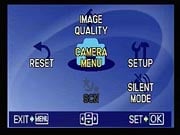 Record Menu: Available in all Record modes, the Record menu is accessed by pressing the Menu button. An initial shortcut screen pops up with options for Image Quality, Setup, Camera Menu, Scene, Silent Mode, and Reset.
- Camera Menu: Displays the following options (some options are not available in all modes, especially if image stabilization, or Auto rather than Program is active):
-
- White Balance: Adjusts the color balance of the image to match the light source. Options are Auto, Daylight, Cloudy, Incandescent, Fluorescent 1, Fluorescent 2, and Fluorescent 3.
- ISO: Adjusts the camera's light sensitivity. Options are Auto, or 64, 100, 200, 400, 800, 1,600, 3,200, and 6,400 ISO equivalents. At 3,200, and above, image quality is limited to 2,048 x 1,536.
- Drive: Sets the camera's drive mode to Single Shot, or Hi Speed Continuous.
- Metering Mode: Chooses between Digital ESP (default), and Spot modes. Spot metering reads the exposure from the very center of the frame (identified by a cross hair target on the monitor). Spot metering is handy for backlit subjects, or any time the subject, and background have very different brightness levels. Digital ESP mode reads the entire frame to determine exposure.
- Fine Zoom: Combines optical zoom, and image quality to enable a maximum magnification of 5x. Image quality is limited to 2,048 x 1,536.
- Digital Zoom: Turns the camera's digital zoom on, or off. Combined with optical zoom, total maximum zoom is approximately 15x.
- AF Mode: Sets the AF mode to iESP, or Spot.
- Sound Recording: Enables sound recording for a short caption to accompany an image file.
- Panorama: Enters Panorama mode for shooting a sequence of pictures to be combined using Olympus Master software into one panorama image. An Olympus xD Picture Card is required to assemble the images using Olympus Master software.
- Image Quality: Sets the image quality, or resolution of the images to be captured. Compression options are also included. Still options are SHQ for 3,648 x 2,736 with low compression, HQ for 3,648 x 2,736 with standard compression, SQ1 for 2,560 x 1,920, 2,304 x 1,728, or 2,048 x 1,536 all with standard compression, SQ2 for 1,600 x 1,200, 1,280 x 960, 1,024 x 768, or 640 x480 at standard resolution, or 16:9 for 1,920 x 1,080 with standard compression. Movie image quality options are SHQ for 640 x 480, HQ for 320 x 240, and SQ for 160 x 120.
 White Balance: Adjusts the color balance of the image to match the light source. Options are Auto, Daylight, Cloudy, Incandescent, Fluorescent 1, Fluorescent 2, and Fluorescent 3.
 Digital Zoom: Turns the camera's digital zoom on, or off. Combined with optical zoom, total maximum zoom is approximately 15x.
 Image Quality: Sets the image quality, or resolution of the images to be captured. Compression options are also included. Still options are SHQ for 3,648 x 2,736 with low compression, HQ for 3,648 x 2,736 with standard compression, SQ1 for 2,560 x 1,920, 2,304 x 1,728, or 2,048 x 1,536 all with standard compression, SQ2 for 1,600 x 1,200, 1,280 x 960, 1,024 x 768, or 640 x480 at standard resolution, or 16:9 for 1,920 x 1,080 with standard compression. Movie image quality options are SHQ for 640 x 480, HQ for 320 x 240, and SQ for 160 x 120.
Reset: Resets the camera's Record functions to their default settings if the Mode dial is not set on Guide.
Scene: If Scene mode is selected on the Mode dial, allows you to select among the 20 Scene modes available. The selection screen shows a very small sample image, and a description of the situation for which the current option is designed.
Silent Mode: Automatically shuts off operational sounds that occur during shooting, and playback, warning beeps, shutter sound, etc. Not available in Guide mode.
Setup: Accesses the Setup menu below.
Playback Menu: Available when the Mode dial is set to Playback, the Playback menu is accessed by pressing the Menu button. An initial shortcut screen pops up with options for Playback Menu, Slide Show, Edit, Print Order, Calendar, Setup, Album, Erase, and Silent Mode.
- Playback: Displays the following options:
- Protect: Protects an image from accidental erasure except when formatting the card.
- Rotate: Rotates the images 90 degrees left, or right.
- Voice Memo: Record up to four seconds of audio with an image.
- Album Entry: Allows you to, organize images by sorting them into albums. Not available to images stored in internal memory.
- Slide Show: Enables an automated slide show of the captured images. Built-in background music can be turned on, or off. Transition options include Normal (Scroll/Fader/Slide), Zoom (Down/Up), Checkerboard/Blinds/Swivel, or Random.
- Calendar: Allows you to playback images in a calendar format, organized by the date the images were captured.
- Album: Lets you view pictures, organized in an album. Displays the albums available on the screen, and, after selecting one, the images in the album.
- Edit: Displays the following image, and video editing options:
- Resize Image: Changes the size of an image, saving it as a new file.
- Crop: Crops an image, saving the crop as a new file. You use the arrow pad, and the Zoom lever to adjust the position, and size of the area selection box.
- Black & White: Converts the image to black, and white, and saves it as a new file.
- Sepia: Converts the image to sepia, and saves it as a new file.
- Frame: Allows you to select one of the built-in frames to overlay on an image, and save as a new file.
- Label: Allows you to select a label image you've previously created to overlay on an image, and save as a new file.
- Calendar: Allows you to select a calendar format to combine with an image, and save as a new file.
- Layout: Allows you to make a layout of several images, overlaying them. Options include All Images in internal memory, all images in an Album, images selected by date in a Calendar, and individually Selected Images.
- Brightness: Allows you to adjust the brightness of an images, saving it as a new file.
- Saturation: Allows you to adjust the saturation of an images, saving it as a new file.
- Index: Extracts nine frames from a movie, saving them as an index image.
- Edit: Selects a part of a movie to save as a new file, or overwrite the old one.
- Print Order: Allows you to set DPOF data like the number of prints, and date/time information for each image on the card.
- Erase: Allows you to erase selected images, or all images that are not protected.
- Silent Mode: Automatically shuts off operational sounds that occur during shooting, and playback, warning beeps, shutter sound, etc. Not available in Guide mode.
- Setup: Accesses the Setup menu below.
 Protect: Protects an image from accidental erasure except when formatting the card.
 Resize Image: Changes the size of an image, saving it as a new file.
 Label: Allows you to select a label image you've previously created to overlay on an image, and save as a new file.
- Format: Formats the internal memory, or xD-Picture Card, erasing all files (even protected ones).
- Backup: Copies images from the internal memory to an xD-Picture Card.
- Menu Language: Selects the language for the LCD menu display.
- Power On Setup: Controls whether an image, and sound are played on startup.
- Screen Setup: This option lets you register a captured image as the startup screen.
- Color: Changes the color of the menu displays. Options are Normal, Blue, Black, and Pink.
- Beep: Adjusts the volume of the beep sound played when a button is pressed.
- Beep Volume: Adjusts the volume of the camera's warning sound high, or low, or turns it off.
- Shutter Sound: Selects the type of sound, and volume of the shutter noise.
- Volume: Controls the playback volume in five steps, or turns it off.
- Record View: Activates an instant image review function, or disables it.
- File Name: Resets file naming with each new memory card, or continues the numbering from card to card.
- Pixel Mapping: Runs a self-check of the camera's CCD. Olympus recommends only running this function once a year.
- Video Out: Sets the timing of the video output signal to either NTSC, or PAL.
- Date, and Time: Sets the camera's internal clock, and calendar.
- Dual Time: Sets the date, and time for another time zone, so you can track time at home vs. local time while traveling.
- Alarm Clock: You can set an alarm to occur either one time only, or daily.
 Format: Formats the internal memory, or xD-Picture Card, erasing all files (even protected ones).
 Color: Changes the color of the menu displays. Options are Normal, Blue, Black, and Pink.
 Record View: Activates an instant image review function, or disables it.
 Date, and Time: Sets the camera's internal clock, and calendar.
Optics
Olympus Stylus 1000 Optics
Lens
Zoom
A typical 3x optical zoom range, with good performance.
 |
 |
 |
|
35mm
|
105mm
|
5x Digital Zoom
|
The Olympus Stylus 1000 zooms over the equivalent of a 35-105mm range, which is fairly typical for its class. Overall performance is good, though details are slightly soft and there’s some noticeable blurring in the corners at both wide angle and telephoto focal lengths. The 5x digital zoom takes it out to 15x total, with the typical loss of resolution associated with digital zoom.
Macro
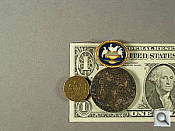
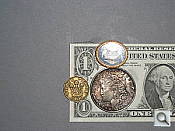
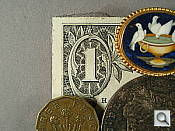
A poor macro area in normal mode, and only about average Super Macro mode. Flash throttles down fairly well, though coverage is uneven.
 |
 |
 |
| Standard Macro | Macro with Flash | Super Macro Mode |
The Olympus Stylus 1000’s Super Macro setting captures an average minimum area of 2.34 x 1.76 inches (60 x 45 millimeters). Detail was strong and resolution high, with significant softening in the corners from the lens. (Most cameras have some softening in the corners in macro mode.) Normal Macro mode was below our “poor” benchmark, with a broader soft area than we’re used to seeing.
The flash throttles down almost enough, but its light doesn’t reach the left corners of the frame. Plan on using external lighting for your closest macro shots with the Olympus Stylus 1000.
Distortion
Lower than average barrel distortion, nearly no pincushion.
| Barrel distortion at 35mm is 0.47% |
 |
| No measurable distortion at 105mm |
 |
This is the tendency for the lens to bend straight lines outward (like a barrel — usually at wide angle) or inward (like a pincushion — usually at telephoto). The 1000’s 0.47% barrel distortion at wide angle is a very low among the cameras we’ve tested. At the telephoto end, there was no measurable distortion.
Chromatic aberration
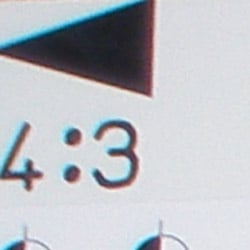
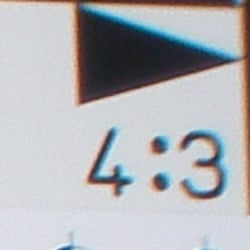
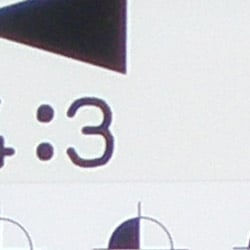
High at wide angle, low at telephoto.
 |
 |
| Wide Angle: High and bright, top left @ 200% |
Wide Angle: High and bright, top right @ 200% |
 |
 |
| Telephoto: Low, top left @200% |
Telephoto: Low, top right @200% |
Chromatic aberration is high at wide angle, showing several pixels of very bright coloration on either side of the target lines, but decreases to low levels at telephoto focal lengths. (This distortion is visible as a very slight colored fringe around the objects at the edges of the field of view on the resolution target.)
Corner Sharpness
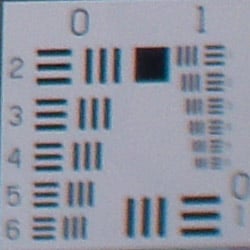
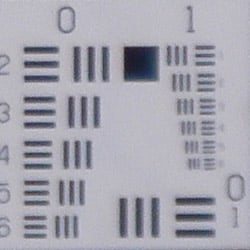
Some softening in the corners of the frame, strongest effect in the lower right corner.
 |
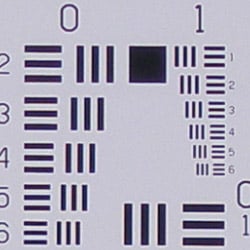 |
| Wide: very soft in the lower right corner. | Wide: sharp at center. |
 |
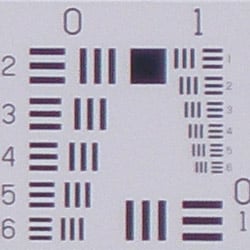 |
| Tele: very soft in the lower right corner. | Tele: slightly softer at center with some evidence of lens flare. |
The 1000 produced soft corners, the upper right corner showing the most visible effect. Overall, not a bad performance for such a small camera.
Viewfinder
Coverage
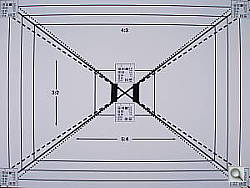
Very good accuracy from the LCD monitor.
 |
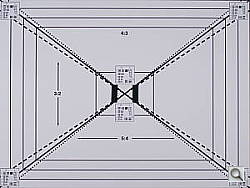 |
| 35mm eq., LCD monitor | 105mm eq., LCD monitor |
The Stylus 1000’s LCD monitor showed almost 100% accuracy at both wide (100%) and telephoto (98%). Telephoto was, however, shifted vertically.
The images above were taken from our standardized test shots. For a
collection of more pictorial photos, see our
Olympus Stylus 1000 Photo Gallery
.
Exposure
Olympus Stylus 1000 Exposure
Color
Saturation & Hue Accuracy
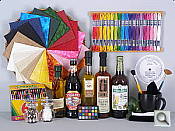
Oversaturated reds and magentas, undersaturated yellows. Fairly accurate hue, except in yellows and blues.
 |
| In the diagram above, the squares show the original color, and the circles show the color that the camera captured. More saturated colors are located towards the periphery of the graph. Hue changes as you travel around the center. Thus, hue-accurate, highly saturated colors appear as lines radiating from the center. |
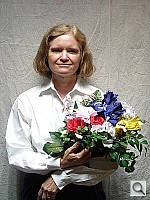
Most consumer digital cameras produce color that's more highly saturated (more intense) than found in the original subjects. This is simply because most people like their color a bit brighter than life. The Olympus Stylus 1000 does oversaturate the strong red and blue tones slightly, but undersaturates bright yellows. Greens, browns and purples are fairly accurate, though they can appear undersaturated compared to blues and reds. We found the Stylus 1000's color pleasing on a wide range of typical subjects though. Where oversaturation is most problematic is on Caucasian skin tones, as it's very easy for these "memory colors" to be seen as too bright, too pink, too yellow, etc. Here, the Stylus 1000 performed well, with only slight warmth.
The other important part of color rendition is hue accuracy. Hue is "what color" the color is. The Stylus 1000 actually rendered skin tones a little on the pale side, without any strong pink or warm casts.
Sensor
Exposure and White Balance
Indoors, incandescent lighting
Warm casts with both Auto and Incandescent white balance settings. About average exposure compensation required.
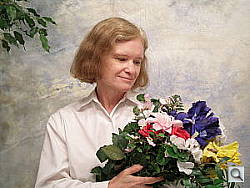
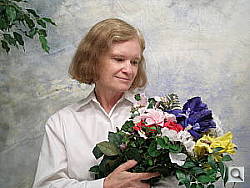
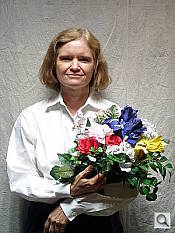
The Stylus 1000's Auto white balance mode produced very warm results (almost a sepia tone), but the Incandescent setting actually produced very nice color overall. Exposure accuracy was about average, with the camera requiring a +1.0 EV exposure compensation boost to get bright results. (About what most cameras we test need on this shot.) Colors are a little dark, resulting in a dark, purplish tint on the otherwise bright blue flowers. (A very common outcome for this shot.) Our test lighting for this shot is a mixture of 60 and 100 watt household incandescent bulb, a pretty yellow light source, but a very common one in typical home settings here in the U.S.
Outdoors, daylight
Slightly warm color balance, and slightly dark colors outdoors, but a bit better than average exposure accuracy.
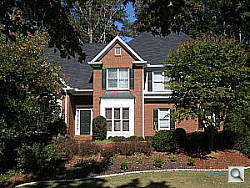
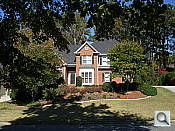
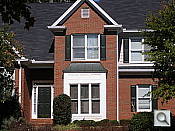
Outdoor shots showed better than average exposure accuracy, though with notably high contrast under harsh sunlight. Strong highlights tended to produce slight underexposures, as in the house shot above, with a limited midtone range, but exposure accuracy was still better than average when compared to many other consumer digicams. Overall color looked pretty good, with bright reds and blues that nonetheless didn't look too overdone.
See full set of test images with explanations
See thumbnails of all test and gallery images
Resolution
High resolution, 1,400 lines of strong detail.
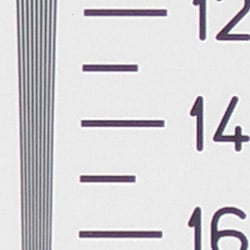
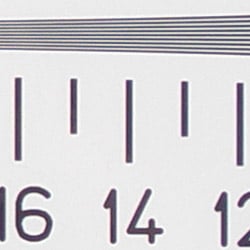
Our laboratory resolution chart revealed sharp, distinct line patterns down to about 1,400 lines per picture height, with extinction beyond the range of our target. (The camera produced slight color artifacts at lower line frequencies though, visible in the full-sized res target shots.) Use these numbers to compare with other cameras of similar resolution, or use them to see just what higher resolution can mean in terms of potential detail.
See full set of test images with explanations
See thumbnails of all test and gallery images
Sharpness & Detail
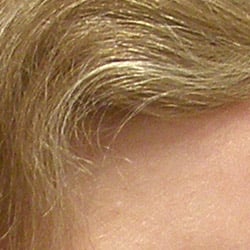
Fairly sharp images overall, though a moderate amount of edge-enhancement in high contrast shots and some noise suppression in the shadows.
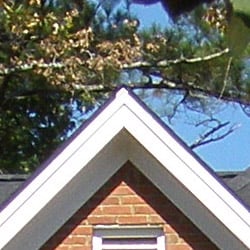
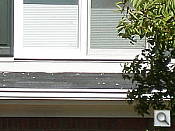
The Olympus 1000's images are fairly sharp overall, with edge-enhancemment artifacts only visible in areas of particularly strong contrast: Notice the slightly lighter "halo" in the sky where it meets the dark line at the edge of the roof in the crop above. (Edge enhancement creates the illusion of sharpness by enhancing colors and tones right at the edge of a rapid transition in color or tone.)
Noise-suppression systems in digital cameras tend to flatten-out detail in areas of subtle contrast. The effects can often be seen in shots of human hair, where the individual strands are lost and an almost "watercolor" look appears. The crop at far right shows this somewhat, with darker areas of Marti's hair showing limited, blurry detail, though individual strands are visible where a lighted strand passes in front of a darker shadow area. On balance, the OS1000 shows less detail loss to noise reduction at low ISO settings than average, but more at high ISOs.
ISO & Noise Performance
Moderate noise at the normal sensitivity settings, very high noise that blurs detail at the higher settings.
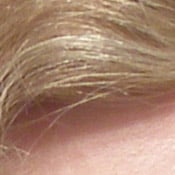
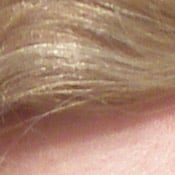
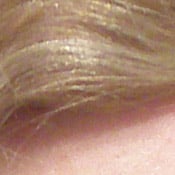
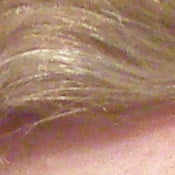
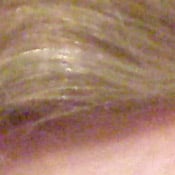
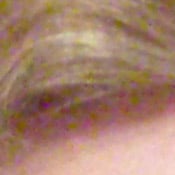


The 1000's lower ISO settings produced moderate noise, though with moderate blurring in the dark areas. As with all cameras, film or digital, the ISO setting increases, so does the noise level and the amount of blurring that results. Images at ISO 400 are soft but perhaps usable for wall display at 8x10 inches. At ISOs 800 and above, the images are very blurry, with stronger and brighter noise artifacts. ISO 800 to 1,600 shots are only usable for 4x6 inch snapshot prints, and 3,200 and 6,400 shots are unusable unless you sharpen heavily and only intend to use them at 340x480 in a Web (72dpi) application.
Extremes: Sunlit and low light tests
High resolution with good overall detail, but high contrast limits both highlight and shadow detail. Limited low-light capabilities, but sensitive enough to capture bright images under typical city street lighting.
Sunlight:
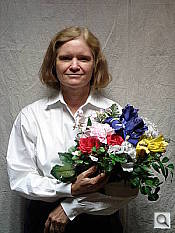
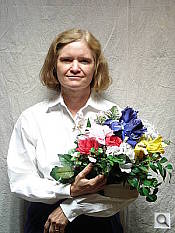
Because digital cameras are more like slide film than negative film (in that they tend to have a more limited tonal range), we test them in the harshest situations to see how they handle scenes with bright highlights and dark shadows, as well as what kind of sensitivity they have in low light. The shot above is designed to mimic the very harsh, contrasty effect of direct noonday sunlight, a very tough challenge for most digital cameras. (You can read details of this test here.)
The Stylus 1000 had a hard time with the deliberately harsh lighting in the test above. Shadow detail is actually not bad, though, but noise suppression is visible, as is heavy chroma noise. Skin tones don't come into acceptable range until the shirt and skin highlights blow out, as in the +0.7EV shot. But they're still blown out in the +0.3 shot, yet the skin tones are too dark. The camera required a slightly less than average amount of positive compensation at +0.7 EV to get the skin tones into balance, but it's still a rough compromise to choose between realistic skin tones and glowing clothes. (In "real life" though, be sure to use fill flash in situations like the one shown above; it's better to shoot in the shade when possible.)
| 1 fc 11 lux |
1/2 fc 5.5 lux |
1/4 fc 2.7 lux |
1/8 fc 1.3 lux |
1/16 fc 0.67 lux |
|
|---|---|---|---|---|---|
| ISO 64 |
 0.5 sec f2.8 |
 0.5 sec f2.8 |
 0.5 sec f2.8 |
 0.5 sec f2.8 |
 0.5 sec f2.8 |
| ISO 100 |
 0.5 sec f2.8 |
 0.5 sec f2.8 |
 0.5 sec f2.8 |
 0.5 sec f2.8 |
 0.5 sec f2.8 |
| ISO 200 |
 0.5 sec f2.8 |
 0.5 sec f2.8 |
 0.5 sec f2.8 |
 0.5 sec f2.8 |
 0.5 sec f2.8 |
| ISO 400 |
 0.5 sec f2.8 |
 0.5 sec f2.8 |
 0.5 sec f2.8 |
 0.5 sec f2.8 |
 0.5 sec f2.8 |
| ISO 800 |
 0.3 sec f2.8 |
 0.5 sec f2.8 |
 0.5 sec f2.8 |
 0.5 sec f2.8 |
 0.5 sec f2.8 |
| ISO 1600 |
 1/6 sec f2.8 |
 0.3 sec f2.8 |
 0.5 sec f2.8 |
 0.5 sec f2.8 |
 0.5 sec f2.8 |
| ISO 3200 |
 1/13 sec f2.8 |
 1/6 sec f2.8 |
 0.3 sec f2.8 |
 0.5 sec f2.8 |
 0.5 sec f2.8 |
| ISO 6400 |
 1/30 sec f2.8 |
 1/15 sec f2.8 |
 1/8 sec f2.8 |
 1/4 sec f2.8 |
 0.5 sec f2.8 |
| ISO 100 NS |
 1.3 sec f2.8 |
 2.5 sec f2.8 |
|||
| ISO 125 NS |
 4 sec f2.8 |
||||
| ISO 250 NS |
 4 sec f2.8 |
 4 sec f2.8 |
Low light:
The Olympus 1000 had limited low-light shooting capabilities. To shoot under average city street-lighting at night (about one foot-candle), you'll have to use ISO 400. The Stylus 1000's autofocus system was however able to focus down to the lowest level we test at (1/16 foot-candle) unassisted. Do keep in mind though, that the longer shutter times necessary here demand the use of a tripod or other camera support to get sharp photos. (A useful trick is to just prop the camera on a convenient surface, and use its self-timer to release the shutter. This avoids any jiggling from your finger pressing the shutter button, and can work quite well when you don't have a tripod handy.)
Flash
Coverage and Range
A fairly weak flash with a limited range. The camera underexposed our standard shots slightly, and exposure compensation had no effect on flash exposure.
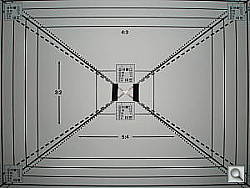
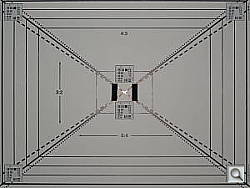
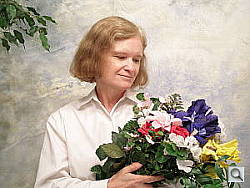
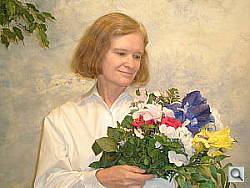
Flash coverage was somewhat uneven at wide angle, and dim though more uniform at telephoto. In the Indoor test, the flash underexposed our subject at its default setting slightly, and the exposure compensation adjustment turned out to have no effect on flash exposure. The camera's Night Portrait mode produced slightly brighter and more even results, though with a much stronger orange cast from the room lighting. The best results here were achieved with a +1.3 EV exposure boost.
| Flash Range: Wide Angle | |||||
|---|---|---|---|---|---|
| 6 ft | 7 ft | 8 ft | 9 ft | 10 ft | 11 ft |
 1/30 sec f2.8 ISO 100 |
 1/30 sec f2.8 ISO 100 |
 1/30 sec f2.8 ISO 100 |
 1/30 sec f2.8 ISO 100 |
 1/30 sec f2.8 ISO 100 |
 1/30 sec f2.8 ISO 100 |
| 12 ft | 13 ft | 14 ft | 15 ft | 16 ft | |
 1/30 sec f2.8 ISO 100 |
 1/30 sec f2.8 ISO 100 |
 1/30 sec f2.8 ISO 100 |
 1/30 sec f2.8 ISO 100 |
 1/30 sec f2.8 ISO 100 |
|
| Flash Range: Telephoto | |||||
|---|---|---|---|---|---|
| 6 ft | 7 ft | 8 ft | 9 ft | 10 ft | 11 ft |
 1/125 sec f4.7 ISO 100 |
 1/125 sec f4.7 ISO 100 |
 1/125 sec f4.7 ISO 100 |
 1/125 sec f4.7 ISO 100 |
 1/125 sec f4.7 ISO 100 |
 1/125 sec f4.7 ISO 100 |
| 12 ft | 13 ft | 14 ft | 15 ft | 16 ft | |
 1/125 sec f4.7 ISO 100 |
 1/125 sec f4.7 ISO 100 |
 1/125 sec f4.7 ISO 100 |
 1/125 sec f4.7 ISO 100 |
 1/125 sec f4.7 ISO 100 |
|
At wide angle, the on-camera flash illuminated the DaveBox well out to nine feet before falling off. Quite a different story at telephoto, where it couldn't illuminate the DaveBox adequately at even six feet.
| Manufacturer-Specified Flash Range | |
|---|---|
| Wide Angle | Telephoto |
 17.1 feet Auto ISO 320 |
 10.5 feet Auto ISO 200 |
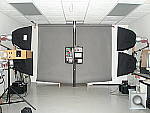
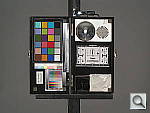
Our standard test method for flash range uses a fixed setting of ISO 100, to provide a fair basis of comparison between cameras. We now also capture two shots using the manufacturer-specified camera settings, at the range the company claims for the camera, to assess the validity of the specific claims. In the shots above, the Stylus 1000 actually overexposes our target, blowing out the whites at wide angle with its ISO automatically set to 320. At telephoto, the Olympus Stylus 1000 underexposes the target, raising the ISO to only 200. Obviously, it would have been better for the camera to reverse its ISO decisions. We can only hope that it will respond differently depending on the target.
Output Quality
Print Quality
Good print quality, great color, crisp prints at 8x10 inches, usable ones at 11x14. ISO 800 images are soft and noisy at 8x10 inches, acceptable at 5x7, great at 4x6. Higher ISOs are not even suitable for 4x6 inch snapshot prints.
Testing hundreds of digital cameras, we've found that you can only tell just so much about a camera's image quality by viewing its images on-screen. Ultimately, there's no substitute for printing a lot of images and examining them closely. For this reason, we now routinely print sample images from the cameras we test on our Canon i9900 studio printer, and on the Canon iP5000 here in the office. (See the Canon i9900 review for details on that model.)
The Stylus 1000 produced crisp prints at 8x10 inches, and somewhat softer but still acceptable ones at 11x14. Though it's a 10 megapixel camera, this is really about 6-megapixel performance. ISO 400 shots were noisy but acceptable at 8x10. ISO 800 images were soft and noisy when printed at 8x10 inches, acceptable at 5x7 and great at 4x6. ISO 1,600 shots and above were so noisy that we question their inclusion on the camera. Even in small 4x6 inch snapshot-sized prints, ISO 3,200 and 6,400 shot were downright blurry.
Color-wise, the Stylus 1000 did pretty well, with bright but natural-looking color and good-looking skin tones across the ISO range.
The images above were taken from our standardized test shots. For a collection of more pictorial photos, see our Olympus Stylus 1000 Photo Gallery .
Not sure which camera to buy? Let your eyes be the ultimate judge! Visit our Comparometer(tm) to compare images from the Olympus Stylus 1000 with those from other cameras you may be considering. The proof is in the pictures, so let your own eyes decide which you like best!
Performance
Olympus Stylus 1000 Performance
Timing and Performance
Except for autofocus lag, above average speed for a consumer camera.
|
Startup/Shutdown
|
||
|
Power on
to first shot |
1.8 seconds
|
Time it takes for LCD to turn on and lens to deploy
|
|
Shutdown
|
1.5 seconds
|
How long it takes to retract lens
|
|
Buffer clearing time
|
13 seconds
(10 seconds buffer clearing in LF JPEG) |
Worst case buffer clearing time. -- This is the delay after a set of shots before you can remove the card. Some cameras won't retract their lenses and shut down until the buffer is cleared.
|
|
Mode switching
|
||
|
Play to Record,
first shot |
1.0 seconds
|
Time until first shot is captured
|
|
Record to play
|
6.4 seconds
|
Time to display a large/fine file immediately after capture
|
|
Display
recorded image |
0.8 second
|
Time to display a large/fine file already on the memory card.
|
|
Shutter response (Lag Time):
|
||
|
Full Autofocus Wide
|
0.80 second
|
Time from fully pressing shutter button to image capture, zoom lens at wide angle position.
|
|
Full Autofocus Tele
|
0.80 second
|
Time from fully pressing shutter button to image capture, zoom lens at telephoto position.
|
|
Prefocused
|
0.116 second
|
Time to capture, after half-pressing and holding shutter button.
|
|
Cycle time (shot to shot)
|
||
|
Single Shot mode
Large Fine JPEG |
6.14 seconds
|
Time per shot, averaged over 20 shots
|
|
Single Shot mode
640x480 JPEG |
3.27 seconds
|
Time per shot, averaged over 20 shots
|
|
Early shutter
penalty? |
No / Yes with flash
|
Some cameras refuse to snap another shot if you release and press the shutter too quickly in Single Shot mode, making "No" the preferred answer
|
|
Continuous mode
2048x1536 JPEG |
0.27 second (3.75 frames per second);
12 seconds to clear |
Time per shot, averaged over buffer length or 20 shots, whichever came first
|
|
Continuous mode
640x480 JPEG |
0.27 second (3.75 frames per second);
13 seconds to clear |
Time per shot, averaged over buffer length or 20 shots, whichever came first
|
|
Flash recycling
|
6 seconds
|
Flash at maximum output
|
|
Download speed
|
||
|
Windows Computer, USB 2.0
|
814 KBytes/sec
|
Typical Values:
Less than 600=USB 1.1; 600-770=USB 2.0 Low; More than 770=USB 2.0 High |
The 1000's performance is generally above average. Startup and shutdown speeds are above average but shutter response is average. Shot-to-shot cycle times and continuous-mode speeds are above average, though. The weak flash takes an average six seconds to recharge after a full-power shot. Connected to a computer or printer via USB, download speeds are also average. Bottom line, while not a first choice for sports or other really fast-paced action, the 1000 is responsive enough to handle most family photo opportunities.
Battery and Storage Capacity
Battery
Typical battery life for a Lithium-Ion design.
| Test Conditions | Number of Shots |
|
LiIon rechargeable battery
|
280 |
The Olympus Stylus 1000 uses a custom rechargeable LiIon battery for power. The table above shows the number of shots the camera is capable of based on CIPA battery-life and/or manufacturer standard test conditions.
Although the battery life isn't bad, we still recommend picking up a spare battery and keeping it freshly charged and on-hand for long outings.
(Interested readers can find an English translation of the CIPA DC-002 standards document here. (180K PDF document))
Storage
The Olympus Stylus 1000 stores its photos on xD memory cards or in approximately 28.5 MB of internal memory, and no card is included with the camera.
|
Image Capacity vs Resolution/Quality 28 MB Internal Memory |
Fine | Normal | |
|
3648 x 2736
|
Images
(Avg size) |
5 5.0 MB |
11 2.5 MB |
|
Approx.
Compression |
6:1 | 12:1 | |
|
2560 x 1920
|
Images
(Avg size) |
- | 22 1.2 MB |
|
Approx.
Compression |
- | 12:1 | |
|
2304 x 1728
|
Images
(Avg size) |
- | 28 994 KB |
|
Approx.
Compression |
- | 12:1 | |
|
2048 x 1536
|
Images
(Avg size) |
- | 35 785 KB |
|
Approx.
Compression |
- | 12:1 | |
|
1600 x 1200
|
Images
(Avg size) |
- | 43 642 KB |
|
Approx.
Compression |
- | 9:1 | |
|
1280 x 960
|
Images
(Avg size) |
- | 67 417 KB |
|
Approx.
Compression |
- | 9:1 | |
|
1024 x 768
|
Images
(Avg size) |
- | 102 272 KB |
|
Approx.
Compression |
- | 9:1 | |
|
640 x 480
|
Images
(Avg size) |
- | 158 176 KB |
|
Approx.
Compression |
- | 3:1 | |
The Olympus Stylus 1000 stores its photos on xD memory cards or in approximately 28.5 MB of internal memory, and no card is included with the camera. (I strongly recommend buying at least a 512 MB card, preferably a 1GB one, to give yourself extra space for extended outings.) The chart below shows how many images can be stored in the internal memory at each size/quality setting.