


Overview
Canon PowerShot SD1000 Overview
by Theano Nikitas
Review Date: 5/08/2007
When the first Canon ELPH hit the shelves in 1996 as an APS film camera, its compact size and innovative "box and circle" design certainly held more appeal than the film format the little camera supported. While APS is a distant memory, Canon continued the ELPH legacy in its digital camera line. In the digital world, the ELPH still looks as sleek and sexy as it did 11 years ago. Although minor tweaks to the design have come over the years, Canon returned the ELPH to its roots shortly after the ELPH's tenth anniversary with the introduction of the SD1000, a camera whose retro look is almost identical to that of the original model.
In addition to its compact size and eye-catching design, the 7-megapixel SD1000 features a standard 3x optical zoom with a 35mm equivalent focal range of 35-105mm, a 2.5-inch LCD that delivers 230,000 pixels of resolution and, a rarity in cameras this size, an optical viewfinder. As is typical for the digital ELPH series, this point-and-shoot camera lacks manual aperture and shutter speed controls, but offers a series of scene modes, exposure compensation, and manual and auto ISO. A new on-demand Auto ISO Shift feature bumps the light sensitivity up to a maximum of 800 with a simple push of a button. White balance options include auto, several presets, and custom (manual). The SD1000 utilizes Canon's DIGIC III processor and offers new face detection technology and in-camera red-eye correction.
Although its auto shutter speed maxes out at only 1/1500 second, long exposures are possible up to 15 seconds (the one way you can set a manual shutter speed, available through the Function Menu). Fine-tuning adjustments, custom settings for the self-timer, stitch-assist for up to 26 shots, and versatile movie options round off some of the camera's most noteworthy features.
To put the SD1000 in perspective: Despite its numerical identification, the SD1000, at $299.99, is about $50 less expensive than its sibling, the $349.99 SD750. The latter is slightly larger and heavier, has gently sloping edges as opposed to square corners, is equipped with a 3-inch LCD, no optical viewfinder, and replaces the SD1000's Function/Set button with a new Touch Control Dial -- one of those love-it or hate-it type of features. Otherwise, the two cameras are essentially the same.
Canon PowerShot SD1000 User Report
by Theano Nikitas
Heritage. Sure, there are plenty of pocketable digital cameras on the market that are smaller, thinner, have larger LCDs than the SD1000; and there's no shortage of small cameras outfitted in fun fashion colors. But the stylish and diminutive SD1000 not only looks good and fits easily in shirt or pants pockets, but the ELPH line has a track record of good performance and solid image quality on its side. A point-and-shoot interface combined with an intuitive control layout and easy-to-navigate menu system puts beginners at ease, and makes short work of picture-taking for more experienced users. Even without manual aperture and shutter-speed controls, the SD1000's portability and top notch image quality may even appeal to digital SLR users who want a simple, take-anywhere sidekick for quick snapshots.

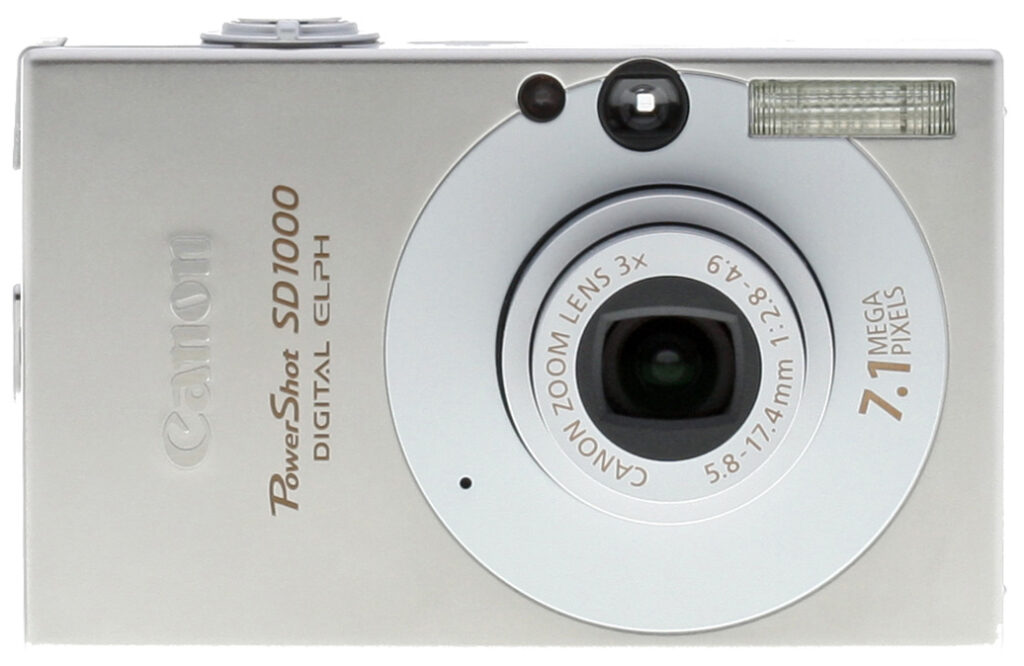
Front View. Simple and stylish, the Canon SD1000 Digital ELPH looks a lot like the original ELPH.
Face Detection (FD) is quickly becoming a standard feature, and Canon has one of the most responsive and accurate FD technologies I've worked with to date. The SD1000 is equipped with Canon's latest FD technology that not only recognizes multiple faces and helps ensure accurate focus and exposure of subjects. It also analyzes and adjusts flash output according to shooting conditions.
Canon takes a gentler approach to raising ISO to increase shutter speed and avoid blurry images from camera shake than others that tout "anti-shake" features. Other cameras often produce excessively noisy images from their extremely high ISO settings. That's not to say that the SD1000 is free from image noise or that its Auto and Hi ISO settings can't go beyond reasonable limits, but its kept under better control. ISO can be set manually from 80 to 1600, and there's a convenient one-button/one-shot Auto ISO shift that boosts the ISO up to a maximum setting of 800 when implemented regardless of what ISO setting has been selected manually. ISO 800 is the maximum you want to use with the SD1000, so that's what I mean by a gentler approach. You can reach higher if you want to, but the camera's not going to take you there without permission.
Although the SD1000 is certainly easy to use in its basic auto mode, there are a number of hidden features that will be easily overlooked by those who don't read the manual or spend some time drilling down into the Function menu. Hidden within the My Colors menu, for example, you'll find a Custom button that reveals adjustments for contrast, sharpness, saturation, skin tone and individual red, green, and blue tones. Some Scene modes are also hidden, so it's a good idea to read through the manual. But once you've discovered some of these less-than-obvious options, you'll find that the SD1000 has some surprisingly useful functions to complement its attractive design.
Design. In keeping with the ELPH's original design, the SD1000 is available in black on silver; but if that's too retro for your taste, no worries: the camera is available in silver-on-silver as well. Its small size and light weight are an open invitation to take the camera with you wherever you go and it's as comfortable to wear around your neck dangling from a lanyard as it is tucked away in a pocket or purse. At the same time, the camera is solidly built and capable of withstanding the rigors of being carried around town or on a hike through the woods without worry.

Back View. A flush-mounted LCD and simple layout make for smooth elegance. Unfortunately, the Four-way navigation disk is tough to use accurately with its very flat design.
But as with any small camera, it's important to try the SD1000 on for size to make sure the handhold is comfortable and the controls are manageable. The camera has no grip and not much room to rest your thumb other than on the vertical switch on the camera's rear panel, but I was able to hold the camera easily for extended periods of time without suffering from finger cramps and one-hand shooting was quite easy. My fingers never strayed in front of the lens, the flash or the tiny microphone and the controls, which by necessity are grouped to the right of the LCD, were within easy reach. But my hands are relatively small and those with larger hands may not experience the same level of comfort.
Controls are logically arranged and are reasonably sized considering the limited real estate on the camera's rear panel. The speaker sits to the left of the mode switch, just above the Print/Share button, which can also be programmed for one-touch access to one of a number of functions like Exposure Compensation, White Balance (the full range or Custom only), Movie mode and display off, among others. For my purposes it was convenient to assign Exposure Compensation to the Print/Share button; although when moving between indoor and outdoor shooting, I also liked using it for White Balance presets. The Function/Set, Display and Menu buttons were large enough for easy operation, but I found that the Four-way controller that surrounds the Function/Set button required extra effort to manipulate; not only because it was somewhat less responsive than the buttons, but because I had to depend on my thumbnail rather than the tip of my thumb to press the appropriate mark without accidentally triggering the Function/Set button. The lovely minimalist design is just too flat for a thumb to actuate with accuracy, unless you're really paying attention.
While accessing menus for ISO, flash settings, shooting mode, and focus/distance via the Four-way controller is convenient, the menus automatically close within a second or two, leaving little time to think about what setting to choose. It was mostly annoying when choosing an ISO since all options -- Auto, High, and manual settings -- don't fit on a single screen. If I didn't start scrolling quickly, the menu would disappear and I'd have to start over again. This may be especially frustrating for those unfamiliar with the options offered within each of these quick-access menus. And, activating red-eye reduction and slow synchro flash settings required a trip to the system menu. On the other hand, all menus are easy to understand and navigate. But, as I mentioned earlier, some functions are buried deep within the Function menu, so not only do you have to know they exist and where they are, you have to take extra time to access them. Naturally, the more I used the camera, the quicker I was able to change settings on the fly.
Display/Viewfinder. After using cameras with LCDs so reflective that I could see myself more clearly than the scene I was trying to capture, the SD1000's 2.5-inch monitor was a pleasure to use. It's not perfect and there were times when I had to struggle to compose a scene in bright sunlight or resort to the tiny (and difficult to use) optical viewfinder but it's much better than others when it comes to clarity in bright light. Much of this increased usability is probably due to Canon's new PureColor LCD and its multi-level coating, which is designed to reduce glare and "resist scratches, smudges, and fingerprints." It's not a panacea for keeping the LCD clean, however, as just pulling the camera out of my jacket pocket left fingerprints.
The LCD display also performed well in low light, automatically gaining up even when photographing the dark abyss under my desk. As is common, the LCD's image is a little noisier with gain applied, but it showed less grain than most. A slower refresh rate was also expected under these dimly lit conditions but I noticed no ghosting when moving the camera in these darkened conditions.
Full onscreen shooting information is available with the SD1000's multiple display options, and both a grid overlay and 3:2 aspect ratio guide are available as well in record mode. A histogram accompanies the information display in playback mode. (I address the value of these display options more fully in the Shooting section.)
Performance. Despite the fact that the power button lies almost flush with the top of the camera, it was easy to find by touch, and the little camera was powered up and ready to go in no time. The camera's shot-to-shot speed was equally responsive; and even when using the flash, I didn't have to wait too long to take the next shot, nor was there much hesitation between pressing the shutter and snapping the picture. Continuous shooting speed was respectable as well.
Like most cameras in its class, the SD1000 offers a moderate focal range with its 3x optical zoom lens. But the miniature zoom lever moved the lens smoothly and reasonably fast throughout its 35-105mm focal range. You won't be able to shoot particularly broad vistas with this focal range unless you use the camera's stitch-assist to put together a panorama, nor will you be able to capture distant scenes or subjects with the SD1000's telephoto reach of only 105mm (35mm-equivalent). But for day-to-day shooting I found the 3x optical zoom sufficient.

Battery and card. The SD1000's battery and memory card compartment is nestled on the camera's bottom, covered by a plastic door.
Powered by a tiny rechargeable Lithium battery, the SD1000, when using the LCD, has a CIPA rating of approximately 210 shots on a fully charged battery. Since I generally don't spend a huge amount of time reviewing images in-camera other than to check exposure and focus, I was unable to exceed the estimated 210 shots on a battery charge. Depending on your playback habits, your experience may be different. Unless you think you'll exceed a couple of hundred shots between charges, this average battery life shouldn't be a problem.
A tiny camera, of course, comes with a tiny flash. The SD1000's flash powered down nicely when set to Macro, but not surprisingly, it doesn't have enough strength to reach beyond 12 feet at wide angle. At telephoto, it hardly puts out enough light for good exposures six feet. Note that this is when the camera is locked to ISO 100; when set to Auto ISO, the SD1000 manages good exposures at 11 feet at wide angle and 6.6 feet at telephoto with minimal ISO boost as Canon specifies (ISO 250 and 200 respectively). We also noticed some flash drop-off around the edges of images shot at wide angle.
The camera's automatic face detection (activated from within the camera's system menu) worked quite well and was faster and more accurate than the competition, especially when dealing with multiple subjects. Autofocus was generally quick and accurate with the camera's 9-point AiAF turned on, although on occasion I turned it off since having a single (centered) focus point enabled me to have better control when I wanted to the focus frame to be centered. Otherwise, I'd have to recompose when the AiAF focus points (indicated by green outlined boxes) weren't exactly where I wanted them to be (focusing on the grasses surrounding a flower rather than on the flower, for example). But focusing under low light was respectably fast, thanks to the amber AF assist lamp.
As expected, I was pleased with almost all of my test images. With the exception of a few over-exposed daffodils that were shot in bright sunlight, the SD1000's metering options (evaluative, center, and spot) all did a good job producing well-balanced exposures under a variety of lighting conditions. Colors were rich and accurately rendered and images were sharp.
Shooting. Shooting with the SD1000 was fun. Because the camera is so portable, I found myself taking pictures I wouldn't have otherwise thought about capturing. Rather than rolling my eyes at the thought of carrying a camera on a walk through a local park, I happily slipped the camera into my jacket pocket for traveling to the local park. Once I arrived, I hung it around my neck with a lanyard so all I had to do was lift it to my eye and shoot when I wanted to grab a snapshot. The camera lived on the dining room table so I could pop outside to photograph some spring flowers when the spirit (or the light) moved me. It traveled with me in my purse as well, and was a hit at a small gathering of friends. Never once did I feel that carrying the Canon SD1000 was a burden.
Of course, there were times I wished I had a digital SLR for speed and control, and a long telephoto lens for capturing images of birds in flight. But for casual shooting, I really didn't miss manual controls. The Canon SD1000 was generally fast enough for most situations, and has enough functions to allow some control. I usually kept the SD1000 set to "Camera Manual" so I could access all of the camera's functions (only a minimal number of features are available in Auto mode). Working mostly with exposure compensation, ISO, and white balance, I was able to satisfy the photographic instinct to adjust settings according to subject and shooting conditions. Activating the grid overlay helped me keep horizons even, and I was thrilled to find aperture and shutter-speed displayed each time I depressed the shutter button halfway. With the shutter speed information so readily available, I was able to judge whether and when I needed to either use the flash, increase the ISO, use a tripod, or simply forget about the shot. Though the SD1000 has an ISO of 1600, the noise levels were too high for my taste. I usually kept it set to ISO 800 or below. The full information panel in playback, which includes a histogram, was also very helpful when judging exposure after capture.
Other than the annoyances mentioned earlier -- like difficulty using the Four-way controller and having the ISO menu automatically turn off too soon -- I enjoyed using the Canon SD1000 and made good use of the Function button for a direct connection to many of the settings I needed to change most often. It's not a perfect system, but it works well enough when adjustments are necessary.
Summary. The Canon PowerShot SD1000 is a fine little camera with a number of attributes that will please the snapshooter, and may even attract the more sophisticated photographer who wants a small take-anywhere digital camera. Video fans will appreciate the multiple movie modes, including time lapse and fast frame rate options. Regardless of experience level, most everyone will find image quality more than satisfying, although it's important to maintain control over ISO settings to keep image noise to a minimum. That some features are buried deep within the menu system probably won't bother snapshooters very much, since it's unlikely they'll use them on a regular basis. It will be frustrating to photographers who want to wring every last bit of control out of the camera. But if you're as big of an ELPH fan as I am, you won't let any of those minor drawbacks dissuade you from slipping a Canon SD1000 into your pocket or purse.
Basic Features
- 7.1-megapixel CCD
- 3x optical zoom lens (equivalent to a 35-105mm lens on a 35mm camera)
- 4x digital zoom.
- Optical viewfinder
- 2.5-inch color LCD monitor
- Automatic exposure
- Built-in flash with red-eye reduction and slow synchro options
- SD/SDHC compatible, with 32MB card included
- USB 2.0 Hi-Speed computer connection
- Rechargeable Lithium battery and charger included
- Software for Mac and PC; Windows Vista compatible
Special Features
- Automatic Face Detection optimized for focus, exposure, and flash intensity
- Expanded ISO from 80-1600 (manual), with Auto, High, and Auto ISO Shift options
- Ten scene modes; Color Swap, Color Accent, effects, and multiple color options including Sepia, Black and White, and Vivid
- Adjustable contrast, sharpness, saturation, red, green, blue, and skin tones
- Programmable Print/Share Button
- Shutter speeds from 15 seconds to 1/1500 second
- In-camera red-eye correction in playback mode
- Up to 26-image stitch-assist for panoramas
- Evaluative, Center-Weighted, and Spot metering modes
- White balance (color) adjustment with seven options, including a manual setting
- DPOF (Digital Print Order Format), PictBridge printing compatibility
- Custom /adjustable self-timer
- Movie recording modes with sound, including fast frame rate and time lapse
In the Box
The retail package contains the following items:
- Canon PowerShot SD1000 camera
- Wrist strap
- Rechargeable Lithium battery and charger
- USB cable
- AV cable
- 32MB SD card
- Software CD containing ImageBrowser 5.8, PhotoStitch 3.1, EOS Utlility 1.1 (Mac); ZoomBrowser EX 5.8, PhotoStitch 3.1, Camera TWAIN Driver 6.7, EOS Utility . (Windows); Apple QuickTime 7
- Basic and Advanced camera user guides; Direct Print User Guide; Software Starter Guide; and registration information
Recommended Accessories
- Large capacity SD/MMC memory card. (These days, 1-2GB cards are quite affordable, and great for video clips.)
- Extra battery pack for extended outings
Conclusion
| Pro: | Con: |
|---|---|
|
|
The Canon PowerShot SD1000 will instantly be usable for anyone already familiar with Canon compacts, and will only take a few minutes for everyone else to become quite comfortable as well. The SD1000's feature set, which includes 10 scene modes, special color effects and control over parameters such as ISO and white balance, is enhanced by the inclusion of Canon's latest automatic Face Detection technology. Using a no-frills approach to shooting, the SD1000 is easy to use but features that are buried deep within the menu will either go unnoticed (and unused) or provide some frustration to those who discover them by accident or via the user manual. Still the SD1000 is wonderfully simple, gorgeous to behold, and produces great images. The Canon SD1000 also produces great printed output, which earns it an easy Dave's Pick.
Design
Canon PowerShot SD1000 Design
With the look and feel of the original APS film-based Canon ELPH that graced the shelves of retailers eleven years ago, the SD1000 is small, portable and, despite its boxy shape and classic design, is quite attractive and modern-looking. Available in black-on-silver for those who prefer the retro look, the SD1000 is also available in silver-on-silver for those who prefer a more contemporary look. Despite its diminutive size--which measures 3.8 x 2.11 x 0.76 inches (85.9 x 53.5 x 19.4 millimeters)--the SD1000 is sturdily built, increasing it take-anywhere appeal. At the same time, at 4.41 ounces/125 grams (body only), it's light weight enough to wear around your neck from a lanyard when it's not stored in a pocket or purse. While the camera and its controls may be too small for those with larger hands to operate comfortably, the SD1000 is a tidy package that will inspire you to carry with you everywhere.

Although there's no grip on the SD1000's flat front surface, the clean design maintains the SD1000's sleek lines. The 3x, 5.8-17.4mm zoom lens (equivalent to a 35-105mm zoom on a 35mm camera) is protected by a built-in lens cover that opens and closes when the lens extends and retracts as the camera is powered on and off. Just above the lens you'll find a small orange lamp that serves three purposes: an assist beam for autofocusing in low light, a warning light when using the self-timer, and red-eye reduction. A tiny optical viewfinder can be seen from the front, just next to the camera's built-in flash. A microphone is barely visible as a tiny hole in the circular design element surrounding the lens.

The right side of the camera (as viewed from the rear) has a small, hard plastic cover that hides the AV terminal and the mini-USB port for connecting the SD1000 to a computer or printer. A wrist strap or lanyard can be threaded through the silver eye-beam.

There is nothing to see on the left side (as viewed from the rear).

The camera's top panel is pretty simple and is home to only the power button, the shutter button and, surrounding the shutter, the zoom lever.

The Canon PowerShot SD1000's rear panel holds the remaining camera controls and function buttons, along with a 2.5-inch color LCD monitor for previewing and playing back images, a small optical viewfinder and two tiny status lights. The LCD information display shows detailed information about the camera settings and reports the aperture and shutter speed prior when the shutter button is halfway depressed. A small speaker sits to the left of the Mode Switch and just above the Print/Share Button. A 4-way controller or navigator ring surrounds a Function/Set button, while Display and Menu buttons are positioned below.

On the bottom of the camera you'll find a the battery and SD card compartment, as well as a plastic tripod mount. Depending on the style of your tripod, you may or may not be able to change the battery and/or the SD card.
Canon PowerShot SD1000 External Controls

Shutter Button: Positioned along the camera's top edge, the shutter button sets focus and exposure when halfway pressed, and fires the shutter when fully pressed.
Zoom Lever: (See image above) Surrounding the shutter button, the zoom lever controls the optical and digital zoom in Record mode. In Playback, move the lever to its widest setting and an index of nine-images is displayed. Jog the zoom lever to the wide position once again and a jump indicator appears at the bottom of the LCD; press the 4-way controller left or right to jump to the previous or following index set of images. Jog the zoom lever to the right or telephoto setting in either index display or single-shot display mode and a single image will be enlarged up to 10x; use the 4-way controller to (up/down and left/right) to scroll around the image and check for focus accuracy and details. When navigating tabbed menus, the zoom lever can be utilized to move quickly back and forth between the tabs.

Power Button: Located just left of the shutter button/zoom lever, this oblong button, which lies almost flush with the top of the camera, turns the camera on and off.

Mode Switch: Switches between Record, Video, and Playback modes.

Print/Share Button: Used for quick and easy transfer of images from camera to computer, as well as to send images directly from the camera to a compatible printer. In the manual Record mode, this button can be programmed to function as a dedicated button for any of the following: Exposure Compensation, White Balance (all options), Custom White Balance only, Digital Teleconverter, Display Overlay, Video Mode, Display Off, Play Sound Effect. In Playback mode, the Print/Share button opens up a menu to organize images into one or more categories such as people, scenery, and events.

4-Way Controller/Navigator Ring: A navigational control for scrolling through settings menus. When set to Manual and Record, pressing the controller up/right/down/left provides access ISO, Flash, Drive Mode/Self-Timer, Focus (macro, normal, infinity) menu, to the right opens the Flash menu, when scrolling through menus or images in playback, the 4-way controller also provides access to ISO, Flash, Macro and Drive Mode settings. When set to Auto and Record, the options within each group of settings are limited.
Function/Set Button: (see image above) Surrounded by the 4-way controller, the Function/Set button opens the Function menu and is used to confirm selections in any menu. The Function menu offers the following options (available options vary according to shooting mode):
 Shooting Mode: Selects among shooting options. In Auto, the camera automatically selects settings; only compression and resolution options are available in the Function menu. Manual provides access to all settings. Other shooting mode options include Digital Macro, Portrait, Night Snapshot, Color Accent, Color Swap and additional scene modes: Kids & Pets, Indoor, Foliage, Snow, Beach, Fireworks, Aquarium, and Underwater.
- Exposure Compensation: Increases or decreases the exposure from +2 to -2 in one-third step increments. Press the Menu button with this item highlighted to enter Long Shutter mode, where you can set exposure times of 1, 1.3, 1.6, 2, 2.5, 3.2, 4, 5, 6, 8, 10, 13, and 15 seconds.
- White Balance: Adjusts the overall color balance of the image according to light source. Options include Auto, presets for Daylight, Cloudy, Tungsten, Fluorescent, Fluorescent H and Custom (manual). To manually set white balance, aim the camera at a white or neutral gray object, press the button and the appropriate white balance will be saved.
- My Colors: Select from Off, Vivid (increased saturation), Neutral, Sepia, Black & White, Positive Film, Lighter Skin Tone, Darker Skin Tone, Vivid Blue, Vivid Green, Vivid Red and Custom Color. Within Custom Color, adjustments (in plus/minus two-step increments) can be made: Contrast, Sharpness, Saturation , Red, Green, Blue, Skin Tone.
- Metering Mode: Chooses between Evaluative, Center-Weighted Average, and Spot modes. Evaluative analyzes the entire frame to determine exposure; Center-Weighted utilizes a large portion of the center; Spot reads from the very center of the frame to determine exposure.
- Compression: Sets the JPEG compression to Superfine, Fine or Normal.
- Resolution: Specifies image resolution. Still image resolutions are: Large (3072 x 2304); Medium 1 (2592 x 1944); Medium 2 (2048 x 1536); Medium 3 (1600 x 1200), Small (640 x 480); Postcard (1600 x 1200, locks in the resolution at Fine and overlays gray areas at the top and bottom of screen indicating what areas will not print); Widescreen (3072 x 1728).
 Shooting Mode: Selects among shooting options. In Auto, the camera automatically selects settings; only compression and resolution options are available in the Function menu. Manual provides access to all settings. Other shooting mode options include Digital Macro, Portrait, Night Snapshot, Color Accent, Color Swap and additional scene modes: Kids & Pets, Indoor, Foliage, Snow, Beach, Fireworks, Aquarium, and Underwater.

Display Button: Positioned below the 4-way controller, the Display button controls the LCD display. In Record modes, the button cycles through off, on with no information, on with detailed shooting information. In Playback mode, the Display button cycles through no image information, basic image information, and detailed image information with a histogram.

Menu Button: To the right of the Display button, this button activates the settings menu in any camera mode. The Menu button also turns off the menu display.
Operation
Canon PowerShot SD1000 Operation
Operating the SD1000 in Auto mode is straightforward and simple, albeit with limited access to some of the camera's controls. Manual mode offers more options and is relatively intuitive and, with the user guide in hand, easy to master. Most controls are no more than a button push away via the 4-way controller (ISO, Flash, Single/Continuous Shooting and Self-Timer, and Macro/Normal/Infinity), a Function Menu (Shooting Mode, Exposure Compensation, White Balance, My Colors, Metering, JPEG compression, and Resolution) or the full system menu, with set-up options and settings that generally do not have to be changed very often. There are a few exceptions, however, including the need to activate Face Detection or AiAF, red-eye reduction and slow synchro flash settings and Grid Overlay via the system menu. Although there are no dedicated control buttons per se, the Print/Share button can be programmed for one of a number of controls for direct access.
Canon SD1000 Modes and Menus
Auto Record Mode: In this mode, the camera automatically selects the settings for image capture, although compression and image size options are available in the Function menu. Limited options are also available for ISO, Flash, Self-Timer and Macro.
Manual Mode: Since the camera lacks manual aperture and shutter speed controls, the SD1000's "Manual" mode provides access to various settings and features like Exposure Compensation, White Balance, ISO and other options via the Function menu and 4-way controller.
Scene Mode: A variety of scene modes are available in the Function menu, including Digital Macro, Portrait, Night Snapshot, Kids & Pets, Indoor, Foliage, Snow, Beach, Fireworks, Aquarium, and Underwater.
Movie Mode: Accessed via the mode switch, this mode records movies with sound. Movie options include Standard (640 x 480 or 320 x 240; both resolutions can be recorded at either 30 frames per second or 15fps), with a 4GB size maximum, although the camera will stop recording after 1 hour of continuous shooting regardless of whether or not the SD card has been filled. Fast Frame Rate, which is limited to a 1 minute clip, is designed to photograph action such as a sporting event. The Compact mode records a clip of up to 3 minutes and is small enough to be e-mailed. Color Accent and Color Swap modes, which allow you to shoot in black and white maintaining one color as an accent or you can change (swap) one color for another. Recording pixels and frame rate (640 x 480 or 320 x 240 at 30fps or 15fps) are selectable and movies can be recorded up to 4GB, although recording will stop after 1 hour of continuous shooting even if the 4GB maximum as not been reached. In Time Lapse mode, the camera can be set to capture an image every 1 or 2 seconds for up to 2 hours. When played back, the final "movie" will be compressed to 4 or 8 minutes, depending on the interval set (2 second intervals will net a 4 minute movie after two hours; 1 second intervals will net an 8 minute movie after two hours). Although sound recording is not available in this mode, you can create interesting clips such as tracking the progress of a house being built, a dinner being prepared (and consumed) or plants blooming. Note: Standard and Color Accent/Color Swap modes require a high speed and high capacity SD card to reach maximum recording time.
Playback Mode: Also accessed via the mode switch, playback allows you to review images for content and quality, arrange them into categories, mark them for printing and deletion. Movies can also be viewed an edited in this mode. .
Record Menu System: This menu is displayed when the Menu button is pressed. Available options may change according to shooting mode but are arranged according to three tabs: Record, Setup and My Camera.
- Ai/AF: Sets the camera's 9-point AiAF focus system on and off. Can also be used to select automatic Face Detection, which detects subjects' faces, focuses and adjusts exposure/flash intensity according to the scene. When AiAF or Face Detection are not selected, the camera sets the focus point at the center of the frame.
- Digital Zoom: Turns the camera's 4x digital zoom on and off. When on, the digital zoom engages after the optical zoom has reached the maximum telephoto focal length. The digital zoom can also be set to a fixed 1.5x or 1.9x zoom. The digital zoom can also be utilized for the Standard movie mode.
- Slow Synchro: Sets the flash synchro option on and off. When on, shutter stays open longer (slower shutter speed) to record more ambient light so the areas not reached by the flash are more visible and better exposed.
- Red-Eye: Sets the flash red-eye reduction on and off.
- Self-Timer: Sets the Self-Timer delay from 0-10 seconds, or 15, 20, or 30 seconds. Sets the number of consecutive shots taken from 1-10; the default setting is 3 shots.
- Auto ISO Shift: Turns the Auto ISO Shift on and off. When on, depress the shutter button halfway and press the Print/Share Button to automatically boost the ISO to an appropriate setting up to ISO 800. Press the Print/Share button again and the ISO will return to its previous setting.
- AF Assist Beam: Turns the AF Assist Beam on and off. When on, a small lamp on the front of the camera illuminates to assist in low light focusing.
- Review: Turns instant review on and off. Sets the number of seconds, from 1-10 an image is displayed on the LCD immediately after capture. A Hold option displays the image until the shutter button is pressed halfway.
- Save Original: Available only when Color Swap or Color Accent modes are selected. When on, you have the option of saving the original image as well as the image that has been altered.
- Auto Category: On/Off options sets whether or not images are automatically assigned to categories during shooting, i.e., people, scenery, events.
- Display Overlay: Sets Grid Overlay and/or 3:2 aspect ratio guide displays on and off. Only grid lines can be displayed in Movie mode.
- Date Stamp: Available in Postcard mode only. Sets whether or not the date or date and time appear on the image.
- Set Print/Share Button: Assigns a specific function to the Print/Share button: None, Exposure Compensation, White Balance (Auto, presets, and custom), Custom White Balance only, Digital Teleconverter, Display Overlay, Record Movie, Display Off, and Play Sound Effect.
- Stitch Assist: Provides visual guides to shoot up to 26 consecutive images for a panorama. Shots can be taken from left-to-right or right-to-left.
 Ai/AF: Sets the camera's 9-point AiAF focus system on and off. Can also be used to select automatic Face Detection, which detects subjects' faces, focuses and adjusts exposure/flash intensity according to the scene. When AiAF or Face Detection are not selected, the camera sets the focus point at the center of the frame.
 AF Assist Beam: Turns the AF Assist Beam on and off. When on, a small lamp on the front of the camera illuminates to assist in low light focusing.
 Set Print/Share Button: Assigns a specific function to the Print/Share button: None, Exposure Compensation, White Balance (Auto, presets, and custom), Custom White Balance only, Digital Teleconverter, Display Overlay, Record Movie, Display Off, and Play Sound Effect.
Setup Menu:.
- Mute: Turns the camera's sounds on and off., except for warning sounds.
- Volume: Adjusts the volume in 5 steps of individual camera sounds, i.e., start-up, operation, self-timer, shutter, and playback.
- LCD Brightness: Adjusts the brightness of the LCD monitor from -7 to + 7. You can track how the adjustment affects the brightness in real time.
- Power Saving: Sets whether or not the camera powers automatically powers down after a period of inactivity. The number of seconds before the LCD display turns off can also be set to 10, 20 or 30 seconds, or 1, 2, or 3 minutes.
- Time Zone: Selects two time zones: Home and World (i.e., for when you're on vacation) for tracking the date and time images were captured.
- Date/Time: Sets the camera's internal clock and calendar. Date format can also be selected (mm/dd/yy, dd/mm/yy, yy/mm/dd).
- Clock Display: Sets the duration the camera's clock will appear on the LCD when the Function button is pressed and held for 2 seconds or more. Display duration options include 0-10 seconds, 20 or 30 seconds, 1, 2 , or 3 minutes.
- Format: Formats the SD card and erases all data from the card. A low level format option is available, which may help increase the speed of a card that seems to have slowed down when recording/reading image data.
- File Numbering: Sets whether or not the camera uses a continuous numbering format, even when you switch SD cards or begins the numbering sequence from 1 when a new SD card is used (Auto Reset).
- Create Folder: Creates a new folder immediately for the next set of images captured or can be set to automatically create a folder at a specified (future) date (daily, by day, monthly) and time.
- Auto Rotate: Sets whether or not the camera automatically rotates to the correct orientation for viewing on the LCD.
- Lens Retract: Sets the amount of time, either 1 minute or 0 seconds, before the lens retracts when switching from Record to Playback.
- Language: Sets the language to any one of 25 languages, including English.
- Video System: Switches the video output signal to either NTSC or PAL in order to playback images on a TV. The U.S. uses NTSC.
- Print Method: Choose between Auto and a special setting for printing widescreen images on one of a number of Canon SELPHY compact photo printers.
- Reset All: Resets all non-custom camera settings to their default values.
 Mute: Turns the camera's sounds on and off., except for warning sounds.
 Clock Display: Sets the duration the camera's clock will appear on the LCD when the Function button is pressed and held for 2 seconds or more. Display duration options include 0-10 seconds, 20 or 30 seconds, 1, 2 , or 3 minutes.
 Language: Sets the language to any one of 25 languages, including English.
My Camera Menu:
- Theme: Selects a common theme for each My Camera setting including none (black screen), the Canon logo with a blue background, the Canon logo with a sunset background and a photograph of a bird (which comes complete with chirping sound).
- Start-Up Image: Selects a start-up image that is displayed when the camera is turned on or off from the above listed options. Your own image can be substituted using Canon software.
- Start-Up Sound: Selects a start-up sound that plays when you the camera is powered on. Options include no sound, one of two musical tones and a chirping bird. You can substitute your own sound using Canon software.
- Operation Sound: Selects a sound that plays whenever any button other than the shutter button is pressed.
- Self-Timer Sound: Selects the sound played 2 seconds before the shutter is released in the Self-Timer mode as a warning that the picture is about to be taken.
- Shutter Sound: Selects the sound played when the shutter button is pressed.
- My Camera Menu Contents: Shows any custom sounds or images that have been registered in My Camera. This sub-menu is not available unless sounds/images have been added.
 Theme: Selects a common theme for each My Camera setting including none (black screen), the Canon logo with a blue background, the Canon logo with a sunset background and a photograph of a bird (which comes complete with chirping sound).
Playback Menu:. Accessed by switching the camera to Playback and pressing the Menu button. Like the Record mode, the Playback menu is arranged by tabs but includes Play and Print menus, in addition to the same Setup and My Camera menus available in the Record Menu
Play Menu: This menu is available in Playback mode and occupies the first tab in general Playback menu.
- Slide Show: Automatically plays back images in a slide show. In addition to setting timing and transitions, you can choose the images to be played: all images on a memory card, images from a specific date, images pre-assigned to categories, images in a single folder or images that have been assigned to one of 3 custom groups.
- My Category: Allows you to tag or associate images to one of several categories including, people, scenery and events. .
- Erase: Erases all images on a memory card or those selected individually or selected by date, category or folder. Protected images (see below) will not be erased unless/until they are "un"-protected.
- Protect: Applies or removes a tag that protects the image from being changed or deleted except when the card is reformatted.
- Red-Eye Correction: Automatically or manually correct red-eye in-camera.
- My Colors: Applies My Colors effects to still images and movies.
- Sound Memo: Records a sound memo for up to 1 minute and attaches it to an individual image.
- Sound Recorder: Records sound only for up to 2 hours without taking a picture. Sound quality is adjustable.
- Rotate: Manually rotate the image in 90 degree increments. The change in rotation may not transfer to your computer unless you use a software program that recognizes the tag that indicates the change in orientation.
- Transfer Order: Selects and marks images for transfer from camera to computer.
- Transition: Selects the transition from image to image when reviewing photos in Playback. Choices include none, dark-to-light fade, and the direction from which the image is displayed.
 Slide Show: Automatically plays back images in a slide show. In addition to setting timing and transitions, you can choose the images to be played: all images on a memory card, images from a specific date, images pre-assigned to categories, images in a single folder or images that have been assigned to one of 3 custom groups.
 Sound Memo: Records a sound memo for up to 1 minute and attaches it to an individual image.
Print Menu: Accessed via the second tab in the general Playback menu.
- Print: Sends tagged images to the printer.
- Select Images & Quantity: Selects images for printing and the number of prints to be output for each image.
- Select by Date: Selects images and configure print settings by date.
- Select by Category: Selects images and configures print settings by category.
- Select by Folder: Selects images and configures print settings by folder.
- Select All Images: Selects all images on a memory card and configures print settings for them.
- Clear All Selections: Clears all print settings from the images.
- Print Settings: Displays a menu for various print setting options:
 Print: Sends tagged images to the printer.
 Select All Images: Selects all images on a memory card and configures print settings for them.
- Print Type: Select a Standard print (one image per page) or an Index print of multiple images on a page or both.
- Date: This on/off option allows you to choose whether or not to have the date and time printed on the image(s).
- File Number: This on/off option allows you to choose whether or not the file number is printed on the image(s).
- Clear DPOF Data: This on/off option allows you to chose whether or not the DPOF (printing settings) are cleared from the images once they are printed.
 Print Type: Select a Standard print (one image per page) or an Index print of multiple images on a page or both.
Optics
Canon PowerShot SD1000 Optics
Lens
Zoom
Very good performance with the 3x optical zoom lens. Digital zoom also performs fairly well.


The Canon PowerShot SD1000's optical zoom covers the equivalent of a 35-105mm range, which is a typical range for a compact model. Results were quite good at wide angle and telephoto, with minor blurring in the corners and low coma distortion in the tree branches against the sky. The camera's 4x digital zoom also performs pretty well, with tolerable losses in resolution and quality from the digital enlargement. Beware that a digital zoom is not a good substitute for true optical zoom, though it can help in a pinch if you're willing to put up with reduced resolution.
Macro
A very small macro area with excellent detail and high resolution. Flash exposure was not usable up close.


The Canon SD1000's macro setting performed quite well, capturing a very small minimum area of 1.40 x 1.05 inches (35 x 27 millimeters). Detail and resolution were both excellent, though there's a moderate amount of softening in the corners from the lens. (Most cameras have some softening in the corners in macro mode.) The flash, however, had difficulty throttling down, blowing out most of the exposure. Plan on using external lighting for the best results with the SD1000's macro setting.
Distortion
Lower than average barrel and very low pincushion distortion.
| Barrel distortion at 35mm is about 0.5% |
 |
| Pincushion at 105mm is less than 0.1% |
 |
This is the tendency for the lens to bend straight lines outward (like a barrel -- usually at wide angle) or inward (like a pincushion -- usually at telephoto). The Canon PowerShot SD1000's 0.5% barrel distortion at wide angle is a little lower than average among the cameras we've tested, and just slightly noticeable in some of its images. At the telephoto end, the SD1000's pincushion distortion was very low at less than 0.1%, almost nonexistent.
Chromatic aberration
Moderate, only slightly noticeable effect on images at edges.
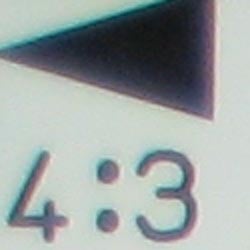
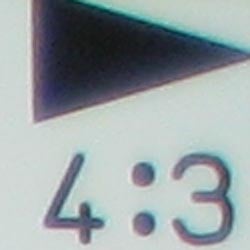
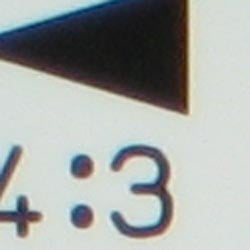
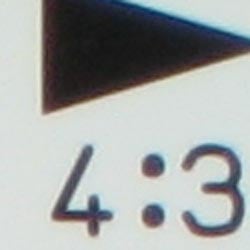
Chromatic aberration is moderate at wide angle, showing about 5-6 pixels of coloration on either side of the target lines, but not very bright. (This distortion is visible as a very slight colored fringe around the objects at the edges of the field of view on the resolution target.) At telephoto, chromatic aberration is lower, although a bit brighter. Overall, the effect is only slightly noticeable in most of our test shots.
Corner Sharpness
Slight blurring in the corners of the frame at wide angle, though less blurring at telephoto.
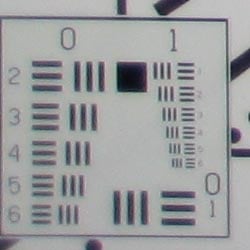
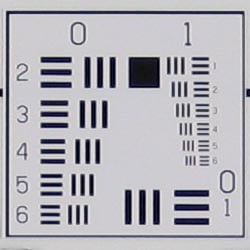
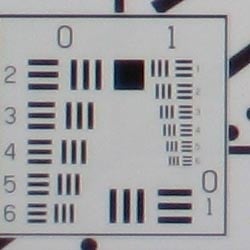
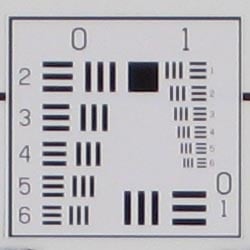
The Canon PowerShot SD1000 produced slightly soft results in the corners of the frame at full wide angle, with the lower corners being a little softer than the upper corners. At full telephoto, there's only slight blurring in the corners of the frame, with very little effect on resulting images.
Viewfinder
Accuracy
Very good accuracy from the LCD monitor, though the optical viewfinder proved a bit tight and offset.


The Canon PowerShot SD1000's optical viewfinder was a bit tight, showing approximately 80% coverage at wide angle, and 79% at telephoto. It was also tilted and shifted somewhat. This is a common outcome, but we still like to see more accuracy from the optical viewfinder. The camera's LCD monitor was very accurate, showing about 101% coverage at wide angle, and 100% at telephoto.
The images above were taken from our standardized test shots. For a collection of more pictorial photos, see our Canon PowerShot SD1000 Photo Gallery .
Exposure
Canon PowerShot SD1000 Exposure
Color
Saturation & Hue Accuracy
Overall very good color, with good hue accuracy. Some slight oversaturation in reds, blues, and greens, but still quite good results.
 |
| In the diagram above, the squares show the original color, and the circles show the color that the camera captured. More saturated colors are located towards the periphery of the graph. Hue changes as you travel around the center. Thus, hue-accurate, highly saturated colors appear as lines radiating from the center. |
Most consumer digital cameras produce color that's more highly saturated (more intense) than found in the original subjects. This is simply because most people like their color a bit brighter than life. The Canon PowerShot SD1000 does oversaturate the strong red tones, and some blues and greens a little, but the results are still quite pleasing.
Where oversaturation is most problematic is on Caucasian skin tones, as it's very easy for these "memory colors" to be seen as too bright, too pink, too yellow, etc. Here, the SD1000 did render skin tones slightly on the warm side in most cases, but many consumers find slightly warm skin tones more pleasing than cooler ones.
The other important part of color rendition is hue accuracy. Hue is "what color" the color is. Here, the SD1000 again performed well, though it pushed cyan tones toward blue (a common occurrence among Canon digital cameras), and some reds toward orange. Still, very good results.


Sensor
Exposure and White Balance
Indoors, incandescent lighting
Good color with the Manual white balance setting, though a hint warm.
Average positive exposure compensation required.


Color balance indoors under incandescent lighting was only slightly warm with the Auto white balance setting, though the Manual and Incandescent options produced more accurate results. Because the Incandescent setting had a hint of a pink cast, I chose the more accurate Manual setting. The Canon SD1000 required an average amount of positive exposure compensation here, at +1.0 EV. Despite the slight warm cast, overall color with the Manual white balance setting is excellent, without strong purple tints in the blue flowers. (Many digital cameras reproduce these flowers with a dark, purplish tint, so the SD1000 performed very well here.) Our test lighting for this shot is a mixture of 60 and 100 watt household incandescent bulbs, a pretty yellow light source, but a very common one in typical home settings here in the U.S.
Outdoors, daylight
Good color and exposure, though slightly high contrast with the default
setting.


Outdoors, the Canon PowerShot SD1000 performed pretty well, with only slight overexposure in the outdoor wide shot. The camera required less than the average amount of positive exposure compensation on the portrait. Though the white shirt appears quite white, it is not quite blown out except in a few places. Impressive. Default contrast is on the high side, though the camera's contrast adjustment did a pretty good job of taming the exposure without strongly affecting the color. The SD1000 captured good color outdoors, without too strong of a warm cast. Overall, pretty good results here.
See full set of test images with explanations
See thumbnails of all test and gallery images
Resolution
High resolution, 1,250 ~ 1,300 lines of strong detail.
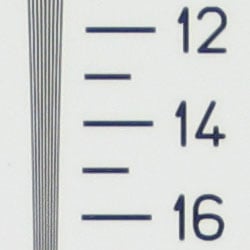
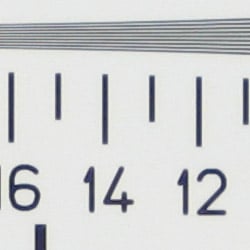
Our laboratory resolution chart revealed sharp, distinct line patterns down to about 1,250 lines per picture height horizontally, and also about 1,300 lines vertically. Extinction occurred at around 1,800 horizontally, and at about 1,900 vertically Use these numbers to compare with other cameras of similar resolution, or use them to see just what higher resolution can mean in terms of potential detail.
See full set of test images with explanations
See thumbnails of all test and gallery images
Sharpness & Detail
Sharp images overall, though slight edge-enhancement on high-contrast subjects. Moderate noise suppression limits detail in the shadows.


The Canon PowerShot SD1000 captures sharp images with good detail definition, though some slight edge enhancement artifacts are visible on high-contrast subjects such as the crop above left. Very minor in this case. (Edge enhancement creates the illusion of sharpness by enhancing colors and tones right at the edge of a rapid transition in color or tone.)
Noise-suppression systems in digital cameras tend to flatten-out detail in areas of subtle contrast. The effects can often be seen in shots of human hair, where the individual strands are lost and an almost "watercolor" look appears. The crop above right shows this, as the darker areas of Marti's hair show limited detail. Still, this is a pretty good performance.
ISO & Noise Performance
Low to moderate noise at the normal sensitivity settings, though a big
jump in noise with strong blurring at the higher settings.






Noise levels are pretty low at the Canon SD1000's lower sensitivity settings, with only slightly blurred detail in the dark areas. ISO 200 still looks very clean, although the smudging caused by noise reduction is more evident. ISO 400 isn't too bad for this class of camera, but at ISO 800 image noise begins to dominate areas of fine detail, and chroma noise is obvious. At 1,600 noise is so strong and blurring so significant, that resulting images are practically useless for printing from this indoor shot. See below Output Quality below for more.
Extremes: Sunlit and low light tests
High resolution with strong overall detail, but slightly high contrast
and limited shadow detail. Excellent low-light performance, capable of capturing
bright images in near darkness.


Sunlight:
Because digital cameras are more like slide film than negative film (in that they tend to have a more limited tonal range), we test them in the harshest situations to see how they handle scenes with bright highlights and dark shadows, as well as what kind of sensitivity they have in low light. The shot above is designed to mimic the very harsh, contrasty effect of direct noonday sunlight, a very tough challenge for most digital cameras. (You can read details of this test here.)
The Canon PowerShot SD1000 produced fairly high contrast with deep shadows under the harsh lighting of the test above. Detail is limited in the shadow areas, with some noise suppression visible. Though some areas look a little dark at +0.3 EV, I preferred it to the image at +0.7 EV, which had too many blown highlights for my preference. (In "real life" though, be sure to use fill flash in situations like the one shown above; it's better to shoot in the shade when possible.)
| 1 fc 11 lux |
1/2 fc 5.5 lux |
1/4 fc 2.7 lux |
1/8 fc 1.3 lux |
1/16 fc 0.67 lux |
|
|---|---|---|---|---|---|
| ISO 80 |
 2.5 sec f2.8 |
 5 sec f2.8 |
 9.9 sec f2.8 |
 16 sec f2.8 |
 16 sec f2.8 |
| ISO 100 |
 2 sec f2.8 |
 4 sec f2.8 |
 8 sec f2.8 |
 16 sec f2.8 |
 16 sec f2.8 |
| ISO 200 |
 1 sec f2.8 |
 2 sec f2.8 |
 4 sec f2.8 |
 8 sec f2.8 |
 16 sec f2.8 |
| ISO 400 |
 0.5 sec f2.8 |
 1 sec f2.8 |
 2 sec f2.8 |
 4 sec f2.8 |
 8 sec f2.8 |
| ISO 800 |
 0.3 sec f2.8 |
 0.5 sec f2.8 |
 1 sec f2.8 |
 2 sec f2.8 |
 4 sec f2.8 |
| ISO 1600 |
 1/7 sec f2.8 |
 1/4 sec f2.8 |
 0.5 sec f2.8 |
 1 sec f2.8 |
 2 sec f2.8 |
Low light:
The Canon PowerShot SD1000 did quite well here, capturing bright images down to the 1/16 foot-candle light level (about 1/16 as bright as average city street lighting at night). At ISO 80, the image at this lowest light level is a bit dim, but really still usable. The camera's autofocus system was able to focus on the subject down to just below the 1/4 foot-candle light level without the AF assist light, so you'll need to make sure it's enabled for darker conditions. Do keep in mind though, that the very long shutter times necessary here absolutely demand the use of a tripod or other camera support to get sharp photos. (A useful trick is to just prop the camera on a convenient surface, and use its self-timer to release the shutter. This avoids any jiggling from your finger pressing the shutter button, and can work quite well when you don't have a tripod handy.)
NOTE: This low light test is conducted with a stationary subject, and the camera mounted on a sturdy tripod. Most digital cameras will fail miserably when faced with a moving subject in dim lighting. (For example, a child's ballet recital or a holiday pageant in a gymnasium.) For such applications, you may have better luck with a digital SLR camera, but even there, you'll likely need to set the focus manually. For information and reviews on digital SLRs, refer to our SLR review index page.
Flash
Coverage and Range
Slightly dim exposures at the default exposure setting; the camera required less-than-average exposure compensation for flash exposures. Typical range.


Flash coverage was uneven at wide angle; and though it was more even at telephoto, the intensity decreased. Indoors, under incandescent background lighting, the Canon SD1000's flash underexposed our subject a little at its default setting, requiring a +0.7 EV exposure compensation adjustment to get bright results. The camera's Slow-Sync flash mode coverage is more even, though with a noticeable orange cast.
| Flash Range: Wide Angle | |||||
|---|---|---|---|---|---|
| 6 ft | 7 ft | 8 ft | 9 ft | 10 ft | 11 ft |
 1/64 sec f2.8 ISO 100 |
 1/64 sec f2.8 ISO 100 |
 1/64 sec f2.8 ISO 100 |
 1/64 sec f2.8 ISO 100 |
 1/64 sec f2.8 ISO 100 |
 1/64 sec f2.8 ISO 100 |
| 12 ft | 13 ft | 14 ft | 15 ft | 16 ft | |
 1/64 sec f2.8 ISO 100 |
 1/64 sec f2.8 ISO 100 |
 1/64 sec f2.8 ISO 100 |
 1/64 sec f2.8 ISO 100 |
 1/64 sec f2.8 ISO 100 |
|
| Flash Range: Telephoto | |||||
|---|---|---|---|---|---|
| 6 ft | 7 ft | 8 ft | 9 ft | 10 ft | 11 ft |
 1/64 sec f5.0 ISO 100 |
 1/64 sec f5.0 ISO 100 |
 1/64 sec f5.0 ISO 100 |
 1/64 sec f5.0 ISO 100 |
 1/64 sec f5.0 ISO 100 |
 1/64 sec f5.0 ISO 100 |
| 12 ft | 13 ft | 14 ft | 15 ft | 16 ft | |
 1/64 sec f5.0 ISO 100 |
 1/64 sec f5.0 ISO 100 |
 1/64 sec f5.0 ISO 100 |
 1/64 sec f5.0 ISO 100 |
 1/64 sec f5.0 ISO 100 |
|
At wide angle, shots at ISO 100 are bright out to a distance of about 12 feet, decreasing in brightness from that point on. At full telephoto and ISO 100, even the 6-foot shot is a tad dim, and the images darken from there.
| Manufacturer-Specified Flash Range | |
|---|---|
| Wide Angle | Telephoto |
 11.0 feet Auto ISO 250 |
 6.6 feet Auto ISO 200 |
Our standard test method for flash range uses a fixed setting of ISO 100, to provide a fair basis of comparison between cameras. We've now also begun shooting two shots using the manufacturer-specified camera settings, at the range the company claims for the camera, to assess the validity of the specific claims. In the shots above, the SD1000 seems to perform exactly as Canon says it will, producing good exposures (in fact, a little overexposed at wide angle) at the rated distances with its ISO set to Auto.
Output Quality
Print Quality
Good print quality, great color, good 11x14 inch prints. ISO 400 images are soft but usable at 8x10, ISO 800 shots are still good at 5x7. Performance in incandescent lighting was not quite as good.
Testing hundreds of digital cameras, we've found that you can only tell just so much about a camera's image quality by viewing its images on-screen. Ultimately, there's no substitute for printing a lot of images and examining them closely. For this reason, we now routinely print sample images from the cameras we test on our Canon i9900 studio printer, and on the Canon iP5200 here in the office. (See the Canon i9900 review for details on that model.)
The Canon PowerShot SD1000 had enough resolution to make good looking 11x14 inch prints. 13x19 inch prints are also okay, but a little soft in the corners. ISO 400 images start to degrade in terms of color, and are really only acceptable at 8.5x11 or smaller. ISO 800 images are only good at 5x7 or smaller, and ISO 1600 shots are passable at 4x6. These are all judged based on our daylight balanced shots, where you're less likely to use ISO 800 and 1600. The indoor shots at ISO 800 and 1600 were not quite as good when printed. ISO 800 shots were only good at 4x6, and the ISO 1600 shots were unusable even at 4x6.
The images above were taken from our standardized test shots. For a collection of more pictorial photos, see our Canon PowerShot SD1000 Photo Gallery .
Not sure which camera to buy? Let your eyes be the ultimate judge! Visit our Comparometer(tm) to compare images from the Canon PowerShot SD1000 with those from other cameras you may be considering. The proof is in the pictures, so let your own eyes decide which you like best!
Performance
Canon PowerShot SD1000 Performance
Timing and Performance
Good to average speed for a consumer camera.
| Startup/Shutdown |
||
| Power on |
1.1 seconds | Time it takes for LCD to turn on and lens to deploy. |
| Shutdown |
1.1 seconds | How long it takes to retract lens. |
| Buffer clearing time |
2 seconds (2 seconds buffer clearing after LSF JPEGs) |
Worst case buffer clearing time. -- This is the delay after a set of shots before you can remove the card. Some cameras won't retract their lenses and shut down until the buffer is cleared. |
| Mode switching | ||
|---|---|---|
| Play to Record, |
1.3 seconds | Time until first shot is captured |
| Record to play |
1.0 second | Time to display a large/superfine file immediately after capture |
| Display |
3.1 seconds | Time to display a large/superfine file already on the memory card. |
| Shutter response (Lag Time): | ||
| Full Autofocus Wide |
0.36 second | Time from fully pressing shutter button to image capture, zoom lens at wide angle position. |
| Full Autofocus Tele |
0.40 second | Time from fully pressing shutter button to image capture, zoom lens at telephoto position. |
| Prefocused |
0.085 second | Time to capture, after half-pressing and holding shutter button. |
| Cycle time (shot to shot) | ||
|
Single Shot mode
Large SuperFine JPEG |
2.14 seconds | Time per shot, averaged over 20 shots. |
| Single Shot mode |
1.99 seconds | Time per shot, averaged over 20 shots. |
| Early shutter |
No | Some cameras refuse to snap another shot if you release and press the shutter too quickly in Single Shot mode, making "No" the preferred answer. |
| Continuous mode |
1.33 second (0.75 frames per second); 2 seconds to clear |
Time per shot, averaged over 20 shots. |
| Continuous mode |
1.26 second (0.79 frames per second); 2 second to clear |
Time per shot, averaged over 20 shots. |
| Flash recycling |
8 seconds | Flash at maximum output. |
| Download speed | ||
| Windows Computer, USB 2.0 |
3,410 KBytes/sec | Typical Values: |
| *Note: Buffer clearing times measured with a Kingston Ultimate 133x SD memory card. Slower cards will produce correspondingly slower clearing times. Slow cards may also limit length of bursts in continuous mode. |
||
The Canon PowerShot SD1000's performance ranges from good to just average, though its 8-second flash recycle time is slow. Start-up time is reasonably fast at just over one second. Shutter lag at wide angle and telephoto zoom settings is quite fast, and "prefocus" times (half-pressing and holding down the shutter button before the final exposure) are fast as well, with a shutter delay of only 0.085 second. Shot-to-shot cycle times are a little longer than average these days, at about 2 seconds for large/superfine JPEGs, but the camera captures frames continuously at this rate. Continuous-mode speed is on the slow side, at about 0.75 frame/second, though the camera captures frames continuously. Connected to a computer, download speeds are quite fast, so you won't feel a need for a separate card reader. Bottom line, the Canon SD1000 is responsive enough for most family photo opportunities, though its continuous shooting mode is a tad slow for active kids or sporting events.
Battery and Storage Capacity
Battery
Average battery life with LCD on, but much better life with LCD off.
| Operating Mode | Number of Shots |
|---|---|
|
LiIon rechargeable battery,
LCD on (CIPA standard) |
210
|
|
LiIon rechargeable battery,
LCD off |
600
|
The Canon PowerShot SD1000 uses a custom rechargeable LiIon battery for power. Runtimes are about average for a LiIon design with the LCD on, but very good with it off. We recommend you pick up a spare battery and keep in charged and on-hand for extended outings, especially if you plan on using the LCD a lot.
The table above shows the number of shots the camera is capable of (on either a fresh set of disposable batteries or a fully-charged rechargeable battery as appropriate), based on CIPA battery-life and/or manufacturer standard test conditions.
(Interested readers can find an English translation of the CIPA DC-002 standards document here. (180K PDF document))
Storage
The Canon PowerShot SD1000 accepts SD/MMC memory cards, and a 32MB card is included with the camera.
| Image Capacity with 32MB Memory Card |
SuperFine | Fine | Normal | |
|---|---|---|---|---|
|
3,072 x 2,304
|
Images
|
9
|
15
|
32
|
|
File Size
|
3.3 MB
|
2.0 MB
|
984 KB
|
|
|
2,592 x 1,944
|
Images
|
11
|
21
|
41
|
|
File Size
|
2.7 MB
|
1.5 MB
|
762 KB
|
|
|
2,048 x 1,536
|
Images
|
18
|
33
|
65
|
|
File Size
|
1.7 MB
|
966 KB
|
491 KB
|
|
|
1,600 x 1,200
|
Images
|
29
|
52
|
99
|
|
File Size
|
1.1 MB
|
610 KB
|
322 KB
|
|
|
640 x 480
|
Images
|
111
|
171
|
269
|
|
File Size
|
288 KB
|
186 KB
|
119 KB
|
|
We strongly recommend buying a large capacity SD/MMC memory card at least a 1GB card, preferably a 2GB one, to give yourself extra space for extended outings. (Check the shopping link above, cards are really cheap these days, so no reason to skimp.)