


Overview
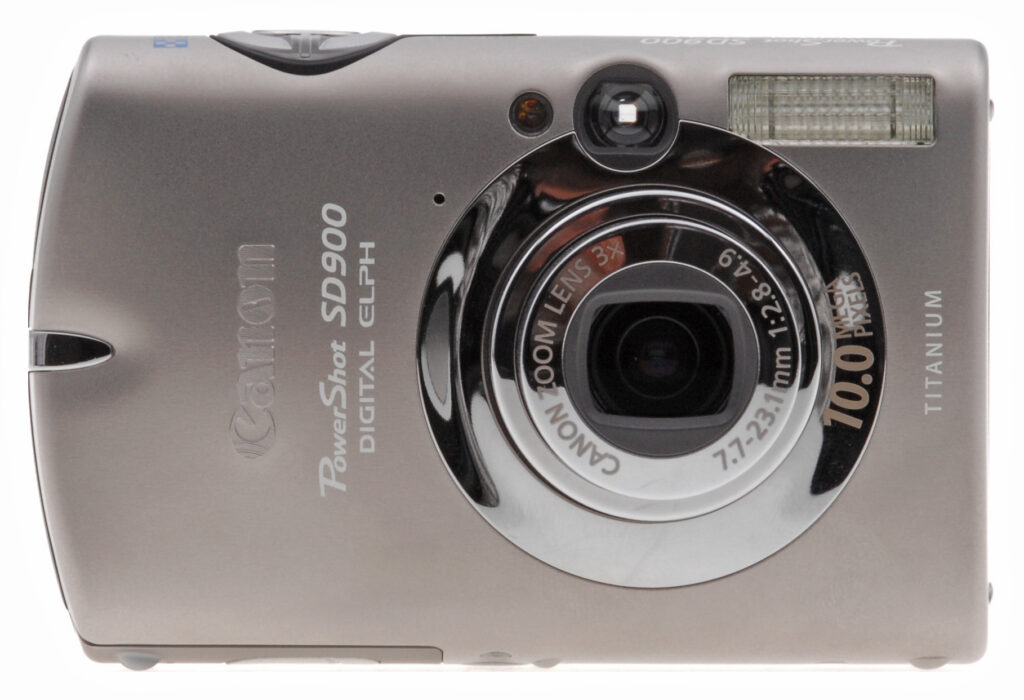
Canon PowerShot SD900 Digital ELPH Overview
by Mike Pasini
Hands-On Preview: 11/26/06
Full Review: 01/15/07
The Canon SD900 Digital ELPH features a compact, stylish case with rounded horizontal edges, and a retracting lens to make it pocket-friendly. The Canon SD900 includes a 10 megapixel imager, and a Canon-branded 3x optical zoom lens covers a fairly standard range of 37-111mm equivalent, a moderate wide-angle to moderate telephoto. Exposure is fully automatic, but the user can tweak it with 2.0EV of exposure compensation, and three metering modes to handle difficult lighting, while 11 scene modes keep the camera approachable for beginners.
A long-exposure mode in the Canon SD900 ELPH also lets you manually set exposure times as long as 15 seconds, and a large 2.5 inch LCD display plus an optical viewfinder -- rather rare on digicams these days -- helps frame images on bright days.
The Canon ELPH SD900 also sports a rather wide ISO sensitivity range, from 100 to 1,600 with a special scene mode offering ISO 3,200 equivalent, for better performance in dim lighting.
Canon also manufactures a line of photo printers, and prides themselves on the level of integration between their cameras and printers. The Canon SD900 is PictBridge capable, so is able to print to any printer that supports PictBridge directly, without the need for a computer in the middle. When connected to a Canon printer, though, you can set paper size, print quality, and a number of other parameters, capabilities lacking in basic PictBridge connections.
Canon PowerShot SD900
User Report
by Mike Pasini
Front. Stand it on end (even with the lens extended) or on its side.
Intro. Megapixel counters will be drawn to the 10 megapixel sensor on the Canon SD900, the most yet on a Digital ELPH. But there are three other cool new features on this little ELPH worth noting.
Canon has tweaked their already quite competent low light performance with a high ISO of 1,600. But they didn't stop there, adding a Scene mode that shoots a small image size at ISO 3,200, too. It's a wonder they put a flash on this thing.
Being able to shoot without flash in ordinary room light means no red-eye. And if you take lots of pictures of people, that's enough reason to like the Canon SD900. But it has an even more compelling argument with Canon's new Face Detection ability. Half press the shutter and the SD900 will show a focus target on the nearest face it finds. No more focusing on the wall between two heads.
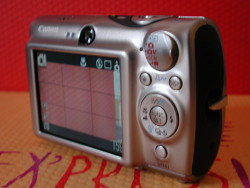
Back. Big LCD, controls nicely grouped.
The Canon SD900 can also tag your images with one of several categories as you shoot or after. Either way, you can organize them before you transfer them to your computer, which strikes me as a very bright idea.
The compact size of the titanium Canon SD900 makes it ideal for travel. You never have to worry about the shutter or aperture on an ELPH, but you can tweak exposure by playing with the ISO, something you may want to do in dark churches or museums. And battery life is generous enough you can rely on it for a day's outing.
Design. Even if you never look at the Canon SD900 to see its gorgeous titanium exterior, you'll appreciate the way it feels in your hand. It looks bulky, but it actually fits your palm quite comfortably, lending a feeling of security as you travel around with it. So don't let the shape put you off.
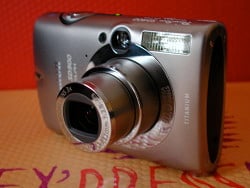
Fully Extended. Titanium shell wraps nicely around the body.
The titanium shell wraps smoothly around the body, raising up slightly to frame the 2.5 inch LCD and to set a dial or button. You can stand the SD900 up on its end or its side, and I found both useful.
Its weight falls in the middle of the pack among compact digicams, but that's a good thing. A little heft helps stabilize a small camera.
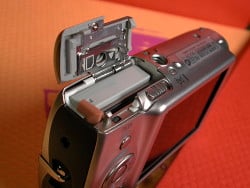
Card/Battery Compartment. The battery is good for over 200 shots with the LCD on. The SD card is tucked in alongside it.
Like previous ELPHs, it's comfortable not only to carry but to shoot with, easily managed with just your right hand. The Canon SD900's new Mode dial design has a sculpted face that makes it easy to switch modes with just your thumb. And the Touch control dial can be set so it detects light pressure on any of its control points. The Display button has been moved up, just under the Mode dial, which has the benefit of leaving the Menu button all by itself under the Touch control dial, where you won't confuse it with anything else.
There's no real front or back grip, but the shell of the Canon SD900 is designed with a slight but helpful bulge in front and the Mode dial actually wraps around your thumb on the back. So, while you can't see the grip, your hand naturally finds it and you feel it. Very clever.
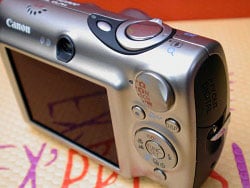
LCD Top. Note the shape of the Mode dial, sculpted to help your thumb push it in either direction.
I can't say enough about the large shutter button, ringed with the Zoom lever. It doesn't protrude but is always easy to find.
While it's a great point-and-shoot design, it's also very well suited to travel (which is a bit more demanding). You hardly ever have to worry about exposure options. Just attach the Canon SD900's wrist strap, charge the battery and put a large SD card in it, and off you go. You'll come back with great shots every time.
Display/Viewfinder. The Canon SD900 has both a large LCD and an optical viewfinder, a rare paring these days. The advantage of the optical viewfinder is undeniable. In bright sun when you can't see what's on the LCD or in darkened venues where a bright LCD is not welcomed, an optical viewfinder lets you get the shot. As Luke noted when shooting the test shots, the SD900 sports "another truly awful viewfinder," but having one is better than not having one. True, it shows about 80 percent of what the sensor will capture, but that's enough to center the subject and get the shot.
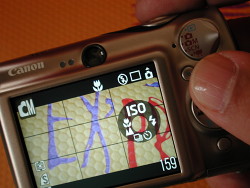
Touch Control Dial. The LCD displays the controls on the dial when you just touch your thumb to it, enlarging the ring and icons in the direction you're about to press.
At 230,000 pixels, the 2.5 inch LCD on the Canon SD900 enjoys a bit more resolution than its cousin on the SD700. That's good news. Also good news is the extremely wide angle at which you can still see the full color image on the LCD. It approaches 180 degrees (which, of course, is unattainable), so you can hold the camera over your head or drop it below your belt and still compose your shot. That's something you can't do with an optical viewfinder.
Performance. The closer you look at the Canon SD900's performance numbers, the more impressed you are. It ranks above average (and well above) for startup time, shutdown time, autofocus shutter lag, prefocus shutter lag, cycle time, and download speed.
The only categories it ranks average in are its flash cycle time, weight (which I find advantageous), and its 3x zoom (which is pretty much the standard zoom ratio these days). The Canon SD900's 3x optical zoom is buttressed by a 4x digital zoom.
Considering how powerful the flash is, having an average cycle time is a miracle. My informal shooting around the house impressed me by how well the flash lit up even large rooms.
Luke also pointed out the SD900 has "exceptional low light focusing ability. Very few point-and-shoot cameras will go below EV3 without the assist light." Finding focus can be a real headache even with an SLR. But the Canon SD900 has very little trouble. Toss in Face Detection autofocus and it's probably the most reliable focus I've ever used.
One thing that surprised me was how hard it was to get a sharp shot at 1/30 second. The camera shake warning, a red hand, was constantly waving at me on the LCD as I went around in the rain to take a few outdoor shots. It seems like 1/60 second was the best I could do with the Canon SD900.
There's no Shutter Priority mode, so you can't help yourself that way. Nor is there an Aperture Priority or Manual mode. The "M" Camera mode on the Mode dial is really a Programmed Auto that lets you set options other than Image Size and Compression, which is all Auto lets you do (apart from selecting between Auto and High Auto ISO).
So to avoid camera shake, I tapped into the SD900's ISO option. The first trick was to select High ISO, rather than Auto ISO. That told the Canon SD900 it was fine with me if it used a higher, noisier ISO to avoid camera shake. The second trick was to simply select a high ISO (like 1,600). That results in much noisier images, but gives you the most depth of field in addition to a safe shutter speed. And noise can be dealt with in software. I used Imagenomic's Noiseware Professional plug-in to clean up the noise on the ISO 1,600 shot of Marti, a detail of which (showing her eye) appears here. Your printer may average out the otherwise grainy appearance of high ISO shots, too. So don't be too quick to reject them.
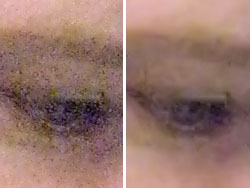
Noise Reduction. This is the ISO 1600 studio shot of Marti at 100 percent. The left side shows the noise captured at this ISO and the right side shows how Imagenomic's Noiseware Pro plug-in reduces the noise. No eyelashes, but the eyeball is clear.
But the Canon SD900 has yet another ISO trick up its sleeve with an ISO 3,200 Scene mode. The trick is that it captures a small image at 1,600 x 1,200, doing a little averaging of its own. But if it lets you get the shot (say, in a dark interior), how can you complain?
The Canon controls and menu system have, by now, evolved into a package that's really comfortable to use once you learn how to play the game. In Auto, you don't worry about the buttons at all. In M, just hit the Canon SD900's Function button to see your options. Hit the Menu button for setup options.
The Touch control dial, when activated, displays a small version of itself on the LCD. But it can be easier to read than the little icons on the dial itself. It magnifies whatever option your thumb is on. That seems to be the real advantage because you still have to click the dial to access the settings.
The lens tests below speak to the sharpness of this optic, slightly revised from previous ELPHs. Chromatic aberration was there at wide angle, but less than I'm used to seeing. Distortion at wide angle was minimal, too. And at telephoto, neither were noticeable.

Macro. Nearly a still life made easier by an LCD viewable at extreme angles.
The Canon SD900's Macro performance was a delight, too. You don't have to get right on top of a subject to shoot macro. I engaged it for most of my full frame flower shots to capture the texture of the petals, for example.
Movie mode jumps up to HDTV with a 1,024 x 768 pixel mode but captures just 15 fps, half the broadcast standard of 30 fps (available at the 640 x 480 pixel option).
That 16:9 wide aspect ratio is also available for still shooting (but without digital zoom). It's somehow a more pleasing aspect ratio to me, more the shape of your two eyes than the 4:3 ratio (or even the traditional 3:2) that frames a print so well. And having 3,648 pixels of horizontal detail to fill that frame with sure doesn't hurt one little bit.
A full charge on the Canon SD900's battery delivers about 230 shots, according to Canon. If you turn off the LCD (an option since you have an optical viewfinder) that jumps up to 700. So if battery power is running low, turn off the LCD to extend shooting time. Playback is good for six hours, Canon claims. That far exceeds my performance for a day's shooting.
Shooting. I make a habit of avoiding Scene modes. It's hard to see on the LCD just what they've done and the manual often doesn't disclose anything either, except in very broad terms.
But I couldn't resist two Scene modes on the Canon SD900.
The first was Portrait. Face Detect is on by default in Portrait mode, though you can set it in any mode but Movie. Shooting faces is a bit of a problem for test shots (everybody wants to be paid for some reason), but you don't actually need a starving artist to pull this trick off. Face recognition identifies the triangle of two eyes and a nose (mouths can often be obscured) so it doesn't work with profiles. But it can detect, for example, a framed portrait. It was fun trying to fool it, but it was dead on. If it can't find a face, it focuses anyway.
But you'll love this the next time you want to take a picture of two people standing side by side in front of Mount Fuji, say. Instead of focusing on Mount Fuji and blurring the faces of the people who are the real subject of the shot, Face Detect finds the faces and isn't fooled by Mount Fuji. Without Face Detect, you have to cheat the camera left or right to focus on one of the faces, half press the shutter button to lock focus, swing back to recompose the image and then fully press the shutter.
The beauty of Face Detect is that it really works. You can rely on it to find the heads facing you in the picture. And that's a real convenience.
The second Scene mode I couldn't resist was ISO 3,200. I didn't realize right off the bat that the image size was reduced to 1,600 x 1,200. But that's a fair trade off, still good enough to print an 8x10 at 150 dpi, which is all your inkjet really needs.

ISO 3200. Image size is restricted to 1600x1200 (good enough for an 8x10 print) but note how much color has been captured.
The neat thing about this Scene mode isn't so much the high ISO speed as it is the color it captures. Usually the higher you push your ISO the less color you get. You can see that in our crop of Marti's eye. But the ISO Scene mode retains very rich color (our pink flower was shot at ISO 3,200). There is some noise artifacting, but not the usual grainy effect. Instead, it seemed more an artifact of averaging values (from what I presume is the full 10 megapixels of data). And, once again, Noiseware Pro took care of it.
Being able to shoot at that speed makes it easier to get a sharp image and gets more of the scene in focus, too, by extending depth of field.
The Canon SD900's Category feature seems, at first glance, like something no one needs. It's bad enough to have to keyword images to organize them on your computer (so nobody really does). Why let that nuisance into your camera too? Especially if no other software knows about it.
Well, the advantage -- which can be compelling -- is in organizing playback options in the camera. And those can include slide shows and PictBridge printing as well as image searching (using the Jump feature) and management (like erasing). The preset categories are People, Scenery, Events, Categories 1 to 3, and To Do. An image can be assigned more than one category, too. If you use the Auto Category option in the Record menu, this can happen as you shoot. Otherwise, you can assign categories during playback.
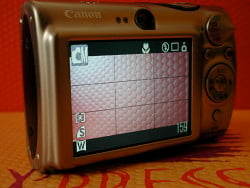
LCD Grid. Shooting display using 16:9 aspect ratio.
Another favorite feature, although an oldie, is Grid display. For some reason my gyroscope is off a bit and I have a hard time taking level shots. Having the grid display on the LCD helps a lot. The dark gray lines are really not obtrusive and help compose images too if you play by the Rule of Thirds.
But if I ever meet the guy who concocted Canon's rotation "feature," I will shake more than his hand. It "suggests" rotation, setting an obscure tag in the header, but doesn't actually do it, so sometimes your images look rotated and mostly they don't. It really wouldn't be a big deal to actually rotate the images. To avoid confusion, I leave this feature off.
And I can't help repeating that I miss a real Manual mode plus Shutter and Aperture Priority. But for that, I just have to go to Canon's A-Series. I do wish Canon would enable EV compensation in Auto mode, however. It was surprisingly easy to blow out the highlights even on an overcast day. Adjust EV would have helped.
Appraisal. Canon's Digital ELPH series is designed for the person who doesn't want to worry about shutter speeds and apertures to get good pictures. If Auto mode doesn't do the trick the Programmed Auto (M) accesses options like White Balance, EV compensation, and Metering. And if that's too much trouble, there's a healthy selection of 11 Scene modes to solve almost any problem.
That ease of use is reflected in the SD900's cleverly sculpted titanium shell, which seems to have an invisible grip, and its simple control layout. And it extends to features like Face Detect autofocus and a special ISO 3,200 Scene mode that doesn't sacrifice color to sensitivity.
The SD900 is an excellent performer no matter what aspect you consider, with superior focusing and low light performance matched with a powerful flash that doesn't make you wait all day to recharge. And with a day-long battery, you couldn't ask for a better traveling companion.
Basic Features
- 10-megapixel CCD
- Real-image optical viewfinder
- 2.5-inch color TFT LCD monitor with 230,000 pixels
- 3x, 7.7-23.1mm lens, equivalent to a 37-111mm lens on a 35mm camera
- Maximum 4x digital zoom
- Automatic exposure control, with Long Shutter mode for longer exposures
- Shutter speeds from 1/2,000 to 15 seconds
- Maximum aperture of f/2.8 to f/4.9, depending on lens zoom position
- Spot, Center-Weighted, and Evaluative exposure metering
- White balance (color) adjustment with seven modes, including a Custom setting
- Built-in flash with six modes
- SD memory card storage, 32MB card included
- Power supplied by a rechargeable lithium-ion battery pack (charger included) or optional AC adapter kit
- Canon Digital Camera Solution Software v29.0
- Print/Share button for direct image transfer and printing
Special Features
- Pure titanium shell sculpted in Canon's Perpetual Curve design
- DIGIC III image processor with face detection technology
- Adjustable ISO settings up to 1,600, plus Auto and ISO HI settings, and an ISO 3,200 Scene mode
- 16:9 Widescreen still image capture mode
- 11 preset Scene modes
- Five Movie modes with sound, with 1,024 x 768 XGA mode at 15 fps
- Continuous Shooting mode
- Stitch-Assist panorama mode
- Infinity, Macro, and Digital Macro focus modes
- Customizable "My Camera" settings
- Two- or 10-second Self-Timer for delayed shutter release, plus custom timer with multi-shot feature
- Sound Memo option for recording captions
- My Colors menus for color adjustment
- Unusual Color Accent and Color Swap features for special effects in still images or movies
- DPOF (Digital Print Order Format) and PictBridge compatibility
- USB cable for connection to a computer (driver software included)
- A/V cable for connection to a television set
In the Box
The Canon SD900 ships with the following items in the box:
- Canon SD900 digital ELPH camera
- NB-5L lithium-ion battery pack with cover
- CB-2LX Battery charger
- 32MB SD memory card
- WS-700 Wrist strap
- IFC-400PCU USB cable
- AVC-DC300 AV cable
- Canon Digital Camera Solution Disk v29.0 software CD
- Operating manuals and registration card
Recommended Accessories
- Large capacity SD/MMC memory card. (These days, 512MB and 1GB cards are a good tradeoff between cost and capacity.)
- Small camera case for outdoor and in-bag protection
Canon Accessories for the SD900 include:
- High Power Flash HF-DC1
- Side Pack PSC-1 carrying case
- Metal Neckstrap
Conclusion
| Pro: | Con: |
|---|---|
|
|
Featuring a 10 megapixel CCD, 3x optical zoom lens, and well-designed user interface, the PowerShot SD900 Digital ELPH updates the popular PowerShot line with a compact body style that is well suited for travel. Exposure remains under automatic control, and its 11 pre-programmed scene modes help with more tricky subjects. It's a very responsive camera, with low shutter lag in daylight conditions, and excellent shot-to-shot speeds. It also sports very good battery life, a very capable Movie mode, and excellent download speed. Finally, Canon makes a line of accessories including a slave flash, and even an underwater case for it as well, expanding your options beyond what you'd normal expect from a compact digital camera. The bright 2.5-inch color LCD monitor is excellent for framing and reviewing shots, and the overall design and layout of the SD900 is user-friendly and hassle-free. If you're looking for a good, take-anywhere camera with great versatility and good color and tonality, the Canon SD900 deserves a close look. No question, a Dave's Pick in its category.
Design
Canon PowerShot SD900 Design
Canon's Perpetual Curve design, which has graced the Digital ELPH line for some time now, looks sleek on the SD900's smooth titanium case. Its pocketable dimensions of 3.59 x 2.35 x 1.11 inches (91.2 x 59.6 x 28.2 millimeters) weigh just 6.67 ounces (189 grams), about average for its class. The SD900, which can stand on its side or its end, looks comfortable either way. It's not the slimmest digicam you can find, but it fits your hand easy as a bar of soap; though thankfully it's not as slippery.

The front of the Canon SD900 will be familiar to fans of the ELPH line. The lens dominates on the right side with the flash tucked into the top right corner. Directly above the lens is the viewfinder window and just to its left is the self-timer lamp. If you follow down the left side of the chrome lens frame you'll see the small hole for the microphone. The lens telescopes out and back in very quickly, above average for its class, extending an inch from the body in two pieces.

Controls are located nearest the right hand with the large Shutter button surrounded by the Zoom lever most prominent at the right side of the top panel. To their left is a small Power button with its Power lamp on its left. Closer to the left side is a grill for the speaker.

On the right side of the Canon SD900 (as viewed from the rear) are the AV Out and USB ports, protected by a hinged, plastic door that swings out and upward to reveal the ports. Below the door is the wrist strap attachment eyelet.

The opposite side of the camera is bare, showing only a few screws and the four small feet that let you stand the SD900 up vertically.

On the back panel, the 2.5 inch LCD dominates the left two-thirds just below two small indicator lamps and the tiny viewfinder eyepiece. The lamps indicate the camera's status (ready to shoot, recording, flash ready, camera shake for the right orange indicator, and focus mode, focus difficulty for the yellow indicator on the left). The controls aligned to the right of the LCD are topped by the Mode dial, with options for Playback, Auto, Manual (actually a Programmed Auto), Scene, and Movie mode. Below that are the Print/Share button and, to its right, the Display button. Below them is the Touch Control dial with the usual four arrow keys and options for ISO/Jump, Flash, Erase/Continuous/Self-Timer, and Macro/Infinity modes. In the middle of the dial is the Function/Set button that brings up the Function menu and confirms menu choices. Below the dial is the Menu button, which accesses the main LCD menu system.

The bottom of the SD900 has six feet to stand on (balancing out the curved panel), a metal tripod mount just off center. The card/battery compartment cover has a small flap for the DC coupler terminal (or dummy battery). Inside the compartment, the battery and SD memory card slots line up next to each other. A small spring-loaded latch ensures the battery won't accidentally fall out when you open the compartment cover.
Canon PowerShot SD900 External Controls

Shutter Button: Located on the top panel, this button sets focus, and exposure when halfway pressed, and fires the shutter when fully pressed. If the Self-Timer is activated, a full press of the Shutter button triggers the countdown.
Zoom Lever (see image above): Surrounding the Canon SD900's Shutter button on the top panel, this lever controls the optical and digital zoom in any record mode. In Playback mode, the wide-angle end activates first a nine-image index display, and then a "Jump" mode that allows you to page through screens of nine thumbnails at once. The telephoto setting zooms in on captured images for closer inspection of fine details.

Power Button: To the left of the Shutter button on the Canon SD900's top panel, this button turns the camera on, or off.

Mode Dial: At the top of the right side of the back panel, this rotating dial controls the camera's operating mode, offering the following options:
- Playback Mode: Replays captured images, and movies, with options for image management, and printing.
- Auto Still Record Mode: Sets the camera for still image capture, with limited user options.
- Manual Still Record Mode: Sets the camera for still image capture, with varying exposure options available through the Function menu.
- Scene Mode: Accesses the 11 different preset scene mode options, which include: Portrait, Night Snapshot, Kids & Pets, Indoor, Foliage, Snow, Beach, Fireworks, Aquarium, Underwater, and ISO 3,200.
- Movie Mode: Captures moving images with sound in several different modes.

Print/Share Button: Below and to the left of Mode Dial on the back panel, the Print/Share button activates uploads to Windows computers, or connects to a variety of compatible printers, including those that understand the PictBridge protocol. The button glows blue when ready to print or transfer images, and flashes blue when printing or transferring images.

Display Button: To the right of the Print/Share button, this button cycles through the LCD image, and information displays. In Playback mode, it cycles through the image only, information display, and info display with histogram modes.

Touch Control Dial: This four-way rocker ring is located to the right of the PowerShot SD900's LCD monitor, and serves multiple functions. In any Settings menu, the ring navigates through menu selections depending on which section is pressed. The top part of the ring cycles through ISO speeds from Auto to Auto High, 80, 100, 200, 400, 800, or 1,600 ISO equivalents. The left side cycles the focus modes between Macro, Infinity, and the normal AF mode. The right side accesses the camera's flash modes, cycling through Automatic, Red-Eye Reduction, Forced On, Forced On with Red-Eye Reduction, Forced Off, and Slow-Sync settings. Finally, the bottom part of the ring activates the Self-Timer, and Continuous Shooting modes, or returns to the normal exposure mode. Through the Setup menu, you can enable the selector's Touch Icons sensitivity, which makes the outer edge of the dial sensitive to just the touch of a finger. When touched, the LCD monitor displays a digital version of the dial, and enlarges the icon closest to your finger. Pressing down on the function icon enables you to change the setting, as you normally would without the Touch Control feature enabled.
In Playback mode, the top of the ring calls the Jump menu, and the bottom calls the Delete menu, while the right and left sides scroll through captured images and movie files. When you zoom in on an image, all four sides pan the view.
Function/Set Button (see image above): In the center of the four-way control ring, this control activates the Canon SD900's Function menu in any Record mode, and confirms selections once any menu has been invoked. When used to activate the Function menu, the following options are available (not all options being available in all modes):
 Shooting Mode: Selects among the shooting options available
in the Record mode selected on the Mode dial. Auto offers none. Manual offers
Manual, Digital Macro, Color Accent, Color Swap, Stitch Assist Right, and
Stitch Assist Left. Scene offers Portrait, Night Snapshot, Kids&Pets,
Indoor, Foliage, Snow, Beach, Fireworks, Aquarium, Underwater, and ISO 3,200.
Movie offers Standard, High Resolution, Compact, Color Accent, and Color Swap.
Shooting Mode: Selects among the shooting options available
in the Record mode selected on the Mode dial. Auto offers none. Manual offers
Manual, Digital Macro, Color Accent, Color Swap, Stitch Assist Right, and
Stitch Assist Left. Scene offers Portrait, Night Snapshot, Kids&Pets,
Indoor, Foliage, Snow, Beach, Fireworks, Aquarium, Underwater, and ISO 3,200.
Movie offers Standard, High Resolution, Compact, Color Accent, and Color Swap.- Exposure Compensation: Increases or decreases the exposure from -2 to +2 exposure equivalents in one-third-step increments.
- Long Shutter Mode: If Long Shutter mode has been enabled through the main record menu, this option is available for adjusting the shutter speed
- White Balance: Controls the color balance of images. Options are Auto, Daylight, Cloudy, Tungsten, Fluorescent, Fluorescent H, and Custom (manual setting).
- My Colors: Enables Vivid Color (high color saturation), Neutral Color (low color saturation), Sepia, Black-and-White, Positive Film, Lighter Skin Tone, Darker Skin Tone, Vivid Blue, Vivid Green, Vivid Red, Custom Color, or turns My Colors off.
- Metering: Sets the camera's metering mode to Evaluative, Center-Weighted, or Spot.
- Compression (Still): Sets the JPEG compression to Superfine, Fine, or Normal.
- Frame Rate (Movie): Sets the movie frame rate to 30 or 15 frames per second.
- Resolution: Specifies the image resolution. Still image resolutions are 3,648 x 2,736, 2,816 x 2,112, 2,272 x 1,704, 1,600 x 1,200, and 640 x 480 pixels; a Postcard mode also takes the resolution to 1,600 x 1,200, and locks the resolution to Fine; a date stamp can be printed on the image in this mode, and the top, and bottom of the screen are greyed out when you half-press the Shutter button, showing the portions of the image that won't fit on a 4 x 6 postcard. A Widescreen mode shoots in 16:9 format at 3,648 x 2,048. This mode is for playback on widescreen televisions, or printing on wide paper. Movie resolutions are 640 x 480, and 320 x 240 pixels.
 Shooting Mode: Selects among the shooting options available
in the Record mode selected on the Mode dial. Auto offers none. Manual offers
Manual, Digital Macro, Color Accent, Color Swap, Stitch Assist Right, and
Stitch Assist Left. Scene offers Portrait, Night Snapshot, Kids&Pets,
Indoor, Foliage, Snow, Beach, Fireworks, Aquarium, Underwater, and ISO 3,200.
Movie offers Standard, High Resolution, Compact, Color Accent, and Color Swap.
Shooting Mode: Selects among the shooting options available
in the Record mode selected on the Mode dial. Auto offers none. Manual offers
Manual, Digital Macro, Color Accent, Color Swap, Stitch Assist Right, and
Stitch Assist Left. Scene offers Portrait, Night Snapshot, Kids&Pets,
Indoor, Foliage, Snow, Beach, Fireworks, Aquarium, Underwater, and ISO 3,200.
Movie offers Standard, High Resolution, Compact, Color Accent, and Color Swap.
Menu Button: Directly below the Touch Control Dial, this button accesses the LCD menu system in both Record, and Playback modes.
Operation
Canon PowerShot SD900 Operation
The Canon SD900's user interface is straightforward and relatively uncomplicated, with a menu setup and basic control philosophy similar to the rest of the current ELPH series. Most of the camera's functions are controlled by buttons on the top and rear panels, while a handful of settings are controlled through the LCD-based Record menu. Buttons handle frequently fiddled with functions like focus mode, ISO, and flash mode. The Function menu provides quick access to settings that might change every few images like exposure compensation, white balance, image size, and quality. The LCD menu system itself is concerned with setup options and is quite efficient, with menu items organized in tabs instead of a series of pages. Additionally, the Setup and My Camera menus are always available, regardless of the camera mode. With the instruction manuals handy, it shouldn't take more than a half an hour to get comfortable with the camera.
 Record Mode Display: In any Record mode, the Canon SD900's LCD display
shows either the image area with no information or the image with a limited
information display. Pressing the Display button cycles through the available
display modes. When the information display is active, it reports resolution
and image quality settings, the number of available images, Record mode, orientation,
and a handful of exposure settings. In Manual mode, a half-press of the Shutter
button reports the selected shutter speed if the camera deems it to be too slow,
but not the aperture setting; and nothing appears if there's enough light. A
grid and 3:2 crop can both be activated and displayed in both modes.
Record Mode Display: In any Record mode, the Canon SD900's LCD display
shows either the image area with no information or the image with a limited
information display. Pressing the Display button cycles through the available
display modes. When the information display is active, it reports resolution
and image quality settings, the number of available images, Record mode, orientation,
and a handful of exposure settings. In Manual mode, a half-press of the Shutter
button reports the selected shutter speed if the camera deems it to be too slow,
but not the aperture setting; and nothing appears if there's enough light. A
grid and 3:2 crop can both be activated and displayed in both modes.
 Playback Mode Display: Playback mode also offers three display modes, including the image only, the image with information, and the image with expanded information and a histogram. You can display as many as nine thumbnail images at a time on-screen with the index display mode, or zoom in on captured images to check fine details, focus, or framing. You can also jump through nine images at a time by accessing the Canon SD900's JUMP mode. This mode is accessed by hitting the wide angle side of the zoom toggle after entering the nine-frame preview mode.
Canon PowerShot SD900 Modes and Menus
Auto Record Mode: Sets the Canon SD900 for automatic still image capture, with only compression and image size options available from the Function menu.Manual Record Mode: More a Programmed Auto shooting mode than a Manual mode (you have no direct control of the shutter or aperture), this mode offers a wide range of exposure and shooting options through the Function menu.
Scene Mode: In Scene mode, the Function menu offers Portrait, Night Snapshot, Kids&Pets, Indoor, Foliage, Snow, Beach, Fireworks, Aquarium, Underwater, and ISO 3,200 preset shooting modes.
Movie Mode: Records short movie clips with sound in several modes. Focus and optical zoom are fixed at the first frame. Movie modes include Standard (640 x 480 or 320 x 240), High Resolution (1,024 x 768 at 15 fps), Compact (160 x 120), Color Accent, and Color Swap (both at either of the Standard sizes). Compact is limited to three minutes, the other options can fill up to 4GB.
Playback Mode: This mode allows you to scroll through captured images and movies, write-protect images, view a nine-image index display, zoom into a captured image, delete unwanted images, rotate images, set up images for printing on DPOF compatible devices, as well as play and crop movies.
Record Menu System: Accessed by pressing the Menu button in any record mode (some options are not available in all modes). Three menu tabs appear, one each for Record, Setup, and My Camera sub-menus.
Record Menu:
- AiAF: Sets the AiAF focus system on or off, or switches
it to Face Detect mode, which attempts to focus on heads facing the camera.
If switched off, the camera bases autofocus on the center of the frame.
- Digital Zoom: Enables the SD900's Standard 4x digital zoom function, which is engaged by zooming past the optical zoom range. Also offers 1.4x and 2.3x digital zoom options. In Movie mode, choices are only Standard and Off.
- Slow Synchro: Sets Flash slow synchro on or off. When on, more of the ambient light is recorded.
- Red-Eye: Sets red-eye reduction for flash on or off.
- Self-Timer: Sets the Self-Timer countdown to two or 10 seconds, or lets you specify a custom timer. The custom timer can have a delay of 0-10, 15, 20, or 30 seconds, and allows multiple shots (from one to 10 in total) to be captured. If the camera is set to capture multiple shots, these are captured with an interval of about one second between shots, enough time for the flash to recharge if required. Focus and exposure are locked from the first shot. (A very handy feature for getting good shots of groups, as someone invariably blinks right as the shutter goes off.)
- AF Assist Beam: Turns the Canon SD900's AF assist light
on or off. If on, the bright orange LED on the camera's front automatically
illuminates in low lighting.
- Review: Turns the instant review function on or off, sets
the amount of time that the captured image is displayed on the screen from
two to 10 seconds, or allows a "Hold" mode where the image remains on the
screen until the shutter button is half-pressed. The instant review function
applies to still images only.
- Save Original: (Only available in Color Accent or Color Swap modes.) This option lets you save an original copy of the image without any adjustment from the color modes, in addition to the manipulated one.
- Auto Category: Tags images with the category you select.
- Display Overlay: Grid Lines, 3:2 Guide, Both, or Off.
- Date Stamp: (Available in Post Card mode only.) This mode lets you determine whether the date or date and time are overlaid on the image.
- Long Shutter: Activates the long shutter mode (for up to
15 second exposures) or turns it off.
 AiAF: Sets the AiAF focus system on or off, or switches
it to Face Detect mode, which attempts to focus on heads facing the camera.
If switched off, the camera bases autofocus on the center of the frame.
AiAF: Sets the AiAF focus system on or off, or switches
it to Face Detect mode, which attempts to focus on heads facing the camera.
If switched off, the camera bases autofocus on the center of the frame. Review: Turns the instant review function on or off, sets
the amount of time that the captured image is displayed on the screen from
two to 10 seconds, or allows a "Hold" mode where the image remains on the
screen until the shutter button is half-pressed. The instant review function
applies to still images only.
Review: Turns the instant review function on or off, sets
the amount of time that the captured image is displayed on the screen from
two to 10 seconds, or allows a "Hold" mode where the image remains on the
screen until the shutter button is half-pressed. The instant review function
applies to still images only.Setup Menu:
- Mute: Turns the Canon SD900's beep sounds on and off.
- Volume: Individually sets Startup, Operation, Self-Timer, Shutter, and Playback volumes. Five steps are available for each item, or the sound for each item can be disabled individually.
- Touch Icons: Sets whether the icons on the Touch Control dial appear on the LCD display when the dial is touched.
- LCD Brightness: Adjusts the brightness of the LCD backlight, with 15 steps of control available.
- Power Saving: Toggles the camera's automatic shutoff function, which turns off the camera after a length of inactivity. Also sets display shutdown time to10, 20, or 30 seconds, or to 1, 2, or 3 minutes.
- Time Zone: Sets both a Home and World (away) time zone,
so you can simply select one or the other to record date and time settings
for that location. Setting a time zone displays a world map with scrollable
time zones and major city names for each zone, making it easy to select a
location.
- Date/Time: Sets the camera's internal calendar and clock,
as well as the format for dates (mm/dd/yy, dd/mm/yy, or yy/mm/dd).
- Clock Display: Controls the Canon SD900's clock display option, which shows the current time (but not the date) for a period of 0-10, 20, or 30 seconds or for 1, 2, or 3 minutes when the Function key is pressed and held for two seconds. (Handy if you forgot your wristwatch, I guess.) If set to zero, the clock is displayed only while the Function button is held in.
- Format: Formats the SD card, erasing all files (even those marked for write-protection). An option is available to low-level format the card, good for memory cards whose writing speed has slowed down.
- File Numbering: Resets file numbering with each new SD card when set to Auto Reset. If set to Continuous, the camera continues numbering in sequence, regardless of memory card.
- Create Folder: Immediately creates a new folder on the memory
card to store images or creates the folder at the day and time you specify.
- Auto Rotate: Toggles the Auto Rotate feature on and off.
The camera can detect when the camera is held approximately level, or when
it is rotated left or right beyond approximately 45 degrees. If you aim the
camera vertically up or down, it will remember the orientation before you
did so -- hence letting you control which orientation an image is tagged with
even for shots where the camera is tilted enough vertically to prevent the
sensor working.
- Lens Retract: Sets the timing of the lens retraction when you switch from the shooting to the playback mode to either one minute or zero seconds.
- Language: Sets the camera's menu language to one of a whopping 25 choices. English is the default setting.
- Video System: Sets the camera's video-out signal to conform to NTSC or PAL timing.
- Print Method: Lets you change the printer connection method from Auto to PictBridge mode.
- Reset All: Resets all non-custom camera settings to their
default values.
 Mute: Turns the Canon SD900's beep sounds on and off.
 Date/Time: Sets the camera's internal calendar and clock,
as well as the format for dates (mm/dd/yy, dd/mm/yy, or yy/mm/dd).
Date/Time: Sets the camera's internal calendar and clock,
as well as the format for dates (mm/dd/yy, dd/mm/yy, or yy/mm/dd). Auto Rotate: Toggles the Auto Rotate feature on and off.
The camera can detect when the camera is held approximately level, or when
it is rotated left or right beyond approximately 45 degrees. If you aim the
camera vertically up or down, it will remember the orientation before you
did so -- hence letting you control which orientation an image is tagged with
even for shots where the camera is tilted enough vertically to prevent the
sensor working.
Auto Rotate: Toggles the Auto Rotate feature on and off.
The camera can detect when the camera is held approximately level, or when
it is rotated left or right beyond approximately 45 degrees. If you aim the
camera vertically up or down, it will remember the orientation before you
did so -- hence letting you control which orientation an image is tagged with
even for shots where the camera is tilted enough vertically to prevent the
sensor working.My Camera Menu:
- Theme: Selects a common theme for each My Camera menu settings
item. Four options are available, the first one being Off. When a theme is
selected, all of the following settings automatically adjust to that theme.
Users can also select and upload their own sounds to the camera.
- Start-Up Image: Sets the startup image when you turn on the camera to: Black screen, Canon logo, Canon logo with sunset, and nature scene. You can also apply your own image using the Canon software.
- Start-Up Sound: Sets the startup sound when you turn on the camera to: No sound, Musical tone (1), Musical tone (2), or Birds chirping. You can also apply your own sounds using the Canon software.
- Operation Sound: Sets the sound when any control or switch is use (except the Shutter button). Options include no sound, Beep, Musical tone, and Chirp.
- Self-Timer Sound: Sets the sound that signals you when the shutter release is two seconds away. Options include no sound, Fast beeps, Telephone ring, and Howling.
- Shutter Sound: Sets the shutter sound that you hear when
you depress the Shutter button (there is no shutter sound in Movie mode).
Options include no sound, Shutter sound, Musical Tone, and Bark.
 Theme: Selects a common theme for each My Camera menu settings
item. Four options are available, the first one being Off. When a theme is
selected, all of the following settings automatically adjust to that theme.
Users can also select and upload their own sounds to the camera.
Theme: Selects a common theme for each My Camera menu settings
item. Four options are available, the first one being Off. When a theme is
selected, all of the following settings automatically adjust to that theme.
Users can also select and upload their own sounds to the camera.- Slide Show: Automatically plays all captured images in a
slide show, with the chance to set a number of options first. Transitions
and various image selections are among the options.
- My Category: Allows you to tag images with People, Scenery, Events, Category 1-3, or To Do.
- Erase: Erases individually selected files, all files on a specific date, all files in a particular category, all files in a folder, or all files on the memory card, except protected ones.
- Protect: Marks the current image for write-protection, or removes write-protection. Protected images cannot be deleted or manipulated, except through card formatting, which erases all files.
- My Colors: Adds My Colors effects to your pictures and movies
including Vivid, Neutral, Sepia, B/W, Positive Film, Lighter Skin Tone, Darker
Skin Tone, Vivid Blue, Vivid Green, or Vivid Red.
- Sound Memo: Records a short sound clip to accompany a captured
image.
- Rotate: Rotates the current image. The first press gives a 90 degree clockwise rotation; the second press rotates the image 90 degrees counterclockwise from the original position. On the third press, the image returns to its original orientation. The image data is not actually rotated; the camera actually sets a tag in the EXIF header, hence your software must recognize this tag to be able to recognize the orientation set in-camera.
- Transfer Order: Select images for downloading to your computer.
- Transition: Set the transition used by Playback (rather
than Slideshow) to No transition, a quick Fade, or a Slide matching forward
or backward sequencing.
 Slide Show: Automatically plays all captured images in a
slide show, with the chance to set a number of options first. Transitions
and various image selections are among the options.
Slide Show: Automatically plays all captured images in a
slide show, with the chance to set a number of options first. Transitions
and various image selections are among the options. Sound Memo: Records a short sound clip to accompany a captured
image.
Sound Memo: Records a short sound clip to accompany a captured
image.Print Menu: This menu is available in Playback mode, simply by pressing the Menu button and selecting the Print tab. The bottom line of the display shows how many images are selected for printing and the print method that is active.
- Print: Sends images tagged for printing to the printer.
- Select Images & Quantity: Allows you select images for printing and set the number of prints for each image selected.
- Select by Date: Selects all images tagged with a particular date for printing.
- Select by Category: Selects all images tagged with a particular category for printing.
- Select by Folder: Selects all images in a particular folder
for printing.
- Select All Images: Selects all images on the memory card
for printing.
- Clear All Selections: Clears all print selections.
- Print Settings: Brings up a menu of these options:
- Print Type: You can specify whether to print one image per page, an index of the images, or both.
- Date: Set printing of the date and time on or off.
- File No.: Set printing of the file number on or off.
- Clear DPOF data: Set the option to clear the DPOF tag on or off.
 Print: Sends images tagged for printing to the printer.
 Select All Images: Selects all images on the memory card
for printing.
Select All Images: Selects all images on the memory card
for printing.Optics
Canon PowerShot SD900 Optics
Lens
Zoom
A typical 3x optical zoom range, with good performance.


The Canon SD900 zooms over the equivalent of a 37-111mm range, which is fairly typical for its class. Overall performance is quite good, with good detail and sharpness at wide angle. The 4x Precision Digital zoom takes it out to 12x total, with the typical loss of resolution associated with Digital Zoom, although the SD900 arguably does a better than average job.
Macro
A very small macro area, but noticeable blurring in the corners. Closest focusing distance is too close for the flash.


The Canon SD900's macro setting captures a small minimum area of only 1.94 x 1.45 inches (49 x 37 millimeters). While the macro area is quite small, details are soft in the corners of the frame. Most cameras have some softening in the corners in macro mode (evidence of the optical characteristic "curvature of field").
The SD900's flash had trouble throttling down for the macro area and was partially blocked as well, resulting in a very uneven exposure. (Plan on using external lighting for any macro shots with the SD900.)
Distortion
Lower than average barrel distortion, slightly high pincushion.
| Barrel distortion at 37mm is 0.47% |
 |
| Pincushion at 111mm is 0.14% |
 |
This is the tendency for the lens to bend straight lines outward (like a barrel -- usually at wide angle) or inward (like a pincushion -- usually at telephoto). The SD900's 0.47% barrel distortion at wide angle is very low among the cameras we've tested, and not noticeable in most images. At the telephoto end, the SD900's 0.14% pincushion is lower than average, too.
Chromatic aberration
Moderate at wide angle (but small effect on images at edges; very little at telephoto).
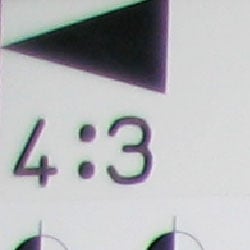
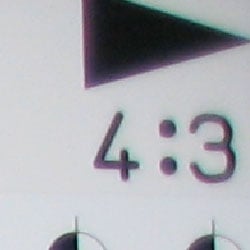
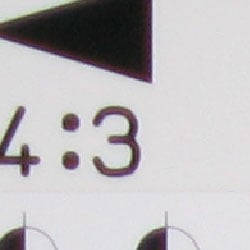
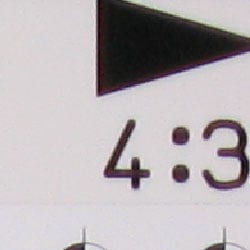
Chromatic aberration is low to moderate at wide angle, showing about 5-6 pixels of faint coloration on either side of the target lines, but decreases to very low levels at telephoto focal lengths. (This distortion is visible as a very slight colored fringe around the objects at the edges of the field of view on the resolution target.)
Corner Sharpness
Some softening in the corners of the frame, strongest effect in the lower right corner.
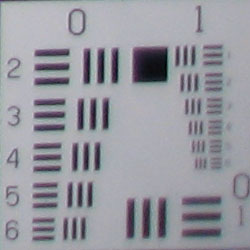
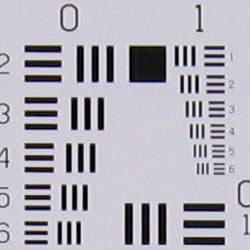
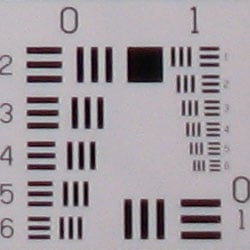
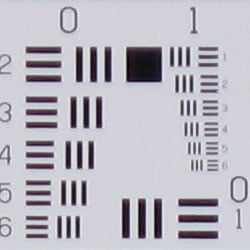
The SD900 produced soft corners in a few shots, the lower right corner showing the most visible effect. Softening in the corners is very common with lenses on small cameras, and this is about average at wide angle.
Viewfinder
Coverage
Optical viewfinder is tight and skewed to the top. Excellent accuracy from the LCD monitor.


The SD900's optical viewfinder was quite tight, showing only about 80% frame accuracy at both wide angle (79%) and telephoto (81%) lens settings. However, the LCD monitor showed at least 100% accuracy at both wide (104%) and telephoto (100%).
The images above were taken from our standardized test shots. For a collection of more pictorial photos, see our Canon PowerShot SD900 Photo Gallery .
Exposure
Canon PowerShot SD900 Exposure
Color
Saturation & Hue Accuracy
Good overall color and hue accuracy, slight oversaturation in blues, undersaturation in yellows and yellow-greens.
 |
| In the diagram above, the squares show the original color, and the circles show the color that the camera captured. More saturated colors are located towards the periphery of the graph. Hue changes as you travel around the center. Thus, hue-accurate, highly saturated colors appear as lines radiating from the center. |
Most consumer digital cameras produce color that's more highly saturated (more intense) than found in the original subjects. This is simply because most people like their color a bit brighter than life. The SD900 does oversaturate the red and blue tones slightly, though not nearly as bad as usual. We found its color pleasing on a wide range of typical subjects. Where oversaturation is most problematic is on Caucasian skin tones, as it's very easy for these "memory colors" to be seen as too bright, too pink, too yellow, etc. Here, the SD900 performed well, with only slight warmth.
The other important part of color rendition is hue accuracy. Hue is "what color" the color is. The SD900 showed small color shifts relative to the correct mathematical translation of colors in its subjects, but overall had more hue-accurate color than most consumer cameras we test. Oranges move toward yellow. Cyans and purples move toward blue, probably to create good sky colors.


Sensor
Exposure and White Balance
Indoors, incandescent lighting
Warm casts with both Auto and Incandescent white balance settings. About average exposure compensation required.


Color balance indoors under incandescent lighting was just a bit warm and reddish in Auto white balance mode, while the Incandescent setting resulted in a more yellow color balance that actually looked more pleasing overall. The SD900 required a +0.7 EV exposure compensation boost to get a good exposure, about average for this shot. Overall color is a bit dark and yellow here, making the blue flowers very dark and purplish. (A very common outcome for this shot.) Our test lighting for this shot is a mixture of 60 and 100 watt household incandescent bulb, a pretty yellow light source, but a very common one in typical home settings here in the US.
Outdoors, daylight
Good color balance overall, with fairly bright colors. Heightened contrast under bright outdoor conditions.


Outdoor shots showed better than average exposure accuracy, though with notably high contrast under harsh sunlight. Strong highlights tended to produce slight underexposures, as in the house shot above, with a limited midtone range, but exposure accuracy was still better than average when compared to many other consumer digicams. Overall color looked pretty good, with bright reds and blues that nonetheless didn't look too overdone.
See full set of test images with explanations
See thumbnails of all test and gallery images
Resolution
High resolution, 1,400 lines of strong detail.
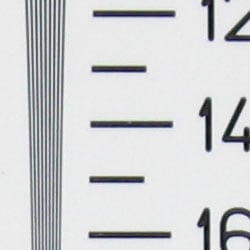
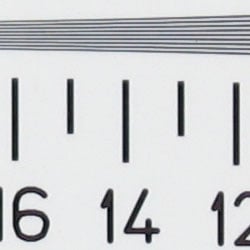
Our laboratory resolution chart revealed sharp, distinct line patterns down to about 1,400 lines per picture height, with extinction at around 2,000. (The camera produced slight color artifacts at lower line frequencies though, visible in the full-sized res target shots.) Use these numbers to compare with other cameras of similar resolution, or use them to see just what higher resolution can mean in terms of potential detail. Beware that while you might be able to make out what looks like distinct lines at numbers higher than those we've mentioned here, the camera is just doing its best to continue interpreting the lines.
See full set of test images with explanations
See thumbnails of all test and gallery images
Sharpness & Detail
Sharp images with excellent detail. Minor blurring of detail from noise suppression in areas of subtle contrast.


The Canon SD900's images are relatively sharp with just a little softening, probably due to noise suppression. There is little evidence of edge enhancement, however, which means that some of this softening could be recovered with a tool like unsharp mask in Photoshop. (Edge enhancement creates the illusion of sharpness by enhancing colors and tones right at the edge of a rapid transition in color or tone.)
Noise-suppression systems in digital cameras tend to flatten-out detail in areas of subtle contrast. The effects can often be seen in shots of human hair, where the individual strands are lost and an almost "watercolor" look appears. The crop at far right shows this somewhat, with both darker and lighter areas of Marti's hair showing limited, blurry detail; though individual strands are visible where a lighted strand passes in front of a darker shadow area. On balance, the SD900 shows less detail loss to noise reduction at low ISO settings than average, but more at high ISOs. This 10 megapixel sensor is relatively noisy, so noise suppression is expected.
ISO & Noise Performance
Moderate noise at the normal sensitivity settings, but very high noise and strong blurring at the higher settings, especially at ISO 1,600.






The SD900's lower ISO settings produced low to moderate noise, with only slightly blurred detail in the dark areas. (As noted above, better than average in this respect.) However, starting at ISO 400, image noise begins to dominate areas of fine detail, and starts to destroy skin tone, producing an unflattering purple cast. ISO 800 images are decent, not that far removed from the 400 image in terms of detail, but there's a more stippled look. At ISO 1,600, noise is so strong, blurring so significant, and the purple cast so pronounced that resulting images are not useful for printing without post-processing, except at the smallest sizes (see the Output Quality section below for more).
Extremes: Sunlit and low light tests
High resolution with good overall detail, but high contrast limits both highlight and shadow detail. Limited low-light capabilities, but sensitive enough to capture bright images under typical city street lighting.


Sunlight:
Because digital cameras are more like slide film than negative film (in that they tend to have a more limited tonal range), we test them in the harshest situations to see how they handle scenes with bright highlights and dark shadows, as well as what kind of sensitivity they have in low light. The shot above is designed to mimic the very harsh, contrasty effect of direct noonday sunlight, a very tough challenge for most digital cameras. (You can read details of this test here.)
The SD900 had a hard time with the deliberately harsh lighting in the test above, producing high contrast with washed-out highlights and deep shadows. Shadow detail is limited, with the effects of noise suppression evident in the form of smudged detail in deep shadow areas. The camera required a slightly less than average amount of positive compensation at +0.7 EV, making its metering a bit more accurate than most in this particular test. (In "real life" though, be sure to use fill flash in situations like the one shown above; it's better to shoot in the shade when possible.)
| 1 fc 11 lux |
1/2 fc 5.5 lux |
1/4 fc 2.7 lux |
1/8 fc 1.3 lux |
1/16 fc 0.67 lux |
|
|---|---|---|---|---|---|
| ISO 79 |
 2.5 sec f2.9 |
 5 sec f2.9 |
 9.9 sec f2.9 |
 16 sec f2.9 |
 16 sec f2.9 |
| ISO 100 |
 2 sec f2.9 |
 4 sec f2.9 |
 8 sec f2.9 |
 16 sec f2.9 |
 16 sec f2.9 |
| ISO 200 |
 1 sec f2.9 |
 2 sec f2.9 |
 4 sec f2.9 |
 8 sec f2.9 |
 16 sec f2.9 |
| ISO 400 |
 0.5 sec f2.9 |
 1 sec f2.9 |
 2 sec f2.9 |
 4 sec f2.9 |
 8 sec f2.9 |
| ISO 800 |
 1/4 sec f2.9 |
 0.5 sec f2.9 |
 1 sec f2.9 |
 2 sec f2.9 |
 4 sec f2.9 |
| ISO 1600 |
 1/8 sec f2.9 |
 1/4 sec f2.9 |
 0.5 sec f2.9 |
 1 sec f2.9 |
 2 sec f2.9 |
Low light:
The Canon PowerShot SD900 performed well on our low light test, with good color from the Auto white balance setting. At the lower ISO settings (80 and 100), images were bright down to 1/8 foot-candle, which is about 1/8 as bright as average city street lighting at night. From ISO 200 to 1,600, images were bright down to the lowest light levels we test. The camera's autofocus system also worked very well, able to focus on the subject down to the 1/8 foot-candle light level unassisted, and well past the darkest light level we test with the AF assist lamp enabled. Keep in mind that the long shutter times here absolutely demand the use of a tripod or other camera support to get sharp photos. (A useful trick is to just prop the camera on a convenient surface, and use its self-timer to release the shutter. This avoids any jiggling from your finger pressing the shutter button, and can work quite well when you don't have a tripod handy.)
Flash
Coverage and Range
A useful flash range, and moderate orange cast with incandescent lighting. Our standard shots required +0.7 EV compensation.


Flash coverage was rather uneven at wide angle, and still uneven at telephoto. In the Indoor test, the SD900's flash underexposed our subject at its default setting, requiring use of +0.7 EV exposure compensation to get reasonably bright results. Even here, the exposure is a little dim, with a noticeable orange cast. The Slow-Sync flash mode also needed +0.7 EV, though it resulted in more even lighting (and a stronger orange cast).
| Flash Range: Wide Angle | |||||
|---|---|---|---|---|---|
| 6 ft | 7 ft | 8 ft | 9 ft | 10 ft | 11 ft |
 1 sec f2.9 ISO 100 |
 1 sec f2.9 ISO 100 |
 1 sec f2.9 ISO 100 |
 1 sec f2.9 ISO 100 |
 1 sec f2.9 ISO 100 |
 1 sec f2.9 ISO 100 |
| 12 ft | 13 ft | 14 ft | 15 ft | 16 ft | |
 1 sec f2.9 ISO 100 |
 1 sec f2.9 ISO 100 |
 1 sec f2.9 ISO 100 |
 1 sec f2.9 ISO 100 |
 1 sec f2.9 ISO 100 |
|
| Flash Range: Telephoto | |||||
|---|---|---|---|---|---|
| 6 ft | 7 ft | 8 ft | 9 ft | 10 ft | 11 ft |
 1 sec f5.0 ISO 100 |
 1 sec f5.0 ISO 100 |
 1 sec f5.0 ISO 100 |
 1 sec f5.0 ISO 100 |
 1 sec f5.0 ISO 100 |
 1 sec f5.0 ISO 100 |
| 12 ft | 13 ft | 14 ft | 15 ft | 16 ft | |
 1 sec f5.0 ISO 100 |
 1 sec f5.0 ISO 100 |
 1 sec f5.0 ISO 100 |
 1 sec f5.0 ISO 100 |
 1 sec f5.0 ISO 100 |
|
At ISO 100, flash power remained fairly bright to the 16 foot test distance at wide angle but falloff began about the 13 foot test distance with telephoto.
| Manufacturer-Specified Flash Range | |
|---|---|
| Wide Angle | Telephoto |
 17.0 feet Auto ISO |
 10.0 feet Auto ISO |
Our standard test method for flash range uses a fixed setting of ISO 100, to provide a fair basis of comparison between cameras. We also capture two shots using the manufacturer-specified camera settings, at the range the company claims for the camera, to assess the validity of their claims. In the shots above, the SD900 seems to perform exactly as Canon says it will, producing good exposures at the rated distances with its ISO set to Auto. The range is understandably limited, given the small flash and small lens, but seems to be boosting its ISO to only about 400. This produces greater flash range, but at the cost of higher image noise. In Auto ISO mode, the SD900's flash photos suffer somewhat from anti-noise processing, but are still usable at small print sizes.
Output Quality
Print Quality
Good print quality, great color, crisp prints at 11x14 inches, usable ones at 13x19. ISO 800 images are still usable at 8x10 inches and great at 5x7 and 4x6. Higher ISOs are only (barely) suitable for 4x6 inch snapshot prints.
Testing hundreds of digital cameras, we've found that you can only tell just so much about a camera's image quality by viewing its images on-screen. Ultimately, there's no substitute for printing a lot of images and examining them closely. For this reason, we now routinely print sample images from the cameras we test on our Canon i9900 studio printer, and on the Canon iP5200 here in the office. (See the Canon i9900 review for details on that model.)
The Canon SD900 produced crisp prints at 11x14 inches, and somewhat softer but still acceptable ones at 13x19. There is some evidence of chroma noise at these sizes, especially in the shadows, even at ISO 80. This is a sign that the 10 megapixel sensor is showing the flaws that we knew it would, flaws we've also seen in the Canon A640 and more in the Canon G7. As always, the real test of print size came at the higher ISO settings. Here, the SD900's ISO 400 images were soft and overprocessed when printed at 11x14 inches, but quite acceptable at 8x10 and great at 5x7 and 4x6. ISO 800 images were noisy but acceptable at 8x10. ISO 1,600 and 3,200 were acceptable at small sizes, and decent if you appreciated what they were: a shot you'd never had gotten without a tripod at the lower ISOs. They were also usable if processed with a good anti-noise filter, but only intermediate photographers will bother trying to improve these images.
Color-wise, the Canon SD900 did pretty well, with bright but natural-looking color and good-looking skin tones that go somewhat purple at higher ISOs.
Bottom line, low-ISO shots from the SD900 look very good and hold together well at large print sizes, but its high-ISO images are a little rough.
The images above were taken from our standardized test shots. For a collection of more pictorial photos, see our Canon PowerShot SD900 Photo Gallery .
Not sure which camera to buy? Let your eyes be the ultimate judge! Visit our Comparometer(tm) to compare images from the Canon PowerShot SD900 with those from other cameras you may be considering. The proof is in the pictures, so let your own eyes decide which you like best!
Performance
Canon PowerShot SD900 Performance
Timing and Performance
Good to average speed for a consumer camera.
|
Startup/Shutdown
|
||
|
Power on
to first shot |
1.2 seconds
|
Time it takes for LCD to turn on and lens to deploy.
|
|
Shutdown
|
1.6 seconds
|
How long it takes to retract lens and stow in your pocket.
|
|
Buffer clearing time
|
1 second
(large/superfine JPEG, Unlimited shots in continuous mode) |
Worst case buffer clearing time.* This is the delay after a set of shots before you can remove the card. Some cameras won't retract their lenses and shut down until the buffer is cleared.
|
|
Mode switching
|
||
|
Play to Record,
first shot |
1.5 seconds
|
Time until first shot is captured
|
|
Record to play
|
2.6 seconds
|
Time to display a large/superfine file immediately after capture
|
|
Display
recorded image |
1.7 second
|
Time to display a large/superfine file already on the memory card.
|
|
Shutter response (Lag Time):
|
||
|
Full Autofocus Wide
|
0.60 second
|
Time from fully pressing shutter button to image capture, zoom lens at wide angle position.
|
|
Full Autofocus Tele
|
0.82 second
|
Time from fully pressing shutter button to image capture, zoom lens at telephoto position.
|
|
Prefocused
|
0.071 second
|
Time to capture, after half-pressing and holding shutter button.
|
|
Manual focus
|
N/A
|
For most cameras, shutter lag is less in manual focus than autofocus, but usually not as fast as when the camera is "prefocused"
|
|
Cycle time (shot to shot)
|
||
|
Single Shot mode
Large SuperFine JPEG |
1.98 seconds
|
Time per shot, averaged over 20 shots
|
|
Single Shot mode
640x480 Normal JPEG |
1.96 seconds
|
Time per shot, averaged over 20 shots
|
|
Early shutter
penalty? |
No
|
Some cameras refuse to snap another shot if you release and press the shutter too quickly in Single Shot mode, making "No" the preferred answer
|
|
Continuous mode
Large SuperFine JPEG |
1.00 second (1.00 frames per second);
No limit w/fast card*; ~1 second to clear |
Time per shot, averaged over buffer length or 20 shots, whichever came first
|
|
Continuous mode
640 x 480 Normal JPEG |
1.00 second (1.00 frames per second);
No limit w/fast card*; ~1 second to clear |
Time per shot, averaged over buffer length or 20 shots, whichever came first
|
|
Flash recycling
|
6 seconds
|
Flash at maximum output
|
|
Download speed
|
||
|
Windows Computer, USB 2.0
|
1,164 KBytes/sec
|
Typical Values:
Less than 600=USB 1.1; 600-770=USB 2.0 Low; 771-4000=USB 2.0 High |
|
*Note: Buffer clearing times measured with a Kingston Ultimate 120x SD memory card. Slower cards will produce correspondingly slower clearing times. Slow cards may also limit length of bursts in continuous mode.
|
||
The SD900's performance is generally above average. Startup and shutdown speeds are above average. Shutter response is a bit faster than average but not dramatically so. Shot-to-shot cycle times and continuous-mode speeds are above average, too. The flash, which can light up an average-sized room, takes six seconds to recharge after a full-power shot, which is average for any digicam and better than average for such a powerful flash. Connected to a computer or printer with USB 2.0, download speeds are very fast, pretty much eliminating the need for an external reader. Bottom line, the SD900 is responsive enough (particularly at wide angle lens settings) to handle most family photo opportunities.
Battery and Storage Capacity
Battery
Surprisingly good battery life.
| Operating Mode | Battery Life |
| Still-image capture mode LCD on |
230 shots
|
| Still-image capture mode LCD off |
700 shots |
The Canon Power-shot SD900 uses a custom rechargeable LiIon battery for power. The table above shows the number of shots the camera is capable of based on CIPA battery-life and/or manufacturer standard test conditions.
We normally always recommend picking up a spare battery and keeping it freshly charged and on-hand for long outings, but the SD900's battery life is good enough that few users are likely to feel the need for a second battery.
(Interested readers can find an English translation of the CIPA DC-002 standards document here. (180K PDF document))
Storage
A 32MB card is included with the Canon PowerShot SD900.
|
Image Capacity with 32MB Internal Memory |
SuperFine | Fine | Normal | |
| 3,648 x 2,736 | Images | 7 | 12 | 25 |
| File Size | 4.4 MB | 2.6 MB | 1.3 MB | |
| 2,816 x 2,112 | Images | 11 | 18 | 37 |
| File Size | 2.9 MB | 1.7 MB | 848 KB | |
| 2,272 x 1,704 | Images | 14 | 26 | 52 |
| File Size | 2.2 MB | 1.2 MB | 610 KB | |
| 1,600 x 1,200 | Images | 29 | 52 | 99 |
| File Size | 1.0 MB | 610 KB | 322 KB | |
| 640 x 480 | Images | 111 | 171 | 269 |
| File Size | 288 KB | 186 KB | 119 KB | |
The Canon Power-shot SD900 stores its photos on SD memory cards, and a 32MB card is included with the camera. We strongly recommend buying a large capacity SD/MMC memory card at least a 512MB card, preferably a 1GB one, to give yourself extra space for extended outings and movies.