Fuji A500 Design
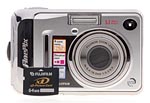 The Fuji A500's chassis measures 3.7 x 2.4 x 1.1 inches (93 x 60 x 27.5mm) and weights just 6.56 ounces (186 grams) when loaded with an xD-Picture Card and two AA batteries, making this camera as easy to hold as it is to carry. Though it's not the most slick-looking snapshooter on the market -- especially from the back -- the Fuji A500's trim rectangular design will be familiar to anyone who's used a point-and-shoot camera. While it's made largely of polycarbonate, the Fuji A500 has a sleek metallic finish that mimics chrome on the handgrip and on a ring surrounding the retractable 3x zoom lens.
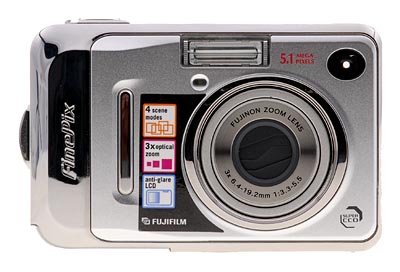
The Fuji A500's front panel is dominated by the telescoping lens, which retracts completely flush. The lens extends 5/8 inch when the camera is powered on in a Recording mode but remains retracted when powered on in Playback mode. A shutter-like lens cover automatically opens when the lens protrudes, eliminating the need for a lens cap. Also on the front panel are the flash, optical viewfinder window, microphone and the self-timer lamp. A thin, vertical metallic finger grip is reinforced by a small thumb grip on the back panel.
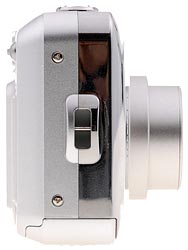
On the right side of the Fuji A500 (as viewed from the rear) is the wrist strap mount.
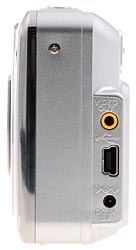
In a row on the opposite side of the Fuji A500 are the Video Out socket, the mini-B USB socket, and the DC In socket. All of the sockets are uncovered, a questionable cost-cutting design choice.
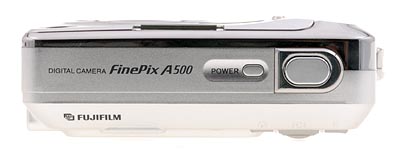
The FinePix A500's top panel is flat with low-profile buttons for the Power and Shutter release.
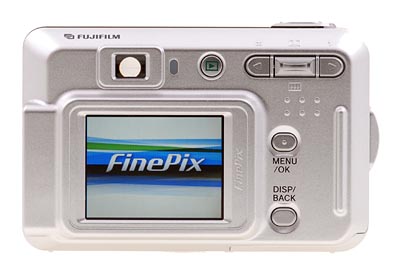
The back panel is the business end of the Fuji A500. Along the top are the optical viewfinder, the Playback button and a rocker panel inherited from the A350, with click buttons on either side. The left click button toggles Macro mode and the right button steps through the Flash modes. The 1.8-inch LCD monitor dominates the left corner, flanked by the Menu/OK button and the Display/Back button. The flat thumb grip -- emphasized by a series of bumps -- and a slightly raised vertical ridge are tactile clues for gripping the Fuji A500.
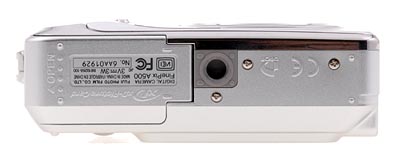
On the bottom panel of the FinePix A500 are the plastic tripod mount and the battery/memory card compartment. The tripod mount is off center and adjacent to the compartment latch hinge, making it impossible to swap batteries when the Fuji A500 is mounted to a tripod. An xD-Picture Card is easily clicked into place and ejected by simply pressing down slightly to release the hidden catch. Two AA batteries are likewise easy to load, with a clearly visible legend to remind you which end is up.
Fuji A500 External Controls
Shutter Button: Located on the far right of the Fuji A500's top panel, this button sets focus and exposure when halfway pressed, and fires the shutter when fully pressed.
Power Button: Just left of the Shutter button, this button turns the Fuji A500 on and off.

Menu/OK Button: Directly below the On / Play button, this button displays the settings menu in any camera mode, and acts as the "OK" to confirm menu selections.

Disp/Back Button: Located on the bottom right of LCD monitor, this button controls the LCD monitor display, and activates the framing grid. It also disables the LCD monitor, so you can save battery power by framing images with the optical viewfinder. In Playback mode, this button also controls the information overlay and enables a nine-image index display mode.
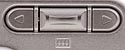
Zoom Rocker Button: Tucked between two arrow keys in the upper right corner of the Fuji A500's rear panel, this two-way rocker button controls the optical and digital zoom. In any settings menu, this button navigates up and down through menu selections. In Playback mode, this button controls the Playback Zoom feature, which enlarges captured images.
Right and Left Arrow Keys (see image above): Flanking the Zoom rocker button in the top right corner of the rear panel, these arrow keys navigate through captured images in Playback mode, as well as through menu selections in any settings menu. When an image has been enlarged, these keys switch modes to allow moving around within the view.
In Record mode, the left arrow accesses the Macro shooting mode, and the right arrow key cycles through the available flash modes.
 Fujifilm GFX 50S Review
 Fujifilm X-T3 Review
 Olympus E-M5 III Review


Follow Imaging Resource