Nikon D40 Operation
As we noted in the Design section, Nikon seems to have really taken pains with the D40 to make its user interface as clean, uncluttered, and approachable as possible. To achieve this, they eliminated two buttons on the back panel that were present on the D50, and consolidated the top-panel data readout functions into a very attractive and logically laid-out display on the large, rear-panel LCD screen. They also put the mode dial closer at hand when you're holding the grip, and added a new scene mode for available-light (non-flash) photography. Experienced shooters may miss the terse convenience of a top-panel data readout, but we think most D40 users will appreciate the size and clarity of the new shooting display on the main LCD screen.
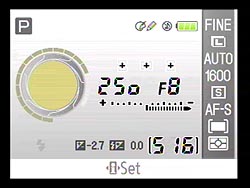
Since we're talking about the rear-panel Shooting display, let's take a look at it:
| Nikon D40 Shooting Mode Display | |
 |
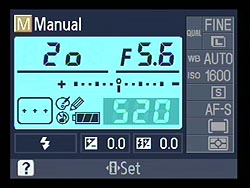 |
| The "Graphic" display is visually appealing, and shows you roughly what the lens aperture is doing | The "Classic" format is a bit less artistic, but uses larger fonts for better readability. |
There are two main display modes, the new Graphic display that helps the user visualize what's happening with shutter speed and lens aperture, and the more conventional looking Classic format, which displays the same basic settings information, but uses larger fonts and icons. I personally liked the Graphic format a lot, but can see a time coming when my eyes will prefer the larger type of the Classic display. Interestingly, you can choose different display formats for different camera operating modes: An option on the Setup menu lets you choose different formats for the Digital Vari-Program (Scene) modes than for the PASM (programmed, aperture-priority, shutter-priority, or manual) exposure modes. Potentially a nice feature, by which you could set the camera up with the Graphic display option for a novice user, but have it automatically operate in Classic mode when the more advanced user was shooting using one of the PASM modes.
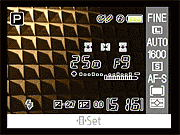 There's a third Shooting Mode display option that had me scratching my head a bit. A Wallpaper option lets you pick an image from the memory card, and use it as a "wallpaper" design behind the shooting menu elements. Playing with a few different images, I found that most made the displayed information almost impossible to read. The shot at right shows one that was a bit more successful, with a pattern in the upper left corner, but little subject along down the right and bottom edges of the screen, where most of the information is displayed.
The rear-panel display carries quite a bit of information about current camera settings, more than we're accustomed to seeing on a DSLR. Here's a look at the information that's presented:

There's a lot of information shown there, but a logical layout and large/sharp LCD screen makes it easy to tell what you're looking at. The column of data down the right-hand side of the screen represents settings you can adjust directly from this screen.
| Changing Shooting Mode Options | |
 |
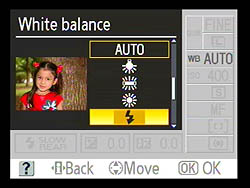 |
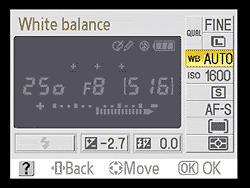
| The right-hand column of the Shooting display acts as an option menu for various camera settings. | The "image assisted" menus are new on the D40, designed to make it easier to know when to use different options. |
As shown above, pressing the i button on the back of the camera activates the right-hand option column, letting you scroll through them with the Multi-selector keys. The shot on the left above shows the White Balance option selected, and the shot on the right shows one of the screens that appear when you're changing the White Balance setting. As part of the D40's designed-in user-friendliness, most options on the shooting menu include "assist" images, to help you understand the types of shots or conditions that each setting is most appropriate for.
For those interested in seeing all the nitty gritty details, we've prepared a page showing all the options on the D40 Shooting Menu. (Note, there's a ton of screen shots on it, so the page could take a while to download if you're on a dialup connection.)
 Fujifilm GFX 50S Review
 Fujifilm X-T3 Review
 Olympus E-M5 III Review


Follow Imaging Resource