



Overview
Panasonic Lumix DMC-GF1
Overview
Review by Shawn Barnett, Dave Etchells, Mike Tomkins,
and Zig Weidelich
Hands-On Preview: 09/02/09
Full Review: 10/13/09
Though Panasonic has released two Micro Four Thirds cameras in the last year, it's with the Panasonic GF1 that they truly realize the potential of the format. While the G1 and GH1 were akin to a short Rebel in size, the chief size advantage was had in the smaller optics, not the body. But the Panasonic GF1's body is smaller than the G1 and GH1; indeed, it's not much bigger than a mid-size digicam. Of course, the advantage to the Panasonic GF1 over a similarly sized digicam is its larger sensor, which delivers better light sensitivity, and its interchangeable lens design, which allows the camera to become whatever you need.
The Panasonic GF1 has a 12.1-megapixel sensor, a 3-inch LCD, and comes with either a 14-45mm zoom lens or a 20mm f/1.7 prime lens. A built-in pop-up flash is nestled in the top deck and the GF1 also includes a hot shoe for external flashes. The hot shoe serves to mount an optional electronic viewfinder that tilts upward 90 degrees.
Users can switch between still and movie capture by choosing between the Shutter release or the Record button, both on the Panasonic GF1's top deck.
There's a lot more to the Panasonic GF1, but it's also fairly simple. Those are the basics you need to know, though, before delving into our User Report below for more information on what promises to be a very popular enthusiast camera.
The Panasonic Lumix DMC-GF1 is available in two different kit versions, and started shipping early October 2009. The DMC-GF1C kit includes a 20mm F/1.7 lens, and is priced at US$899.95. The DMC-GF1K kit includes a 14-45mm F/3.5 - 5.6 O.I.S. lens, also priced at US$899.95. The optional external viewfinder is priced at US$199.95.
Panasonic GF1
User Report
by Shawn Barnett and Mike Tomkins
As the maker of the first Micro Four Thirds digital camera, it is perhaps appropriate that Panasonic should become the maker of the smallest Micro Four Thirds digital camera: the Panasonic GF1. After being quite wowed by the Olympus E-P1 earlier this year, we were pleasantly surprised to see that Panasonic wasn't going to leave this category of small SLD (Single Lens Direct-view) cameras to its Micro Four Thirds partner.
Instead, they've introduced an equally small, quite compelling and attractive digital camera that will appeal to camera lovers who don't want to compromise on image quality, but who also want a camera that is easier to bring along on long or short trips.


Rivals. The Panasonic GF1 is a little taller and thicker front to back, but the E-P1 is wider. Fully retracted, the GF1's 14-45mm kit lens is longer than the stowed 14-42mm Olympus kit lens.
As a company that has attracted and kept loads of new enthusiast fans with its LX3, ZS3, and FZ-series digital cameras, making a small, flat Micro Four Thirds camera with the same design aesthetic is a natural course for Panasonic to take. And that's precisely what they've done: merged the Lumix G1's versatility with the small size of a more traditional deluxe digital camera like the LX3 to make the Panasonic GF1.
Look and feel. The Panasonic Lumix GF1 is quite small, tight, and utilitarian, featuring just what's needed, with no attempt at seeming retro. That can also be beautiful. Its weight makes it feel solid and well-balanced, coming in at 12.2 ounces (346g) with battery and card, and 16.08 ounces (1 pound or 456g) with the 20mm lens shown here. The Olympus E-P1, for comparison, weighs 16.01 ounces (454g) with its 17mm lens, so they're remarkably similar. Dimensions are also similar, with the body of the Panasonic GF1 measuring 4.68 x 2.79 x 1.43 inches (119 x 71 x 36.3mm), while the E-P1 measures 4.76 x 2.75 x 1.38 inches (121 x 70 x 35mm). So the E-P1 is a little wider, a little shorter, and a little thinner than the Panasonic GF1, all by a millimeter or so. The Panasonic GF1 actually feels smaller and tighter overall. I wouldn't call the feel of either better than the other, just different.

Starting with the front of the Panasonic GF1, there's a nice little finger grip, providing just enough of a hold to make the otherwise flat camera easy to handle while shooting. The AF Assist lamp peeks out from under the Lumix logo, and the silver lens release button appears just right of the lens. Just over top of the lens and under the hot shoe, you see four holes. We initially thought these were for the microphone, but it turns out that they're for the speaker; can't imagine why they're facing the front, but it might just be the only place they had room. You can also see a hint of what the Panasonic GF1 has that the Olympus E-P1 lacks: a built-in flash that swings up from just above the GF1 logo.

From the top, the GF1 looks a lot like many of their point-and-shoot digicams. The flash hot shoe on top has a unique cover, though, that conceals a secret on the back, which I'll get to below. Just to the right of the upper right corner of the hot shoe is a single small hole for the microphone. Then there's the Mode dial, and below that is the Drive mode switch. The simple power switch is just behind the shutter button, and to the right of that is the Movie record button: both still and move modes are available at all times. The shutter button is responsive, with a soft transition to full capture, making it more of a surprise when the shutter goes off. It's different from the Olympus E-P1's more clear click, but not at all a problem when shooting.
Also note that the Panasonic GF1 has more modern camera strap lugs, something I appreciate. The metal D-rings on the E-P1 and several other recent digital SLRs are unsuitable for video, because they make noise that gets picked up by the camera's microphone. I prefer this cloth-to-metal interface.


The Panasonic GF1's 3-inch LCD is very sharp, with 460,000 dots, sufficient to confirm focus with greater accuracy, and an improvement on the E-P1's 230,000 dots. Buttons are small, but well-placed. The textured plastic thumbgrip is just right, countering the front grip well. Note that while I like both grips for holding the Panasonic GF1 while shooting, even combined the grips are insufficient for one-handed carry without either a wrist or neck strap; instead I hold GF1 from the back with my thumb on the Mode dial and my fingers on the bottom if I'm not using a strap.
Flash. The OPEN button on the back releases the springloaded flash mechanism, which pops up and forward at the same time. The hinged mechanism is impressively engineered, though I do wonder how many people will accidentally bend or break it off when trying to close it. It seems pretty obvious to me, but I've seen people break some pretty obvious mechanisms. You have to press back while also pressing down. If you do it just right, the flash head moves smoothly to the rear, then starts to slope downward until it tucks neatly back down, flush with the top deck.
The Panasonic GF1's flash has a guide number of 6 meters at ISO 100, significantly reduced from the flash in the G1 and GH1 which had an ISO 100 guide number of 11 meters. Flash modes include Auto, Auto w/ Red-eye reduction, Forced, Forced w/ Red-eye reduction, Slow-sync, and Slow-sync w/ Red-eye reduction, and 2.0 EV of flash exposure compensation is available in 0.3 EV steps. Both first- and second-curtain sync modes are included, and an intelligent hot shoe is compatible with Panasonic's FL220, FL360, and FL500 flash strobes.


EVF. And now for what's under that unique cover: Its a connector for the optional swiveling electronic External Live Viewfinder lovingly named DMW-LVF1. This neat little accessory is essentially an electronic viewfinder that you can snap on if you're having trouble viewing the LCD in direct light, or if you just prefer looking through a viewfinder.
The LVF1's resolution is not the same as the finder in the G1 or GH1, nor is it the same as the GF1's rear LCD; instead it's 202,000 dots, but with a 60 frame per second refresh, and 1.04x magnification. It also comes in a very retro leather pouch with a snap cover, and a loop on the back designed to thread onto the camera strap. There's even a plastic socket inside the pouch into which the DMW-LVF1 can securely dock. Price for this accessory is set at $199.

Sensor. The Panasonic Lumix GF1 is based around a Panasonic Live MOS image sensor with dimensions of 17.3 x 13.0mm, the standard size for a Micro Four Thirds and Four Thirds-format camera. The particular sensor model in the Panasonic GF1 is one that we've seen before, as it previously featured in 2008's Panasonic G1 -- the first Micro Four Thirds camera.
The Panasonic GF1's sensor has an effective resolution of 12.1 megapixels, and yields 4:3 aspect ratio images with dimensions of up to 4,000 x 3,000 pixels. In addition to two lower-resolution 4:3 modes of 2,816 x 2,112 and 2,048 x 1,536 pixels, the Panasonic GF1 offers three modes each of which crop the sensor's output to a 3:2, 16:9 or 1:1 aspect ratio. The Panasonic GF1's 3:2 image modes are 4,000 x 2,672, 2,816 x 1,880, and 2,048 x 1,360 pixels, the 16:9 image modes are 4,000 x 2,248, 2,816 x 1,584 and 1,920 x 1,080 pixels, while the 1:1 image modes are 2,992 x 2,992, 2,112 x 2,112 and 1,504 x 1,504 respectively.
ISO range. Sensitivity ranges from ISO 100 to 3,200 equivalents. There's also both an Auto ISO mode whose upper limit can be defined by the user from 200 to 1,600, and an Intelligent ISO function which takes into account not only the brightness of the scene when determining the sensitivity, but also subject motion.
Dust reduction. The Panasonic GF1 includes a Supersonic Wave Filter dust reduction system that vibrates the a filter over the image sensor at around 50,000 cycles per second to remove dust, which is captured on a sticky material beneath the filter.

45mm Macro. The new 45mm Macro lens includes optical image stabilization.
Autofocus. The Panasonic Lumix GF1 offers a 23-point TTL contrast-detection autofocusing system, and includes an AF-assist lamp to help with focusing in low-light conditions. As well as the multi-point focusing mode, the GF1 can be set to either single AF, tracking AF, or face detection modes.
When a face is detected, the camera can automatically adjust focus and exposure to ensure that your subject's face is correctly rendered. When detected in the image frame, those six individuals' faces can be prioritized over others in the scene (and over each other based on the order they've been sorted when training the camera) when determining exposure variables, and the image metadata can also be automatically tagged with up to three individuals' names.
Face recognition also offers assistance in playback mode, making it easier to find photos containing a specific individual -- and in the event that a face has been detected incorrectly, the tagging can be changed after the fact. Images that weren't tagged at capture time cannot be tagged manually, however. The Panasonic GF1 can recognize up to six faces, assigning a name to each, and you can store up to three shots per face to refine its detection capability.
Modes. The Panasonic GF1's Mode dial includes positions for Intelligent Auto, Program, Aperture- and Shutter-priority, and Manual shooting modes, plus Motion Picture P, Custom 1 and 2, Scene, and My Color positions.
The Panasonic GF1's Custom modes allow four groups of settings to be saved for later recall -- one instantly accessible through the Custom1 position, and the remaining three accessed by placing the dial in the Custom2 position, then using the Menu/Set button and arrow buttons to select either Custom2-1, 2-2 or 2-3. Sounds unusual, but it'll be useful for more serious photographers who will want a few standard settings readily available.
The Scene position offers 17 modes that help beginners get the results they desire with a minimum of effort, and the separate Night Portrait, Macro, Sports, Scenery, and Portrait positions found on the GH1 and G1's Mode dials have been rolled into this position to simplify the Panasonic GF1's Mode dial.

Peripheral defocus. The Panasonic GF1 has a new Scene mode designed to help novices use depth of field to their advantage.
Modes on offer in the Panasonic GF1 include Portrait, Soft Skin, Scenery, Architecture, Sports, Peripheral Defocus, Flower, Food, Objects, Night Portrait, Night Scenery, Illuminations, Baby 1 + 2 (so you can keep track of birthdays for two different children, allowing the Panasonic software to display the child's age along with the photo), Pet, Party, and Sunset.
A subset of eleven of these Scene modes are applicable not only to still images, but also to movie capture. The Panasonic GF1's Intelligent Auto mode can automatically detect certain scene types and select the appropriate scene mode from either i-Portrait, i-Scenery, i-Macro, i-Night Portrait, i-Night Scenery, or i-Baby. The My Color position allows the user to select one of eight preset image styles -- Expressive, Retro, Pure, Elegant, Monochrome, Dynamic Art, Silhouette or Custom -- and allows each style to be fine-tuned to the user's tastes for color tone, brightness, and saturation.
Speeds. Available shutter speeds from the Panasonic GF1's focal plane shutter range from 1/4,000 to 60 seconds, plus a bulb mode limited to a maximum of four minutes. Flash sync is available at 1/160 second. The Panasonic GF1 uses 144-zone multi-pattern metering to determine exposures, and metering modes include Intelligent Multiple, Center-weighted, and Spot. 3.0 EV of exposure compensation is available in 1/3 EV steps, and the GF1 also allows for three, five, or seven-shot bracketed exposures in 0.3 or 0.7 EV steps.
White balance modes include Auto, five presets (Daylight, Cloudy, Shade, Halogen, Flash), two manual white balance settings, and the ability to specify a color temperature directly. Three-frame white balance bracketing is also available, on either blue/amber or magenta/green axes.
The Panasonic GF1 also brings over several more unusual features from the G1 and GH1 models. Several Film modes allow the photographer to select from a variety of different color renderings, similar to selecting different film types. The Panasonic GF1 offers six color and three black & white modes, all of which can be fine-tuned for contrast, sharpness, saturation and noise reduction strength.
In addition there are two My Film modes which allow the user's tweaked film modes to be saved for later recall. Finally, a Multi Film setting will cause the camera to alternate between the photographer's choice of two or three film types in sequence with each press of the shutter button.
Playback. Two closely related playback-mode functions have been cleverly upgraded in the Panasonic GF1. The slide show and playback mode functions in the G1 and GH1 both allowed the user to limit the selection of images to be restricted solely to those tagged by the camera's face recognition system, useful for quickly finding images or viewing a slideshow of the folks you're most likely to want to see. The GF1 takes this a step further, letting you filter images not only tagged as containing a recognized face, but also those files tagged as belonging to certain other categories - Portraits (including Baby and Soft Skin), Scenery (including Architecture and Sunset), Night, Sports / Party, Baby, Pet, Food, Travel Date, and Movie.
Movies. In addition to capturing still images, the Panasonic Lumix GF1 is also capable of recording movie clips using either AVCHD Lite or Motion JPEG compression. The AVCHD Lite designation is a subset of AVCHD, a format jointly developed by Sony and Panasonic, and indicates a device capable of recording at a maximum of 720p (1,280 x 720 pixel) resolution using MPEG-4 AVC/H.264 compression. The previous GH1 model is capable of the full AVCHD spec, which allows it to offer a 1920 x 1080 (1080i) mode that isn't offered in the GF1's AVCHD Lite mode.
|
Panasonic GF1 Sample Videos
|
 |
 |
 |
|
HD (720p) Videos. 1280x720 at 30 frames per second. (Click to play / download ~40MB MOV files.) Pretty good audio for a small hole on the top deck, eh? These videos were shot by Dave Etchells in Berlin on September 1, 2009 with a prototype camera.
|
Another difference in the Panasonic GF1's movie mode as compared to the GH1 is that it doesn't allow direct control of shutter speed when recording videos. Instead, the Motion Picture P mode only allows control over aperture and exposure compensation. The Panasonic GF1 also swaps the larger camera's stereo internal microphone for a monaural mic, and drops the external microphone jack altogether. On the plus side, though, there's still no clip length limit when recording using the GF1's AVCHD Lite mode, with the limit instead being solely down to available card space, battery life, and a fast enough flash card.
The Panasonic GF1 offers three compression levels for AVCHD Lite movies, all of which are at the full 720p resolution -- either 17Mbps, 13Mbps, or 9Mbps. As an alternative to AVCHD Lite, the Motion JPEG mode allows recording 30 frames-per-second video at 1,280 x 720, 848 x 480, 640 x 480, or 320 x 240 pixel resolutions.
The Panasonic GF1 is also capable of continuous autofocus during movie recording if the attached lens supports this. Though it was unclear at first, the camera supports autofocus while recording, but live focusing during movie recording may be slow and possibly not reliable unless using a Panasonic HD-qualified lens. The Panasonic 20mm lens we had for testing was fairly fast and well-behaved when focusing, but an Olympus 17mm lens was a little noisier, and perturbed focus more dramatically before settling on a focus setting. Panasonic has added a setting that allows Continuous AF during movie recording to be disabled for such lenses, as does the Olympus E-P1. The only fully HD-qualified lens currently on the market is the 14-140mm normally bundled with the Panasonic DMC-GH1. It can be found for sale separately (sometimes), but is rather pricey.
For a more thorough writeup of the Panasonic GF1's Movie mode, click here or navigate to the Video tab.
Still shooting. The Panasonic GF1 can store images as RAW or EXIF 2.21-compliant JPEG files at either Fine or Standard compression levels, and is able to save each image in both RAW + JPEG formats simultaneously. Both sRGB and Adobe RGB color spaces are available.
Burst shooting is possible at up to three frames per second, and is limited to approximately seven RAW images in a burst. (We got a little less than that in our tests: 2.82 fps for 6 RAW files.) When shooting in JPEG format, there is no limit on burst depth beyond available flash card space and battery life, presuming that the flash card used is fast enough. Images are stored on Secure Digital cards including the higher-capacity SDHC types.

System. Another great aspect to the Panasonic GF1 is that it's part of a system. As such, I'm able to attach the Olympus 17mm f/2.8 lens and the Olympus FL-14 flash with no trouble, as you see at right, but the Olympus VF-1 optical viewfinder that goes with the 17mm lens doesn't fit in the GF1's hot shoe.
Panasonic had a head start with the Micro Four Thirds design, and has been very aggressively introducing lenses for the platform, and Olympus has just joined in with the launch of the E-P1. Eight lenses are now available, covering a focal length range from 7 to 200mm, equivalent to 14 to 400mm on a 35mm camera. Four of these lenses are image-stabilized, plus there's one Macro lens, and two pancake designs for a flatter profile. All of the lenses that we've tested on SLRgear.com are pretty impressive, with the 7-14mm a standout favorite. The Olympus M.Zuiko 14-42mm is technically excellent with the camera mounted on a tripod, but when used handheld on either the Olympus E-P1 or the Panasonic GF1 the lens elements vibrate, causing blur in the image. See our E-P1 review for more on that.
| Micro Four Thirds lenses | |
 |
 |
| Panasonic 14-45mm f/3.5-5.6 | Olympus M.Zuiko 14-42mm f/3.5-5.6 |
 |
 |
| Panasonic 20mm f/1.7 | Olympus M. Zuiko 17mm f/2.8 |
 |
 |
| Panasonic 45-200mm f/4.0-5.6 | Panasonic 14-140mm f/4.0-5.8 |
 |
 |
| Panasonic 7-14mm f/4.0 | Panasonic 45mm f/2.8 Macro |
| Micro Four Thirds Adapters | |
| Panasonic Four Thirds DMW-MA1 | Panasonic M-Mount DMW-MA2M |
| Panasonic R-Mount DMW-MA3R | Olympus Four Thirds MMF-1 |
| Olympus OM Adapter MF-2 | |
Two of the adapters listed above also allow you to use Four Thirds lenses from Panasonic, Olympus, and Sigma. The Panasonic M and R-mount adapters are for Leica M and R-mount lenses, and the Olympus MF-2 adapter allows attachment of OM-system lenses. It's worth noting, though, that the Four Thirds lenses will focus more slowly than the Micro Four Thirds designs, and the Leica and OM lenses are manual-focus only.
Connectivity. The Panasonic GF1 includes an HDMI Type-C mini connector which allows display of images on high-definition displays, as well as standard-definition monaural NTSC/PAL-compatible audio/video output via an eight-pin dedicated jack that differs from the 14-pin jack on the GH1. For transferring images to a computer, the Panasonic GF1 offers USB 2.0 High-Speed connectivity. There's also a 2.5mm wired remote control jack.
Battery. Power is supplied by a proprietary Panasonic 7.2V, 1,250mAh lithium-ion rechargeable battery pack (DMW-BLB13PP), the same pack used by the G1 and GH1, and the GF1 includes the company's ID-Security technology, which prevents use of third-party batteries.
Battery life to CIPA testing standards is rated as 380 shots when using the LCD display and 20mm F/1.7 lens, or 350 shots with the LCD and 14-45mm F/3.5-5.6 lens. Switching to the optional external electronic viewfinder increases the battery life by some 50 shots with either lens thanks to the reduced power requirements from considerably smaller LCD in the EVF.
Shooting with the Panasonic GF1
I spent a lot of time with the Olympus E-P1 and really enjoyed it. My experience with the Panasonic GF1 was similar, if a little more enjoyable, thanks to the faster autofocus and more straightforward interface. Both of these little cameras sneak into the smallest places in a camera bag, alongside some pretty large digital SLRs, as if they were just another accessory; and they easily slip into a briefcase, laptop bag, or purse with an extra lens or two, but they bring back images that look like they were taken with a large digital SLR.
20mm kit.  With the 20mm f/1.7 attached, the Panasonic GF1 is almost too sweet for words. It looks like a journalist's camera for some reason, and seems to stand as the purest expression of Japanese design excellence. It's tempting to compare it to something German because of the rangefinder mystique, but I can't: this is Japanese minimalism at its finest.
As for the lens itself, the 20mm f/1.7 shoots very flat and sharp across the frame from f/2 to f/22, with only slightly soft corners at f/1.7. Its sweet spot ranges from f/2 to f/8. Chromatic aberration is also low, lower than the M.Zuiko 17mm f/2.8. Wide open, there's some vignetting (corner shading). See SLRgear.com for our full review on the lens, but it's a great choice offering a quality, fast lens with easy portability and 40mm equivalence. When shooting videos, the focus is quite a bit more tame than the 17mm, as well, moving slowly and deliberately to the next point of focus, rather than more abruptly with the 17. A recent firmware update has significantly improved the 17mm's behavior, but it still jumps more noticeably and makes more noise while recording.

40mm equivalent. The 20mm is a great general purpose lens, sharp corner to corner, and images come out with very little geometric distortion.
The 20mm is a little wide for portraits, as it introduces a little too much perspective distortion for my taste when shooting people at portrait distances, but it's an impressive street and tourism lens, sharp corner to corner. There is very little geometric distortion, though, thanks to post-processing inside the camera, making all of the 20mm's images quite rectilinear.
14-45mm kit. Paired with the 14-45mm f/3.5-5.6 lens, the Panasonic GF1 is less compact, but still hangs well from the neckstrap without pitching forward too much. It's easy to forget that this is an optically image-stabilized lens, but I was reminded while shooting video with this lens: I was holding it up to shoot above the people in front of me, so I didn't expect a very stable shot, but see the ballet video below for a sample of Panasonic's Mega O.I.S. to see how well this small lens did at 40mm.

Pretty stable. I was holding the camera up over the heads of the folks in front of me, which caused a lot of shaking, but you won't see much of it here.
We tested the 14-45mm on the Panasonic G1 and found it to be excellent, shooting mostly flat even wide-open. That seldom happens with a kit lens. As I mentioned, Panasonic is post-processing the images inside the camera, but they do such a good job all that matters are the results. I have a hard time telling the 20mm images from the 14-45mm shots without an EXIF reader, which is a good sign.
I'd have a hard time choosing which of the two kits to choose. I enjoyed not worrying about focal length with the 20mm attached. After a time it was very comfortable to always know what to expect when training the camera on a subject, and I loved the portability of this combo. Of course, having a zoom gives you more options when taking snapshots of the kids, and allowed me to get closer to the ballet action without having to get out of my seat and walk up the aisle.
Some accessory lenses do cost quite a bit, but their quality really does impress. Our favorite among the photographers here at Imaging-Resource.com is the 7-14mm lens, whose performance was surprisingly good when we tested it with the GH1, justifying the purchase of a G-series Panasonic all by itself.
Excellence. I can't point to a single aspect I'd change with either kit, at least not physically. From the hinged, hard plastic port door on the left side to the small thumb and finger grips on the front and back, Panasonic didn't miss a trick. The small black buttons blend into the back of the camera, which is precisely what I want them to do: stay out of the way until I need them (admittedly, I was completely blind to the controls in the dark theater, but that's true with just about any camera). The softly curving metal strap lugs stick out from the sides, ready to accept a cloth camera strap, preferable for movie recording, and both the shutter button and lens release button are beautiful machined metal parts that convey a sense of precision while delivering a soft touch.
The only usability problem I've encountered is that I tend to accidentally change the Drive mode switch while I'm trying to turn the Mode dial. You have to be careful to grab the dial from the sides, rather than from the front and back. As I said, though, I wouldn't change the Drive mode switch; it's great where it is, and I'm glad to have it on a switch rather than a software setting. It's easier to learn to adjust my own behavior than mess with this fine design.

Analog. I enjoyed using the onscreen gauge for making exposure adjustments, and nearly all of the icons around the perimeter turn into menu items when highlighted via the Q.Menu button and the scroll wheel.
Shooting with the Panasonic GF1 is better than I could imagine. Focus is very fast, noticably faster than the Olympus E-P1, and pressing the shutter release produces a nice, quiet shutter sound and the image instantly appears. It's fast enough that you can enjoy your hobby without thinking too much about settings. Adjusting settings is easy, though, thanks to the small thumb dial on the back. Shoot in Program mode, and you can Program shift with a quick turn of the dial, and a sliding scale pops up to give you a graphical representation of what's available from your lens and shutter mechanism. We're seeing this on more cameras, and it's a nice touch, injecting an analog sensibility into a digital camera.
The scale also appears in Aperture, Shutter, and Manual modes. In Manual mode, you switch between the two with a press on the dial. Even in the Intelligent Auto and Scene modes, you can press this dial to quickly adjust EV settings by plus or minus 3 EV.
Not for sports. If you're looking for a camera for shooting action and sports, though, you'll do better with a digital SLR. It's not the frame rate of just under three-frames-per-second that will make capturing action hard -- most cameras at this price point capture at about that rate -- it's the lack of an optical viewfinder. The LCD blacks out while you shoot in continuous mode, only showing you the last frame captured, rather than returning to the live view so that you can continue to follow your subject. You could buy a small optical viewfinder and use it to keep the camera on target, but that's still no guarantee that you'll have the images framed right at all focal lengths (unless you only plan to use the 20mm lens). Of course, you could also shoot an HD movie in Motion JPEG mode and pull a 1280x720 pixel still for Web use.
Quick Menu. The Panasonic GF1's Quick menu works off of the existing icons of the display, rather than presenting a list of icons across the top. Press the Q.Menu button and whatever element you changed last lights up yellow and a pull down (or up) menu appears onscreen. Move between items across the bottom and top of the screen with the left arrows, and select from each pulldown menu with the up and down arrows. It's easy and fast, and my favorite Panasonic menu yet.
|
Film modes
|
||
 |
 |
 |
|
Vibrant
|
Nostalgic
|
Dynamic Black & White
|
Surprisingly I accessed the Film menu most of all, as I frequently wondered what a shot would look like in black and white. As such, I wish those two menu items were right next to each other rather than four to six items away. Eventually I figured out that I could use the Multifilm mode to fire off three different film styles in rapid succession, much like bracketing. You have to press the shutter three times in succession. I've set that to Standard, Dynamic, and B&W Dynamic by default, since those are the ones I tend to wonder about most often. I made the three shots above before I learned that trick. Of the three shots, the Nostalgic film mode fits the character of a hot dog vendor (although I may also favor this shot because of the extremely tasty Chicago Dog in the foreground). Nostalgic mode does remind me of the old days. It has that "Sorry, I left the camera in the truck on a hot day, honey" appearance.
There are three black and white modes, including Standard, Dynamic, and Smooth. Dynamic delivers more dramatic contrast, adjusting for the scene to produce good black and white tones, while the other two produce a more boring image. I'm not as crazy about the Dynamic color mode, but I'm glad there are quite a few options.

More images. Dave spent the day before launch in Berlin taking test images and videos with the Lumix GF1. We've also captured hundreds more test shots and gallery images since then. See our Thumbnails page for test shots and the Gallery page for real-world sample images from the Panasonic GF1!
We found that the Panasonic GF1's dynamic range was lower than you'll see from most modern digital SLRs, which means that you're more likely to have plugged shadows or blown skies in your images, especially landscape shots in daylight. It's not uncommon, and we saw the same thing with the Olympus E-P1's images. You'd also want to be careful shooting a wedding with the GF1 without dialing the EV back a bit and metering carefully. But the Panasonic GF1 has such great bracketing feature, allowing capture of three, five, or seven EV-adjusted frames, that landscape photographers should feel fairly confident of getting the shot when shooting the GF1 in bright daylight.
As for the rest of the Panasonic GF1's options, I'm just not that interested in features like Peripheral Defocus mode or Face Detection. I have a hard time thinking of this as a consumer camera, so I focused more on using it as a camera an enthusiast like myself would enjoy. It's a straight shooter that I used mostly in Aperture Priority mode, with the center AF point tweaked down to its smallest size, adjusting ISO and film type when necessary. Auto white balance was pretty well spot-on most of the time, even indoors, so I have no complaints there. I was more comfortable shooting videos with the Panasonic GF1 than I was with the Olympus E-P1, probably because the GF1 has a built-in Record button that enables instant start to movie recording without having to attend to a mode dial.
We didn't get to play with an External Live Viewfinder after the launch, which is a shame. The Panasonic GF1 is the type of camera that experienced SLR users will instinctively want to bring up to their eye, so I could see some people wanting one. It's easier to hold a camera steady with three points of contact (right hand, left hand, face) than just two. Also missing from this experience was more time with other Micro Four Thirds lenses. We'd have liked to try the GH1's new 14-140mm HD lens, which offers faster and quieter focus while recording movies, and more than one of us wants to experience the 7-14mm lens on this sweet little camera; perhaps soon.
The Panasonic GF1 also earns the distinction of being the only camera I've carried around with a strap, let alone the included strap. I hate straps, but this thing fits into a strange size range: it's too big to pocket, and too small for me to dedicate a hand to holding it. Most SLRs are too heavy to hang around my neck, but the Panasonic GF1 hangs there just fine, causing no strain. The strap still gets in the way when composing vertical images, which I don't like, but that's the only time I've noticed it. And its cloth-to-metal interface to the camera doesn't make any noticeable noise, so it's a perfect combination.
Panasonic GF1 Image Quality
The one concern I have with the GF1 also applies to the GH1 and G1, and so is something we've already covered: the camera's handling of yellows and oranges. Yellows have a green cast, and oranges become muted, almost brown. Switching to Dynamic Film mode goes a long way toward correcting the problem, but it also changes the overall contrast, tweaking colors like red and purple in undesirable ways. The good news is that shooting RAW and running the image through Adobe Camera RAW eliminates the problem completely. If you're okay shooting and processing RAW images all the time -- not to mention storing them on a massive hard drive -- this peculiar color problem won't bother you, but take note if JPEG is your preferred shooting method.
|
Trouble with yellow and orange in JPEG
|
 |
 |
|
The top image is the JPEG of our standard Still Life image taken straight from the camera. The fourth, fifth, and sixth strands of floss should be different shades of yellow, but they look green instead, and the third strand should be considerably more orange instead of brown. The version below, converted from RAW via Adobe Camera RAW shows a truer rendition of the colors. Switching to Dynamic Film mode (not shown) also helps, but it tweaks too many other colors to be desirable.
|
ISO 1600 Image Quality
How a camera performs at ISO 1,600 is of concern to me, because I like to take shots in low light without flash. Since most cameras these days at least go to ISO 1,600, it's a reasonable benchmark for natural light shooters, revealing how well a camera controls the tradeoff between squelching sensor noise and maintaining color and detail. Here I pit the Panasonic GF1 against several current cameras at or near the same price range and quality level, including the Olympus E-P1, Panasonic GH1, Canon T1i, and Nikon D5000.
Panasonic GF1 versus Olympus E-P1 at ISO 1,600
 |
 |
 |
 |
 |
 |
|
Panasonic GF1 at ISO 1,600 |
Olympus E-P1 at ISO 1,600 |
|
Panasonic GF1 takes a very aggressive approach to noise suppression at ISO 1,600, while the Olympus E-P1 leaves some chroma noise in the photograph. As a result, the GF1 loses some of its color. The GF1 also didn't handle the lighting quite as well as it could have, giving the image a green cast, which you can see prominently in the olive oil bottle at the top.
|
|
Panasonic GF1 versus Panasonic GH1 at ISO 1,600
|
 |
|
 |
|
 |
|
Panasonic GF1 at ISO 1,600 |
Panasonic GH1 at ISO 1,600
|
|
The sensor in the GF1 is supposedly the same as the sensor in the G1, but the processor is said to be from the GH1. It's really hard to tell any difference here, because the exposures are different. Take that into account, and they seem to be pretty similar. |
|
Panasonic GF1 versus Canon T1i at ISO 1,600
|
 |
|
 |
|
 |
|
Panasonic GF1 at ISO 1,600 |
Canon T1i at ISO 1,600
|
|
Bear in mind that the Canon T1i has a 15.1-megapixel sensor, compared to the 12.1-megapixel sensor in the Panasonic GF1 when comparing the two. I see a little more luminance noise left in the GF1's images, thanks to the aggressive noise suppression, but also greater contrast. The green cast is noticeable, but will vary depending on the light source. |
|
Panasonic GF1 versus Nikon D5000 at ISO 1,600
|
 |
|
 |
|
 |
|
Panasonic GF1 at ISO 1,600 |
Nikon D5000 at ISO 1,600
|
|
Here again, a little more luminance noise in the GF1 image, though it's also cleaner in terms of chroma noise. The Nikon D5000's Mosaic rendition is a little more photographic looking, with more richness in color as well. The Nikon D5000 handled the tough red swatch better than any others as well. |
|
Detail: Panasonic GF1 vs Olympus E-P1, Panasonic GH1, Canon T1i, and Nikon D5000
 |
 |
 |
 |
 |
 |
 |
 |
 |
 |
|
Panasonic GF1 |
Olympus E-P1 |
GH1
ISO 100 ISO 3,200 |
Canon T1i
ISO 100 ISO 3,200 |
Nikon D5000
ISO 100 ISO 3,200 |
|
Detail comparison. An ISO 1,600 comparison is only so helpful; a camera's ISO 100 performance is also of value, as is its ISO 3,200 detail, so I've pitted the same set of cameras against each other in the high-contrast detail department. I'd still put the 12.3-megapixel Olympus E-P1 and the 15.1-megapixel Canon T1i on top, with the slight edge overall to the Canon T1i, with the Panasonic GF1 in third. All three show evidence of edge enhancement around the letters, though. I also give the slight edge to the T1i at ISO 3,200. Though the image is hazier, it retains more of the color of the red letters, and more salvageable separation between the lines inside the letters, like inside the L in Lager. Bear in mind that the T1i also beat out the 12.1-megapixel full-frame Nikon D700, plus the APS-C Nikon D90, and Canon XSi at this test as well, so the Panasonic GF1 is doing well among some pretty high-quality company. Also consider that this test is not independent of lens quality, focus errors, and other variables, so again take this mostly as a comparison of what each camera was able to do with the best standardized optics we could muster. The Panasonic GF1 and Olympus E-P1 used the rather excellent Olympus Digital Zuiko 50mm f/2 Macro. The GH1 used its 14-140mm kit lens. The others used our laboratory-standard Sigma 70mm f/2.8 EX DG Macro lenses, which are very sharp. |
||||
Analysis. I and so many of my colleagues in this business have been calling for at least one of the major camera manufacturers to give us this kind of small digital camera: a digital-only design with an interchangeable lens system, something we're calling "SLD" for Single Lens Direct-view. After a long wait and many compromises and disappointments we get not just one, but two manufacturers delivering two quite compelling solutions. And the best part? They're relatively compatible with each other, since both are Micro Four Thirds designs. With as much as Nikon and Canon have invested in their systems and lens lines, it's starting to seem unlikely that they'll follow anytime soon.
Both the Panasonic GF1 and the Olympus E-P1 have their virtues, and both take a pretty nice image. The Panasonic GF1's faster autofocus makes it a better choice for journalists and people with kids, though those shooting JPEGs will have to be careful about the yellow and orange performance. Olympus's E-P1 has considerably slower autofocus, though we didn't notice it much until we set the camera in front of our timing test bench. This autofocus difference, though, really becomes noticeable when you try to focus while shooting video, and it's not just the Olympus camera, but the Olympus lens that perturbs the focus much more dramatically, while the 20mm Panasonic lens we tested was both tame and quiet while refocusing. We're hoping that this will prove true with the rest of Panasonic's lenses, and that Olympus can somehow update their firmware to improve their focus speed.
What's absolutely clear is that Panasonic and Olympus have identified and quickly exploited a niche in the market. Much like the Netbook in the computer space, the Micro Four Thirds camera comes at an ideal time, offering a compact solution for quality imaging. They're not quite as inexpensive as Netbooks, but many of the peripherals seem priced for the market.
If Panasonic can make enough of them, I think the Panasonic Lumix GF1 will be another runaway best seller.
In the Box
The Panasonic GF1 ships with the following items in the box:
- DMC-GF1 body
- 14-45mm or 20mm lens (if purchased as a kit)
- Body cap
- Lens caps
- Lithium-ion battery
- Battery charger
- USB cable
- AV cable
- Shoulder strap
- CD-ROM
- Instruction manual
- Warranty card
Conclusion
| Pro: | Con: |
|---|---|
|
|
Possessing nearly everything you want in a digital SLR with the convenience of a smaller digital camera, the Panasonic GF1 is the most refined of the new category of small, interchangeable-lens digital cameras. Its small size allows it to fit into very small bags or briefcases along with an accessory lens, but its large sensor size and interchangeable lens design means you're not sacrificing image quality or versatility by leaving the SLR behind.
Just like most pocket digital cameras, the Panasonic GF1 has no optical viewfinder; it's Live View all the time, so framing stills seems natural to the upgrading user. And video is just a button press away, because the GF1 has its own Record start button right next to the shutter release. An optional Electronic Viewfinder (EVF) mounts in the Panasonic GF1's hot shoe for those shooting in bright daylight, or who just like to shoot that way.
The Panasonic GF1's build is tight and compact, and the design fits right in with several of Panasonic's recent, very popular enthusiast digital cameras, namely the LX3 and ZS3. It's extremely handsome hanging from its black, red, and white neckstrap.
Performance is quite good, with the Panasonic GF1 shooting as fast as some digital SLRs in the shutter lag department, and image quality is also quite impressive, with ISO 800 shots comfortably turning out 13x19-inch prints. We found the continuous shooting mode to be a little slower than the company's stated 3 frames per second, there's a slight bauble in the yellow and orange color rendering with JPEG files, and dynamic range could be better, but overall the Panasonic GF1 really impressed us. For certain, though, the Panasonic GF1 isn't the ideal choice for sports photography, because the lack of an optical viewfinder makes subject tracking and framing so difficult.
Optical quality is no small part of the Panasonic GF1's high image quality. Both kit lenses look very good in our shots with excellent corner-to-corner sharpness, and they also test well on SLRgear.com. Their build is tight, distortion is low, and their focus performance is smooth and fast.
We were also impressed with the Panasonic GF1's Auto White Balance performance, as it most often picked the right setting as we moved through different lighting scenarios, outperforming most digital SLRs in this respect. HD movie mode likewise turned out good video quality, and we liked the ability to shoot in aperture priority mode as well, something only a few digital SLRs offer. We missed the shutter speed option, though, and the ability to record stereo audio with the mic or an external mic.
Though it's weak, we also like the inclusion of a flash to fill in when needed, as well as the hot shoe for mounting an external flash. However, the Panasonic GF1's low light mode is good enough that we're not sure we'd use the flash much, as we didn't often need it in our personal and gallery shooting. The high ISO performance is just so good.
Overall, the Panasonic GF1 is an extremely good camera for such a small package, recording impressive detail thanks to its quality sensor, image processor, and fine optics. While we'd never say it's for everyone, the Panasonic GF1 will be irresistible for many of our readers; and it's a sure Dave's Pick.

Design
Panasonic Lumix DMC-GF1 Design
Roll-over the various controls and features with your mouse for a brief description. Note: Rollovers are best viewed with the latest versions Firefox, Safari, or Opera browsers, or Internet Explorer 6 or earlier.

Panasonic GF1 Front View
The Panasonic Lumix GF1 has a very clean and classic Rangefinder look to it.

Panasonic GF1 Left View
On the left hand side is a combined AV Out/USB connector, wired remote socket and an HDMI port for connection to your HDTV. (Shown here with the compact 14-45mm f/3.5-5.6 image-stabilized G-series kit lens.)

Panasonic GF1 Right View
No controls on this side. Note the thumb grip at the back.

Panasonic GF1 Top View
A clean, straight-forward top layout for a compact model here. Notice the small grip on the right.

Panasonic GF1 Back View
Here you see the Panasonic GF1's 3.0-inch, 460,000 dot LCD. Since most of the controls are on the right, both your eye and your thumb can find them easier for quick activation. A single command dial is provided at top right.

Panasonic GF1 Bottom View
Both battery and memory card are accessed from a door below. The metal tripod socket is centered with the lens.
Operation
Panasonic DMC-GF1 Operation
Like that of the G1 and GH1, the Panasonic GF1's user interface can at first seem a little befuddling, because some common functions don't have external buttons visibly labeled. Exposure compensation is a prime example; there's no button labeled with a +/- symbol on the camera's body. To adjust the exposure, you can either push on the control dial and then turn it, or press the Q.Menu button and scroll among the options there. Unless you've previously been in the Q.Menu and scrolled to another option, the exposure compensation control is the first one you'll see after pressing the Q.Menu button.
Once we became accustomed to the Panasonic GF1's controls, we found that the user interface worked well. Indeed, the new Quick menu is quite intuitive because each of the status icons around the screen become fly-out menu items, so navigating to them is as easy as turning the dial or using the left and right arrows. Because it leaves the Q.Menu cursor (option selection) on the function you last used, it tended to drop us back to where we wanted to go more times than not. Pushing the rear dial to access the exposure compensation control was also very fast and quickly became second nature. The My Menu's keeping of our last five menu selections close at hand saved our delving into the extensive menu system for most choices while we were shooting. At the end of the day, we found the Panasonic GH1 a very pleasant and responsive camera to shoot with.
The four navigation buttons access oft-used commands, including ISO, white balance, AF mode, and a special function button can be assigned to any of several options. Pressing the Preview button gives you a Depth-of-field preview by stopping down the lens to the current aperture, and pressing the Display button immediately after puts the GF1 into Shutter speed preview mode.
Panasonic DMC-GF1 Record Mode Display
 The Panasonic GF1's rear-panel 3-inch TFT color LCD monitor is used for image review, status display, menu display, and as a viewfinder for image framing. An optional electronic viewfinder that is mounted on the flash hot-shoe is also available.
The illustrations below (courtesy of Panasonic) show what information is displayed on the GF1's LCD monitor (or optional electronic viewfinder) in Record Mode. In most cases, the displays are identical, though there are some items that are only displayed on the LCD monitor, as noted in the table footnotes below.
.

Initial Display

Recording Display
The following table documents the information for all display illustrations above:
|
1
|
Flash Mode
|
25 |
Exposure Meter
|
|
2
|
Film Mode
|
26
|
Flash Output Adjustment
|
|
3
|
Optical Image Stabilizer 1
|
27
|
2nd Curtain Synchro
|
|
Jitter Alert
|
28
|
Audio Recording
|
|
|
4
|
Drive Mode (Single, Burst, Auto Bracket, Self-timer)
|
29
|
Extra Optical Zoom
|
|
5
|
Record Mode
|
30
|
Histogram
|
|
Recording Quality
|
31
|
Travel Date
|
|
|
6
|
Picture Size
|
AF Tracking Operation
|
|
|
7
|
Quality
|
32
|
Available Recording Time 3
|
|
8
|
LCD Mode 2
|
33
|
White Balance Fine Adjustment
|
|
9
|
Intelligent Exposure
|
34
|
White Balance Bracket
|
|
10
|
Battery Indication
|
35
|
My Color Mode
|
|
11
|
Card Access
|
36
|
Current Date and Time 2, 4
|
|
12
|
Recording State (flashes red)
|
Travel Destination Setting 2, 4
|
|
|
Focus (green)
|
37
|
Custom Settings
|
|
|
13
|
AF Area
|
38
|
Program Shift
|
|
14
|
Dial Operation Guide
|
39
|
AE Lock
|
|
Elapsed Recording Time
|
40
|
Face Recognition
|
|
|
15
|
Number of Recordable Pictures 3
|
41
|
AF Lock
|
|
16
|
White Balance
|
42
|
Age 2, 5
|
|
17
|
ISO Sensitivity
|
Location 2, 4
|
|
|
18
|
Exposure Compensation Value
|
43
|
Name 2, 5
|
|
Manual Exposure Assistance
|
Number Of Days Passed Since Departure 2, 4
|
||
|
19
|
Shutter Speed
|
44
|
Self-timer 6
|
|
20
|
Aperture Value
|
45
|
Spot Metering Target
|
|
21
|
Recording Mode
|
46
|
Optional External Viewfinder 7
|
|
22
|
Metering Mode
|
47
|
Digital Zoom
|
|
23
|
AF Mode
|
48
|
Wind Cut
|
| 24 |
Focus Mode
|
||
Notes:
|
|||
Panasonic GF1 Playback Mode Displays
 The Playback button on the rear panel accesses Playback mode, where you can review captured images. Pressing the Display button cycles through displays showing basic information about the captured image (aperture, shutter speed, size, JPEG quality, flash use, ISO, and sequence number); a screen showing a small thumbnail and more detailed exposure information (adding exposure compensation, white balance, focus and exposure modes, image stabilization setting, color space, and full file number to the above); a screen with a small thumbnail and RGB + luminance histogram displays; and finally an image with no information overlay at all. There is an optional Highlight display that can be enabled in the Setup menu. It blinks saturated areas in black and white. Similar displays are available for movie files (as shown at right).
 In Playback mode, rotating the command dial located on the back of the camera to the right zooms in on the image being viewed. You can zoom in up to 16x (in steps of 2x), and pan around the full image via the arrow keys.
 When you zoom out beyond the full-image display by rotating the Rear dial left, you can see displays of 12 or 30 thumbnails, or a calendar-based display that organizes images in groups by the date captured.
Optics
Panasonic GF1 Optics
Please refer to the User Report for a discussion of optics available for the Panasonic GF1 at the time of writing, and to the Panasonic GH1 Optics page for details on the Micro Four Thirds standard.
Lens Test Results
Far-Field Shot
(NOTE - This Far-Field shot was NOT captured with either kit lens; this image is a reference for camera detail and dynamic range only.)

We had only a short time to work with the production sample of the Panasonic GF1, so the shot above unfortunately was taken with the (excellent) Olympus 14-54mm f/2.8-3.5 II, to show how the camera handled detail, highlights and shadows rather than one of the GF1's kit lenses. As it turned out, we should have taken the 20mm along on the day this shot was captured, as it was only 10% off from what ended up being the correct focal length to shoot with, to keep the scaling the same as other shots of this subject. This ended up being the one day with a sunny afternoon that we had while the GF1 production sample was here, though: We had to ship the 20mm back the next day, and the 14-45mm lens arrived the day after that. Unfortunately, the rest of the time we had the camera and 14-45mm, we had clouds every afternoon, so the shot wouldn't have been comparable. (See the original Panasonic G1 review for an example of the 14-45mm kit lens on this subject, with the same sensor, albeit different image processing in the camera.)
Macro, 20mm f/1.7 lens
A larger than average coverage area, with excellent detail. Flash has trouble throttling down.


The Panasonic GF1's macro performance will depend entirely on the lens in use. However, with the 20mm kit lens, the Panasonic GF1 captured a larger than average size minimum area measuring 4.95 x 3.71 inches (126 x 94 millimeters). Resolution and detail were excellent, though, with very little softening in the corners from the lens. (Most lenses have some softening in the corners at macro distances, the Panasonic GF1's kit lens has less than most.) The Panasonic GF1's flash had a little trouble throttling down for the macro area, resulting in a wash-out exposure with the flash. (Plan on using external lighting for the closest macro shots.)
Geometric Distortion, 20mm f/1.7 lens
Low geometric distortion from the 20mm kit lens in JPEGs, very high barrel distortion in uncorrected RAW files.
| In-Camera JPEG: Barrel distortion is 0.1 percent |
 |
| Uncorrected RAW: Barrel distortion is 1.1 percent |
 |
When shooting JPEGs, the Panasonic GF1's 20mm kit lens produced about 0.1 percent barrel distortion, much lower than that produced by most cameras we've tested, and not noticeable in most of its images. This is the tendency for the lens to bend straight lines outward (like a barrel -- usually at wide-angle) or inward (like a pincushion -- usually at telephoto).
We know that Panasonic cameras apply distortion correction to JPEGs, so we converted RAW files with dcraw, which does not correct for distortion. (SilkyPix and Adobe Camera Raw both apply distortion correction automatically, so their results are similar to in-camera JPEGs.) As you can see, the 20mm lens' barrel distortion is actually much higher at about 1.1 percent.
Chromatic Aberration, 20mm f/1.7 lens
Low and very little color when shooting JPEGs with the 20mm kit lens. Brighter in uncorrected RAW files.
|
In-Camera JPEGs
|
|
 |
 |
| Low and very little color, top left |
Low and very little color, top right |
When shooting JPEGs, chromatic aberration in the corners with the Panasonic GF1's 20mm kit lens is quite low, with 2-4 pixels of fairly dull fringing. (This distortion is visible as a slight colored fringe around the objects at the edges of the field of view on the resolution target.)
|
Uncorrected RAW files
|
|
 |
 |
| Moderate, top left |
Moderate, top right |
Like other recent Panasonic Lumix cameras, we were not surprised to find the GF1 reduces chromatic aberration during JPEG processing (good for JPEG shooters). Above are crops from uncorrected RAW files converted with dcraw. Chromatic aberration is more obvious and visible than in the corrected JPEGs. (As mentioned above, SilkyPix and Adobe Camera Raw perform similar corrections to those performed by the camera, so you'll only see uncorrected CA and distortion when using a RAW converter that doesn't apply manufacturer specified corrections.)
Apologies for the uneven left to right lighting. This is due to our lights, not the lens. We have since installed a new set of (expensive) HMI bulbs, as they were wearing unevenly.
Corner Sharpness, 20mm f/1.7 lens
Slight blurring in the corners of the frame with the 20mm kit lens. Some slight shading (vignetting) in the corners at maximum aperture.


The corners of our test targets were a only slightly soft compared to the center, and softness didn't extend far into the frame. There was also some minor shading (vignetting) at maximum aperture, as you can see in the pair of crops: Note how it's darker in the corner than in the center. Despite the slightly soft corners, this is actually much better than average performance, especially considering the f/1.7 maximum aperture lens was wide open for this shot. (Corner sharpness and vignetting typically improve when stopping down to a smaller aperture.)
You can read more about how the Panasonic 20mm f/1.7 lens performs in our review on SLRgear.com. (Hint - it's really good!)
The images above were taken from our standardized test shots. For a collection of more pictorial photos, see our Panasonic Lumix DMC-GF1 Photo Gallery .
Exposure
Panasonic GF1 Exposure Options
The Panasonic GF1 offers all the exposure options you'd expect in an SLR-class camera, plus a few Panasonic-specific options. Available exposure modes include Program AE, Manual, Aperture Priority, and Shutter Priority modes with shutter speeds from 1/4,000 to 60 seconds available, as well as a Bulb setting for longer exposures up to four minutes. The x-sync speed for flash photography is 1/160 second. A fully automatic mode called Intelligent Auto (iA) enables Shake Detection, Motion Detection, Scene Detection, Face Detection, Subject Detection, and Light Detection to try to deliver optimum results under a wide range of conditions. (In our experience playing with the camera, iA did a surprisingly good job, under a wide range of lighting conditions.) The Panasonic GF1 also offers a number of Scene modes, a My Color Mode, and a Custom mode where up to four sets of shooting modes and settings can be stored and recalled. See the Modes and Menus page for more details.
While in Program AE mode, you can rotate the rear control dial to select different combinations of aperture and shutter speed settings than those normally chosen by the autoexposure system. This is often called Program Shift. If the automatic program would have chosen 1/125 second and f/5.6, you could instead direct the camera to use 1/60 at f/8 or 1/30 at f/11, to get greater depth of field. It's a very nice touch that's common on a lot of SLRs these days, and is a handy option for those times when you need some measure of increased control, but still want the camera to do most of the work for you.
Another feature that's also pretty common, but still very welcome is the electronic analog exposure display visible in the viewfinder data readout as well as on the rear-panel shooting display when the camera is in Manual exposure mode. This shows the amount the camera thinks an image will be over- or underexposed, based on the settings you have selected, and helps you find the best exposure for the subject.
Panasonic GF1 Face Recognition Like the GH1 before it, the Panasonic GF1 includes Face Recognition, with a couple of changes aimed at improving usability. Face recognition isn't to be confused with face detection, a function offered by many cameras these days. The Panasonic GF1 goes a step further by trying to recognize specific individuals. Up to six faces can be registered, with up to three training shots per individual face for increased accuracy. A new feature for the Panasonic GF1 compared to the GH1 allows the user to select the sensitivity of the face recognition system. When set to Low, the camera is less likely to incorrectly identify a face, but more likely to fail to recognize a face at all. When set to high, the converse applies -- faces should be more likely to be recognized, but with an increased likelihood of incorrect identification being made.
The camera will display and write into the EXIF headers up to three people's names when it recognizes their faces. In addition to just the name, a birthday can be registered, as well as focus priority. Focus priority allows the camera to optimize focus and exposure for the highest priority face it finds in a scene with multiple faces. The included PHOTOfunSTUDIO software bundle can also be used to search for images containing specific people on your PC.
If you program in a birthday for a person, whenever the camera recognizes that person's face in an image in playback mode, it will display their age as of the date of the photo in an overlay over the image on the camera's screen. The birthday information is also written into the JPEG file's EXIF header, so it will also be accessible in Panasonic's bundled PHOTOfunSTUDIO software. (Sorry, Mac users; available only for Windows PCs.)
We didn't play with it in our lab, but at a Panasonic demo for their 2009 models earlier this year, Panasonic staff demonstrated how PHOTOfunSTUDIO can be used to improve on the camera's face recognition, by training the software on a larger number of images.
Panasonic GF1 ISO Range ISO sensitivity ranges from 100 to 3,200, adjustable by pressing the ISO button (up arrow) on the back of the camera and then using the up/down or left/right arrow directions of the Multi-Selector to select values from those shown on the display. The ISO number can be adjusted in one-stop (default) or 1/3-stop increments, depending on the ISO increment setting selected in Record Menu 4.
An Auto ISO mode is available, and you can set the upper limit to ISO 200, 400, 800, or 1,600 in Record Menu 4. (The "Off" setting defaults to a limit of ISO 400.) Intelligent ISO mode detects subject movement, and will boost ISO to increase the shutter speed in an attempt to freeze subject motion. The maximum ISO selected by Intelligent ISO is 800 with the flash off, and 400 with the flash on.
Panasonic GF1 Noise Reduction
The Panasonic GF1 gives you five choices for noise reduction, ranging from -2 to +2, with 0 being the default. While the user manual doesn't say, we can see by examining our Still Life ISO NR series that the noise reduction controlled by this setting is applied at all ISOs, not just higher ones. A separate Long Shutter noise reduction On/Off setting is available for dark frame subtraction for long exposures.
Panasonic GF1 White Balance Options White balance modes on the Panasonic GF1 include Auto, Daylight, Cloudy, Shade, Halogen, and Flash. No Fluorescent preset is provided. Kelvin temperature settings are also available, ranging from 2,500K to 10,000K, as are two Custom white balance settings, for setting white balance from a white or grey card. The effect of changes in white balance settings is shown in real-time, on the LCD monitor or EVF.
In most of the white balance modes, you can fine-tune the color by pressing the down arrow. You're then presented with a x/y axis graph with which you can adjust between Amber and Blue levels and Green and Magenta levels by using the four arrow buttons.
In Kelvin white balance mode, the up/down directions on the Multi Selector or rotating the rear dial adjusts the Kelvin temperature with numerical readout, while a scale shows the color temperature relative to existing presets.
Custom white balance is set by selecting one of the two Custom White Balance settings, pointing the camera at a neutral white or grey card under the lighting you'll be shooting in, filling a frame in the center of the display with the reference target, and then pressing the Menu/Set button.
You can also bracket white balance exposures. The bracket setting is performed using the fine-tuning adjustment values, and three images are taken when the shutter button is pressed once. An Amber to Blue axis sequence can be selected, or a Green to Magenta axis sequence.
Panasonic GF1 Metering Options The Panasonic GF1 offers three metering modes, selected via the Metering Mode option in the Quick Menu or Record Menu 1: Multi-pattern, Center-Weighted, and Spot. The default Multi-segment metering mode takes readings throughout the image to determine exposure, using an array of 144 zones covering the bulk of the frame. Center-Weighted gives precedence to the center of the image while reading the whole frame. Spot metering, useful for high-contrast subjects, bases the exposure reading on the very center of the image, letting you set the exposure based on a small portion of your subject. You can lock an exposure reading by pressing the AF/AE Lock button on the back panel. Halfway pressing the Shutter button also locks exposure (and focus in AFS mode).
 Panasonic GF1 Exposure Compensation & Bracketing
The Panasonic GF1's Exposure Compensation adjustment increases or reduces the overall exposure from -3 to +3 exposure values (EV) in one-third stop increments, and like White Balance, the effect of Exposure Compensation is simulated on the preview. An Auto Bracketing feature captures multiple shots with different exposures. See the Drive Mode section on Auto Bracketing below for more details.
Panasonic GF1 iExposure The Panasonic GF1 offers three levels of what the company calls "iExposure" or Intelligent Exposure: Low, Standard, and High, as well as an Off setting. iExposure attempts to automatically adjust contrast and exposure to improve apparent dynamic range in difficult lighting situations. It may raise ISO to achieve this.
Panasonic GF1 Drive Modes The Panasonic GF1 offers a variety of shooting modes via the Drive Mode lever under the Mode Dial on of the camera's top panel. Drive options include Single Shot, Burst, Auto Bracket, and Self-timer. The Burst Mode has rate options for "H" (3 frames-per-second) or "L" (2 frames-per-second). Auto Bracket lets you take a sequence of 3, 5, or 7 shots with either 1/3 EV or 2/3 EV exposure variation steps. The sequence can be selected from "0/-/+" (default/underexposed/overexposed) or " -/0/+" (underexposed/default/overexposed). The Self-timer mode offers 10 seconds, 10 seconds with 3 pictures taken at 2 second intervals, or 2 seconds. All Drive Mode options are set in Record Menu 4.
Panasonic GF1 Film Modes
 The Panasonic GF1 drops the Film Mode button found on the GH1 and G1, but the functionality is still available from Record Menu 1 and via the Quick menu. The Film Mode option lets you choose from nine preset "Film Modes," which have different characteristics such as contrast, saturation, sharpness, and noise reduction. You can also define two of your own.
Here's how Panasonic describes the available Film Modes (the descriptive verbiage below is theirs):
|
Film Mode
|
Effect
|
|
Standard (Color)
|
This is the standard setting
|
|
Dynamic (Color)
|
The saturation and contrast of the stored colors are increased
|
|
Nature (Color)
|
Brighter red, green, and blue. Enhanced beauty of nature
|
|
Smooth (Color)
|
The contrast is lowered for smoother and clearer color
|
|
Nostalgic (Color)
|
Lower saturation and contrast. Reflecting passage of time
|
|
Vibrant (Color)
|
Higher saturation and contrast than dynamic
|
|
Standard (B&W)
|
This is the standard setting
|
|
Dynamic (B&W)
|
The contrast is increased
|
|
Smooth (B&W)
|
Smooths the picture without losing the skin texture
|
|
My Film 1 /
My Film 2 |
The saved setting is used. (You can start with any of the preset modes, and adjust each parameters in 5 steps.)
|
|
Multi Film
|
It will take pictures changing the type of film in accordance with the setting every time the shutter button is pressed. (Up to 3 pictures.)
|
Multi Film is like a Film Mode bracketing feature, that lets you define up to three types of Film Modes to be used in a bracketing sequence. The shutter button must be pressed for each type of film desired in a bracketing sequence, or you can put the Panasonic GF1 into Continuous Drive mode and hold the shutter button down; the camera will stop capturing after three shots.
The images above were taken from our standardized test shots. For a collection of more pictorial photos, see our Panasonic Lumix DMC-GF1 Photo Gallery .
Not sure which camera to buy? Let your eyes be the ultimate judge! Visit our Comparometer(tm) to compare images from the Panasonic Lumix DMC-GF1 with those from other cameras you may be considering. The proof is in the pictures, so let your own eyes decide which you like best!
Performance
Panasonic GF1 Performance
Timing and Performance
The Panasonic GF1's performance is a bit slower than most SLRs, but as fast or faster than most mid-sized compacts.
| Startup/Shutdown |
||
| Power on |
1.4 seconds
|
Time it takes to turn on and capture a shot. |
| Shutdown |
2.0 seconds
|
How long it takes camera to turn off before you can remove the memory card. |
|
Buffer clearing time
|
2 seconds
after 20 large/fine JPEGs* |
Worst case buffer clearing time. -- This is the delay after a set of shots before you can remove the card.
|
|
12 seconds
after 8 RAW files* |
||
|
15 seconds
after 4 RAW+JPEG files* |
||
|
*Note: Buffer clearing times measured with a SanDisk Extreme III 30MB/sec 8GB SDHC card. Slower cards will produce correspondingly slower clearing times. Slow cards may also limit length of bursts in continuous mode. ISO sensitivity and noise reduction settings can also affect cycle times and burst mode performance.
|
||
Startup and shut-down times are slower than those for most SLRs. Dust reduction is automatically performed at startup and can't be disabled. It can also be run manually.
| Mode Switching | ||
|---|---|---|
| Play to Record, |
0.9 second
|
Time until first shot is captured. |
| Record to play |
1.4 seconds
|
Time to display a large/fine file immediately after capture. |
| Display |
0.4 second
|
Time to display a large/fine file already on the memory card. |
Mode switching is reasonably fast, except for Record to Play, which is slower than average.
| Shutter Response (Lag Time) | ||
|---|---|---|
|
20mm f/1.7 lens
Full Autofocus, Single-area AF mode |
0.409 second
|
Time from fully pressing shutter button to image capture, with the lens already at the proper focal distance setting.
|
|
20mm f/1.7 lens
Full Autofocus, Single-area AF mode, Flash enabled |
0.887 second
|
Time from fully pressing shutter button to image capture, with the lens already at the proper focal distance setting, auto flash enabled.
|
|
14-45mm lens @14mm
Full Autofocus, Single-area AF mode |
0.473 second
|
Time from fully pressing shutter button to image capture, with the lens already at the proper focal distance setting.
|
|
14-45mm lens @45mm
Full Autofocus, Single-area AF mode |
0.402 second
|
Time from fully pressing shutter button to image capture, with the lens already at the proper focal distance setting.
|
|
14-45mm lens @45mm
Full Autofocus, Multi-area AF mode |
0.453 second
|
Time from fully pressing shutter button to image capture, with the lens already at the proper focal distance setting. Multi-point autofocus selected.
|
| Prefocused |
0.072 second
|
Time to capture, after half-pressing and holding shutter button. |
|
Continuous AF |
n/a
|
This mode usually shows no speed increase with our static subject; we have no way to measure performance with moving subjects. (Not supported with 20mm f/1.7 lens.) |
|
Manual Focus |
0.104 second
|
For most cameras, shutter lag is less in manual focus than autofocus, but usually not as fast as when the camera is "prefocused". |
The Panasonic GF1 showed full-autofocus shutter lag in single-area AF mode (with the subject at a fixed distance) of 0.41 second with the 20mm f/1.7 kit lens. Shutter lag increased to 0.89 second with the flash enabled. Continuous AF mode (AFC) isn't supported with the 20mm f/1.7 kit lens. (Sorry, we neglected to test continuous AF with the 14-45mm lens.) The 14-45mm kit lens was slightly slower at the wide angle end, at 0.47 second, but slightly faster at the tele end, at 0.40 second. Multipoint AF slowed response slightly, resulting in a full-AF lag of 0.45 second at the telephoto setting. When manually focused, the GF1's lag time drops to only 0.104 second, competitive with consumer SLRs. Likewise, its prefocused lag time of 0.072s is very competitive, besting many SLRs in its general price range. Overall, AF timing is similar to its sibling, the Panasonic GH1, and much faster than its most direct competitor, the Olympus E-P1, though it's difficult to tell by just how much without using the same lenses on both bodies for testing.
| Cycle Time (shot to shot) | ||
|---|---|---|
| Single Shot mode |
0.70 second
|
Time per shot, averaged over 20 shots, 2 seconds to clear*. |
|
Single Shot mode |
0.69 second
|
Time per shot, averaged over 8 shots, 12 seconds to clear*. |
|
Single Shot mode
RAW + LF JPEG |
0.69 second
|
Time per shot, averaged over 4 shots, 15 seconds to clear*. |
| Early shutter |
No
|
Some cameras don't snap another shot if you release and press the shutter too quickly in Single Shot mode, making "No" the preferred answer. |
|
Continuous High |
0.34 second (2.93 frames per second);
13 frames total; 2 seconds to clear* |
Time per shot, averaged over 13 shots, then slows to an average of about 1.80s or 0.56 fps. |
|
Continuous High |
0.36 second (2.82 frames per second);
6 frames total; 13 seconds to clear* |
Time per shot, averaged over buffer length of 6 frames, then slows to an average of about 1.53s or 0.65 fps. |
|
Continuous High |
0.37 second (2.70 frames per second);
4 frames total; 7 seconds to clear* |
Time per shot, averaged over buffer length of 4 frames, then slows to 2.74s or 0.36 fps. |
|
Continuous Low |
0.50 second (2.00 frames per second);
>20 frames total; 2 seconds to clear* |
Time per shot, averaged over more than 20 shots, with no signs of slowing down. |
|
Continuous Low |
0.50 second (2.01 frames per second);
6 frames total; 13 seconds to clear* |
Time per shot, averaged over buffer length of 6 frames, then slows to an average of about 1.56s or 0.64 fps. |
|
Continuous Low |
0.50 second (1.92 frames per second);
4 frames total; 12 seconds to clear* |
Time per shot, averaged over buffer length of 7 frames, then slows to an average of about 2.79s or 0.36 fps. |
| Flash Recycling |
5.8 seconds
|
Flash at maximum output. |
|
*Note: Buffer clearing times measured with a SanDisk Extreme III 30 MB/sec 8GB SDHC card. Slower cards will produce correspondingly slower clearing times. Slow cards may also limit length of bursts in continuous mode. ISO sensitivity and noise reduction settings can also affect cycle times and burst mode performance.
|
||
Single-shot cycle times are similar to the Panasonic GH1, at about 0.70 second, no matter the quality. SLRs average a little faster. Continuous mode was similar to the GH1 as well, at 2.93 fps for large/fine JPEGs, 2.82 fps for RAW and 2.7 fps for RAW+JPEG. Buffer sizes were good, at 13, 6 and 4 frames respectively. A continuous low mode is also available at about 2 fps. Flash recycling time after full discharge was a bit slow considering how small and weak the flash is, at 5.8 seconds.
Compared to its main rival the Olympus E-P1, the Panasonic GF1 is much faster in single-shot cycle time (the E-P1's single-shot cycle time was closer to 2 seconds), but a bit slower in burst mode (the E-P1 managed over 3.1 fps). The E-P1 has no built-in flash to compare cycle times with flash enabled.
| Download Speed | ||
|---|---|---|
| Windows Computer, USB 2.0 |
5,993 KBytes/sec
|
Typical Values: |
Download speeds were fast, quick enough that you probably won't feel the need for a separate card reader, even with large memory cards. (Note that this test was performed with a SanDisk Extreme III 30 MB/sec SD card: Slower cards would likely show slower transfer times.)
Bottom line, the Panasonic GF1 is a fairly responsive camera, well-suited to handling typical family shots, though not a good choice for really fast action. It exhibits about the same performance as the Panasonic GH1, but is faster than the Olympus E-P1 in most respects.
Battery and Storage Capacity
Battery
Good battery life, but below average compared to an SLR using an optical viewfinder.
| Operating Mode |
Battery Life | |
|---|---|---|
| Lens | 20mm f/1.7 | 14-45mm f/3.5-5.6 |
|
Still Capture,
(CIPA standard - LCD) |
380 shots
|
350 shots |
|
Still Capture,
(CIPA standard - EVF) |
430 shots
|
400 shots |
|
Movie Recording
(AVCHD SH or M-JPEG HD) Using LCD |
210 minutes
|
170 minutes |
|
Playback Time
Using LCD |
360 minutes
|
290 minutes |
The Panasonic GF1 uses a custom rechargeable lithium-ion battery pack for power, and comes with both a single battery and charger. The rated 380 shots per charge is below the capacity of typical SLRs, likely a consequence of the power drain for the electronic viewfinder. (When using the optical viewfinder on an SLR, there's very little power consumption except when the shutter fires or when you're in playback mode. The CIPA numbers for the Panasonic GF1 are in line with SLRs operating in Live View mode.) We do recommend getting a second battery for your GF1 if you plan any extended outings.
The table above shows the number of shots the camera is capable of (on a fully-charged rechargeable battery), based on CIPA battery-life and/or manufacturer standard test conditions.
(Interested readers can find an English translation of the CIPA DC-002 standards document here. (180K PDF document))
Storage
The Panasonic GF1 accepts SD/SDHC memory cards, and does not ship with a card.
| Image Capacity with 1GB Memory Card |
Fine | Normal | RAW | RAW + L/F JPG |
|
|---|---|---|---|---|---|
|
4,000 x 3,000 |
Images (Avg Size) |
148
6.9 MB |
293
3.5 MB |
69
14.8 MB |
47
21.7 MB |
|
Approx.
Comp. |
5:1
|
10:1
|
1.2:1
|
-
|
|
|
2,816 x 2,112 |
Images (Avg Size) |
265
3.9 MB |
518
2.0 MB |
-
|
-
|
|
Approx.
Comp. |
5:1
|
9:1
|
-
|
-
|
|
|
2,048 x 1,536 |
Images (Avg Size) |
622
1.6 MB |
1197
855 KB |
-
|
-
|
|
Approx.
Comp. |
6:1
|
11:1
|
-
|
-
|
|
We strongly recommend buying a large capacity SD/SDHC memory card at least a 2GB card, preferably a 4 or 8GB one, to give yourself extra space for extended outings, or when shooting RAW or video files. -- If you're going to shoot much video, you'll definitely want a large, fast card; look for a card with "class 6" speed or better. (Check the shopping link above, cards are really cheap these days, so no reason to skimp.)
Imaging
Panasonic GF1 Image Quality
Color
Saturation & Hue Accuracy
Good color and hue accuracy over most of the spectrum, with minor oversaturation and shifts in some colors. Some issues with orange through yellows, though.
 |
| In the diagram above, the squares show the original color, and the circles show the color that the camera captured. More saturated colors are located toward the periphery of the graph. Hue changes as you travel around the center. Thus, hue-accurate, highly saturated colors appear as lines radiating from the center. Click for a larger image. |
Saturation. The Panasonic GF1 pushes reds, dark greens very slightly, blues and purples a fair bit, while slightly undersaturating lighter greens, some cyans and oranges. Bright yellows are undersaturated somewhat more. While the default saturation of 106.9% (6.9% oversaturated) is a bit higher than that of the G1 (104.9%) it's just slightly lower than in the GH1 (110.9%), as well as most other consumer cameras. Most consumer digital cameras produce color that's more highly saturated (more intense) than found in the original subjects. This is simply because most people like their color a bit brighter than life.
Skin tones. Here, the Panasonic GF1 did well, producing natural-looking skin tones, though just slightly on the pinkish side. Where oversaturation is most problematic is on Caucasian skin tones, as it's very easy for these "memory colors" to be seen as too bright, too pink, too yellow, etc.
Hue. The Panasonic GF1 pushed cyan toward blue, red toward orange, and orange toward yellow. In the orange through yellow range, shifts were pronounced enough that colors there are poorly delineated from each other and all have a brownish/greenish hue. These shifts were especially apparent in the yellow through orange yarn of our Still Life test image. The camera's average color error wasn't that large, but its concentration in this one part of the spectrum makes it pretty noticeable. (The blue to cyan shift is very common among the digital cameras we test; we think it's a deliberate choice by camera engineers to produce better-looking sky colors.) As noted in Shawn's shooter's report text, and again on our Imatest page, though, the orange-yellow problems are significantly mitigated by working with RAW files and using a good-quality third-party RAW converter. Hue is "what color" the color is.
Saturation Adjustment
The Panasonic DMC-GF1 lets you adjust the image saturation, contrast, and sharpness in five steps each. As can be seen below, the saturation adjustment was very subtle. We usually argue in favor of more subtle adjustments for saturation on the cameras we test, but the Panasonic GF1 goes a bit too far in that direction; we'd like to see a wider range here (more steps), but still with the fine steps the GF1 currently offers.
| Saturation Adjustment Examples | ||
 |
 |
 |
| -2 | 0 | +2 |
The table above shows results with the default as well as the two "extreme" saturation settings. Click on any thumbnail above, then click again to see the full-sized image.


Sensor
Exposure and White Balance
Indoors, incandescent lighting
Slight warm cast with Auto, very warm with Incandescent, very good color with the Manual and 2,600 Kelvin white balance settings. Slightly higher than average positive exposure compensation required.


Indoors, under normal incandescent lighting, color balance was just slightly warm with the Auto white balance setting, though the Panasonic GF1 did much better than most digital SLRs in this regard. (While slightly warm, results with the Auto setting were quite acceptable, and many users in fact prefer a slightly warm look in situations like this, to better represent the mood of the original lighting.) Results with the Incandescent setting were much warmer; the Incandescent setting looks like it might be adjusted to match professional studio lighting, a little odd for a decidedly consumer camera model. The Manual setting produced the most accurate results, though the 2,600 Kelvin setting wasn't far off the mark either, being just slightly warmer. The Panasonic GF1 required a slightly higher than average amount of positive exposure compensation here, at +0.7 EV. (Most cameras we've tested require about +0.3 EV for this shot.) Overall color looks good, though the blue flowers look a touch purplish, probably due to the DMC-GF1's tendency to punch up reds a little. (Our test lighting for this shot is a mixture of 60 and 100 watt household incandescent bulbs, a pretty yellow light source, but a very common one in typical home settings here in the U.S.)
Outdoors, daylight
Bright colors overall, though a tendency toward high contrast under harsh lighting. Average exposure accuracy.

Outdoors, the Panasonic Lumix DMC-GF1 performed pretty well, with good color but (very) slight overexposure in the outdoor far-field house shot. The Panasonic DMC-GF1 required an average amount of positive exposure compensation (+0.7 EV) to keep facial tones reasonably bright on the "sunlit" portrait test, which led to blown highlights in her shirt. Default contrast is on the high side, but fortunately, there's a contrast adjustment to help compensate. Overall, good results here, especially when the contrast setting is turned down (see Extremes section below).
See full set of test images with explanations
See thumbnails of all test and gallery images
Resolution
Very high resolution, 1,700 ~ 1,800 lines of strong detail.


In camera JPEGs our laboratory resolution chart revealed sharp, distinct line patterns down to about 1,750 - 1,800 lines per picture height horizontally, and about 1,700 lines in the vertical direction. Extinction didn't occur until about 2,700 lines horizontally and vertically. We weren't able to extract much more resolution by processing the GF1's RW2 files using Adobe Camera Raw 5.5, but ACR did hold definition in the target lines a bit better than the camera's own JPEG conversion did, making the target lines more distinct at high frequencies. (For what it's worth, the Panasonic GF1 seems to use higher default sharpening on its JPEG images than did either the G1 or GH1 before it. What we see above is technically over-sharpening (note the halos around the numerals and target lines), but the results on lower-contrast subjects just comes out looking much sharper than what we saw with the previous models.)
Use these numbers to compare with other cameras of similar resolution, or use them to see just what higher resolution can mean in terms of potential detail.
See full set of test images with explanations
See thumbnails of all test and gallery images
Sharpness & Detail
Very good sharpness overall, though edge-enhancement artifacts on high-contrast subjects are visible. Moderate noise suppression visible in the shadows.


Sharpness. The Panasonic GF1 captures sharp, detailed images overall, though a few edge enhancement artifacts are visible on high-contrast subjects such as the branches in the crop above left. Comparing to the earlier G1 and GH1, the GF1's detail rendering seems to be a bit better, and it also applies more sharpening in its JPEGs at the default settings. On some high-contrast subjects (like our resolution test target), the GF1's sharpening leaves noticeable halo artifacts, but on natural subjects such as those shown above, the oversharpening isn't nearly as evident. Edge enhancement creates the illusion of sharpness by enhancing colors and tones right at the edge of a rapid transition in color or tone.
Detail. The crop above right shows some moderate noise suppression artifacts in the darkest areas of the model's hair, smudging individual strands together, though quite a few strands are visible in the lighter shadows. Overall detail is better than average, but there are some odd color blotches (particularly visible on the left edge of the crop above), that we believe may be the result of insufficient anti-aliasing filtering, and the de-mosaicing problems that produces. (We also saw these with previous G series cameras, but only in the very fine, reddish detail of the mannequin's hair. This is something that we've seen with a number of other cameras in the past, including several SLRs.) Noise-suppression systems in digital cameras tend to flatten-out detail in areas of subtle contrast. The effects can often be seen in shots of human hair, where the individual strands are lost and an almost "watercolor" look appears.
RAW vs In-Camera JPEGs
As noted above, the Panasonic GF1 produces sharp in-camera JPEGs. As is almost always the case, though, quite a bit more detail can be obtained from carefully processing RAW files than can be seen in the in-camera JPEGs. The Panasonic GF1's JPEGs are quite good straight from the camera, but it's surprising how much more detail is visible after processing in a good RAW converter. Take a look below, to see what we mean:

In the table above, mousing over a link at the bottom will load the corresponding crop in the area above, and clicking on the link will load the full resolution image.
SilkyPix (the RAW converter Panasonic bundles with their RAW-capable cameras) is pretty sophisticated in the controls it provides for tweaking your photos. In the crops above, though, we ignored its multiple in-application sharpening controls and used only its output unsharp masking, which we set to 350%, a radius of 0.3 pixels, and a threshold of 0. File output is actually a logical place to apply it, as you'll want to use different sharpening settings for printing at different sizes, but we found it awkward not being able to preview the effect of the unsharp masking on-screen.
Adobe Camera Raw 5.5 was used for the ACR conversion version. The image was then sharpened in Photoshop using unsharp masking at 300% and radius of 0.3 pixel.
As you can see, both RAW conversions contain a lot more fine detail than the camera JPEG: The Panasonic DMC-GF1 rewards RAW shooters with really excellent detail. The bundled SilkyPix RAW converter can give Adobe Photoshop and Camera Raw a good run for the money, when it comes to the detail department, but details in the pine needles above reveal that it's de-mosaicing algorithms aren't quite up to those of Photoshop. (We hadn't previously noticed this significant a difference; wonder if recent changes to either SilkyPix or Adobe Camera Raw have had an impact in this area.)
ISO & Noise Performance
Low noise up to ISO 400, moderate to high at higher ISOs.
|
Default High ISO Noise Reduction
|
 |
 |
 |
| ISO 100 | ISO 200 | ISO 400 |
 |
 |
 |
| ISO 800 | ISO 1600 | ISO 3200 |
The Panasonic GF1's images are quite clean at ISOs 100 and 200. We start to see a very fine, tight "grain" pattern at ISO 400, but detail is still pretty good, with just a bit of chroma noise creeping into the shadows. The grain is slightly more evident at ISO 800, there's more chroma noise and detail starts to suffer due to blurring caused by noise reduction. At ISO 1,600, we see additional detail loss, as well as purple and yellow blotches. At ISO 3,200, noise grain is much coarser and blurring stronger, resulting in the loss of most fine detail. That said, like the Panasonic GH1, the GF1's high-ISO images are improved over those of the earlier G1, and are generally better-looking than we've come to expect from Four-Thirds format cameras in the past. The Panasonic GF1 seems to deliver more acuity than either previous camera at low ISOs, and none of the "banding" we saw in the GH1 at the highest ISO settings. Perhaps because it shares the G1's sensor, though, it does show more noise in deep shadows than the GH1 did. Bottom line, we'd give the nod to the Panasonic GF1 over both earlier models when it comes to overall image quality, but do miss the cleaner shadows the GH1 provided at high ISOs. As always, see the Print Quality section below for maximum recommended print sizes at each ISO.
Extremes: Sunlit and low light tests
High resolution with good overall detail, but somewhat high default contrast and limited dynamic range. Very good low-light performance.

Sunlight. The Panasonic Lumix DMC-GF1 struggled a bit with the deliberately harsh lighting of this test, as contrast was a little high at its default setting, and the dynamic range somewhat limited. Although skin tones in the face are a bit dark at +0.7 EV with the default contrast, we preferred it to +1.0 EV exposure overall, because there were fewer clipped highlights. Depending on the photographer, you could lean one way or the other. Pros and advanced users will want to shoot darker, to hold highlight detail. For those DMC-GF1 owners that are going to want to just print an image with little or no tweaking, the +1.0 image would probably produce a better-looking uncorrected. The bottom line though, is that the GF1 had difficulty with the wide dynamic range of this shot, at least with its default settings.
Because digital cameras are more like slide film than negative film (in that they tend to have a more limited tonal range), we test them in the harshest situations to see how they handle scenes with bright highlights and dark shadows, as well as what kind of sensitivity they have in low light. The shot above is designed to mimic the very harsh, contrasty effect of direct noonday sunlight, a very tough challenge for most digital cameras. (You can read details of this test here.)
Contrast Adjustment
As mentioned previously, the camera's limited contrast adjustment was at least some help in handling the harsh lighting.
|
Minimum Contrast
|
|
 |
 |
| Contrast set to lowest, +0.7 EV |
Contrast set to lowest, Auto Exposure |
At its lowest contrast setting, the Panasonic GF1 did a better job of preserving highlight detail, maintaining fairly natural-looking skin tones, and holding more in the shadows, but its limited dynamic range still makes it perform a bit below average in this regard.
| Contrast Adjustment Examples | ||
|
 |
 |
| -2 | 0 | +2 |
The shots above show the results of the minimum, default and maximum contrast settings. While you can see the extremes, it's pretty hard to evaluate small differences in contrast on small thumbnails like these, click on any thumbnail to go to the full-size image. That said, unlike the Saturation adjustment, the control for Contrast is not quite as subtle in its effect. It seems to basically leave the strongest highlights alone, and then apply a proportional boost to tones as it moves down the tone curve. To make the most of it in a shot like this, you'd want to drop the exposure to hold the highlights and then apply a good amount of contrast reduction (probably the maximum, the steps are pretty small).
The Panasonic GF1's contrast adjustment helps a little with the strong highlights here, but we'd really like to see more steps of this size, covering a slightly greater range. And even with the lowest contrast setting, the dynamic range isn't terribly impressive: While dropping the exposure slightly helped the highlights, and the contrast adjustment opened up the shadows somewhat, the camera still struggles with the deliberately harsh lighting of this test. (Which means it will also have issues with strong, direct sunlight.) Lowering the contrast helps the visual appearance of images such as these, but doesn't result in any significant extension of the tonal scale, in either bright highlights or deep shadows
| Intelligent Exposure Examples | ||
 |
 |
 |
| Low at 0 EV | Standard at 0 EV | High at 0 EV |
 |
||
| Off at 0 EV | ||
Panasonic's iExposure
The above shots are examples of Panasonic's Intelligent Exposure (or iExposure) at work. There are three levels of iExposure available: Low, Standard and High, plus Off. All three settings were an improvement over the Off setting, doing a pretty good job of pulling detail up out of the shadows and delivering a better exposure overall. With the exposure compensation off here, the net result is much better highlight preservation as well. While there's good tonality in the mannequin's face, and good detail in both highlights and shadows, the images looked a bit flat and dull overall. We suspect that shooting with iExposure enabled, but at an exposure compensation of +0.3 EV might brighten things up a bit overall, without blowing the highlights. - But we had to draw the line somewhere on testing, in the interests of getting this review out and then getting on to other cameras in our never-ending backlog. Bottom line, though, iExposure seems to provide a useful extension to the practical dynamic range of the GF1. (It's not likely increasing the technically defined dynamic range of the sensor any, because you'll see increased noise in the deep shadows proportional to whatever detail you're saving on the highlight end. As you can see above, though, it can make for much more usable/printable images when working under tough lighting conditions.)
| Face Detection | ||
 |
 |
|
| Off at 0 EV | On at 0 EV | |
Face Detection
Like most Point & Shoot cameras these days (and most DSLRs in Live View mode), the Panasonic GF1 has the ability to detect faces, and adjust exposure and focus accordingly. The GF1 does it automatically in Intelligent Auto (iAuto) mode, when a Portrait scene mode is selected, or when Face Detection AF mode is selected. As you can see from the examples above, it really works, as the image with face detection enabled is better exposed for the face. We'd prefer a slightly higher exposure as the mannequin's face is still a little dark, but if combined with Panasonic's Intelligent Exposure (see the example above), we believe it would deliver very nice exposures, even under very difficult lighting such as this.
| 1 fc 11 lux |
1/2 fc 5.5 lux |
1/4 fc 2.7 lux |
1/8 fc 1.3 lux |
1/16 fc 0.67 lux |
1/16fc No NR |
|
|---|---|---|---|---|---|---|
| ISO 100 |
 2 sec f2.8 |
 3.2 sec f2.8 |
 5 sec f2.8 |
 15 sec f2.8 |
 30 sec f2.8 |
 30 sec f2.8 |
| ISO 200 |
 1 sec f2.8 |
 1.6 sec f2.8 |
 2.5 sec f2.8 |
 8 sec f2.8 |
 15 sec f2.8 |
 15 sec f2.8 |
| ISO 400 |
 0.5 sec f2.8 |
 0.8 sec f2.8 |
 1.3 sec f2.8 |
 4 sec f2.8 |
 8 sec f2.8 |
 8 sec f2.8 |
| ISO 800 |
 1/4 sec f2.8 |
 0.4 sec f2.8 |
 0.6 sec f2.8 |
 2 sec f2.8 |
 4 sec f2.8 |
 4 sec f2.8 |
| ISO 1600 |
 1/8 sec f2.8 |
 1/5 sec f2.8 |
 0.3 sec f2.8 |
 1 sec f2.8 |
 2 sec f2.8 |
 2 sec f2.8 |
| ISO 3200 |
 1/15 sec f2.8 |
 1/10 sec f2.8 |
 1/6 sec f2.8 |
 0.5 sec f2.8 |
 1 sec f2.8 |
 1 sec f2.8 |
Low Light. The Panasonic DMC-GF1 performed well in our low light test, capturing bright images down to the lowest light level we test at, at all ISO settings. This darkest level equates to about 1/16 the brightness of average city street lighting at night, so the DMC-GF1 should be able to take well-exposed photos in almost any environment in which you can see well enough to walk around in. Automatic color balance was pretty good (just slightly cool), something that's not a given at such low light levels. Using the default noise reduction setting, noise is low to moderate below ISO 800. At ISOs 800, 1,600 and especially 3,200, noise is a bit high compared to most DSLRs these days, but with hardly any of horizontal banding we saw from the Panasonic GH1 at the same light levels.
The camera's autofocus system was able to focus on the subject down to below the 1/16 foot-candle light level unassisted, which is excellent for a camera using contrast-detect autofocus, but the fast f/1.7 20mm kit lens probably has a lot to do with that. The DMC-GF1 does have a focus-assist light option which allows it to autofocus in total darkness, as long as the subject is within range and has sufficient contrast.
How bright is this? The one foot-candle light level that this test begins at roughly corresponds to the brightness of typical city street-lighting at night. Cameras performing well at that level should be able to snap good-looking photos of street-lit scenes.
NOTE: This low light test is conducted with a stationary subject, and the camera mounted on a sturdy tripod. Most digital cameras will fail miserably when faced with a moving subject in dim lighting. (For example, a child's ballet recital or a holiday pageant in a gymnasium.) Thanks to their phase-detect AF systems, digital SLRs tend to do much better than point & shoots, but you still shouldn't expect a quick autofocus lock with moving subjects. The GF1 uses contrast-detect autofocus, as is found in most point & shoot cameras, so its low-light focusing ability is less than that of some SLRs with phase-detect systems. That said, though, the larger, more sensitive pixels of the GF1's sensor do better under dim lighting than do the tiny pixels of most point & shoots, (A useful trick is to just prop the camera on a convenient surface, and use its self-timer to release the shutter. This avoids any jiggling from your finger pressing the shutter button, and can work quite well when you don't have a tripod handy.)
Output Quality
Print Quality
Excellent print quality, good color, sharp 13x19 inch prints from camera JPEGs, 16x20 inch ones from RAW files. (Even 20x30 prints from RAW are very usable for wall display.)
 Like the G1 and GH1 before it, the Panasonic GF1's printed output is really impressive. Even JPEGs are great, except for the odd color shift we saw in yellows and oranges. Detail, though, is nothing short of amazing. JPEGs were able to produce good quality 16x20-inch images at ISO 100 and 200 with no trouble at all.
ISO 400 and 800 shots looked just fine at 13x19 inches, which is amazing. Naturally, ISO 800 shots showed some chroma noise in the shadows at this size, but it wasn't objectionable, and the detail is quite amazing.
ISO 1,600 shots looked great at 8.5x11 inches, and ISO 3,200 shots were usable at 8x10 and better at 5x7.
Colors do fade a bit as ISO rises, but not too badly, and blacks tend to fade as noise rises in those shades. Some colors oversaturate, like reds, at higher ISOs, but that too is expected. Overall, the Panasonic GF1 is an amazing performer, delivering good detail at a surprising range of print sizes. ISO 800 shots at 13x19 inches is an amazing feat.
Testing hundreds of digital cameras, we've found that you can only tell just so much about a camera's image quality by viewing its images on-screen. Ultimately, there's no substitute for printing a lot of images and examining them closely. For this reason, we now routinely print sample images from the cameras we test on our Canon Pro9000 Mark II studio printer, and on the Canon Pixma MP610 here in the office. (See the Canon Pixma Pro9000 Mark II review for details on that model.)
Viewfinder
Panasonic GF1 External Electronic Viewfinder
 One of the main design changes in the Panasonic GF1 which has enabled its more compact body as compared to the previous G1 and GH1 models is the removal of the electronic viewfinder. There are some times where an LCD display just isn't as versatile though, and for that reason we're glad to see that Panasonic has included a provision for an external electronic viewfinder. It's an optional extra, priced at $200, and mounts on the GF1's hot shoe - so its use precludes that of an external flash strobe. When slotted into the hot shoe, the viewfinder mates to a small connector that's ordinarily concealed behind a cover that doubles as a hot shoe cap. The connector provides electronic connections with which to provide a live view signal that's similar to that of the LCD display, although with a lower resolution.
The 0.2-inch LCD panel used in the GF1's external viewfinder is identical to that found in the company's fixed lens Lumix FZ35, although with a higher magnification of 1.04x (35mm equivalent: 0.52x). As compared to the 1,440,000 dot viewfinders found in the G1 and GH1, its resolution of 201,600 dots is significantly lower. It's not that the GF1's EVF has a low resolution, though - it's actually about typical of most electronic viewfinders and many LCD displays in current cameras. It just doesn't match up to the exceptional resolution offered by its siblings. Thankfully, the 100% field of view and 60 frames per second refresh rate are both retained. The GF1's removable viewfinder also includes two built-in controls - an LVF/LCD button and diopter correction knob.
Panasonic GF1 Full-time Live View
By its nature, the Panasonic GF1 is always in "Live View" mode: In that respect, it's like any point & shoot digicam with a rear-panel LCD that works as its viewfinder. The differences with this camera are that it has interchangeable lenses, focuses a lot faster than the average digicam, and has a larger sensor to provide better low-light performance than typical pocket cameras.
As with the G1 and GH1 before it, Panasonic seems to have made quite some effort in the Lumix GF1 to have the viewfinder display accurately mimic what you'll see in the final image file once you've snapped the shutter. They seem to be trying to go the point & shoot market one better with their viewfinder display accuracy and simulations, and they seem to be succeeding.
The GF1 gives you two options for viewing your subject in record mode. In the first, the subject can fill a larger area of the display, but with the exposure information overlaid on the bottom of the image. This gives more image area, but potentially makes the exposure info a bit harder to read. Alternatively, you can opt for your view of the subject to occupy a smaller area of the display instead, and place the exposure readouts on a sharply contrasting black bar beneath the image view, making them easier to see. While similar, the information overlaid on the optional external EVF screen is less extensive than that on the main LCD. (See the Operation tab of this review for illustrations and callouts describing the information shown on the various displays.)

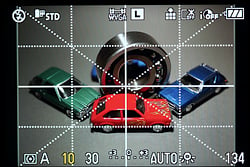
The Panasonic GF1 features a live histogram display with a nifty trick: you can select to have it displayed or not, and you position it pretty much anywhere on the display screen that you like. In the screen shots above, I've put it in the lower right corner. There are three grid options available as well, including one that is customizable.
Viewfinder Test Results
Accuracy
Excellent accuracy from the LCD monitor.

The Panasonic GF1's LCD proved very accurate, showing essentially 100% coverage with the 20mm kit lens. Excellent results here. We did not have access to the optional electronic viewfinder during testing, so we couldn't check its coverage.
Video
Check out the links below for more sample images, videos and image quality analysis:
- Panasonic Lumix DMC-GF1 Optics page (Crops from images shot with the camera's kit lens, if sold as a kit)
- Panasonic Lumix DMC-GF1 Sample Images page (Index to all standard test shots, with explanations)
- Panasonic Lumix DMC-GF1 Thumbnails page (Thumbnails of all shots, including RAWs, with EXIF data)
- Panasonic Lumix DMC-GF1 Gallery page (Regular photos taken with the Panasonic Lumix DMC-GF1)
Panasonic GF1 Video Recording
by Dave Etchells and Michael R. Tomkins
(Updated 9/15/09: AVCHD motion artifacts were the fault of VLC player, not the GF1!)
Panasonic's previous Micro Four Thirds camera, the GH1, introduced video recording capability to the line -- and most of that functionality has been carried over, with the biggest exceptions being the 1,920 x 1,080 pixel AVCHD / FHD mode, full manual exposure capability, stereo microphone, and external microphone jack. Importantly, though, the Panasonic GF1 retains the GH1's ability to autofocus during live video recording. At the time of the GH1's announcement, that was a truly unique feature among SLR-style cameras, and even today it's a rare camera that even tries to implement it, let alone does so usefully.
For video fans, much of the allure of the Panasonic GF1 is the ability to use a variety of lenses with it, opening a range of creative capabilities. The large size of its sensor relative to those of typical consumer camcorders means that you can achieve shallow depth of field with large-aperture lenses. The Panasonic GF1 also offers rather more control over exposure of its videos than the typical camcorder, although unlike the GH1 full manual control of video exposure isn't possible..

Depth of Field Control. This .MOV movie clip from the GH1 (NOTE: 35 MB download) shows the depth of field control you can achieve with the Panasonic GF1 using its kit lens. The video shows the effect on a macro subject of moving from the lens's maximum aperture down to f/22 and back again.
Arguably, this was what Panasonic had in mind from the very beginning of the Micro Four Thirds concept; a true "hybrid" camera that needn't make any excuses for its performance, whether shooting still or video imagery. When I was first briefed on the G-series concept by Panasonic's engineers in Japan, months before the initial announcement, a lot of my discussion with them revolved around the autofocus system. My concern had to do with whether contrast-detect AF could be fast enough to rival the performance of phase-detect AF systems in conventional SLR cameras. While they were certainly concerned about the AF speed for still photos, it turned out that a lot of the decisions made in the G-series AF system were actually driven by the needs of video recording: A critical goal of the G-series design was for the autofocus system to execute a complete AF cycle in 1/60 second -- because that's the basic frame time of an HDTV signal.
The Importance of the Lens. What the engineers were hoping to develop was not just a responsive still-camera AF system, but one that was fast enough to perform autofocus on the fly, while live video was being recorded. This was really a quantum leap beyond anything that had remotely been attempted in an interchangeable-lens hybrid camera prior to that time. To accomplish this, they needed a system and processor fast enough to read out a line of video data, compute the contrast magnitude for it, decide which way to move the lens, accelerate and move the lens and stop it at a precise location again, all within 1/60 second. The emphasis on stopping the lens movement is there because this turned out to be one of the tougher challenges. Accordingly, a good part of the ability of the GH1 and GF1 to autofocus during video recording depends on the lens you're using with it. Only certain lenses, marked as HD-capable will fully support live video AF, the first such being the (excellent) 14-140mm optic that shipped with the GH1 body as its kit lens. You'll generally be able to eke out at least some live autofocus from the Panasonic GF1 with other, non-HD lenses, but an HD-capable lens will prove faster and much more sure-footed than others. HD-rated Panasonic lenses also feature nearly silent autofocus mechanisms, so focus noise will be less audible on movie soundtracks. That said, you can put any lens that you can find an adapter for onto the Panasonic GF1 and shoot with it using manual focus.
There's another lens consideration that's important for video recording: HD-certified lenses for the Micro Four Thirds system have continuously variable aperture settings. That is, the camera can adjust the lens aperture smoothly across the entire range of settings. Most lenses can only vary their aperture setting in fixed steps. Such lenses will produce visible jumps in brightness if the light varies during video recording. (One way around this is simply to record in constant-aperture mode when shooting videos with non-HD lenses.)
Panasonic GF1 Video Basics: Speeds and Feeds
The Panasonic GF1 gives you two broad choices of video recording format, and several options for resolution and/or compression level within each of those file types. The table below lists these options.
|
Panasonic Lumix DMC-GF1 Video Options
|
|||
|---|---|---|---|
|
AVCHD Lite Format (.MTS files)
|
|||
|
Menu Designation
|
Resolution
|
Frame Rate
|
File Sizes
|
|
SH |
720p |
60p recording |
~90-128 MB/min
|
|
H |
720p |
60p recording |
N/A
(wait for full review) |
|
L |
720p |
60p recording |
N/A
|
|
Motion JPEG Format (.MOV files)
|
|||
|
Menu Designation
|
Resolution
|
Frame Rate
|
File Sizes
(very approximate) |
|
HD |
1,280 x 720 |
30 fps |
~200-230 MB/min
|
|
WVGA |
848 x 480 |
30 fps |
N/A
|
|
VGA |
640 x 480 |
30 fps |
N/A
|
|
QVGA |
320 x 240 |
30 fps |
N/A
|
AVCHD Lite vs Motion JPEG: Which to use? There are significant differences and trade-offs between the two different video formats. The Panasonic GF1's manual suggests using AVCHD Lite for movies that will be played back on your HDTV via the camera's HDMI connection, and Motion JPEG for playback on a PC. We've found this to generally be true, as our experience has been that AVCHD video looks much better when played on an HDTV than does Motion JPEG. For its part, AVCHD is not without its trade-offs, particularly when it comes to playing back or manipulating the files on a computer.
AVCHD Lite is a subset of the AVCHD specification, and identifies an AVCHD device that is limited to a maximum of 720p recording. Full AVCHD devices like the GF1's predecessor the GH1 are capable of either 1080i or 1080p, and indeed the GH1's FHD mode was captured as a 1080i (1,920 x 1,080 pixel) stream. It is this mode which the GF1 has dropped since the GH1. Given that the highest-quality 720p SH mode which remains available in the GF1 has the same 17Mbps bitrate as was used for the 1080i FHD mode, though, we doubt it'll be terribly missed, since the higher resolution came at the expense of decreased quality and increased artifacts.
AVCHD and AVCHD Lite both use an H.264 MPEG codec to compress the video stream, which achieves much greater compression than Motion JPEG, but requires more processing power to both compress and decompress. Recent-model computers with a good H.264 codec installed should have no trouble playing back AVCHD Lite video from the Panasonic GF1, but owners of older machines may find their CPUs struggling somewhat, resulting in jerky playback or dropped frames. Editing AVCHD likewise requires a reasonably powerful computer (at least by 2009 standards) and good editing software. On the other hand, as suggested by the manual, AVCHD playback from the camera to an HDTV via the camera's HDMI port works just great: HDTVs have very powerful custom processors built into them, designed to handle the rigors of HDTV decoding and display. By contrast, Motion JPEG (.MOV format) files from the Panasonic GF1 should open and play back just fine on most relatively recent-model computers. On older machines, with slow video cards or slow hard drives, you may still notice occasional hesitations in the playback, but you'll encounter significantly less than with AVCHD. Likewise, Motion JPEG files are much easier to edit on computers with only average processing power. The GF1's Motion JPEG files are limited to 2GB however, while AVCHD can be recorded up to the capacity of the memory card.
The difference in file sizes between AVCHD and Motion JPEG is pretty dramatic, though: Compression ratios will vary depending on the complexity of the image being recorded, but with highly-detailed subject matter, 720p resolution AVCHD Lite files can be as little as a quarter the size of Motion JPEGs for any given recording length. With more typical content, AVCHD files usually come in around half the size of Motion JPEGs. If playback on a less-powerful computer isn't an issue for you, and you want to record the maximum amount of video in the smallest amount of space, AVCHD Lite will be the way to go. At the highest quality settings (with 17 Mbps data rate), AVCHD Lite video files amount to only about 2.1 megabytes/second, or roughly 128 MB/minute. That's still a lot of data, but is nothing like the file sizes you'll see with Motion JPEG. At its lowest-quality AVCHD Lite setting, image quality with moving subjects will take a significant hit, but the GF1 will burn memory at a relatively parsimonious 65-70 MB/minute. At that rate, a 2GB memory card can hold up to 29 minutes of video.
All else being equal (and with subjects where only part of the scene changes from frame to frame), AVCHD Lite on the Panasonic GF1 will give somewhat better image quality than will Motion JPEG, but the differences are relatively small.
At the rollout event for the GF1, Panasonic provided several prearranged subjects for the journalists in attendance to shoot with the camera. One such was a very nice string quartet, which provided a good opportunity to evaluate both the GF1's video image and sound quality. The crops and videos linked below were shot at this event, using a prototype sample of the GF1: It's therefore possible that some image- and sound-quality aspects could be improved on production models, but based on our prior experience with the GH1, we believe that the results here will prove to be pretty representative.
|
AVCHD Lite Video Image Quality Examples
|
|
 |
|
 |
 |
My first reaction to recordings of the string quartet was that perhaps I'd been overly harsh in my earlier evaluation of AVCHD's image quality, as seen on the DMC-GH1 camera. I'd been dismayed by motion artifacts in the AVCHD video, but the subject I was using for my evaluation (our dog Charlotte chasing her Frisbee) was one that involved a lot of movement, including rather rapid panning of the camera during filming. At first glance, the AVCHD output from the Panasonic GF1 seemed quite nice; very sharp and crisp-looking, and I didn't immediately notice any of the motion artifacts that had so bothered me in the GH1's AVCHD output. (More on this in just a bit, though.)
|
Video format image quality comparison
|
|
|
Motion JPEG
|
AVCHD Lite
|
 |
 |
In fact, while the differences were relatively subtle, it seemed clear to me that the basic video image quality in the GF1's AVCHD mode was better than that from its Motion JPEG recordings. The crops above are from a Motion JPEG and AVCHD Lite video taped within a minute or two of each other, from roughly the same position. The differences are indeed subtle (you honestly might never notice them while the video was playing), but they're definitely present: Edges and details are better-defined in the AVCHD crop, while some JPEG compression artifacts are visible in some parts of the Motion JPEG image. (Look particularly in the area along the upper edge of the cellist's right arm; fuzziness from JPEG compression artifacts is clearly visible against the flat tones of the wall behind her.)
Beyond the pixel-peeping of the crops above, the AVCHD video just appeared crisper and cleaner when playing, as compared to the Motion JPEG sample.
Unfortunately, after a few minutes of study, I once again encountered the motion artifacts I'd come to expect when playing back AVCHD files on my computer. - As it turns out, this was actually the fault of the decoder I was using for playback, rather than a problem with AVCHD itself.
AVCHD and Motion Artifacts
Nothing comes for free, so it should come as no surprise that there's a consequence for AVCHD's much smaller file sizes. The trade-offs are that AVCHD files require a lot more processing by the playback device to decompress and display them, and that software support for AVCHD isn't on par with that for Motion JPEG (at least as of this writing, in September of 2009).
There are a couple of different flavors of AVCHD compression, in terms of the amount of data that's recorded. The highest (and apparently somewhat rare) spec results in a data rate of 24 Mbits/second being recorded onto the media, while the more common specification produces 17 Mbits/second. As with the GH1, the Panasonic GF1 uses this latter specification. Either spec results in fairly extreme levels of image compression, which means you can encounter some pretty dramatic loss of detail if a lot of the scene is changing from frame to frame.
The most critical issue is how much of the frame changes between frames, because AVCHD uses a keyframe-based compression. That means that it records full image information (albeit still compressed) only every so often, and in between these "key frames," only frame to frame differences are recorded. It furthermore limits the recording to a particular data rate (the 17 Mbits/second mentioned above), so if there's a lot of change happening between frames, a lot of data can get thrown out. On the other hand, if most of the image is the stationary, with only a small portion of the subject in motion, detail remains pretty good all over.
It's important to note that this limitation in the amount of frame-to-frame motion that can be accommodated isn't in any way unique to the Panasonic GF1; it's a characteristic of any AVCHD device, although those using the higher 24 Mb/s data rate limit will do somewhat better.)
|
Motion Artifacts from AVCHD? - Results from VLC media player
|
|
 |
 |
When I fired up my AVCHD-capable video player program (VLC, version 1.0.1), I was disappointed to see the sort of blocky artifacts shown above. In the crop at left, the bow has just swept in front of the violinist's face, leaving a trail of blocky artifacts in its wake. In the same crop, the cellist's right hand and part of her arm can also be seen, also suffering from motion-induced artifacts. Some of these could occur over a larger area, with large chunks of a sleeve or hand suddenly flickering with a slightly different shade of the dominant color, before reverting. In the crop at right, the cellist's bow has just swept across a portion of the wall between the bow and the cello, again leaving a patch of chunky artifacts behind. As it turns out, though, these artifacts were produced by the player software, not the GF1! |
|
It's interesting that the fairly extreme artifacts shown above didn't immediately leap out at me when I first viewed the GF1's AVCHD videos. They don't last on-screen very long, but while they're there, they're pretty obtrusive. Once I became aware of them, I saw them everywhere, and they became very distracting.
Previously, I'd thought that AVCHD artifacts would only be an issue when large percentages of the scene were changing from frame to frame. What these shots seemed to show was that any sort of rapid motion could induce these sort of artifacts, even if the motion involved represents only a limited portion of the frame.
I was really chagrined to see the dramatic artifacts shown above: AVCHD video definitely plays back better on HDTVs than does Motion JPEG, and the files that result are only half the size. It seemed a shame to have to choose between good HDTV playback or good image quality: Why couldn't we have both?
As it happens, we can: I was very happy to receive an email from reader Andrea Menzo shortly after posting the initial version of this page, pointing out that the otherwise-excellent VLC video player has a significant bug in its handling of motion decoding in H.264 video (the video encoding scheme used inside AVCHD files). Andrea suggested that I try the Handbrake program on my Mac, to translate the .MTS files to .mp4 ones that could be played back in QuickTime directly. I did so, and presto, the artifacts were gone! (Thanks again, Andrea!)
|
Artifacts Begone! - Results from QuickTime, via Handbrake
|
|
 |
 |
|
These crops show the same areas as above, but the .MTS files were first converted to .mp4 via Handbrake, and then played back in Apple's QuickTime. Much better!
|
|
The crops above match the previous ones, except this second set were made from the .mp4 file that was converted via Handbrake. As you can see, image quality is excellent, with no sign of the nasty artifacts that I saw originally.
|
AVCHD Player Differences II - Color and Detail
|
|
|
VLC Player
|
Converted in Handbrake
|
|
|
|
While VLC player has problems with motion artifacts, it does a bit better on absolute detail rendering. There are color differences between players as well.
|
|
Comparing the output of VLC player and material converted via Handbrake side by side, we can see that VLC's detail handling was just slightly better, and colors were different between the two. The actual color of the girl's coat was probably somewhere between the two shades shown here, so neither application entirely nailed it. Handbrake probably came a little closer, though. When it comes to detail, while it's easy to see minor differences while pixel-peeping static screenshots, it's almost certain that you wouldn't be able to see such differences in a live video stream.
Bottom line, while it's still probably a good idea to avoid very rapid panning in AVCHD mode (to avoid large frame to frame changes), there doesn't seem to be any reason to avoid it for files that will be viewed on a computer, provided you equip yourself properly to handle them. The first requirement is obviously a reasonably powerful computer, as AVCHD playback does require a good bit of processing to carry off. Equally important, though, is that you have a good-quality codec (coder/decoder) package installed, and a player that takes proper advantage of it.
Software for AVCHD Playback
As we've seen, the quality of AVCHD video viewed on a PC very much depends on the software you use for playback. The very popular open-source VLC media player application is fast and free for the downloading, but has major problems with motion artifacts in AVCHD video streams (at least as of version 1.0.1). These problems occur in both Mac and Windows versions of the app.
For more reliable playback of AVCHD files, we recommend the excellent K-Lite Codec Pack, which includes codecs supporting literally dozens of different formats. There are several versions available, ranging from Basic to Full and Corporate. We downloaded the Standard version and it worked like a champ with our GF1 video files. You can either use the bundled "classic" media player, or let your current DirectShow media player use the codecs from K-Lite.
On the Mac, options are a bit limited, as the current version of Apple's QuickTime doesn't support AVCHD files directly, and there don't appear to be any open-source players for the Mac platform with reliable AVCHD playback capability. The best solution currently (September, 2009) appears to be to use the excellent Handbrake video transcoder application to convert the GF1's AVCHD into .mp4 files, which QuickTime can read and play just fine. We used Handbrake's MPEG-4 (FFmpeg) video codec to convert the files linked below, plugging in an average bitrate of 17,000 Kbps, to match the 17 Mbps of the AVCHD spec (thereby avoiding throwing away any genuine image data). On a dual-core Intel Mac, transcoding is pretty speedy, and if you opt for two-pass encoding, the resulting mp4 files are actually a bit smaller than the original AVCHD ones.
Panasonic GF1 Audio Quality
Among the relatively few changes between the GH1 and GF1's video modes is the removal of the earlier camera's stereo microphone jack, and the replacement of the stereo microphone with a monaural one. While a shame, these changes were doubtless necessary in order to keep the GF1's body down to is impressively svelte proportions - while far from a heavyweight, the GH1 had a significantly larger body. The good news is that we found audio quality from our preproduction GF1 was actually surprisingly good, despite of the change to a mono mic.
Shooting the string quartet with the Panasonic GF1, I was amazed by the sound quality when I listened to the audio tracks on high-quality earbuds. The sound was crystal-clear, to the point that, in some clips, I could actually hear the reverberations from the rather long hall the group was playing in. It's a shame that there's no external audio jack, though, as that would give you so much more control over the audio pickup. As it is, the built-in mic on the camera tends to pick up quite a bit of sound from all directions, so it can be hard to exclude ambient noises from your audio. (Such as the clicking of still photographers' shutters, which are clearly audible on some of the video clips.)
The GF1 retains the wind cut filter that was offered in the GH1. As with that camera, it can be applied via an option on the GF1's Motion Picture menu. We haven't had an opportunity to play with this much, but it offers settings of Off, Low, Standard , and High, and did seem to cut wind noise somewhat when we used it on the GH1. (We didn't use the camera in any very windy conditions, though, so can't speak authoritatively on this feature.)
One important note about audio recording with the Panasonic GF1: The camera's exposure system lets you change the aperture while recording is in process, but sounds from the control dial used to effect the changes is clearly picked up by the audio track. Likewise, when using non HD-capable lenses the sound of autofocus operation is likely to be easily audible, although the noise level will likely vary with the specific lens model used. With no external microphone jack in the GF1, if you want to make on-the-fly aperture changes or use non-HD lenses and these sounds bother you, your only real alternative is to overdub an audio track from another source to hide the clicking.
Panasonic GF1 Live Autofocus Performance
As noted earlier, the Panasonic GF1 requires "HD-rated" lenses for best results with live autofocus during video recording, and it should be noted that neither of the kit lenses is HD-capable. In the manual, Panasonic notes that the speed of subject tracking may be compromised when using non-HD lenses in video recording, and as previously described, that autofocus noise will likely be picked up by the camera's internal microphone. Also, because it lacks the direct distance-measuring capability of a phase-detect AF system the GF1 can have trouble responding to too-rapid changes of subject distance. If the focal distance changes very abruptly (as in a quick shift from a foreground to background object, for instance), the camera can have difficulty figuring out how it should move the lens. It knows the scene is out of focus, but isn't sure whether to focus closer or further away. If the amount of mis-focus is extreme, it may end up "hunting" across the full focusing range of the lens, a very slow procedure. This is likely to be exacerbated by using non-HD capable lenses, but can be tamed somewhat by paying attention to how quick a focus shift one asks the camera to make: Sometimes, panning just slightly more slowly from foreground to background or vice versa makes for a big improvement in focus tracking.
Panasonic GF1 Sample Videos
Click on the links below to view/download our sample clips. You should have no problems playing the Motion JPEG files with most video players, including QuickTime. You may need to install an AVCHD Lite codec or player to view the .MTS files. (The VLC video player works across multiple platforms, and did a very good job of playing back the AVCHD files on our Intel-based Macs. Older platforms stuttered somewhat, but the results were better than any other player we tried.)
(NOTE that these are extremely large files: If you think you'll be inclined to want to refer back to them, please download copies to your local hard drive, to save our bandwidth!)
|
Panasonic GF1 Sample Videos
|
|
|
Motion JPEG
|
AVCHD Lite
|
|
|
|
|
|
|
|
 |
|
|
720p Videos. 1280x720 at 30 frames per second. (Click to play / download ~40MB MOV files, 15-20MB .MTS files, or 12-15MB .mp4 files.) Pretty good audio for a little hole on the camera's top deck, eh? (These videos were shot by Dave Etchells in Berlin on September 1, 2009 with a prototype Panasonic GF1 camera.)
|
|
|
Charlotte Video Samples
|
|
 |
 |
| Motion JPEG HD (720p) sample | Motion JPEG VGA (640x480) sample |
|
AVCHD 720p samples below: Click to download;
must have AVCHD player installed on your computer |
|
|
AVCHD 720p (SH)
Note that though Dave says "1080p" in the video file, it's actually 720p |
|




Bottom line, the Panasonic GF1 is a great video-shooting tool, and both image and audio quality are impressive. If you have appropriate software to support it for your computer, AVCHD is a very compact video format, with excellent image quality, and it also plays back great on HDTVs via the GF1's HDMI output port. The Motion JPEG format is easier to edit on a computer, though, so you may find the trade-off of its larger file sizes worthwhile, if your video editing software doesn't support AVCHD well.
Flash
Panasonic GF1 Flash

The Panasonic GF1's built-in flash has a guide number rating of 20 feet (6 meters) at ISO 100. That's a lot weaker than most digital SLRs, which are typically rated at 12 or 13 meters. The GF1's closest rival, the Olympus E-P1, doesn't include a popup flash at all, though, and even a relatively weak flash might prove useful for those times when you don't have an external flash strobe at hand.
The Panasonic GF1's flash is released manually by pushing the Flash Open button on the camera's rear panel. Raising the flash enables it, though it can be defeated using a menu selection. It never pops up automatically like some models, which can be good or bad, depending on your point of view. A novice would probably appreciate an auto-pop-up flash, but someone with experience might think it a nuisance.
When open, the flash doesn't extend very high, so at wide angle longer Micro Four Thirds lenses could cast a shadow when the lens hood is attached. The Panasonic GF1's flash is disabled by pressing down until it clicks shut.
The Panasonic GF1's built-in flash has seven modes: Auto, Auto with Red-Eye Reduction, Forced On, Forced On with Red-Eye Reduction, Slow Sync, Slow Sync with Red-Eye Reduction, and Forced Off. Flash modes are changed via the Record menu, and available settings vary depending on exposure mode. A Digital Red-Eye Reduction feature is offered, which when enabled, will attempt to remove red-eye after the photo is taken, via post-processing. A second curtain synchronization mode is also offered. X-Sync (the maximum shutter speed with the flash enabled) is 1/160 second, a bit below average these days, and there is no mention of a higher-speed FP (focal plane) mode. There's also no wireless flash support in the Panasonic GF1.
The Panasonic GF1 allows you to adjust flash and ambient exposure independently of each other, by providing flash exposure compensation between -2 and +2 EV in one-third EV increments. Flash exposure bracketing is not supported, and there is no manual flash mode where output level can be set as a percentage of full power.

Like an SLR, the DMC-GF1 also has a dedicated hot shoe for mounting external flash units, like Panasonic's DMW-FL500, FL360, and FL220. Olympus flash units such as the FL-50, FL-36, FL-20, and FL-14 should also work, and non-dedicated units can also be used provided they have a compatible trigger voltage and polarity. (Panasonic does not seem to mention the trigger voltage or polarity in the GF1's user manual, though.)
The advantages of a good external flash are many: more power for increased range, faster recycle times, longer battery life, reduced red-eye, auto zoom to match coverage to the current focal length, and the ability to adjust the tilt and swivel of the head to allow light from the flash to be bounced off nearby surfaces such as a ceiling, for a diffuse effect. Most external flash units have a more powerful AF assist illuminator built-in than the one on the body, and other useful features such as modeling flash are common on higher end models.
Flash Test Results
Coverage and Range
Modest flash power, though good coverage with the 20mm lens. Higher than average positive exposure compensation required.


Coverage. Flash coverage was pretty good with the 20mm lens (some of the fall-off is due to vignetting in the lens itself), but keep in mind that's not very wide on a Micro Four Thirds camera (40mm equivalent). Given the amount of falloff at 20mm, we think the flash won't have very even coverage at more typical wide angles such as 14mm (28mm eq.)
Exposure. Indoors under incandescent background lighting, the Panasonic GF1's flash struggled with our standard flash portrait test scene, resulting in a dim exposure, even when the flash exposure compensation was increased to +1.0 EV. (For whatever reason, the flash exposure adjustment had very little effect.) The camera's slow-sync flash mode required no compensation, though the longer shutter time resulted in a much warmer cast from the ambient background lighting.
| Manufacturer-Specified Flash Range |
|---|
| 20mm kit lens, f/2.8 |
 7.0 feet ISO 100 |
Manufacturer-Specified Flash Range Test. Panasonic rates the GF1's flash with a Guide Number of 6 meters (19.7 feet) at ISO 100. That works out to about 7 feet at an aperture of f/2.8. In the shot above, the DMC-GF1 performed as Panasonic says it will, providing a well exposed image at the rated distance.
Note: This test uses manufacturer-specified camera settings, at the range the company claims for the camera, to assess the validity of the specific claims.
High ISO Noise Reduction
Panasonic GF1 Noise Reduction
The Panasonic GF1's 5 levels of noise-reduction settings allow you quite a bit of flexibility in choosing how you want to make the trade-off between subject detail and noise level. The GF1 applies NR to its JPEGs at all ISOs, so we've included crops at all ISOs in the tables below. The combination of shooting with NR turned down to the lowest setting (-2) and using a good noise-filtering program after the fact can produce very clean images with lots of fine detail in them. RAW images with no NR or sharpening are also shown for comparison.
See for yourself how the noise reduction works under daylight-balanced lighting. Click on any of the crops below to see the corresponding full-sized image.
| Noise Reduction Comparison Daylight-balanced illumination |
||||
|
NR = -2
|
NR = 0
|
NR = +2
|
RAW (no NR)
|
|
| I S O 1 0 0 |
 |
 |
 |
 |
 |
 |
 |
 |
|
 |
 |
 |
 |
|
|
NR = -2
|
NR = 0
|
NR = +2
|
RAW (No NR)
|
|
| I S O 2 0 0 |
 |
 |
 |
 |
 |
 |
 |
 |
|
 |
 |
 |
 |
|
|
NR = -2
|
NR = 0
|
NR = +2
|
RAW (no NR)
|
|
| I S O 4 0 0 |
 |
 |
 |
 |
 |
 |
 |
 |
|
 |
 |
 |
 |
|
|
NR = -2
|
NR = 0
|
NR = +2
|
RAW (No NR)
|
|
| I S O 8 0 0 |
 |
 |
 |
 |
 |
 |
 |
 |
|
 |
 |
 |
 |
|
|
NR = -2
|
NR = 0
|
NR = +2
|
RAW (no NR)
|
|
| I S O 1 6 0 0 |
 |
 |
 |
 |
 |
 |
 |
 |
|
 |
 |
 |
 |
|
|
NR = -2
|
NR = 0
|
NR = +2
|
RAW (No NR)
|
|
| I S O 3 2 0 0 |
 |
 |
 |
 |
 |
 |
 |
 |
|
 |
 |
 |
 |
|
The above crops show the effects of three (-2, 0 and +2) of the Panasonic GF1's five levels of noise reduction available, under the studio HMI lighting we use to simulate daylight. A RAW image with no NR or sharpening applied (the lack of sharpening is why it's soft-looking) is also included for comparison. To our eyes, the default (0) level of noise reduction strikes a good balance between noise and subtle subject detail, although the red fabric swatch presents a real challenge, as it does for virtually all cameras we test. Cranking the noise reduction setting up to +2 produces very smooth-looking images, while still maintaining good detail in areas of high local contrast (as seen in the circular scale), but a lot of detail is lost in areas of subtle contrast (the red fabric swatch is a particularly challenging subject, and the detail loss there is worse than you'd find in most real-world examples). At the other end of the scale, the -2 noise reduction setting leaves a lot of noise in the image, but also leaves the subject detail largely undisturbed: Use this setting if you have good third-party noise reduction software; with appropriate processing, the result could be quite good. You should be able to do even better working from the RAW files.
Imatest Results
Panasonic GF1 Imatest Results
We routinely use Norman Koren's excellent "Imatest" analysis program for quantitative, thoroughly objective analysis of digicam test images. I highly recommend it to our technically-oriented readers, as it's far and away the best, most comprehensive analysis program I've found to date.
My comments below are just brief observations of what we see in the Imatest results. A full discussion of all the data Imatest produces is really beyond the scope of this review: Visit the Imatest web site for a full discussion of what the program measures, how it performs its computations, and how to interpret its output.
Here's some of the results produced by Imatest for the Panasonic GF1:
| sRGB Accuracy Comparison |
|||
The Panasonic DMC-GF1 showed good color accuracy, with only minor oversaturation of bright reds, deep blues, dark greens and some purples. The Lumix GF1 actually undersaturates some yellows, oranges, cyans and greens slightly. Hue accuracy was also generally good, with the typical cyan shift we see in most cameras we test, but a slightly larger than average shift in the range of spectrum from orange through yellow. The shift of oranges toward yellow and yellows toward green was evident in some of our test images, notably those of the Still Life scene. The earlier Lumix G series showed these tendencies as well. Average saturation was 106.9% (oversaturated by 6.9%, mostly in the reds, blues, purples and dark greens). Average "delta-C" color error was 6.27 after correction for saturation, which is pretty good, just a step down from the best cameras we've tested, including the Olympus E-P1. (Delta-C is the same as the more commonly referred to delta-E, but delta-C takes into account only color differences, ignoring luminance variation.) All in all, a good color response for this class of camera, but there is definitely some weakness in the orange through yellow portion of the spectrum. Mouse over the links below the illustration above to compare results with other Micro Four Thirds models.
Adobe RGB Accuracy Comparison |
|||
As is true of most interchangeable lens cameras, when using the Adobe RGB color space (which provides a much wider gamut, or range of colors that can be expressed), the Panasonic GF1 delivers more highly saturated color, though the increase compared to sRGB is quite minor compared to most cameras we test. Average saturation was 107.7% which is only slightly greater, and average saturation-corrected hue error was 5.45 "delta-C" units, actually slightly more accurate than the sRGB result. Again, mouse over the links below the illustration above to compare results with other Micro Four Thirds models.
The orange-yellow hue shift seen in is one of very few flaws in an otherwise excellent camera, which led us to wonder if there might be a way around it, by processing its images from RAW files, rather than using the camera's JPEGs directly. The Imatest color error plots below show the results with two different RAW converters.

First up is SilkyPix, the RAW converter that Panasonic bundles with their RAW-capable cameras, including the GF1. The plot above is the result of manually tweaking the white balance in SilkyPix to produce neutral greys on the MacBeth chart. Perhaps not surprisingly, the color rendering here is very similar to that implemented in the camera itself, and unfortunately, the problem in the orange-yellow portion of the spectrum is actually somewhat worse.

The plot above shows color rendering from Adobe Camera RAW, working from the same RAW file as was used for the SilkyPix example. In this case, white balance was set via the grey-balance click control, from the middle grey of the MacBeth chart. There's still some evidence of the orange-yellow problem, but the bright yellow swatch is much more accurate, with almost no green cast. Saturation of reds, blues, and purples is also much better controlled. With a custom color profile for the camera, you could doubtless get near-perfect color, and even Camera Raw's default rendering delivers overall color accuracy for the Panasonic GF1 that's close to the best we've measured. That's happy news: If you work from RAW anyway (important for extracting maximum detail from most any camera), the GF1's color quirks for the most part become non-issues.
Panasonic GF1 Color Analysis

This image shows how the Panasonic GF1 actually rendered the colors of the MacBeth chart, compared to a numerically ideal treatment. In each color swatch, the outer perimeter shows the color as actually captured by the camera, the inner square shows the numerically correct color after correcting for the luminance of the photographed chart (as determined by a second-order curve fit to the values of the gray swatches), and the small rectangle inside the inner square shows the numerically correct color, without the luminance correction. This image shows the generally good hue and saturation accuracy, although the greenish tinge in the bright yellow and orange swatches is quite evident. The as-captured colors are somewhat bright for many blues, but rather dark for some warm tones, notably yellows and oranges. We did notice some yellows were noticeably dull and greenish in some of our test images (see the yellow yarn in our Still Life target), but felt that the overall visual impact of the GF1's color was quite positive. If Panasonic could just clean up their handling of the range of spectrum from orange through yellow-green, the GF1's color would be truly impressive. (The same comment we made for the G1 and GH1 before it.)
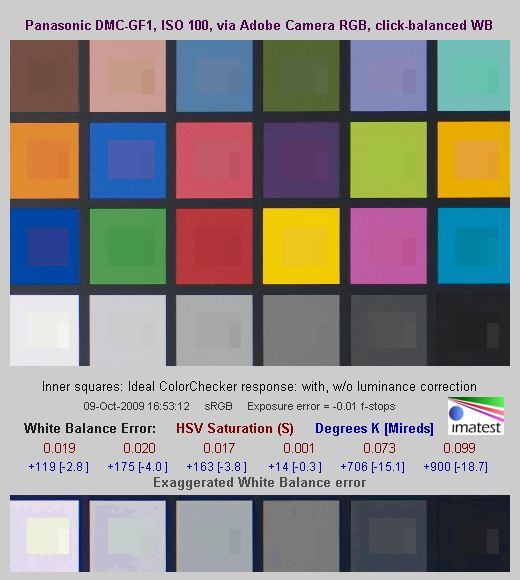
As noted above, though, third-party RAW converters render colors more accurately than does the GF1's own internal processing. The illustration above shows what Adobe Camera Raw's color rendering for the GF1 looks like. The light orange swatch still has a bit of the greenish cast seen in the GF1's JPEGs, but only a hint. Furthermore, the artificially dark tone of the bright yellow and orange swatches is gone, with much luminance much closer to the correct levels: Color accuracy is really excellent overall.
Panasonic GF1 Noise Analysis


There's a lot in this particular graph, a lot more than we have room to go into here. (This set of plots has also changed a little in the more recent versions of Imatest. Some of the plots that were shown here previously are now shown in other Imatest output. Since we largely focus on the Noise Spectrum plot, we'll only show the graphic above, which includes that plot.)
In comparing these graphs with those from competing cameras, I've found that the Noise Spectrum graph at lower right is the most important. Cameras that manage to shift their noise spectrum to higher frequencies have much finer-grained noise structures, making their noise less visually objectionable. In the graph above, this would show up as a noise spectrum curve that remained higher on the right side, representing higher noise frequencies.
The Panasonic GF1 does a very good job of keeping a lot of the luminance noise energy (indicated by the black line) up at high frequencies. The low-ISO luminance noise that's there is quite fine-grained as a result. Chroma noise at low spatial frequencies, though, is much higher, especially in the blue and red channels, showing fairly high low-frequency noise bias for a camera in the DSLR category.
When inspecting low ISO GF1 images very closely, you can see blotches of chroma noise in neutral colors, such as the darker gray patches in the MacBeth chart (see the exaggerated example at right - NOTE that this is zoomed 400% over the original file data, and the tone curve has been stretched quite a bit to reveal the noise). The Lumix GF1's noise reduction targets mostly luminance noise at low ISOs.

Above is the same set of noise data at ISO 1,600. Here, the Noise Spectrum graph is shifted quite a bit toward the left-hand, lower-frequency side than it was at ISO 100, coarsening the "grain" of the image noise patterns quite a bit. The red and blue channels still exhibit a bit more noise at the low end of the frequency spectrum, but, are much lower relative to the luminance noise than at lower ISOs, tracking it closely at all but the lowest frequencies. The Panasonic GF1's default noise reduction does a pretty good job at keeping chrominance noise in check at higher ISOs.

Here's the same set of noise data at ISO 3,200. Here again, the Noise Spectrum graph is shifted even more toward the left-hand side, coarsening the "grain" of the image noise patterns further. Note the higher noise values in the top-right and lower-left plots as well.

This chart compares the Panasonic GF1's noise performance over a range of ISOs against that of other Micro Four Thirds models. While we continue to show noise plots of this sort because readers ask for them, we each time point out that the noise magnitude is only a small part of the story, the grain pattern being much more important. Here, we can see that the Panasonic GF1's luminance noise magnitude remains roughly in the middle of the pack relative to its competition at most ISOs. At ISO 1,600, the GF1's noise levels are significantly lower than the Panasonic G1, about the same as the GH1's, and a bit higher than the Olympus E-P1's which uses a similar sensor. At ISO 3,200, the GF1's noise levels are significantly higher than the GH1 and E-P1's, but lower than the G1. Indeed, when we compare GF1 to GH1 images at high ISOs, the GF1 does have a bit more luminance noise (which is probably more visible due to the GF1's slightly higher default sharpening as well). Do keep in mind these measurements are taken with each camera set at default settings, so the shape or position of the curve could be influenced by the settings you choose to use. Like the G1 and GH1, the Panasonic GF1 offers five levels of noise reduction, with the above data collected using the default, middle level.

Micro Four Thirds cameras are only part of the market, of course: Conventional SLRs, whether using the Four Thirds sensor format or more conventional APS-C size sensors, are both more common and generally less expensive. The chart above compares the Panasonic GF1's luminance noise levels with those of conventional SLR models in its same general price bracket. Of the cameras shown, the Olympus E-620 uses a Four Thirds sensor; all the rest have APS-C size chips in them. As you can see, the luminance noise levels of the Panasonic GF1 and E-620 are higher at 1,600 than any of the other models, and significantly higher at ISO 3,200. That said, the GF1 does a much better job than average at maintaining subtle subject detail at higher ISOs, so it deserves some allowance for increased image noise as a result. (Not to give it a complete pass, but we'd personally take the Panasonic GF1's higher luminance noise at ISO 1,600 over that of the Sony A380's default processing any day, given how much more detail the GF1 holds in areas of subtle contrast.)
Panasonic GF1 Dynamic Range Analysis
A key parameter in a digital camera is its Dynamic Range, the range of brightness that can be faithfully recorded. At the upper end of the tonal scale, dynamic range is dictated by the point at which the RGB data "saturates" at values of 255, 255, 255. At the lower end of the tonal scale, dynamic range is determined by the point at which there ceases to be any useful difference between adjacent tonal steps. Note the use of the qualifier "useful" in there: While it's tempting to evaluate dynamic range as the maximum number of tonal steps that can be discerned at all, that measure of dynamic range has very little relevance to real-world photography. What we care about as photographers is how much detail we can pull out of the shadows before image noise becomes too objectionable. This, of course, is a very subjective matter, and will vary with the application and even the subject matter in question. (Noise will be much more visible in subjects with large areas of flat tints and subtle shading than it would in subjects with strong, highly contrasting surface texture.)
What makes most sense then, is to specify useful dynamic range in terms of the point at which image noise reaches some agreed-upon threshold. To this end, Imatest computes a number of different dynamic range measurements, based on a variety of image noise thresholds. The noise thresholds are specified in terms of f-stops of equivalent luminance variation in the final image file, and dynamic range is computed for noise thresholds of 1.0 (low image quality), 0.5 (medium image quality), 0.25 (medium-high image quality) and 0.1 (high image quality). For most photographers and most applications, the noise thresholds of 0.5 and 0.25 f-stops are probably the most relevant to the production of acceptable-quality finished images, but many noise-sensitive shooters will insist on the 0.1 f-stop limit for their most critical work.
The image below shows the test results from Imatest for an in-camera JPEG file from the Panasonic GF1 with a nominally-exposed density step target (Stouffer 4110), and the GF1's settings such as Contrast (0) and iExposure (Off) at their default positions.

Here, we can see that he tone curve shows pretty good gradation in highlights, but the shadow end trails off more abruptly. Dynamic range at the highest quality level is 6.99 f-stops, with 10.5 f-stops overall. These are good numbers for a Four-Thirds sensor, but lag behind results from the larger APS-C sensors most of the competition uses. (Though technically, there is no direct competition in the form of a compact, interchangeable lens camera with an APS-C sized sensor, yet.)

The illustration above shows the results from Adobe Camera Raw 5.5 , with Auto settings (slightly better results are likely possible with manually tweaking, but we weren't able to do much better, due to what appeared to be some truncation of the individual color channel tone curves at the deep shadow end of the tonal range). As can be seen, the score at the highest quality level was only slightly better than the in-camera JPEG, at 7.16 f-stops, while total dynamic range increased from 10.5 to 11.9 f-stops. However, if one ignores the three indistinct steps reported at the deep shadow end, total dynamic range is 10.9 f-stops, also not much of an improvement over JPEG.
Dynamic Range, the bottom line:
The net result was that the Panasonic GF1 showed good dynamic range when compared against other current Four-Thirds models, but lags behind the GH1 as well as most DSLRs with APS-C size sensors. Like we found with the Panasonic GH1, GF1 RAW files processed in Adobe Camera Raw didn't improve Imatest dynamic range scores by very much.
To get some perspective, here's a summary of the Panasonic GF1's dynamic range performance, and how it compares to other digital SLRs that we also have Imatest dynamic range data for. (Results are arranged in order of decreasing dynamic range at the "High" quality level.):
| Dynamic Range (in f-stops) vs Image Quality (At camera's base ISO) (Blue = RAW via ACR, Yellow=Camera JPEG, Green=Current Camera) |
||||
| Model | 1.0 (Low) |
0.5 (Medium) |
0.25 (Med-High) |
0.1 (High) |
| Nikon D3X (Adobe Camera Raw 5.3b) |
-- | -- | 11.1 | 9.64 |
| Nikon D700 (Adobe Camera Raw 4.5) |
12.1 | 11.6 | 10.6 | 9.51 |
| Nikon D5000 (Adobe Camera Raw 5.4b) |
-- | 11.6 | 10.8 | 9.50 |
| Sony A900 (Adobe Camera Raw 4.6b) |
-- | 12.1 | 10.7 | 9.36 |
| Nikon D90 (Adobe Camera Raw 4.6b) |
12.1 | 11.8 | 10.7 | 9.27 |
| Fujifilm S3 Pro (Adobe Camera Raw 2) |
12.1 | 11.7 | 10.7 | 9.00 |
| Nikon D40x (Adobe Camera Raw 4.1) |
12.0 | 10.9 | 10.3 | 8.90 |
| Canon 5D Mark II (Adobe Camera Raw 5.2) |
-- | 10.8 | 10.0 | 8.89 |
| Canon EOS-1Ds Mark III (Adobe Camera Raw 4.5) |
11.5 | 10.7 | 9.96 | 8.84 |
| Nikon D3 (Adobe Camera Raw 4.5) |
11.7 | 11.0 | 10.0 | 8.75 |
| Canon EOS-1D Mark III (Adobe Camera Raw 4.5) |
11.7 | 10.7 | 9.99 | 8.73 |
| Pentax K20D (Adobe Camera Raw 4.5) |
11.4 | 10.6 | 9.82 | 8.56 |
| 8.5 Stops | ||||
| Nikon D300 (Adobe Camera Raw 4.3.1) |
11.4 | 10.9 | 9.87 | 8.45 |
| Sony A200 (Adobe Camera Raw 4.3.1) |
11.6 | 10.4 | 9.82 | 8.43 |
| Nikon D60 (Adobe Camera Raw 4.4.1) |
11.6 | 10.5 | 9.74 | 8.31 |
| Nikon D40 (Adobe Camera Raw 4.1) |
11.9 | 10.9 | 9.89 | 8.30 |
| Canon EOS-1Ds Mark III (Camera JPEG) |
10.9 | 10.2 | 9.71 | 8.23 |
| Pentax K100D (Adobe Camera Raw 3.6) |
11.3 | 10.3 | 9.51 | 8.23 |
| Pentax K200D (Adobe Camera Raw 4.4.1) |
-- | 10.5 | 9.54 | 8.19 |
| Pentax K10D (Adobe Camera Raw 3.7) |
10.6 | 10.0 | 9.29 | 8.19 |
| Sony A100 (Adobe Camera Raw 3.4) |
11.3 | 10.5 | 9.69 | 8.16 |
| Canon EOS-1Ds Mark II (Adobe Camera Raw 3) |
11.2 | 10.3 | 9.40 | 8.14 |
| Canon EOS 50D (Adobe Camera Raw 4.6) |
11.2 | 10.5 | 9.49 | 8.06 |
| Nikon D40x (Camera JPEG) |
10.8 | 10.0 | 9.42 | 8.04 |
| Olympus E-P1 (ISO 200, Adobe Camera Raw 5.5) |
11.5 | 10.4 | 9.26 | 8.04 |
| Canon Rebel XSi (Camera JPEG) (ALO on by default) |
11.3 | 10.1 | 9.34 | 8.01 |
| 8.0 Stops | ||||
| Fujifilm S3 Pro (Camera JPEG) |
-- | 9.90 | 9.40 | 7.94 |
| Nikon D3X (Camera JPEG) Advanced D-Lighting=Low) |
-- | -- | -- | 7.91 |
| Sony A350 (Adobe Camera Raw 4.4) |
11.6 | 10.5 | 9.61 | 7.89 |
| Canon EOS-1D Mark III (Camera JPEG) |
-- | 10.2 | 9.70 | 7.88 |
| Canon Rebel XS (Adobe Camera Raw 4.5) |
-- | 10.3 | 9.27 | 7.88 |
| Nikon D3 (Camera JPEG) |
-- | -- | -- | 7.87 |
| Canon Digital Rebel XTi (Adobe Camera Raw 3.6) |
10.8 | 9.88 | 9.18 | 7.84 |
| Canon EOS 5D (Adobe Camera Raw 3) |
11.0 | 10.4 | 9.21 | 7.83 |
| Canon EOS 50D (Camera JPEG) (ALO Off ) |
-- | 9.64 | 9.17 | 7.83 |
| Nikon D90 (Camera JPEG) |
-- | -- | -- | 7.77 |
| Panasonic DMC-GH1 (Adobe Camera Raw 5.4b) |
9.88 | -- | 9.30 | 7.76 |
| Panasonic DMC-GH1 (Camera JPEG iExposure=Standard) |
8.76 | -- | -- | 7.76 |
| Nikon D5000 (Camera JPEG), (Advanced D-Lighting=Low ) |
-- | -- | 9.28 | 7.75 |
| Canon Rebel T1i (Adobe Camera Raw 5.4b) |
11.2 | 10.2 | 9.16 | 7.73 |
| Canon EOS 40D (Adobe Camera Raw 4.2) |
11.2 | 10.1 | 9.26 | 7.72 |
| Canon Rebel XSi (Adobe Camera Raw 4.4.1) |
10.6 | 9.95 | 9.10 | 7.68 |
| Canon EOS 50D (Camera JPEG) (ALO STD by default) |
-- | -- | 8.90 | 7.68 |
| Nikon D700 (Camera JPEG) |
-- | -- | 9.05 | 7.67 |
| Canon 5D Mark II (Camera JPEG) (ALO STD) |
10.6 | 9.68 | 8.98 | 7.66 |
| Nikon D5000 (Camera JPEG), (Advanced D-Lighting=Off) |
-- | -- | 8.96 | 7.65 |
| Canon EOS-5D (Camera JPEG) |
10.2 | 9.68 | 8.82 | 7.65 |
| Olympus E-3 (Adobe Camera Raw 4.3) |
10.3 | 10.1 | 9.29 | 7.64 |
| Canon 5D Mark II (Camera JPEG) (ALO Off) |
-- | 9.67 | 8.96 | 7.62 |
| Nikon D60 (Camera JPEG) |
10.5 | 9.62 | 8.89 | 7.62 |
| Nikon D200 (Adobe Camera Raw 3) |
10.6 | 9.65 | 8.96 | 7.61 |
| Nikon D80 (Adobe Camera Raw 3.6) |
11.1 | 10.4 | 9.42 | 7.51 |
| 7.5 Stops | ||||
| Olympus E-500 (Adobe Camera Raw 3) |
10.7 | 9.97 | 8.90 | 7.46 |
| Olympus E-510 (Adobe Camera Raw 4.1) |
10.0 | 9.43 | 8.64 | 7.46 |
| Pentax K10D (Camera JPEG) |
-- | 9.49 | 8.88 | 7.44 |
| Nikon D300 (Camera JPEG) |
-- | -- | 8.70 | 7.44 |
| Olympus E-420 (Adobe Camera Raw 4.1.1) |
10.0 | 9.61 | 8.65 | 7.44 |
| Canon Rebel T1i (Camera JPEG) (ALO=STD by default) |
11.3 | 10.1 | 9.34 | 7.43 |
| Nikon D2Xs (Adobe Camera Raw 3.6) |
10.6 | 9.90 | 8.93 | 7.42 |
| Canon EOS 40D (Camera JPEG) |
10.6 | 9.52 | 8.78 | 7.42 |
| Nikon D3X (Camera JPEG) (Advanced D-Lighting=Off) |
-- | -- | -- | 7.37 |
| Nikon D50 (Camera JPEG) |
10.7 | 9.93 | 8.70 | 7.36 |
| Panasonic DMC-G1 (Adobe Camera Raw 5.2) |
10.7 | 9.78 | 8.70 | 7.32 |
| Sony A900 (Camera JPEG) (DRO off by default ) |
10.2 | 9.75 | 8.49 | 7.31 |
| Sony A200 (Camera JPEG) (DRO on by default) |
10.4 | 9.43 | 8.91 | 7.29 |
| Canon EOS 20D (Camera JPEG) |
10.3 | 9.66 | 8.85 | 7.29 |
| Canon EOS 30D (Camera JPEG) |
10.3 | 9.50 | 8.57 | 7.29 |
| Nikon D40 (Camera JPEG) |
10.4 | 9.80 | 8.89 | 7.28 |
| Sony A900 (Camera JPEG) (DRO on) |
10.1 | 9.76 | 8.47 | 7.26 |
| Canon Rebel XS (Camera JPEG) |
10.3 | 9.4 | 8.61 | 7.22 |
| Olympus E-520 (Adobe Camera Raw 4.5) |
11.0 | 9.46 | 8.70 | 7.20 |
| Sony A350 (Camera JPEG) (DRO on by default) |
10.3 | 9.55 | 8.85 | 7.19 |
| Panasonic DMC-GF1 (Adobe Camera Raw 5.5) |
10.2 | 9.62 | 8.62 | 7.16 |
| Nikon D80 (Camera JPEG) |
10.1 | 9.43 | 8.48 | 7.12 |
| Canon Digital Rebel XT (Camera JPEG) |
10.3 | 9.51 | 8.61 | 7.11 |
| Nikon D200 (Camera JPEG) |
-- | 9.07 | 8.36 | 7.11 |
| Panasonic DMC-G1 (Camera JPEG, iExposure = Low) |
-- | 9.29 | 8.50 | 7.09 |
| Panasonic DMC-G1 (Camera JPEG, iExposure = Standard) |
-- | 9.30 | 8.54 | 7.07 |
| Olympus E-300 (Camera JPEG) |
10.8 | 9.26 | 8.48 | 7.07 |
| Olympus E-410 (Adobe Camera Raw 4.1) |
10.2 | 9.40 | 8.24 | 7.05 |
| Olympus E-500 (Camera JPEG) |
10.0 | 9.14 | 8.16 | 7.05 |
| Canon Digital Rebel XTi (Camera JPEG) |
9.83 | 9.10 | 8.27 | 7.04 |
| Canon EOS-1Ds Mark II (Camera JPEG) |
10.3 | 9.38 | 8.60 | 7.04 |
| Panasonic DMC-G1 (Camera JPEG, iExposure = High) |
10.3 | 9.23 | 8.54 | 7.04 |
| Panasonic DMC-G1 (Camera JPEG, iExposure = Off) |
-- | 9.33 | 8.52 | 7.03 |
| Pentax K200D (Camera JPEG) |
-- | 9.50 | 8.30 | 7.01 |
| 7.0 Stops | ||||
| Panasonic DMC-GF1 (Camera JPEG, iExposure = Off) |
-- | 9.33 | 8.44 | 6.99 |
| Canon Digital Rebel (Camera JPEG) |
10.1 | 9.11 | 8.47 | 6.97 |
| Nikon D2Xs (Camera JPEG) |
9.82 | 8.98 | 8.23 | 6.97 |
| Panasonic DMC-L10 (Adobe Camera Raw 4.2) |
10.4 | 9.34 | 8.48 | 6.91 |
| Sigma DP1 (Camera JPEG) |
-- | 8.95 | 8.13 | 6.91 |
| Pentax *istDs (Camera JPEG) |
10.2 | 10.0 | 8.87 | 6.90 |
| Sony A100 (Camera JPEG) |
10.2 | 9.24 | 8.39 | 6.89 |
| Pentax K100D (Camera JPEG) |
10.3 | 9.30 | 8.39 | 6.73 |
| Pentax K20D (Camera JPEG) |
10.2 | 9.21 | 8.09 | 6.66 |
| 6.5 Stops | ||||
| Nikon D2x (Camera JPEG) |
-- | 8.93 | 7.75 | 6.43 |
| Olympus E-3 (Camera JPEG) |
9.32 | 9.06 | 8.50 | 6.42 |
| Panasonic DMC-L10 (Camera JPEG) |
-- | 8.94 | 8.00 | 6.38 |
| Olympus E-420 (Camera JPEG) |
9.18 | 8.82 | 7.93 | 6.37 |
| 6.0 Stops | ||||
| Olympus E-410 (Camera JPEG) |
-- | -- | 7.60 | 5.99 |
| Nikon D70s (Camera JPEG) |
9.84 | 8.69 | 7.46 | 5.85 |
| Nikon D70 (Camera JPEG) |
9.81 | 8.76 | 7.58 | 5.84 |
| Olympus E-520 (Camera JPEG) |
9.32 | 8.68 | 7.74 | 5.74 |
| Olympus E-P1 (Camera JPEG, ISO 200, Gradation = Normal) |
-- | 8.85 | 7.74 | 5.47 |
The results shown in the table are interesting. One of the first things that struck me when I (Dave) initially looked at test data for a wide range of DSLRs, was that here again, purely analytical measurements don't necessarily correlate all that well with actual photographic experience. There's no question that the Fuji S3 Pro deserved its place atop the list, as its unique "SR" technology did indeed deliver a very obvious improvement in tonal range in the highlight portion of the tonal scale relative to competing models of its day. (Amazing that it's now surpassed by even consumer-level models using today's technology.) I was also surprised to see the analytical results place the original Olympus E-300 as highly as they did, given that our sense of that camera's images was that they were in fact noisier than those of many other DSLRs that we looked at. In the other direction, I was quite surprised to see the Nikon D2x place as low on the listings as it did, given that we found that camera's shadow detail to be little short of amazing.
One thing that's going on here though, is that we tested each camera at its base ISO setting, which should produce best-case noise levels. This is in fact what many photographers will be most interested in, but it does perhaps place some of the Nikons (like the D40) at a disadvantage, as their lowest ISO setting is 200, as compared to the ISO 100 settings available on most other models.
When it comes to the Panasonic GF1, the in-camera processing appears to be delivering pretty close to best its Micro Four Thirds sensor has to offer in terms of dynamic range.
Panasonic GF1 Resolution Chart Test Results
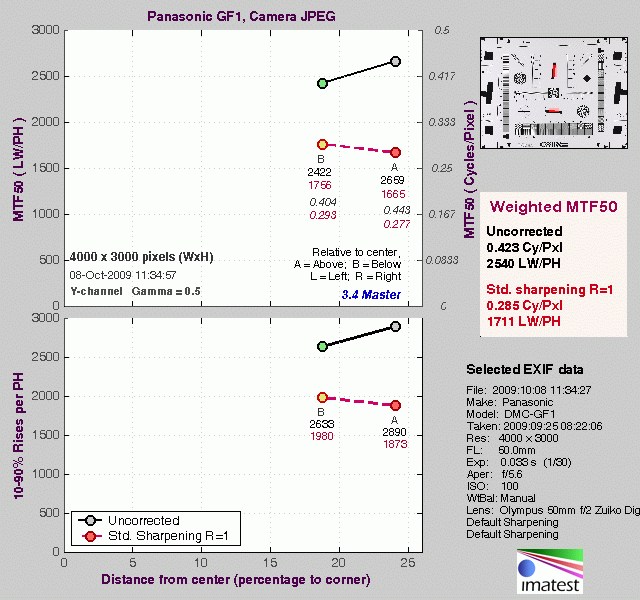
The chart above shows consolidated results from spatial frequency response measurements in both the horizontal and vertical axes for an in-camera JPEG. (We used our very sharp Olympus 50mm f/2 macro lens for this test.) The "MTF 50" numbers tend to correlate best with visual perceptions of sharpness, so those are what we focus on here. The uncorrected resolution figures are 2,659 line widths per picture height in the horizontal direction (corresponding to the vertically-oriented edge), and 2,422 lines along the vertical axis (corresponding to the horizontally-oriented edge), for a combined average of 2,540 LW/PH. Correcting to a "standardized" sharpening with a one-pixel radius reduced resolution by quite a bit, resulting in a lower average of 1,711 LW/PH, somewhat low for a 12-megapixel SLR-like camera.
To see what's going on, refer to the plots below, which show the actual edge profiles for both horizontal and vertical edges, in both their original and corrected forms. Here, you can see that a high amount of in-camera sharpening is applied in the horizontal direction (oversharpened by 21.9 %, explaining why standardized sharpening reduced the MTF 50 numbers so much). The GF1's in-camera sharpening is not quite as aggressive in the vertical direction (16.5 % oversharpened), but still on the high side. You should thus turn the camera's sharpening down a little for optimal results when sharpening in-camera JPEGs post-exposure in Adobe Photoshop or other image editing software, or shot RAW for complete control of sharpening.


RAW Files
Panasonic GF1 High ISO RAW Image Quality
We've recently started looking at RAW files converted with dcraw, an excellent freeware raw converter. dcraw usually offers timely support for the latest cameras, but more importantly, it does not apply any noise-reduction, sharpening or other corrections such as geometric distortion correction to the output files. (We found that Adobe Camera Raw still applies some limited noise-reduction when its NR settings are set to zero, and it also applies other corrections depending on the make and model of the camera). There will always be differences between RAW converters, in terms of the sort of demosaicing algorithms they use (the processes by which they convert the separate Red, Green, and Blue data sets to an array of full-color RGB pixels), but dcraw seems to use a fairly generic algorithm that delivers good sharpness with relatively few artifacts, and can be counted on to not apply any noise reduction if you don't want it to.
Below are crops from Panasonic GF1 high ISO RAW files compared to RAW files from other Micro Four Thirds models: the Panasonic G1, GH1 and Olympus E-P1. All were converted with dcraw with no noise reduction or sharpening.
| High ISO RAW Image Quality Panasonic GF1 vs G1, GH1, and Olympus E-P1 RAW files converted with dcraw, no NR, no sharpening Simulated Daylight |
||||
|
|
Panasonic GF1
|
Panasonic G1
|
Panasonic GH1
|
Olympus E-P1
|
I
S O 8 0 0 |
|
 |
 |
 |
|
 |
 |
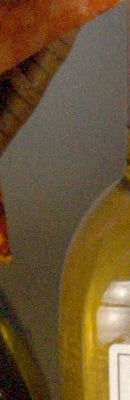 |
|
|
 |
 |
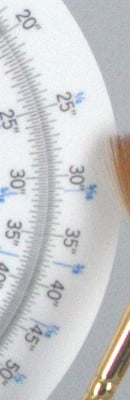 |
|
|
|
Panasonic GF1
|
Panasonic G1
|
Panasonic GH1
|
Olympus E-P1
|
|
I
S 0 1 6 0 0 |
|
 |
 |
 |
|
 |
 |
 |
|
|
 |
 |
 |
|
|
|
Panasonic GF1
|
Panasonic G1
|
Panasonic GH1
|
Olympus E-P1
|
I
S O 3 2 0 0 |
|
 |
 |
 |
|
 |
 |
 |
|
|
 |
 |
 |
|
|
|
Panasonic GF1
|
Panasonic G1
|
Panasonic GH1
|
Olympus E-P1
|
|
I
S 0 6 4 0 0 |
N/A
ISO 6400 not supported |
N/A
ISO 6400 not supported |
N/A
ISO 6400 not supported |
 |
|
N/A
ISO 6400 not supported |
N/A
ISO 6400 not supported |
N/A
ISO 6400 not supported |
 |
|
|
N/A
ISO 6400 not supported |
N/A
ISO 6400 not supported |
N/A
ISO 6400 not supported |
 |
|
As you can, the Panasonic GF1 is very similar to the GH1 in terms of raw sensor noise. Color response is a bit different though. You can also see a hint of banding in the GH1's output that isn't there for the GF1 or G1. Both the GF1 and GH1 are slightly cleaner than the G1. The Olympus E-P1 appears to have a slight edge over the Panasonics in terms of high ISO noise.
Let's see how the Panasonic GF1 compares to some similarly priced DSLRs:
| High ISO RAW Image Quality Panasonic GF1 vs Canon T1i, Nikon D5000, and Olympus E-620 RAW files converted with dcraw, no NR, no sharpening Simulated Daylight |
||||
|
|
Panasonic GF1
|
Canon T1i
|
Nikon D5000
|
Olympus E-620
|
I
S O 8 0 0 |
|
 |
 |
 |
|
 |
 |
 |
|
|
 |
 |
 |
|
|
|
Panasonic GF1
|
Canon T1i
|
Nikon D5000
|
Olympus E-620
|
|
I
S 0 1 6 0 0 |
|
 |
 |
 |
|
 |
 |
 |
|
|
 |
 |
 |
|
|
|
Panasonic GF1
|
Canon T1i
|
Nikon D5000
|
Olympus E-620
|
I
S O 3 2 0 0 |
|
 |
 |
 |
|
 |
 |
 |
|
|
 |
 |
 |
|
|
|
Panasonic GF1
|
Canon T1i
|
Nikon D5000
|
Olympus E-620
|
|
I
S 0 6 4 0 0 |
N/A
ISO 6400 not supported |
 |
 |
N/A
ISO 6400 not supported |
|
N/A
ISO 6400 not supported |
 |
 |
N/A
ISO 6400 not supported |
|
|
N/A
ISO 6400 not supported |
 |
 |
N/A
ISO 6400 not supported |
|
|
|
PanasonicGF1
|
CanonT1i
|
Nikon D5000
|
Olympus E-620
|
|
I
S 0 1 2 8 0 0 |
N/A
ISO 12800 not supported |
 |
N/A
ISO 12800 not supported |
N/A
ISO 12800 not supported |
|
N/A
ISO 12800 not supported |
 |
N/A
ISO 12800 not supported |
N/A
ISO 12800 not supported |
|
|
N/A
ISO 12800 not supported |
 |
N/A
ISO 12800 not supported |
N/A ISO 12800 not supported |
|
As you can see from the above crops, the Canon T1i and Nikon D5000 SLRs with their larger, APS-C sized sensors have a considerable advantage when it comes to noise. The Olympus E-620 has a Four Thirds sensor which is the same size as Panasonic GF1's sensor, so there's not much difference there.
Shooting Modes
Panasonic DMC-GF1 Modes and Menus
 Capture Modes: When powered on, the Panasonic GF1 defaults to Record mode. The Exposure Mode dial on top of the camera sets the main shooting mode, with the following options:
 Intelligent Auto: This mode places the camera entirely in control of most exposure variables, and when using autofocus, requires a focus lock before the shutter can be triggered. The user can still access the self timer, adjust the exposure compensation, enable or disable the flash, select between single / continuous autofocus or manual focus modes, enable or disable autofocus tracking, enable or disable image stabilization (modes 1 or 2 only), and enable or disable face recognition. It is also possible to enable or disable guide lines on the LCD display, change the aspect ratio, and select the still image quality and dimensions. When shooting movies, you can specify the quality, dimensions and compression (except for the 16:9 WVGA Motion JPEG mode), and disable or set the strength of the wind cut function.
 Program AE (with Shift): This mode places the camera in control of both aperture and shutter speed, while the user has access to all other menu functions. Once the camera's exposure system has been activated by half-pressing the shutter button, the user can shift the aperture value and shutter time by rotating the rear dial. (The overall exposure remains the same, but you can ask the camera to use a larger or smaller aperture or faster/slower shutter speed.) When shooting movies, most functions are available, but the aperture and shutter speed both remain under automatic control.
 Aperture Priority: Lets the user control the aperture setting while the camera selects the best shutter speed. (The aperture range varies with the lens in use.)
When shooting movies, most functions are available, but the aperture and shutter speed both remain under automatic control.
Aperture Priority: Lets the user control the aperture setting while the camera selects the best shutter speed. (The aperture range varies with the lens in use.)
When shooting movies, most functions are available, but the aperture and shutter speed both remain under automatic control.
 Shutter Priority: The opposite of Aperture Priority, allows the user to set the shutter speed, from 1/4,000 to 60 seconds, while the camera selects the most appropriate aperture setting.
When the flash is activated, the fastest shutter speed drops to 1/160th second. When shooting movies, most functions are available, but the aperture and shutter speed both remain under automatic control.
Shutter Priority: The opposite of Aperture Priority, allows the user to set the shutter speed, from 1/4,000 to 60 seconds, while the camera selects the most appropriate aperture setting.
When the flash is activated, the fastest shutter speed drops to 1/160th second. When shooting movies, most functions are available, but the aperture and shutter speed both remain under automatic control.
 Manual: Provides complete user control over the exposure, including both aperture and shutter speed settings. A Bulb shutter setting also becomes available in this mode, allowing variable length exposures for as long as you hold down the shutter button, to a maximum exposure time of four minutes.
When shooting movies, most functions are available, but the aperture and shutter speed both remain under automatic control.
Manual: Provides complete user control over the exposure, including both aperture and shutter speed settings. A Bulb shutter setting also becomes available in this mode, allowing variable length exposures for as long as you hold down the shutter button, to a maximum exposure time of four minutes.
When shooting movies, most functions are available, but the aperture and shutter speed both remain under automatic control.
 Motion Picture P: The DMC-GF1 allows shooting of movie clips in all its various Record modes, but only the Motion Picture P mode allows control of aperture and exposure compensation used for movie capture. The aperture range varies with the lens in use, and the precise shutter speed remains under automatic control although it can be tweaked in the desired direction using exposure compensation. ISO sensitivity is controlled automatically in this mode, and the autofocus mode is fixed at single-point.
 Custom1: Four sets of shooting modes and settings can be stored in the GF1, and the first of these sets can be accessed in this mode. Settings for all of the custom modes can be made via the Cust. Set Mem. option on the first screen of the GF1's Custom Menus.
- Custom2: The second, third and fourth sets of custom shooting modes and settings referenced in the previous item can be accessed in this mode.
- Scene Mode: Adjusts camera settings (color rendering, flash mode, etc.) to optimize for different subject types: Portrait, Soft Skin, Scenery, Architecture, Sports, Peripheral Defocus, Flower, Food, Objects, Night Portrait, Night Scenery, Illuminations, Babies (including keeping track of birthdays for two different children, so the Panasonic software can display the child's age along with the photo), Pet, Party, and Sunset.
 My Color Mode: Lets you adjust color, brightness, or saturation of the image on-screen. (That is, the preview image shown on the LCD will reflect the color adjustments you've selected.) Here, the "Color" adjustment shifts the overall hue of the image from yellow at one extreme to blue at the other.
The adjustment can either be made automatically via a number of presets, or manually via the "Custom" setting. Presets include Expressive, Retro, Pure, Elegant,
Monochrome, Dynamic Art, and Silhouette.
My Color Mode: Lets you adjust color, brightness, or saturation of the image on-screen. (That is, the preview image shown on the LCD will reflect the color adjustments you've selected.) Here, the "Color" adjustment shifts the overall hue of the image from yellow at one extreme to blue at the other.
The adjustment can either be made automatically via a number of presets, or manually via the "Custom" setting. Presets include Expressive, Retro, Pure, Elegant,
Monochrome, Dynamic Art, and Silhouette.
 Intelligent Auto: This mode places the camera entirely in control of most exposure variables, and when using autofocus, requires a focus lock before the shutter can be triggered. The user can still access the self timer, adjust the exposure compensation, enable or disable the flash, select between single / continuous autofocus or manual focus modes, enable or disable autofocus tracking, enable or disable image stabilization (modes 1 or 2 only), and enable or disable face recognition. It is also possible to enable or disable guide lines on the LCD display, change the aspect ratio, and select the still image quality and dimensions. When shooting movies, you can specify the quality, dimensions and compression (except for the 16:9 WVGA Motion JPEG mode), and disable or set the strength of the wind cut function.
 Program AE (with Shift): This mode places the camera in control of both aperture and shutter speed, while the user has access to all other menu functions. Once the camera's exposure system has been activated by half-pressing the shutter button, the user can shift the aperture value and shutter time by rotating the rear dial. (The overall exposure remains the same, but you can ask the camera to use a larger or smaller aperture or faster/slower shutter speed.) When shooting movies, most functions are available, but the aperture and shutter speed both remain under automatic control.
 Aperture Priority: Lets the user control the aperture setting while the camera selects the best shutter speed. (The aperture range varies with the lens in use.)
When shooting movies, most functions are available, but the aperture and shutter speed both remain under automatic control.
Aperture Priority: Lets the user control the aperture setting while the camera selects the best shutter speed. (The aperture range varies with the lens in use.)
When shooting movies, most functions are available, but the aperture and shutter speed both remain under automatic control.
 Shutter Priority: The opposite of Aperture Priority, allows the user to set the shutter speed, from 1/4,000 to 60 seconds, while the camera selects the most appropriate aperture setting.
When the flash is activated, the fastest shutter speed drops to 1/160th second. When shooting movies, most functions are available, but the aperture and shutter speed both remain under automatic control.
Shutter Priority: The opposite of Aperture Priority, allows the user to set the shutter speed, from 1/4,000 to 60 seconds, while the camera selects the most appropriate aperture setting.
When the flash is activated, the fastest shutter speed drops to 1/160th second. When shooting movies, most functions are available, but the aperture and shutter speed both remain under automatic control.
 Manual: Provides complete user control over the exposure, including both aperture and shutter speed settings. A Bulb shutter setting also becomes available in this mode, allowing variable length exposures for as long as you hold down the shutter button, to a maximum exposure time of four minutes.
When shooting movies, most functions are available, but the aperture and shutter speed both remain under automatic control.
Manual: Provides complete user control over the exposure, including both aperture and shutter speed settings. A Bulb shutter setting also becomes available in this mode, allowing variable length exposures for as long as you hold down the shutter button, to a maximum exposure time of four minutes.
When shooting movies, most functions are available, but the aperture and shutter speed both remain under automatic control.
 Motion Picture P: The DMC-GF1 allows shooting of movie clips in all its various Record modes, but only the Motion Picture P mode allows control of aperture and exposure compensation used for movie capture. The aperture range varies with the lens in use, and the precise shutter speed remains under automatic control although it can be tweaked in the desired direction using exposure compensation. ISO sensitivity is controlled automatically in this mode, and the autofocus mode is fixed at single-point.
 Custom1: Four sets of shooting modes and settings can be stored in the GF1, and the first of these sets can be accessed in this mode. Settings for all of the custom modes can be made via the Cust. Set Mem. option on the first screen of the GF1's Custom Menus.
 Custom2: The second, third and fourth sets of custom shooting modes and settings referenced in the previous item can be accessed in this mode.
 Scene Mode: Adjusts camera settings (color rendering, flash mode, etc.) to optimize for different subject types: Portrait, Soft Skin, Scenery, Architecture, Sports, Peripheral Defocus, Flower, Food, Objects, Night Portrait, Night Scenery, Illuminations, Babies (including keeping track of birthdays for two different children, so the Panasonic software can display the child's age along with the photo), Pet, Party, and Sunset.
 My Color Mode: Lets you adjust color, brightness, or saturation of the image on-screen. (That is, the preview image shown on the LCD will reflect the color adjustments you've selected.) Here, the "Color" adjustment shifts the overall hue of the image from yellow at one extreme to blue at the other.
The adjustment can either be made automatically via a number of presets, or manually via the "Custom" setting. Presets include Expressive, Retro, Pure, Elegant,
Monochrome, Dynamic Art, and Silhouette.
My Color Mode: Lets you adjust color, brightness, or saturation of the image on-screen. (That is, the preview image shown on the LCD will reflect the color adjustments you've selected.) Here, the "Color" adjustment shifts the overall hue of the image from yellow at one extreme to blue at the other.
The adjustment can either be made automatically via a number of presets, or manually via the "Custom" setting. Presets include Expressive, Retro, Pure, Elegant,
Monochrome, Dynamic Art, and Silhouette.
 Movie Record Button: Pressing this dedicated movie record button will start and stop movie recording. Movies will be recorded using whatever mode is currently selected. This button can be enabled or disabled in some modes via a Custom Settings Menu setting. Confusingly, the Intelligent Auto mode provides only limited options on the Custom Settings menu, and the Movie button will retain whatever setting it had when it was last set. So users might find themselves in iA mode unable to trigger a movie when they want to, and also unable to find the option on the Custom Settings menu that would let them do so. (In fact, the camera will tell you to check the setting for the Movie Record button if you press it and it's disabled, but in iA mode, there's no way to turn it back on again.)
 Playback Mode: The Playback button on the rear panel accesses Playback mode, where you can review captured images. The left and right arrow keys, as well as the up and down keys, scroll through the images on the card. You can enlarge captured images or display them in index or calendar formats for quick viewing.
Panasonic GF1 Menus
Pressing the Menu button provides access to the camera's full menu system. The following options are available in most camera modes as menu tabs down the left side of the display. (Full auto mode greatly reduces the available options, to simplify camera operation.)
Panasonic GF1 Record Menu:

| Record Menu 1 Options | ||
|
Top-Level Selection |
Second-Level |
Notes |
Film Mode |
- Standard |
Allows control over the color rendering of images, analogous to using different film types. Each film mode can be adjusted to fine-tune the strength of contrast, sharpness, saturation, and noise reduction to the photographer's tastes. The two My Film modes allow customised settings to be saved for later recall, and the Multi Film setting will cause the camera to alternate between the photographer's choice of two or three film types in sequence with each press of the shutter button. In Intelligent Auto or Scene modes, only the Standard and Standard (B&W) options are available, via the Quick Menu button - The menu items shown at left do not appear in iA mode in response to the Menu/Set button. |
|
Aspect Ratio |
- 4:3 - 3:2 - 16:9 - 1:1 |
Select normal, 35mm film or HDTV wide screen aspect ratios for images. The maximum image width at full resolution is always 4,000 pixels for the non-square options, the aspect ratios wider than 4:3 just crop top and bottom. The 1:1 aspect ratio crops the sides (and oddly the top/bottom ever so slightly), so the maximum pixel size is 2,992 pixels square. NOTE that you can have different image sizes set for each aspect ratio, so you could shoot full-resolution at 4:3, but (for instance), small-size files at 3:2, for making 4x6 inch prints. |
|
Picture Size |
- L - M - S |
Specifies the pixel dimensions of the pictures you will take. (Options are roughly 12, 6, and 3 megapixels in 4:3 aspect ratio mode.) |
|
Quality |
- Fine - Standard - RAW & Fine JPEG - RAW & Std JPEG - RAW (no JPEG) |
Specifies the compression level and type of files saved for each shot. (Nice that you're not restricted to lower-quality JPEGs when shooting RAW+ JPEG) |
|
Face Recognition |
- Off - On - Memory - Set |
Up to 6 faces can be registered, with name, priority and age. To enhance recognition accuracy, up to 3 separate photos can be registered for a single individual's face. (Shoot from slightly different angles, to broaden the recognition.) |

(This menu does not appear in iA mode)
| Record Menu 2 Options | ||
|
Top-Level Selection |
Second-Level |
Notes |
|
Stabilizer |
- Off - Mode 1 - Mode 2 - Mode 3 |
This menu only appears if a Panasonic image-stabilized lens is attached to the GF1. Optical Image Stabilizer modes. Mode 1 is continuous, Mode 2 is on when the shutter is pressed, Mode 3 is used when panning. (Mode 3 only compensates for up/down motion of the camera.) Note that the 20mm F/1.7 lens offered in some kits with the GF1 does not provide an image stabilizer function, but the 14-45mm F/3.5-5.6 lens does offer support. |
|
Flash |
- Auto Flash - Auto Flash w/red-eye reduction - Forced Flash on - Forced Flash on w/red-eye reduction - Slow Sync. - Slow Sync. w/red-eye reduction |
Selects the flash mode. |
|
Red-Eye Removal |
- Off - On |
Dynamic Red-Eye reduction. If this option is enabled and the flash is in any of the red-eye reduction modes, the camera will examine the captured images and remove any red-eye that it finds. (This function was called D.Red-Eye on the GH1, the name has been changed on the GF1 but the function appears to be the same.) |
|
Flash Synchro |
- 1st - 2nd |
Select either first or second shutter curtain sync. (Use second-curtain sync for motion trails that follow your subjects, rather than lead them, when shooting with slow shutter speeds.) |
|
Flash Adjust |
- +/-2 EV scale |
Adjusts flash power higher or lower, in 1/3 EV steps. (Note: This adjustment is independent of the ambient exposure compensation, accessed via the rear dial - So you can adjust flash and ambient exposure independently.) |

(This menu does not appear in iA mode)
| Record Menu 3 Options | ||
|
Top-Level Selection |
Second-Level |
Notes |
Metering Mode |
- Multi-pattern - Center-Weighted - Spot |
Selects the metering mode. |
|
I. Exposure |
- Off - Low - Standard - High |
Intelligent Exposure mode adjusts contrast and exposure to handle high-contrast subjects. This menu option varies the amount of the effect applied to your photos. (The effect is always enabled in iA mode, and the amount is adjusted automatically.) |
Long Shutter NR |
- On - Off |
If enabled, the camera will shoot a "dark frame" for noise subtraction on long exposures. This doubles the time for each shot for long exposures, but reduces image noise. |
ISO Limit Set |
- Off - 200 - 400 - 800 - 1600 |
Sets maximum ISO sensitivity limit when using Auto or Intelligent ISO, or can be set to Off. When set to Off, Auto ISO is limited to 400 by default, Intelligent ISO is limited to 800 by default or 400 when using flash, and the limit is ISO 1,600 for movie recording. |
ISO Increment |
- 1/3 EV - 1 EV |
Default is 1 EV steps in ISO adjustment, but 1/3 EV steps can be handy for maintaining a specific shutter/aperture speed combination. |
(This menu does not appear in iA mode)
| Record Menu 4 Options | ||
|
Top-Level Selection |
Second-Level |
Notes |
Ex. Opt. Zoom |
- On - Off |
When shooting at less than maximum image size, integrates an intelligent digital zoom with the lens' zoom ring, providing a greater zoom range without pixel interpolation. |
Digital Zoom |
- Off - 2X - 4X |
Adds a fixed digital magnification (w/lower image quality) of 2x or 4x. |
Burst Rate |
- H - L |
High or Low speed burst rate. High speed is 3 frames/second, low speed is 2 frames/second. |
Auto Bracket |
- Step - Sequence |
The Step option lets you shoot groups of 3, 5 or 7 pictures with user selectable EV steps (1/3 or 2/3 EV between shots). The sequence of the bracketed shots (under/nominal/over) can also be set by the user, to 0/-/+ or -/0/+. |
|
Self Timer |
- 10 Seconds - 10 Seconds/3 shots - 2 Seconds |
Configures the Self Timer mode. The 10 second/3 pic mode shoots a sequence of 3 shots after an initial 10-second delay, with a couple of seconds between shots in the sequence. (Handy for making sure nobody blinked/everyone was smiling.) The 2-second delay is handy if you're using a lightweight tripod, or want to just rest your camera on a table, convenient rock, etc. to take the shot. |

(This menu does not appear in iA mode)
| Record Menu 5 Options | ||
|
Top-Level Selection |
Second-Level |
Notes |
Color Space |
- sRGB - Adobe RGB |
Select the color space for images to be recorded in. |
|
Audio Record |
- Off - On |
Audio is recorded for 5 seconds after each image is captured. |
Panasonic GF1 Motion Picture Menu:

(This menu has reduced options in iA mode)
| Motion Picture Menu 1 Options | ||
|
Top-Level Selection |
Second-Level |
Notes |
|
Record Mode |
- AVCHD Lite - Motion JPEG |
Selects the video file format. AVCHD Liteis meant for playback on an HDTVvia HDMI. Motion JPEG makes much larger files, but doesn't produce as many compression artifacts with moving subjects. |
|
Record Quality |
AVCHD Lite Mode: - SH (1280x720, 17 Mbps) - H (1280x720, 13 Mbps) - L (1280x720, 9 Mbps) |
Specifies the video file quality (compression level). The options available vary depending on whether AVCHD Lite or Motion JPEG is selected for the recording mode. The Motion JPEG WVGA setting is not available in Intelligent Auto mode. |
|
Motion JPEG Mode: - HD (1280x720, 30 fps) - WVGA (848x480, 30 fps) - VGA (640x480, 30 fps) - QVGA (320x240, 30 fps) |
||
|
Continuous AF |
- Off - On |
Selects whether focus should be fixed from the first frame of the movie, or continuously adjusted during movie recording, which brings the possibility of noise from the focusing system being picked up by the GF1's microphone. |
|
Metering Mode |
- Multi-pattern - Center-Weighted - Spot |
Selects the metering mode in Creative Motion Picture Mode. (This option not available in iA mode) |
|
I. Exposure (not listed in the Motion Picture section of the draft manual, so I can't confirm for certain if the options are unchanged). |
- Off - Low - Standard - High |
Selects the intelligent exposure level (contrast compensation) in Creative Motion Picture Mode. (This option not available in iA mode, I.Exposure is automatically applied, as the camera decides its needed.) |
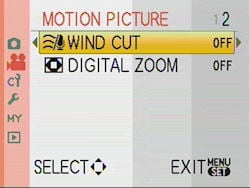
| Motion Picture Menu 2 Options | ||
|
Top-Level Selection |
Second-Level |
Notes |
Wind Cut |
- Off - Low - Standard - High |
Selects the microphone wind filter setting. |
|
Digital Zoom |
- Off - 2x - 4x |
Sets the amount of digital zoom when recording movies. |
Panasonic GF1 Custom Menu:

| Custom Menu 1 Options | ||
|
Top-Level Selection |
Second-Level |
Notes |
|
Cust. Set Mem. |
- C1 Set1 - C2 Set1 - C2 Set2 - C2 Set3 |
You can maintain up to 4 separate custom shooting profiles, saving most of the settings on the camera. They can then be quickly accessed via the CUST1 and CUST2 options on the mode dial. |
|
LCD Disp. Style |
- Viewfinder style - LCD monitor style |
Viewfinder style shrinks the live preview display and puts the shooting information at the bottom, LCD monitor style lets the live preview cover the full area of the screen, and overlays the shooting information over the image. |
Histogram |
- Off - On |
Display live histogram in Record Mode. You can position the histogram display anywhere within a horizontal band covering about 70% of the display area. (Histogram can't overlap with shooting information overlay areas.) |
Guide Line |
- Off - Grid - Grid + Star - Positionable horiz/vertical lines |
Select grid overlay pattern. The fourth option lets you position single horizontal and vertical lines anywhere in the frame you want. |
Expo. Meter |
- Off - On |
Selects where or not the exposure meter should be shown when correcting exposure, performing program shift, or setting the aperture or shutter speed. If set on and information display is active, the meter will be shown for four seconds after each change, with areas of the range that will result in poor exposures marked in red. |

| Custom Menu 2 Options | ||
|
Top-Level Selection |
Second-Level |
Notes |
|
AF/AE Lock |
- AE - AF - AF/AE |
Controls the AF/AE lock button's function. When pressed, lock the Auto exposure, Auto Focus or both. |
|
AF/AE Lock Hold |
- Off - On |
Normally, the AF/AE Lock button locks exposure/focus only while you're holding it down. With this option selected, pressing the AF/AE Lock button toggles the lock. (That is, once it's been pressed, the lock remains in effect until you press it again to release it.) |
|
Preview Hold |
- Off - On |
Controls the Preview display option in Record mode. (For previewing effects of exposure, depth of field, and shutter speed.) When Preview Hold is enabled, the Preview button toggles the mode on and off. Otherwise, the Preview function is only active while you're pressing the Preview button. |
Pre AF |
- Off - Q-AF (Quick-AF) - C-AF (Continuous-AF) |
Quick AF focuses automatically whenever the camera stops moving, Continuous AF adjusts the AF all the time. Either mode will reduce AF times when you're switching between close and distant subjects, but both will use more battery power. (Continuous more so than Quick.) |
Direct AF Area |
- Off - On |
When enabled, lets you modify the position and size of the AF area while shooting. Arrow keys move the AF area around, control dial adjusts the size. |

| Custom Menu 3 Options | ||
|
Top-Level Selection |
Second-Level |
Notes |
|
Focus Priority |
- Off - On |
When enabled, the camera will only open the shutter when the subject is in focus. Does not apply to movie recording. |
|
AF Assist Lamp |
- Off - On |
When enabled, AF assist light will illuminate when shooting in dim lighting. |
|
AF + MF |
- Off - On |
Allows manual focusing after autofocus is done. |
MF Assist |
- Off - On |
Enables automatic zoom of the viewfinder image whenever the manual focus ring is moved. (While the shutter button is still being held down.) (Zoom is selectable between 5x and 10x, by rotating rear dial.) |
Record Area |
- Picture - Motion Picture |
Crops the viewfinder display to either 4:3 (Picture) or 16:9 (Motion Picture) aspect ratio, apparently as a guide for images that will be displayed on different-format output devices. |

| Custom Menu 4 Options | ||
|
Top-Level Selection |
Second-Level |
Notes |
|
Remaining Display |
- Remaining Shots - Remaining Time |
Selects between displaying number of still image frames and minutes of movie recording left. |
|
Motion Picture Button |
- Off - On |
Enables/disables the Motion Picture Button. |
Dial Guide |
- Off - On |
When enabled, the camera momentarily displays an icon telling you to push the rear dial to switch between exposure settings. |
Menu Resume |
- Off - On |
If set on, the camera will remember the last menu screen you were using, even if the camera is turned off. |
Pixel Refresh |
Start Processing? - Yes - No |
Maps-out bad sensor pixels. Panasonic recommends doing this when stuck / hot pixels are noticed, and power-cycling the camera once the function has completed. |
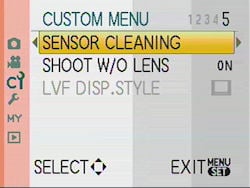
| Custom Menu 5 Options | ||
|
Top-Level Selection |
Second-Level |
Notes |
|
Sensor Cleaning |
Start Processing? - Yes - No |
Performs dust reduction function (also done at each startup). |
|
Shoot W/O Lens |
- Off - On |
If set on, you can activate the shutter button without a lens mounted. (Useful for cleaning the sensor manually?) |
LVF Disp. Style |
- Viewfinder style - LCD monitor style |
Only available when the optional external viewfinder is attached to the camera. Functions identically to the LCD Disp. Style option at the top of the Custom Menu, but in reference to the external viewfinder rather than the internal LCD display. |
Panasonic GF1 Setup Menu:
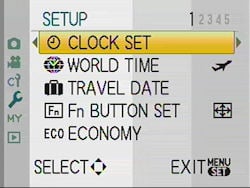
| Setup Menu 1 Options | ||
|
Top-Level Selection |
Second-Level |
Notes |
|
Clock Set
|
- Hr/min/M/D/Y |
Sets cameras time, date, display sequence, and clock style (24-hour or AM/PM) |
|
World Time |
- Destination - Home |
Lets you quickly switch time/date between two locations, "Home" and "Destination". |
|
Travel Date |
- Travel Setup - Location |
You can set Arrival and Departure dates, as well as Location. Travel info is added to your photos. |
|
Fn Button Set |
- Film mode - Aspect Ratio - Quality - Metering mode - I. Exposure - Guide Line - Record Area - Remaining Display |
Selects what the Fn Button does. (Fn button doubles as down-arrow key.) (Record Area and Remaining Display are as on Custom Menu 4 above.) |
|
Economy |
Power Save: - Off - 1 Min - 2 Min - 5 Min - 10 Min |
Turns camera and/or LCD monitor off after a specified period of inactivity. |
|
Auto LCD Off: - Off - 15 Sec - 30 Sec |
||

| Setup Menu 2 Options | ||
|
Top-Level Selection |
Second-Level |
Notes |
|
Auto Review |
Review: - Off - 1 Sec - 3 Sec - 5 Sec - Hold |
Selects the time that an image is displayed on the LCD monitor after the picture is taken. Camera can also automatically display a 4x zoomed review. Same options for Review and Zoom, both can be enabled at the same time (will display first normal, then zoomed review image). |
|
Zoom: - Off - 1 Sec - 3 Sec - 5 Sec |
||
|
Highlight |
- Off - On |
If on, any blown highlight areas will blink when the image is played back on the LCD screen. |
|
Monitor / Viewfinder |
Adjust brightness and/or contrast & saturation in 7 steps |
Adjusts LCD when LCD in use, EVF when optional external viewfinder is in use. |
|
LCD Mode |
- Off - A* (Auto Power LCD) - * (Power LCD) |
Enables auto brightness adjustment of LCD screen in response to bright surroundings. Alternatively the "*" option increases brightness all the time. |
|
Scene Menu |
- Off - Auto |
Chooses whether or not the sub-option menu automatically appears when the camera is switched into one of its scene modes. |

| Setup Menu 3 Options | ||
|
Top-Level Selection |
Second-Level |
Notes |
|
Beep |
- Muted - Low - High |
Sets the beep volume for the focus confirmation, self-timer and the alarm. |
|
Volume |
- 0 to 7 |
Adjusts the volume of the speakers. |
|
No. Reset |
- Yes - No |
Resets the file numbering. |
|
Reset |
- Yes - No |
Resets most menu options back to their default settings. You have the option to reset either or both the Record settings (including face recognition) and Setup / Custom settings. |
|
USB Mode |
- Select on connection - PictBridge (PTP) - PC |
Selects how the camera connects with your computer or printer. Set to always appear as a storage-class device (PC) or as a PictBridge controller, or to select each time the camera is connected. |

| Setup Menu 4 Options | ||
|
Top-Level Selection |
Second-Level |
Notes |
|
TV Aspect |
- 16:9 - 4:3 |
Matches the video output's aspect ratio to that of your TV. |
|
HDMI Mode |
- Auto - 1080i - 720p - 480p |
Selects the HD video output format. |
|
Viera Link |
- Off - On |
When enabled, the GF1 can be controlled by other Panasonic Viera home electronics (TVs, projectors, home theater systems) its connected to via its HDMI link. Not all operations are possible via remote control, and use of the camera's buttons is limited while Viera Link is active. (Some other brands of HDTV may also be able to control the camera, but control may not be as extensive as with Panasonic Viera models.) |
|
Version Disp. |
- Body Firmware - Lens Firmware |
Displays the version of firmware in the body and lens. |
|
Language |
- English - Francais - Espanol - Portugues |
Select the menu language. (US models only: Units sold in other parts of the world will have different language menu options.) |

| Setup Menu 4 Options | ||
|
Top-Level Selection |
Second-Level |
Notes |
|
Format |
- Yes - No |
Formats the memory card. |
Panasonic GF1 My Menu:

The Panasonic DMC-GF1's My Menu shows the five most recently-used menu options, handy for accessing frequently-used controls quickly. Unlike some My Menu features, you can't explicitly assign controls to this menu, rather, the most-recently used ones appear here automatically.
Panasonic GF1 Playback Menu:

| Playback Menu 1 Options | ||
|
Top-Level Selection |
Second-Level |
Notes |
|
Slide Show |
- All - Picture Only - Motion Pic. Only - Category Selection - Favorite |
Controls the slide show. Four fade effects are available: Natural, Swing, Urban and Off. You can specify duration, music, repeat and audio play. (Duration control is only available when the Fade Effects are off.) Category selection allows playback of images only from one specific category - Face Detection, Portraits (including Baby and Soft Skin), Scenery (including Architecture and Sunset), Night, Sports / Party, Baby, Pet, Food, Travel Date, and Movie. |
|
Playback Mode |
- Normal Play - Picture Play - AVCHD Lite Play - Motion JPEG Play - Category Play - Favorite Play |
Selects the playback mode. Only the selected types of images/movies will be visible when playing images back. Normal play displays all image types. Category play is described in the previous menu item. |
|
Favorite |
- On - Off - Cancel |
In Favorite mode, you can mark images as your "Favorites", and then choose to show only those images in slide shows and/or Playback mode. When enabled, the down-arrow button marks/unmarks favorites in playback mode. |
|
Title Edit |
- Single - Multi |
Add text comments to pictures. The text comments appear in playback mode, overlaid over the image. The text does not alter the original image, but is tagged in the EXIF header. Face recognition, Baby, Pet or Travel date info can be automatically entered - but not simultaneously in one image. Images recorded with other devices, as well as Protected, Raw or movie files cannot be tagged. |
|
Text Stamp |
- Single - Multi |
You can stamp the recording date, date+time, age, travel date or title onto photos. A new small-size image is saved with the stamped information embedded in it. |

| Playback Menu 2 Options | ||
|
Top-Level Selection |
Second-Level |
Notes |
|
Resize |
- Single - Multi |
Allows you to resize your pictures. (Only resizes down to smaller sizes.) |
|
Trimming |
- Displays picture |
Lets you crop pictures by zooming in until you have the framing you want, then pressing the shutter button. Raw files, and those with attached audio or text stamps cannot be trimmed, and face recognition information is lost in the trimmed image. Only provides for about a 2x zoom, regardless of image resolution, but you can zoom & trim multiple times. (No limit on number of times you can zoom and trim.) |
|
Aspect Conv. |
- 3:2 - 4:3 - 1:1 |
Lets you change the aspect ratio of images captured as 16:9 ratio to one of the other available ratios. Raw files, and those with attached audio or text stamps cannot be converted, and face recognition information is lost in the converted image. Curiously, you also can't convert the aspect ratio of images initially captured at ratios other than 16:9. |
|
Rotate |
- Clockwise - Counter-clockwise |
Allows you to manually rotate the selected picture. |
|
Rotate Disp. |
- On - Off |
When enabled, if a picture was shot with the camera held vertically, it will be displayed on the LCD vertically. (NOTE that the GF1 always tags portrait-format files in the EXIF header, this menu option just controls how they're displayed by the camera.) |

| Playback Menu 3 Options | ||
|
Top-Level Selection |
Second-Level |
Notes |
|
Print Set |
- Single - Multi - Cancel |
DPOF (Digital Print Order Format). You can select which photos to print, how many, and whether a date stamp is added. |
|
Protect |
- Single - Multi - Cancel |
Protect pictures that you do not want deleted. (Note though, that they aren't protected against memory card reformatting.) |
|
Audio Dub. |
|
You can add or replace audio memos to the currently selected image. Clip length is limited to just ten seconds, although pressing the Menu / Set button causes recording to stop immediately. Audio dubbing doesn't work for protected or Raw images, or for movie clips. |
|
Face Rec Edit |
All face recognition info for the selected image can be cleared, or tagged with a different individual. Images which didn't have face recognition data recorded at capture time cannot be tagged. |
|
Press Release
Panasonic Introduces Its Latest LUMIX G Series Digital Camera - The LUMIX DMC-GF1
The LUMIX GF1, the world’s smallest and lightest system digital camera with built-in flash*, packs powerful DSLR and HD video capabilities into a sleek and easy-to-use compact body
Secaucus, NJ (September 2, 2009) – Today, Panasonic announced the new LUMIX DMC-GF1, the latest addition to the award-winning LUMIX G Series, which debuts as the world’s smallest and lightest system digital camera with a built-in flash*. The LUMIX DMC-GF1 distinguishes itself from previous models with its elegant, compact design reminiscent of classic film cameras, yet builds on Panasonic’s success with the revolutionary LUMIX G Series of digital interchangeable lens system cameras based on the Micro Four Thirds system standard. With its compact size, user-friendly design and ability to record High Definition (HD) video and take professional-quality photos, the LUMIX GF1 continues to redefine digital photography standards.
“Panasonic changed the digital camera industry with the world’s first Micro Four Thirds digital camera, the LUMIX G1 – a compact “DSLR-like” digital camera that produces exceptional image quality. Then, as we continued to raise the innovation bar, Panasonic launched the LUMIX GH1, adding full High Definition 1080p video recording with continuous auto focus,” said David Briganti, Senior Product Manager, Imaging, Panasonic Consumer Electronics Company. “The new LUMIX GF1 continues the evolution and is the perfect addition to our LUMIX G Series, as its sophisticated, small body makes it easier and more convenient to carry. The GF1 is ideal for point-and-shoot consumers looking to step-up to DSLR-quality or for current DSLR users who want greater convenience without compromising performance quality or creative flexibility.”
With its lightweight body, the LUMIX GF1 provides experienced photographers with the ideal digital camera to carry with them at all times. Like its predecessors in the LUMIX G Series, the LUMIX GF1 eliminates the pentaprism found in traditional interchangeable lens cameras. Thus, this mirror-free structure allows Panasonic to dramatically reduce both size and weight.
Though small in size, the LUMIX GF1 does not compromise in advanced features. The LUMIX GF1 thoroughly optimizes the advantages of a system camera to ensure high performance, whether capturing photos or HD video. The LUMIX DMC-GF1 can record 1280 x 720 High Definition video in AVCHD Lite, a format that enables longer recording times. With a dedicated video record button, capturing video is convenient and easy. The LUMIX GF1 can also record HD Motion JPEG in 1280 x 720 and other video recording formats include: QVGA, VGA and WVGA. The LUMIX GF1 has a unique Movie Program Mode that allows consumers to adjust the depth-of-field while shooting in HD video, so background and foreground can be blurred to give creative effects – something typically only possible with expensive professional camcorders.
The LUMIX DMC-GF1 includes the new My Color mode, which includes seven preset effects – Expressive, Retro, Pure, Elegant, Monochrome, Dynamic Art, Silhouette and Custom – all which let users manually set the color, brightness and saturation levels. With the Live View function, users can see how these settings will effect the photo before they shoot, making it easier to capture the exact mood or atmosphere desired. For even more elaborate effects, users can choose from a total of nine Film modes, and set the contrast, sharpness and saturation levels for each. A custom function lets users store their favorite settings in memory. Furthermore, the exposure meter can be displayed in other shooting modes and the correlation between shutter speed and aperture is shown, with a color-coded warning that alerts users when the settings are not in the proper range.
For those users not quite comfortable with extensive manual and creative controls, the LUMIX GF1 provides a user-friendly setting that can address a beginner’s comfort level, while helping them evolve their photography skills. For instance, Panasonic’s new Scene mode, Peripheral Defocus, lets users take a photo where the foreground is in focus and background is blurred – or vice versa. This popular effect can be intimidating for a beginner, but in the Peripheral Defocus mode, by simply selecting the objects to be blurred and focused using the camera’s keypad, it is simple for photographers of any level.
Also, helping to make the LUMIX GF1 more approachable, Panasonic’s popular iA (Intelligent Auto) mode, a system of technologies that engage automatically – no setting changes needed – allows for intuitive use when shooting still or video images. While shooting video, iA activates Panasonic’s O.I.S. (Optical Image Stabilization), which helps reduce video-blurring due to handshake. In addition, Face Detection automatically detects a face in the frame and adjusts focus, exposure, contrast, and skin complexion on it so it always turns out beautifully. Intelligent Exposure continually checks the ambient light level and adjusts the exposure setting as conditions change to prevent blown highlights and blocked shadows. For still photos, the iA system encompasses: Face Recognition (up to six faces can be registered); Auto Focus (AF) Tracking; Mega O.I.S.; Intelligent ISO; Intelligent Exposure; and Intelligent Scene Selector.
The LUMIX GF1 also comes fully-equipped with a built-in flash and a large, 3.0-inch Intelligent LCD with a wide viewing angle and a 460,000-dot resolution. The Intelligent LCD offers automatic backlight control, which when combined with its high-resolution, helps improve visibility in all light environments – from sunny outdoors to low-light interior settings. New for the LUMIX G Series, the LUMIX GF1 is compatible with an optional Live View Finder (DMW-LVF1), which provides the full-time live view function boasting 100% field of view regardless of the attached lens. To further expand the LUMIX G Series system, Panasonic Micro Four Thirds digital cameras can be used with Four Thirds System interchangeable lenses via an optional mount adaptor DMW-MA1 and with the prestigious Leica M/R lenses using Panasonic’s DMW-MA2M DMW-MA3R. These adapters give the user access to the unlimited number of lens properties.
The LUMIX GF1’s sensor technology offers the best of both worlds - the superior image quality of a CCD sensor, and the low-power consumption of a CMOS sensor. Advanced technology makes it possible to read four channels of data simultaneously, helping the LUMIX GF1 deliver 60 frames-per-second full-time Live View images, while maintaining fine detail and rich gradation. The LUMIX GF1’s Venus Engine HD records stunning high-resolution 12-megapixel images using its advanced Live MOS Sensor. This sophisticated LSI circuit separates chromatic noise from luminance noise and applies the optimal noise reduction to each, helping to capture clear and beautiful images even when shooting at high ISO levels.
The contrast AF system adopted in the LUMIX GF1 is not only accurate, but also very quick – approximately 0.3 seconds with the LUMIX G H-FS014045 lens. Users can choose from a wide-range of AF modes, including multiple-area AF with up to 23 focus areas; 1-area AF with a selectable focus area; Face Detection; and AF Tracking. The LUMIX GF1 also has a Quick AF function that begins focusing as soon as the user aims the camera - without pressing the shutter button halfway.
As with all Panasonic LUMIX G Series digital cameras, the LUMIX GF1 is equipped with a highly-effective Dust Reduction system. Thus, if dust gets inside the camera (when changing lenses), Panasonic’s Dust Reduction system addresses this problem by placing a supersonic wave filter in front of the Live MOS sensor which vertically vibrates around 50,000 times per second, thus repelling the dust.
The content captured on the LUMIX GF1 can easily be viewed on a Panasonic VIERA® HDTV by simply inserting the SD/SDCH Memory Card into the VIERA’s SD/SDHC Memory Card slot or into a Panasonic DIGA Blu-ray Disc Player. Alternatively, an optional mini HDMI cable can be used to output still and motion images recorded with the LUMIX DMC-GF1 directly to the TV for easy VIERA Link™ operation, with control of playback functions, such as slideshows, managed from the VIERA HDTV’s remote control.
The Panasonic LUMIX DMC-GF1 will be available in early October 2009 with the option of two kits – both with a suggested retail price (SRP) of $899.95. One kit option includes the newly-announced LUMIX G 20mm/F1.7 ASPH, a compact and lightweight “pancake” lens, while the other kit features the LUMIX G VARIO 14-45mm/F3.5-5.6 ASPH/MEGA O.I.S. The optional Live View Finder DMW-LVF1 has an SRP of $199.95; while the DMW-MA2M and DMW-MA3R both have an SRP of $249.95. All new accessories will also be available in early October.
For more information about Panasonic and its LUMIX G System cameras and accessories, please visit www.panasonic.com/lumix.
*As as of September 2, 2009
Panasonic in-house comparison. The speed may vary depending on the specifications of PC and the number of images stored in the PC and other condition.
AVCHD Lite motion images recorded onto an SD Memory Card or a DVD cannot be played on a device that does not support the AVCHD standard.
Some video recording functions may not be available depending on the lens that is mounted.
When setting quality to HD, WVGA or VGA, Panasonic recommends using a high-speed card with "10MB/s" or greater displayed on the package.
Continuous recording exceeding 2GB is not possible when recording motion JPEG. Remaining time for continuous recording is displayed on the screen.
AVCHD Lite motion images recorded onto an SD Memory Card or a DVD disc cannot be played from a device that does not support the AVCHD standard.
Turn Face Recognition item ON and register the person with full-face portrait on the shooting menu in advance. Refer to back page for detail.
Some functions in iA mode may not be available depending on the lens that is mounted.
Lenses that are not compatible with the contrast AF function can be used with manual focusing.
There are some limitations to other functions depending on the lens to attach.
About Panasonic Consumer Electronics Company Based in Secaucus, N.J., Panasonic Consumer Electronics Company is a Division of Panasonic Corporation of North America, the principal North American subsidiary of Panasonic Corporation. (NYSE: PC) and the hub of Panasonic's U.S. marketing, sales, service and R&D operations. In its commitment to provide consumers with extensive imaging resources, Panasonic LUMIX established the Digital Photo Academy, a series of nationwide workshops designed to instruct consumers how to optimize the features on their digital cameras and produce high-quality photos. Panasonic is honored to support OUR PLACE – The World’s Heritage, a project that will create the world’s largest photographic collection of UNESCO World Heritage sites, with acclaimed photographers exclusively using LUMIX digital cameras to capture all images.