


Overview
by Shawn Barnett, Dave Etchells, Mike Tomkins and Zig Weidelich
Hands-on Preview: 08/26/10
Test Results: 11/12/10
Full Review: 01/29/11
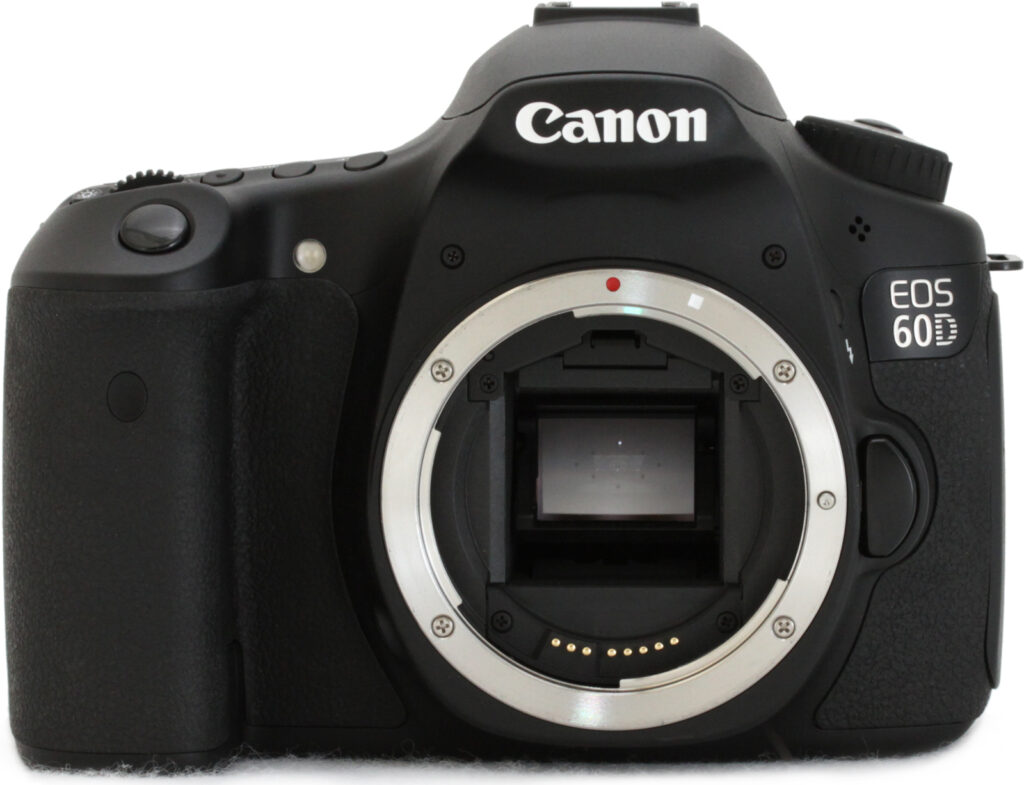
After a longer wait than normal, Canon introduced the EOS 60D to a market keen for its arrival. It arrived into a world where digital SLRs can be seen gracing the neck of everyone who's ever thought of being a photographer, so it wasn't surprising that Canon seemed to have rethought its entry-level prosumer digital SLR. The design of the Canon 60D is slightly smaller, and more specifically aimed at the advanced amateur market, better fitting into the niche occupied by the Nikon D90 and now the D7000, while the Canon 7D remains a better match for the Nikon D300S, as both are cameras aimed more toward those making money with their photographs. The redesign still mostly adds and improves features, like the 18-megapixel sensor, Full HD Movie mode, and Vari-angle LCD, but there's at least one feature deletion that is a little frustrating, which we'll get to shortly.
We'd begun to wonder whether Canon would introduce another semi-Pro digital SLR in this price range, as it's been over two years since the 50D debuted. But the 50D was introduced six months early, only one year from the 40D's announcement, so the 60D marks a return to the original schedule, and we don't expect an upgrade for another 18 months.
In past reviews, we've noted that Nikon had Canon SLRs bracketed, introducing SLRs that didn't quite compete directly with Canon's models in price or features, and that was no more true than when the Canon 50D was left to duke it out with both the Nikon D80/D90 and the Nikon D300/D300S. With the 7D now in place to take on the D300S, the Canon 60D is now aimed more directly at the Nikon D90 and D7000, losing a few of its pro features in favor of a more consumer-driven focus and a smaller body.
The upgrade to an 18-megapixel sensor brings the Canon EOS 60D up to date with the Rebel T2i and the 7D, and splits the difference between the two in frame rate, with the T2i shooting 3.7 fps, and the 7D ripping through 8 fps, while the Canon 60D can shoot at 5.3 frames per second. That's down from the 50D's 6.3 frames per second, one of the first downgrades on the list.
A major improvement is the addition of a 1.04-million pixel, 3-inch Vari-angle LCD screen on the Canon 60D, opening up more unique composition possibilities to the class of shooter that Canon is seeking with this new design.
Though it's the sixth EOS SLR to support HD video capture, the Canon 60D is the first of its class to do so. Resolutions include 1,920 x 1,080p, 1280 x 720, and 640 x 480, saved in H.264 compression with linear PCM audio. Frame rates include 30, 25, and 24 fps for Full HD, and 60 fps and 50 fps for HD and VGA. Also included is a feature only recently added to the 5D Mark II's video mode, the all-important audio-level adjustment; so in this sense, the Canon 60D is a more advanced video capture device than the 7D.
Other basic specs on the Canon 60D include an ISO range from 100 to 6,400, plus a high setting for 12,800; a 63-zone dual-layer metering sensor; a 9-point all-cross-type phase-detect autofocus sensor; 100,000-cycle shutter durability; and shutter speeds from 30 to 1/8,000 second. Electronic leveling first seen in the 7D also makes its way into the Canon 60D, indicating pitch and roll like an airplane's attitude indicator. Compact flash has been replaced with SDXC compatibility, and the Canon 60D uses the same battery as the 7D.
A great many of the Canon 60D's controls have been pared down, and most buttons no longer have a dual purpose depending on the mode. Even the four top buttons that used to control two functions via the Main dial and the rear Quick Control dial are now dedicated to just one function per button. In this sense, the Canon 60D is more like a large Rebel with an LCD status display on the top deck than an evolution of the xxD line. Another, more welcome change integrates the 8-way joystick with the Quick Control dial. The major unfortunate omission to our minds is the Lens AF Microadjustment Custom Function, a firmware feature that anyone who cares about sharp images will want in their semi-pro camera. It's another example of how the Canon 60D is now aimed at the advanced amateur, not the semi-pro market.
Finally, you can use the Canon 60D's built-in flash to wirelessly remote control other Canon wireless EX flashes.
In another challenge to the Nikon D90 and D7000, the Canon 60D ships with the EF-S 18-135mm IS kit lens instead of the rather long-in-the-tooth and poorly matched EF 28-135mm IS lens that shipped with the 40D and 50D.
The Canon 60D began shipping in September 2010 and comes in a kit with the 18-135mm f/3.5-5.6 IS zoom lens for a list price of US$1,399.00, or body only for US$1,099.00.
Canon EOS 60D Review
by Shawn Barnett and Mike Tomkins

The long-awaited Canon EOS 60D comes with some incremental upgrades, a few unexpected losses, and some nice surprises; what was not a surprise was its easy and straightforward operation for one already familiar with cameras in this prosumer line, and excellent image quality across the ISO range.
As mentioned in the overview, the Canon 60D has a few more consumer-friendly features to go along with its consumer-friendly design. In addition to the Scene modes that have always accompanied this level of SLR, Canon now includes many image and video editing features right in the camera. Much of what was introduced in the 7D, including the color-detecting metering system and leveling features, made it into the Canon 60D, but along with those changes came a simplification of controls and a downsizing of the camera body. The one feature unique to the EOS 60D among Canon's SLRs is the Vari-angle LCD, brought over from the PowerShot line.


Look and feel. Anyone who thought the 50D was a little too bulky will appreciate the Canon 60D's smaller size and reduced weight. Body-only weight including battery and card has decreased by 1.5 ounces (43g) to 27.5 ounces (1.72 pounds, 779g), despite the swivel screen. The body is made of a mixture of ABS resin, polycarbonate resin, and polycarbonate resin with a special conductive fiber, presumably for EMI (electromagnetic interference) shielding. The frame is aluminum and polycarbonate enhanced with glass fiber. Dimensions are 5.7 x 4.2 x 3.1 inches (145 x 106 x 79mm), a little bit shorter and less wide than the 50D, and just a bit thicker overall from the lens mount to the LCD thanks largely to the swiveling LCD.
Canon did not detail just how many environmental seals that the EOS 60D has, but they did say that it is a "robust, densely packed compact body with dust and water resistance." As you can see in the two diagrams at right, the EOS 60D's sealing is fairly extensive.
The Canon 60D's grip is smaller, with a nice indentation just inside the grip to help improve your hold, something we've long appreciated in Nikon SLR designs. It's less noticeable from the front, but there's still an indentation for the middle finger to quickly align your hold.

Also in that indentation you'll find the infrared remote control window, something that's long been absent on the 60D's predecessors, yet included on the digital Rebels. Indeed, the omission dates all the way back to the original Canon consumer digital SLR, the D30, introduced in 2000.
Upper right of the lens mount are four holes for the new mono microphone. A stereo microphone jack is also built into the Canon EOS 60D for better quality movie recording.

From the top you see the nice EF-S 18-135mm f/3.5-5.6 IS lens, equivalent to a 28.8-216mm lens on a full-frame 35mm camera. Note that the lens is not USM (ultrasonic motor) drive, so it makes a little noise while focusing, unlike the 28-135mm lens that was bundled with the 50D. The Mode dial on the left shoulder is a little different. First it omits the longstanding A-DEP setting that most people probably didn't use (it allows you to set your desired depth of field using AF points), and second, there's a button in the middle that you use to unlock the Mode dial. This is not new to EOS, but it is new to their digital SLRs (my old EOS Elan had a locking Mode dial). Many will love it, many will hate it. It's easy enough to learn once you're used to your camera, and prevents you from accidentally changing the exposure mode.
Differences on the right side start with the tapered LCD screen. Users of the 7D may also notice that the four buttons across the top of the LCD have only one function, not two. In fact, it gets even more straightforward: the settings that each button adjusts appears beneath it on the LCD. No more looking all over the LCD to find the setting you want to change, and no more guessing which dial to use to change it; both will work. That is new, and makes good sense.

When using the Canon EX580EX II flash, the new rubber gasket mates with the plastic around the EOS 60D's hot shoe, further sealing the body in wet environments. The power switch is moved from the bottom right to the upper left, as it now appears on the 7D. Beneath that is the trashcan button. Canon is still having trouble deciding on a consistent format for buttons on their SLRs, as this is completely different from the 7D, the 50D, and the T2i, as are nearly all of these buttons. The Live View/Record button is at least in the same place on all three cameras, though this one operates more like the T2i than the 7D. That's mostly because both the T2i and 60D have a setting on the Mode Dial that activates Movie mode, while the 7D has a dedicated switch that surrounds the button. Thankfully they retained the AF-ON button, a useful device. Since they moved the power switch from the bottom right, there was no switch handy to deactivate the Quick control dial, so they added an UNLOCK button beneath it. It's a bit confusing, because by default, the Quick control dial is unlocked, and this button does nothing; but if you enable the Lock [Quick control dial] in the menu, the Unlock button finally has a purpose: allowing you to decide when you want the QC dial to adjust EV in Program, Aperture, and Shutter priority modes. If you lock it, though, know that the QC dial will have to be unlocked in Manual mode before it will adjust aperture, so it remains an imperfect solution.
Further economizing on space, Canon has integrated the 8-way joystick of previous models with a smaller Quick Control dial. The end result is an 8-way control disk, useful for selecting among the nine AF points in the viewfinder and navigating in the menus and around zoomed playback images, surrounded by the usual Quick Control dial.

Near the SDXC card door is a write indicator lamp, which is better placed than most lamps. This position gives ample warning that a card write is in progress and opening the door and removing the card might destroy photos, and even the card itself.
Of course we can't forget one of the more exciting additions to the Canon
60D: the Vari-angle LCD screen. There's an ample thumb relief to get a good
grip on the edge of the screen and swing it out. Some find this kind of
mechanism cumbersome to use, because you have to swing it out and then flip it
to use it in most cases, but it offers more versatility than any other design
on the market. Once you get used to it, it's really handy. This is one of the
better swivel mechanisms Canon's produced, with smooth movement, but with
resistance stiff enough to stay put. It feels very solid and the 1,040,000-dot
display looks great.
Comparison: Canon 60D vs 50D
 |
|
The Canon 60D is reduced in nearly all dimensions, except for the overall thickness. Width and height are smaller by one and two millimeters respectively, and the shoulders slope a bit more. An infrared sensor appears on the 60D grip, while it's long been absent from the 50D and its predecessors. Bravo.
|
 |
|
The Canon 60D's left-mounted LCD hinge seems to be a clear reason that
the overall control set has been reduced from the 50D, as there's no
longer room for the buttons across the bottom of the LCD, nor is there
room on the left.
|
 |
|
The LCD is most changed from the 50D, as it's now tapered instead of rectangular. Front-to-back thickness is increased by five millimeters, while the pentaprism/flash size is noticeably smaller. Finally it's obvious from this angle how much smaller the grip is; that'll be good for some, not for others depending on your hand size.
|
Comparison: Canon 60D versus Nikon D7000
 |
The Canon 60D is slightly larger than the Nikon D7000, mostly in width, but the Canon xxD line has shrunk somewhat to take on the D90 and D7000. The 60D even includes an infrared receiver, located on the grip, while the Nikon D7000's IR port appears on the upper right of the lens mount. A key advantage remains in the D7000, though, which is the AF-assist lamp. The two lenses address similar needs, with the Canon covering 28.8-216mm, and the Nikkor covering a slightly wider and shorter 27-157.5mm; both are f/3.5-5.6 and image-stabilized. The Canon 60D is also missing the equivalent of AF Fine-tuning, something the D7000 retains (an important feature if you have a lens that front or back-focuses). |
 |
The top view shows the smaller packing size of the Nikon D7000. Note
the use of D-rings on the Nikon, which, while nostalgic, have the
unfortunate tendency to rattle, noise that can be heard in videos made
using the internal microphone. The Canon design mates metal with cloth,
with no metal-to-metal contact that can rattle. The Canon 60D still
leaves a few more controls on the top deck, while the Nikon D7000 has
the power switch in a position where it's very easy to activate with
your finger at the ready. The Canon 60D also has a locking mode
dial. |
 |
The back of the Canon 60D shows what might be behind the wider body:
it has an articulating LCD with a hinge, and the aspect ratio of the
LCD is wider than the Nikon's. Which you prefer is quite individual. I
find the D7000 grip small but extremely efficient, offering good room
and bite for the fingertips and the thumb and heel of my hand to get
excellent control very quickly. The Canon 60D's grip is a little more
tacky with excellent texture, but though there is a slight ridge to
help the fingertips grip better, it's not quite as sure a hold as the
D7000's. There's still more room to spread your thumb over the 60D's
back, though. That's an assessment for my hands, but your experiences
will differ. Most of the 60D's controls are grouped on the right side
of the camera, thanks to the hinge on the left of the LCD that enables
it to swing out and help you capture images from a wide variety of
angles. Both designs offer reasonably quick access to Movie mode. The
60D's hot shoe can be sealed from water when used with a 580EX II
flash. Otherwise, both control arrangements are pretty good, if
completely different. |
Canon 60D Technical details
Sensor. The Canon 60D's 18.0-megapixel, APS-C sized CMOS image sensor raises the resolution slightly from the Canon 50D's 15.1 megapixels, accompanied by a decrease in photodiode pitch from 4.7µm to 4.3µm. With dimensions of 22.3 x 14.9mm, the overall sensor size is unchanged, yielding the same 1.6x focal length crop. The new sensor also retains a four-channel readout design, like that of its predecessor.
The maximum image dimensions for both JPEG and Raw still image shooting are 5,184 x 3,456 pixels. For Raw shooting, two reduced resolution options are available -- mRaw (3,888 x 2,592 pixels), and sRaw (2,592 x 1,728 pixels). JPEG shooters have four reduced resolution options -- 3,456 x 2,304 pixels, 2,592 x 1,728 pixels, 1,920 x 1,280 pixels, and 720 x 480 pixels.
Processor. Canon has retained their DIGIC 4 image processor in the EOS 60D. With increased resolution, but the same image processor and sensor readout design, something had to give. The Canon 60D's burst shooting speed hence falls to 5.3 frames per second, down from 6.3 frames per second in the 50D. Maximum burst depth is essentially unchanged, however, at 16 Raw images, or 58 large / fine JPEG images.

Sensitivity. Despite the increased resolution, and the corresponding decrease in photosite size, the Canon EOS 60D has an ISO sensitivity range of ISO 100 to 6,400 equivalents in 1/3 EV increments, with the ability to extend to ISO 12,800 equivalent. While the expanded range is unchanged from that of the Canon EOS 50D, the ISO 6,400 position has been moved inside the standard range, rather than being provided as an expanded setting. This is an indication of Canon's confidence in the 60D's noise performance. The Canon 60D also offers an Auto ISO function, which operates within the standard ISO 100 to 6,400 range. Basic Zone operating modes limit sensitivity to ISO 3,200 equivalent.

Autofocus and metering. The Canon 60D's nine autofocus point locations are shown in the viewfinder diagram above as a diamond-shaped array of small squares. The larger nine by seven grid shows the location of the 63 metering zones. Note that the metering zones aren't actually shown in the Canon 60D's viewfinder, which includes only the AF point locations and spot metering circle from above.
Autofocus. The Canon 60D's AF sensor is unchanged from the 50D, and features a 9-point diamond array, with nine cross-type f/5.6 autofocus points, meaning that they're all sensitive to vertical or horizontal lines. Nestled in the center is an additional precision AF sensor that is arrayed diagonally and used when you mount a lens of f/2.8 or faster. It has the advantage of detecting horizontal, vertical, and diagonal lines. All nine AF points can be selected automatically or manually, and the autofocus sensor has a working range of -0.5 to 18 EV (at 23°C / ISO 100). The Canon 60D includes the ability to detect the light source (including the color temperature and whether or not the light is pulsing), and then take these into account and microscopically shift the focus as necessary. Autofocus modes include One-shot, Predictive AI Servo AF, and AI Focus AF, which automatically selects between the One-shot and AI Servo modes.
Unlike the 50D and 7D, the Canon 60D lacks the Lens AF Microadjustment custom function, which allows you to tune the camera's autofocus to compensate for lenses that back or front-focus. Not all lenses are tuned just right, but this tool can help make a slightly soft lens a whole lot better. It's a shame of an omission.

Exposure. The Canon 60D provides a full complement of exposure modes, split into two distinct groups -- the Basic and Creative zones. The Basic zone comprises Full Auto, Flash Off, Creative Auto, Portrait, Landscape, Close-up (Macro), Sports, and Night Portrait modes. The Creative zone includes Program, Shutter-priority, Aperture-priority, Manual, and Bulb. There are also a Camera User setting, for registering settings for quick recall, and a Movie mode.
Metering. The Canon 60D inherits Canon's latest metering system, previously seen in the EOS 7D and Rebel T2i. Where the 50D used a 35-zone metering sensor, the Canon 60D now includes a 63-zone iFCL sensor, which stands for Intelligent Focus, Color, and Luminance metering. The name hints at how the sensor works: the iFCL chip has a dual-layer design with each layer sensitive to different wavelengths of light, allowing subject color to be taken into account when determining exposure. Information on focusing points is also taken into account in metering calculations. In this area, the Canon 60D's iFCL chip differs from that of the EOS 7D, taking account of the 60D's nine-point AF, as distinct from the 19-point system in the 7D.

The Canon 60D's exposure metering options include 63-zone Evaluative, Center-weighted Average, Partial (6.5% of image frame at center), and Spot (2.8% of image frame) options. Metering sensitivity range is specified at 0 to 20 EV (at 23°C/73°F, with EF 50mm f/1.4 USM lens, ISO 100). One notable change is that the Canon 60D now offers a wider exposure compensation range of +/- 5 stops, versus the +/- 3 stop range of the 50D. Granularity can still be adjusted, with a choice of either 1/3 or 1/2 EV steps. The Canon 60D also offers automatic exposure bracketing, within a range of +/- 2 stops, with the same step size choices.

Shutter. Like the 50D, the Canon 60D offers shutter speeds ranging from 1/8,000 to 30 seconds, plus a bulb position. Maximum flash x-sync is at 1/250 second. The Canon 60D's electronically controlled, vertical-travel, mechanical focal-plane shutter still has a rated life of 100,000 cycles.

White balance. The Canon 60D offers a full range of White
Balance settings, including six presets, an Auto setting (3,000 to 7,000K), a
Custom setting, and the ability to directly select a Kelvin color temperature.
The six presets include Daylight (5,200K), Shade (7,000K), Cloudy (6,000K),
Tungsten (3,200K), White fluorescent (4,000K), and Flash. The Custom setting
(2,000 to 10,000K) bases color balance on a previous exposure, meaning you can
snap an image of a white card and then base the color temperature on that
image. The Kelvin setting allows direct entry of a color temperature between
2,500 and 10,000K in 100K increments.

A White Balance bracketing option snaps only one image, then writes three
successive files from that single image. Bracketing steps are from -/+ 3 stops
in whole-step increments. (Each stop corresponds to five mireds of a color
conversion filter, for a total range of +/- 15 mireds. This corresponds to
about a +/- 500K shift at a normal daylight color temperature of 5,500K.)
There's also a White Balance Shift function, which lets you bias the color
balance on green / magenta and blue / amber axes, within a +/-9 stop range in
full-stop increments.

The EOS 60D also retains Canon's Picture Style function, which lets you select from Standard, Portrait, Landscape, Neutral, Faithful, Monochrome, or three User Defined settings. In each of the preset modes, the contrast, saturation, sharpness, and tone are set for specific conditions. The three User Defined options let you manually adjust each variable, then save it as a custom parameter. Finally, you can set the camera's color space to sRGB or Adobe RGB.

Flash. The Canon 60D includes a built-in popup flash, and a hot shoe for external flash strobes, but lacks the PC Sync terminal offered by the 50D and its predecessors. Maximum flash X-sync is 1/250 second. The Canon 60D's popup flash has a guide number rating of 43 feet (13 meters) at ISO 100, translating to a range of about 15 feet at ISO 100 with an f/2.8 lens. (Reasonably powerful, but not dramatically so.) The Canon 60D gives you a great deal of control over flash exposure, allowing you to adjust flash and ambient exposure independently of each other. Flash exposure compensation is possible within a +/- 3 EV range, in one-half or one-third EV increments. This makes it very easy to balance flash and ambient lighting for more natural-looking pictures.
When attached via the hot shoe, three specific Canon external flash strobes -- the Speedlite 270EX, 430EX II, and 580EX II -- can be configured directly from the 60D's own rear LCD display. In addition to its hot shoe, the Canon 60D's flash can also serve as a built-in Speedlite transmitter, allowing it to control one or more compatible Canon strobes wirelessly. The Canon 60D uses E-TTL II flash metering for both the built-in and compatible external flashes, which include the more recent Canon EX-series strobes.

Viewfinder design. The Canon EOS 60D's viewfinder design is shown above. The coverage has been improved ever so slightly, to 96%. Magnification and eyepoint are unchanged from the previous design, and the 60D's viewfinder accepts the same focusing screens as that from the 50D.

Viewfinder. The Canon 60D features an eye-level pentaprism viewfinder similar to that of the 50D, but with slightly improved 96% coverage (our tests show it to be a little better than 96%). By way of comparison, the Canon 7D has 100% coverage, and the 50D has 95% coverage. The viewfinder magnification is unchanged from the 50D, at 0.95x (-1m-1 with 50mm lens at infinity), equating to a 27 degree field of view. Also unchanged is the eyepoint: 22mm from the center of the eyepiece lens.
Just like the 50D, the Canon 60D provides a diopter adjustment range of -3.0 to +1.0m-1. It also retains the its predecessor's ability to exchange focusing screens, and comes bundled with the same Ef-A Precision-matte focusing screen by default.

LCD. Probably the most notable change on the exterior of the Canon 60D is its Vari-Angle LCD display, appearing for the first time in an EOS-series camera. The tilt mechanism allows the LCD to be folded out 90 degrees to the left of the 60D's body, while the 270-degree swivel mechanism allows the screen to be turned 180 degrees to face upward or forward, or 90 degrees in the opposite direction to face directly downward. This also allows the LCD to be stowed facing inward, offering a modicum of protection against light bumps, scratches, and fingerprints.
The Canon 60D's screen comprises a three-inch Clear View TFT LCD panel -- the same diagonal size as the 50D's display, but with a wider 3:2 aspect ratio that matches that of the imager, rather than the 4:3 aspect ratio panel of the 50D. The change of aspect ratio also brings an increase in dot count from 920k to 1,040k dots, which roughly equates to a 720 x 480 pixel array. The Canon 60D's panel has 100% coverage, and includes a scratch-resistant fluorine coating. Display brightness is adjustable in seven steps.

Live View. The Canon 60D retains the Live View functionality from the 50D largely unchanged. The live view stream can be displayed either on the camera's 3.0-inch LCD panel, or on a tethered Windows or Macintosh computer using Canon's EOS Utility software. Three focus modes are offered in Live View mode, each providing advantages and disadvantages. In Quick mode, the Canon 60D drops the mirror back down to use the phase-detect autofocus sensors for focusing, potentially offering faster autofocusing operation, but with an interruption to the live view feed, and more noise from the mirror mechanism. In Live mode, the Canon 60D instead uses contrast-detect autofocus on data from the image sensor. The autofocus operation itself is slower, but there's no delay to lower and raise the mirror, nor any noise from mirror operation, and the Live View mode remains uninterrupted. Since the AF operation is performed using sensor data, contrast detection can provide more accurate focusing if there's sufficient contrast in the subject, and the focus point can be moved anywhere within the image frame, except for the extreme edges. Finally, Live Face Detection mode operates identically to Live mode, except that it adds the ability to detect faces in the image frame, and automatically sets focus on the dominant (or user selected) face.

The Canon 60D Live View mode also allows manual focusing, and provides a focus-assist zoom function that allows a portion of the scene to be viewed at either 5x or 10x magnification, making it much easier to perform fine manual focusing adjustments. The live view stream has a 30 frames-per-second refresh rate, and it is possible to overlay grids on the display to help with precise framing. Two silent shooting modes are available that reduce noise from the camera's shutter mechanism. In Silent Shooting mode 1, the 60D uses an electronic first curtain shutter, removing the need to close and reopen the mechanical shutter between Live View terminating, and the image exposure starting. It also reduces noise further by slowing recocking of the mechanical shutter's second curtain after exposure. Silent Shooting mode 2 does the same, but also delays the slowed recocking of the second curtain until the shutter button is released, allowing the photographer to select an appropriate moment when the noise will cause least disturbance.
Movie. Brand new to the Canon 60D is its movie recording capability, fast becoming a common function even among entry-level DSLRs, and at this point an absolute must-have feature for an enthusiast camera. The Canon 60D's video functionality is largely similar to that of the consumer-grade Rebel T2i model, but with the addition of the audio levels control functionality that's available in the 5D Mark II v2.0.4 update, and the wind cut filter function from the 7D.
Canon has provided three choices for movie resolution, all recorded as progressive scan video using H.264 compression. For High Definition fans, there's a 1,920 x 1,080 pixel mode -- commonly known as Full HD or 1080p -- saved at either 30, 25, or 24 frames per second. There's also a 1,280 x 720 pixel (720p) mode recorded at either 60 or 50 frames per second. Finally, there's a standard-definition 640 x 480 pixel (VGA) mode which is also recorded at either 60 or 50 frames per second.
The Canon 60D also offers the company's VGA crop function, as seen in the Rebel T2i, which works by simply cropping and recording the centermost 640 x 480 pixels from the sensor. This yields an effective 7x fixed zoom without interpolating the video. Of course, simply cropping the center of the image means that everything (including image noise) will be recorded at 1:1, so video has noticeably higher quality with the crop disabled. Still, for consumers who may well not be able to afford expensive telephoto lenses and only need standard-def output, it's an interesting feature.

For sound capture, the Canon 60D includes both an internal, monaural microphone, and an external 3.5mm stereo microphone jack, and movie audio is captured as 16-bit, 48KHz linear PCM. The audio levels function mentioned previously provides 64-step control of audio gain, although the 60D can also be set to control levels automatically if desired. The wind-cut filter function acts similarly to that from the EOS 7D, but can optionally be disabled. When active, it reduces recording levels below 100 hertz.
Movie recording is started and stopped with sequential presses of the Live View / Movie button, adjacent to the optical viewfinder on the Canon 60D's rear panel. Movie recording is only possible when the 60D's Mode dial is set to the Movie position, and in other operating modes the same button is used to initiate or terminate Live View display. Movie-related settings are located in their own Movie tabs of the Menu system, which are only accessible when Movie mode is active. It's possible to capture a still image during movie recording by pressing the Shutter button, but this does briefly interrupt the video stream. Captured still images will be recorded as if the camera were in Program mode, with the current still image quality settings. It's also possible to control movie capture remotely, using the RC-1, RC-5, or RC-6 remote controls. The RC-1's immediate release control allows still image capture remotely during movie recording, and both the RC-1 and RC-5's two-second delay controls start or stop movie recording immediately.
In Movie mode, the Canon 60D provides both Program auto and Manual exposure control, but not Aperture- or Shutter-priority. When using Manual exposure, 60D videographers can set the shutter speed, aperture, and ISO sensitivity (optionally -- Auto ISO is available) before recording starts, but these variables can't be changed during video capture. Canon's Highlight Tone Priority function is available when using Manual exposure. For Program exposure, metering is locked to Center-weighted unless Face Detection is enabled, in which case Evaluative metering is used. In either case, +/-3.0 EV of exposure compensation is available in 1/3 or 1/2 EV steps, and it's also possible to use the autoexposure lock function to prevent the exposure level changing during recording. Available shutter speeds for movie recording range from 1/4,000 to 1/30 second, if recording at 30, 25, or 24 frames per second, and from 1/4,000 to 1/60 second if recording at 50 or 60 frames per second. Movie sensitivities range from ISO 100 to 6,400 equivalents. The same White Balance and Picture Style settings as in still image recording are also applicable for video capture.

The Canon 60D inherits the Rebel T2i's unusual ability to use autofocus during movie recording. Continuous autofocus isn't available, so you have to manually trigger single AF operations as needed with a half-press of the shutter button. The feature is something of a tradeoff, because the AF operation is clearly visible in the video, even if Canon's contrast detection AF implementation doesn't hunt around the point of focus as much as some we've seen. AF noise is also very clearly captured on the movie's audio track, at least when using the internal microphone, although using quieter USM lenses can mitigate this somewhat, and AF noise can be avoided altogether by using a good directional mic on a shock mount. Pros will certainly want to stick with focusing manually (and can choose to disable AF during movie capture to prevent accidental operation), but some enthusiast photographers may appreciate being given the choice as to whether they feel the convenience of AF is worth putting up with the drawbacks. If focusing manually, 5x or 10x focus assist is possible before recording starts, but not during movie capture, since this would preclude the ability to monitor subject framing. Of course, before movie capture begins, either phase-detection or contrast-detection autofocus is possible, with the same provisos as in regular Live View shooting.
In Playback mode, the Canon 60D can play captured movies at full speed, or in slow motion with user control over the playback speed. It's also possible to jump to the first or last frame, and to step through the movie clip one frame at a time in either direction. You can also edit movies in-camera, by chopping off either the beginning or end of the clip, but only in one-second increments. The result can be saved as a new file, or overwrite the existing file.

The level gauge can also be shown in the viewfinder and top-panel info LCDs. It works more like a bubble level, moving left when the camera tilts right, and vise versa.
Electronic level. The Canon 60D provides a dual-axis electronic level function, reminiscent of that previously seen in the EOS 7D. The 60D's electronic level is shown on the rear-panel LCD display when in the correct display mode, both for live view and regular shooting. The level gauge can also be shown both on the top-panel status LCD display, and the small info display in the optical viewfinder, by pressing the Set button, if configured to do so. The electronic level display functions in one-degree increments.

Copyright info. As first seen in the Canon 7D, you can input copyright information right on the Canon 60D, as well as delete it at will. Captured images are tagged with the copyright information in the EXIF header, and is accessible in many Windows and Macintosh image editors, although it's easy to change or remove after the fact. The copyright information function is now available in models spanning all levels of Canon's digital SLR lineup, from entry level to professional.
Vignetting correction. The Canon 60D retains the Lens Peripheral Illumination Correction function that debuted in the 50D. Also known as vignetting correction, this function automatically reduces the severity of lens vignetting, which is visible as shading in the corners of an image. The function can be disabled, and works by default with a subset of Canon's most common EF-mount lenses. Data for additional lenses can be uploaded to the camera via the EOS Utility software, as needed. The Lens Peripheral Illumination correction function will work for any focal length, f-stop, or focus distance.

Auto Lighting Optimizer. The Auto Lighting Optimizer function from the 50D has been retained unchanged for the Canon 60D. It allows the photographer to expose for the highlights, and then the camera adjusts the image to open up the shadows during image capture. On the Canon 60D, ALO has four settings, including Off, Low, Medium, or Strong.
Highlight Tone Priority. The Canon 60D also retains the
50D's Highlight Tone Priority function, which biases the dynamic range to
retain more detail in the highlight areas -- important for wedding photographs,
where white dresses typically have blown detail.

Noise Reduction. The Canon 60D offers two types of adjustable noise reduction. Long Exposure noise reduction can be performed for exposures one second or longer, and works by taking a second "dark frame" of equal duration with the shutter closed, and then subtracting it from the first frame. This reduces or eliminates most noise generated by the sensor during long exposures at low ISOs, but can make noise worse at higher ISOs (at ISO 1,600 and above). Available settings are Off, Auto and On. The 60D also offers the user four levels of high ISO sensitivity noise reduction. Options are Disable, Low, Standard, and Strong.

Creative effects. New for the Canon 60D are a series of Creative Filter functions, similar to those seen previously in the company's PowerShot compact camera models, and fairly common in digital SLRs from rival manufacturers. The Canon 60D's creative filters include Soft Focus, Grainy Black & White, Toy Camera effect (which has strong vignetting and some color shift), and Miniature Effect (which simulates shallow depth of field by applying a graduated blur near opposite edges of the image.) The strength of each effect is adjustable, as is the angle of the miniature effect. The Canon 60D also offers a selection of aspect ratio settings in-camera, allowing photographers to shoot their images with a specific print format in mind, avoiding the need to manually crop images in post-processing.
Geek-free printing. The Canon 60D complies with both the PictBridge and DPOF v1.1 (Digital Print Order Format) standards, both aimed at simplifying the task of obtaining prints for the computer-averse, or the photographer looking for hard-copy output with the minimum of fuss. PictBridge allows the Canon 60D to be connected directly to compatible printers via its USB cable, and prints made of both Raw and JPEG images. Available controls include paper size, paper type, layout, printing effects, date and time imprinting, cropping, and tilt correction (+/- 10 degrees in 0.5 degree increments). The Canon 60D includes Canon's Direct Print button, which allows the image currently being viewed in Playback mode to be queued to the attached PictBridge printer.
DPOF allows a print order to be created and written alongside the images on the flash card, specifying which images are to be printed, how many copies are needed of each image, etc. The flash card can then be inserted in a DPOF-compatible device, or given to a photo retailer for the appropriate prints to be made.

Sensor assembly. The Canon 60D's sensor assembly includes a fluorine coating on the low pass filter to prevent dust adhesion, and a piezoelectric element that vibrates the low pass filter to shake off any stubborn particles.

Dust reduction. The Canon 60D includes Canon's EOS Integrated Cleaning System, first introduced on the EOS Rebel XTi camera. The camera's Self-Cleaning Sensor Unit uses a piezoelectric element to shake dust particles off of the low-pass filter in front of the sensor. The dust is then trapped by an adhesive strip along the base, preventing it from causing further nuisance. Cleaning is engaged each time the camera is powered up or shut down, or manually through the "clean now" function. The second part of the cleaning system involves post processing with a compatible personal computer and the supplied Digital Photo Professional software. Via a menu option, the camera maps any stubborn dust spots that remain on the sensor after cleaning, saving their locations as Dust Delete Data that can subsequently be used to subtract the spots during post-processing. A third option includes a manual sensor cleaning function which raises the mirror and allows users to clean dust that may have stuck to the low-pass filter.

Connectivity. For transferring data to a computer or PictBridge-compatible printer, the Canon 60D includes a standard USB 2.0 High Speed connection. The Canon 60D can also be connected to high-definition displays via its mini HDMI output, which features Consumer Electronics Control (HDMI-CEC) compatibility, allowing certain playback functions to be controlled from the attached display's remote control. For photographers still using standard-definition equipment, the Canon 60D also includes a composite audio / video output connection, which is NTSC / PAL switchable. The standard-definition video cable is included in the product bundle, but the HDMI cable is not.
Other connectivity includes a 3.5mm external stereo microphone input, and a remote control port compatible with the optional wired Canon RS-60E3 Remote Switch. The Canon 60D is also compatible with the wireless RC-1, RC-5, and RC-6 infrared remote controllers.
Storage. The Canon 60D stores images on Secure Digital cards, including both Secure Digital High Capacity (SDHC), and the latest generation Secure Digital eXtended Capacity (SDXC) types. The Canon 60D is also compatible with Eye-Fi's WiFi-capable SD cards, and includes support for checking Eye-Fi card status on the 60D's LCD display.
Power. The Canon 60D uses the same LP-E6 battery pack that's used in the EOS 7D, but is incompatible with the battery packs previously used by the EOS 20D, 30D, 40D, and 50D. Canon says that the EOS 60D is capable of capturing up to 1,100 shots with flash usage, or 1,600 shots without flash. The Canon 60D also includes a built-in secondary battery, used to maintain the correct date and time when the main battery pack is removed or discharged. The secondary battery charges automatically when the removable battery is inserted, and when fully charged, can maintain the camera's clock for around three months. For long-term power, such as in studio shooting, the Canon 60D is compatible with the company's ACK-E6 AC Adapter Kit.
Accessories. The Canon 60D is compatible with the newly designed battery grip, which also provides duplicate controls for portrait shooting. Canon has also introduced a new E2 hand strap with the Canon 60D, addressing some users' concerns that neck straps can be restrictive, or simply get in the way, especially when you're using the Vari-angle LCD screen.
Canon 60D Image Quality
For us, the real work of a modern image sensor and processor is done in low light. So we like to show some benchmark images from a camera, starting at ISO 1,600 and moving up, as well as a selection of Gallery images shot out in daylight. Since we didn't have the Canon 60D at our lab near Atlanta for our initial preview, we went out shooting on Long Island, NY at Old Westbury Gardens.
| High-ISO Comparison Shots |
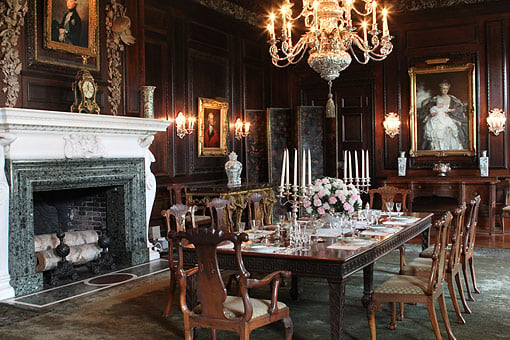 |
Here's a sample of the shot from which we're cropping below, the dining room of the Westbury House. Though it looks well-illuminated here, it was quite a bit darker than this. |
The staff at the Westbury House kindly gave us special permission to photograph inside the house itself, as photographs are normally prohibited. The period decor and particularly the relatively dark lighting in the dining room offered a good test of the Canon 60D's high-ISO ability. We compared its images with those from a Rebel T2i, that being the most recent model using a similar 18-megpixel sensor, and hence was the one that would likely be the most competitive with the 60D's image quality. Shots with both cameras were captured with the same copy of Canon's excellent 24-70mm f/2.8L lens, at 24mm and an aperture of f/7.1. Exposure levels between the two cameras are very slightly different, as minor variation in outside light between the two sets of shots and/or slight differences in the cameras' sensitivity meant we had to adjust shutter times slightly to arrive at the same brightness. (The light variation was probably just over a third of an f-stop; that was the smallest adjustment we could make in shutter speed, and the T2i shots ended up slightly brighter, despite their having exposure times about 1/3 EV shorter.) The lens was focused on the vase at the back of the room, just to the left of center, using magnified live view for best accuracy, and the camera was mounted on a massive Manfrotto studio tripod to avoid any vibration.
As you'll see below, the engineers have managed to eke out just a bit more crispness and detail in the Canon 60D than in its already-excellent predecessor. Check our Canon 60D Gallery page and Canon T2i Gallery page for links to both JPEG and RAW versions of these images, as well as another set from a more brightly-lit room. Remember, this is comparing one excellent camera against another at 100 percent onscreen, and unless you print a massive image, you won't see the difference in a print.
Canon 60D versus Canon T2i at ISO 1,600
 |
 |
 |
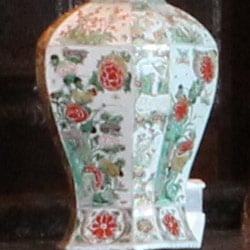 |
|
Canon 60D at ISO 1,600 |
Canon T2i at ISO 1,600 |
At ISO 1,600 it's hard to see much difference between the two cameras. The 60D's image on the left looks a little more contrasty, and detail is better defined, but much of that could be due to a slightly lighter exposure. |
|
Canon 60D versus Canon T2i at ISO 3,200
 |
 |
 |
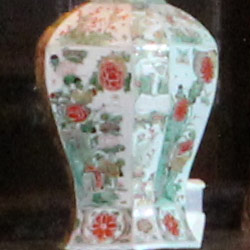 |
|
Canon 60D at ISO 3,200 |
Canon T2i at ISO 3,200 |
At ISO 3,200 the Canon 60D's black shades are a little better, and reds retain more saturation. Detail in the roses of the vase seems a little better defined. |
|
Canon 60D versus Canon T2i at ISO 6,400
 |
 |
 |
 |
|
Canon 60D at ISO 6,400 |
Canon T2i at ISO 6,400 |
Slightly more noise is introduced into the image in the brown field behind the gentleman in the portrait, but more contrast and detail are maintained as well, and the gentleman's eyes are more distinct. Some of the T2i's detail in the vase is starting to fade. |
|
Canon 60D versus Canon T2i at ISO 12,800
 |
 |
 |
 |
|
Canon 60D at ISO 12,800 |
Canon T2i at ISO 12,800 |
At ISO 12,800 there's a little more definition in many aspects of the Canon 60D's image, but the continued difference in brightness makes it hard to pick a favorite. The gentleman's eyes are still more distinct in the 60D shot, but I might prefer the T2i's softer rendering at this ISO level. It's a pretty close call. Both cameras handle the scene quite well. |
|

Movin'. Shot at f/6.3 and 1/250 second, this guy was moving fast from flower to flower. It's not tack sharp, but I'm glad I caught the motion of its wings.
Just two years ago, ISO 12,800 was a throwaway setting at best, with the 50D turning out nasty images fraught with overt banding, visible even in a thumbnail. Today I look at ISO 12,800 from the Canon 60D and T2i and have a hard time finding much to comment on. It's impressive. Feel free to shoot in near-darkness.
Shooting with the Canon 60D
by Shawn Barnett
I left Dave to take pictures inside the hot, non-air conditioned Westbury House, instead wandering out into the Old Westbury Gardens on a very hot day. The good news was that plants love hot days, and the gardens were replete with interesting flowers, birds, and butterflies. Since I knew that I'd only be able to make one pass, I shot primarily with the Canon 60D's kit lens, the EF-S 18-135mm. It's a versatile optic that's well-suited for a walk in the park.

Lush. This was such a varied and photogenic garden.
Despite a large number of changes to the Canon 60D's user interface, it was still largely familiar. I have to admit that though I'm disappointed that some functions no longer have a button, I found the control layout very efficient. Pulling up the Quick menu is how you get most things done, using the rear status display. I still habitually changed ISO and Drive modes on the top deck most of the time, but it was a lot easier than it is on my 20D, thanks to the simpler one-button, one-function philosophy.
I also appreciated the smaller size of the Canon 60D. It's not dramatically smaller, but is better for a walk than the 50D was. I don't think it's as small as my now ancient 20D, but the grip is smaller, and will be more comfortable for a wider array of users.


Zoom range. Just a quick demonstration of the 18-135mm's range. That's a sun dial on the top of that tower, by the way.
As on the Pentax K-7, the Canon 60D's Mode dial has a lock in the middle. It doesn't bother me at all, and as I mentioned earlier I had it on my old EOS Elan, and it worked great. But it bugs Dave to no end. We both use a lot of cameras, so it's just a matter of taste. Since no recent Canon SLR has had a locking Mode dial, I predict so many people will stumble over it that Canon won't do it again for a while. We'll see. (Shortly after publication, Canon announced an upgrade program whereby existing Canon 7D and 5D Mark II camera owners could upgrade the cameras with a locking mode dial for $100. Might this move been made based on popular demand?)

Narrow DOF. Thoroughly enjoyed shooting the freakishly large and bright EF 85mm f/1.2 optic indoors.
As usual, I took a very large number of pictures. In a place like the Old Westbury Gardens, there's plenty to catch a photographer's eye. Most of them were reasonably sharp, especially considering the extremely high resolution of this sensor and the relatively low retail price of this vacation lens (around $500). There's some softness in the macro shots, which are handheld snapshots grabbed on the fly; it wouldn't be my first choice for such photography, but I wanted to demonstrate what the Canon 60D kit can do, and I thought it did pretty well. (We have since posted a review of the 18-135mm lens on SLRgear.com. Click here for the review, complete with interactive blur charts.)
Later I went inside the Westbury House and took some shots indoors with the extremely fast (and heavy) EF 85mm f/1.2 lens. The lens was so bright that I chose to dial the EV back by -1.3 to keep the dark look to the rooms, while still maintaining the ridiculously smooth bokeh. At that point I was having more fun with the lens than the camera, but that's testament to how quickly the Canon 60D got out of my way and just let me take pictures, which is what it's all about.

Waddle. I enjoyed watching this family walk away from the rest of the crowd. A photo is good, but I was happy when I remembered I could take a video of them. (Click on the image to download a 52MB file. Note that you'll need a fast processor--something like a dual core--and a high-res screen to view this Full HD video)
Shooting video was also easy, once I remembered to use the Mode dial to select the Movie mode before pressing the Record Start button (I've grown accustomed to the Canon 7D's switch/button arrangement). I got some humorous videos of geese pecking at and walking along on the grass. I don't think I had the wind filter activated, so there's some wind noise in the shot. Not that wind filters ever fully remove wind noise.
One major item disappointed me about the Canon 60D. I own two lenses that front and back focus by a touch, and I've been waiting for the 60D to come so that I could correct for those problems with the Lens AF Microfocus Adjustment feature that was on the 50D, 7D, and other Canon pro SLRs, but not on the Rebels. Deletion of this feature is a strange choice that I just don't get from Canon's perspective. Yes, it forces more advanced photographers like me to buy a 7D, but not all can afford such a camera. Besides, who doesn't want a way to make their lenses sharper? Wouldn't Canon benefit if people could have their photographer friends show them how to tune their lenses to be even better? It seems like a no-brainer to me, and it should be a pretty easy firmware fix. To omit it from a high-end camera whose predecessors have the feature just doesn't make sense. Perhaps they don't want to field the support calls when curious newbies find and adjust the feature and suddenly all their pictures are blurry. It's possible.
Aside from that issue, I really enjoyed shooting with the Canon 60D. I like its reduced size, simplified controls, including the new integrated 8-way controller and Quick Control dial. The big 8-way disk allowed me to easily change AF points with a quick press, just like the joystick used to do. I forgot to use the Vari-angle display until I started doing contortions to get the right angle while shooting indoors. It's very nice to have on an SLR. The 18-135mm kit lens is a near ideal lens for Canon's new target market, with reasonable sharpness and a handy 7.5x zoom range, not to mention a pretty solid image stabilization system. Given the high resolution of the Canon 60D, I recommend hobbyists consider some sharper optics for more serious work, and a medium prime lens or two.
Ultimately, the Canon 60D is built for a different market. Canon has long since lured many serious 50D shooters to the 7D and 5D Mark II; now it appears their goal is to lure the Rebel shooters to the Canon 60D and more directly compete with the Nikon D90 and D7000. That's probably just the right strategy. Most of the important features from the 7D and T2i are included in the Canon 60D, as well as the audio level control from the 5D Mark II and the swivel screen from the Canon G12. It seems like every Canon line has contributed a little something to Canon's entry-level prosumer digital SLR, and the results are quite good.
Canon 60D Image Quality Comparison
Most digital SLRs will produce a reasonable ISO 100 shot, so I like to push them and see what they can do at ISO 1,600. Recent advances in sensor technology have made ISO 1,600 look a lot more like ISO 100, but there are still cameras whose quality starts to fall apart at this setting. I also choose 1,600 because I like to be able to shoot at this level when indoors and at night.
Canon 60D versus Canon 50D at ISO 1,600
 |
 |
 |
 |
 |
 |
|
Canon 60D at ISO 1,600
|
Canon 50D at ISO 1,600 |
|
One of the better illustrations of why
to upgrade from the 50D to the 60D is right here. Though the resolution
went from 15 megapixels to 18 megapixels, noise suppression appears
less necessary, and images come out crisper with better contrast than
the 50D. The red leaf swatch is about as bad, but the greater
resolution still pays off with more detail.
|
|
Canon 60D versus Nikon D7000 at ISO 1,600
|
 |
|
 |
|
 |
Canon 60D at ISO 1,600 |
Nikon D7000 at ISO 1,600
|
The major rivalry in the broader market is between the Canon 60D and Nikon D7000. The Canon 60D has more apparent resolution, with its 18-megapixel sensor versus Nikon's 16-megapixel res. Noise suppression removes more of the chroma noise in the shadows, but interestingly it also removes the real colors between the mosaic tiles, a hint of which the Nikon retains. (We discovered that these colors were real with our Pentax 645D test shots, and confirmed them with a closer look with real eyeballs.) Still, the Canon produces a very clean image. That is until you look at the red leaf swatch, which the 60D renders quite fuzzy and the Nikon does better at retaining some truth of the image (to see what it really looks like, look to the 645D crops). |
|
Canon 60D versus Panasonic GH2 at ISO 1,600
|
 |
|
 |
|
 |
|
Canon 60D at ISO 1,600
|
Panasonic GH2 at ISO 1,600
|
Image quality of the GH2 is difficult to judge next to the Canon 60D mostly because of the different color balance and tone curve, which makes the GH2's image look darker. In general, Panasonic's cameras have a tougher time with yellows in particular in their JPEGs, rendering the mosaic background greenish instead of more neutral tan. Resolution appears similar, though the sensors are two megapixels off; the GH2's sensor is 4:3, while the 60D is 3:2. |
|
Canon 60D versus Pentax K-5 at ISO 1,600
|
 |
|
 |
|
 |
|
Canon 60D at ISO 1,600
|
Pentax K-5 at ISO 1,600
|
Another rival in the market, as it's believed to use a similar 16-megapixel sensor to the one in the Nikon D7000, is the Pentax K-5. Indeed, performance is quite good, eliminating more chroma noise than the D7000. However, it also has trouble with the red swatch, further mischaracterizing it in a different way than the 60D. The pink swatch beneath the red swatch is also rendered more purple, as we also saw in the 645D. Still, a pretty good performance from both cameras. |
|
Canon 60D versus Sony A580 at ISO 1,600
|
 |
|
 |
|
 |
|
Canon 60D at ISO 1,600
|
Sony A580 at ISO 1,600
|
That 16-megapixel Sony sensor naturally also makes an appearance in the Sony A580, but it's clear that Sony remains the most aggressive of the three companies when it comes to noise suppression. While the back wall of the Still Life display appears to have some texture (it does have texture), it appears much softer in the Sony image. Gaps between the tiles also appear a little softer in the A580 images. Still, I'm happier with the rendering of the red leaf swatch from the Sony than from the 60D, soft though it be. |
|
Today's ISO 3,200 is yesterday's ISO 1,600 (well, almost), so below are the same crops at ISO 3,200.
Canon 60D versus Canon 50D at ISO 3,200
 |
 |
 |
 |
 |
 |
|
Canon 60D at ISO 3,200
|
Canon E50D at ISO 3,200 |
|
The 60D still holds a clear advantage
at ISO 3,200 in the first two shots, but appears even softer in the red
leaf swatch.
|
|
Canon 60D versus Nikon D7000 at ISO 3,200
|
 |
|
 |
|
 |
|
Canon 60D at ISO 3,200
|
Nikon D7000 at ISO 3,200
|
The Canon 60D still handles the chroma noise better than the D7000, but Nikon's more balanced approach leaves more of the red leaf swatch looking better. |
|
Canon 60D versus Panasonic GH2 at ISO 3,200
|
 |
|
 |
|
 |
|
Canon 60D at ISO 3,200
|
Panasonic GH2 at ISO 3,200
|
At ISO 3,200, the GH2 in JPEG mode really doesn't compete well, turning out softer images overall. It is a smaller sensor, though, so one wouldn't expect it to outdo the 60D. |
|
Canon 60D versus Pentax K-5 at ISO 3,200
|
 |
|
 |
|
 |
|
Canon 60D at ISO 3,200
|
Pentax K-5 at ISO 3,200
|
The Canon 60D and Pentax K-5 are still slugging it out rather evenly at ISO 3,200. I'd take either one, save for that red swatch. Lower the ISO when shooting the family in their Christmas garb (those who don't celebrate Christmas, be sure to lower the ISO when depicting yourself next to your new red Ferrari). |
|
Canon 60D versus Sony A580 at ISO 3,200
|
 |
|
 |
|
 |
|
Canon 60D at ISO 3,200
|
Sony A580 at ISO 3,200
|
Both cameras perform about equally at ISO 3,200, with the Sony still having an edge on the red leaf swatch. |
|
Detail: Canon 60D vs Canon 50D, Nikon D7000, Panasonic GH2, Pentax K-5 and Sony A580
 |
 |
 |
 |
 |
 |
 |
 |
 |
 |
 |
 |
 |
 |
 |
 |
 |
 |
|
Canon
60D ISO 100 ISO 3,200 ISO 6,400 |
Canon
50D ISO 100 ISO 3,200 ISO 6,400 |
Nikon
D7000 ISO 100 ISO 3,200 ISO 6,400 |
Panasonic
GH2 ISO 160 ISO 3,200 ISO 6,400 |
Pentax
K-5 ISO 100 ISO 3,200 ISO 6,400 |
Sony
A580 ISO 100 ISO 3,200 ISO 6,400 |
|
Detail comparison. Digital
cameras have an easier time making higher-contrast images look sharp,
so we give that a look too at ISO 100, 3,200, and 6,400. The Canon 60D
and Sony A580 seem to produce the most crisp images across the ISO
ranges, with the Pentax K-5 coming in a close third. Surprisingly the
Nikon D7000 seems to dither the lines inside the letters more than the
others, creating an uneven look. It's important to note, though, that
the Canon, Sony, and Nikon images exhibit the greatest amounts of
sharpening halo, especially around the black letters. Of the six, the
older Canon 50D is the only one that looks a little disadvantaged by
comparison, which is not a surprise.
All but the GH2 were shot with the same brand and make of lens, the Sigma 70mm f/2.8, while the GH2 used the very sharp Olympus 50mm f/2 Four Thirds lens. |
|||||
Canon 60D Print Quality
 ISO 100 images print quite well, with sharp detail at 24 x 36 inches, with good color and no discernible noise. This is true up to ISO 400, where slight chroma noise starts to show up in the shadows at this size. It's only slight and you have to squint to see it. Detail, however, is still very good, even in reds, with 20 x 30 being quite good here.
ISO 800 images still look good at 16 x 20 inches. At 20 x 30 we begin to see slight chroma noise in the shadows, and some softening in the reds and other finely detailed areas.
ISO 1,600 shots look quite good at 13 x 19 inches, with only minor noise apparent in some shadowy areas.
ISO 3,200 prints look good and crisp at 11 x 14, again with only minor noise in some flatter areas.
ISO 6,400 images are usable at 8 x 10 inches, though the red swatch is now a foggy blur, while the rest of the image is reasonably sharp. The shadows have slight luminance and chrominance noise. All of this, except for the red swatch, becomes negligible at 5 x 7 inches.
ISO 12,800 make a very usable 5 x 7 inch print, but with noisy shadows. Reducing the image size to 4 x 6 produces a very nice print, however.
Overall, the Canon EOS 60D produces some amazing prints at all ISO ratings, with good color and great detail, and this is only at JPEG with standard noise suppression active. RAW images should deliver considerably more resolution and higher quality when processed with good software.
See below for our conclusion; be sure to check the other tabs for details and test results.
In the Box
The EOS 60D lens kit retail package contains the following items:
- Canon EOS 60D digital camera
- 18-135mm f/3.5-5.6 IS zoom lens
- Body cap
- Front lens cap
- Rear lens cap
- Wide strap EW-EOS60D
- Battery charger LC-E6
- Battery pack LP-E6
- Interface cable
- Stereo AV cable
- Software CD-ROM
- Warranty card and manuals
Recommended Accessories
- Extra battery pack for extended outings
- Lens hood EW-73B (this hood was originally made for the 17-85mm lens; the hood is not included in the kit nor with the lens if purchased separately)
- Large capacity SD/SDHC memory card. These days, 8GB Class 4 is a good tradeoff between cost and capacity, but if you plan to capture many movie clips, look for larger cards with Class 6 or faster ratings.
- Camera case
Canon 60D Conclusion
| Pro: | Con: |
|---|---|
|
|
Canon's latest enthusiast digital SLR draws from many different cameras in Canon's lineup, from the Canon G12, with its swivel screen, to the 5D Mark II, with its fairly advanced video functionality. Though the controls have changed a bit, I still found the Canon 60D very familiar. The simplified controls tend to reduce the fiddle-factor, which results in a camera that gets out of the way and lets you concentrate on shooting. Autofocus is fast and pretty reliable, and the camera feels great in the hand. The Canon 60D's 18-135mm kit lens offers an extremely useful focal range for all kinds of photography, and it's nice to have Full HD video built-in for those few moments when only video will do.
Canon has learned a lot from the competition these last few years, making changes that matter to avid photographers. Even the shutter sound is more tame, without a lot of winding and buzzing, making me feel more like a photographer than a show-off. I like the location of the Live View button, but miss the 7D's ability to switch more quickly to Movie mode. Having to go to the Mode dial makes it more of a hassle.
The lack of Micro-focus adjustment and a PC Sync terminal is a clear sign that the Canon 60D wasn't strictly intended for the serious photographer; that's who the 7D was built to serve. At least in the latter case, the built-in flash can serve to fire several off-camera EX-series strobes, but those with studio lights will have to employ a hot shoe adapter, instead of just using the standard PC Sync cord with their existing equipment.
Most shooters can ignore those two points, though. The 60D has a broad set of advanced features, including the electronic level, an external mic jack, advanced autofocus, sophisticated metering, and a whole lot more. The Canon 60D's swivel screen means you can really get creative shooting from odd angles, and its high speed capture is good for sporting events and shots of the kids at play. The Canon 60D is a great upgrade for Rebel owners, too, offering a little more speed, a bigger viewfinder, and remote flash capability.
There's no question that the Canon 60D takes great pictures and videos, works like a charm, and does incredibly well in low light. The ability to print 20x30-inch prints from ISO 400 and 16x20 from ISO 800 images is valuable, and quite impressive. Even ISO 12,800 shots produce a good 4x6-inch print. The Canon 60D is very fun to shoot with, takes great shots in low light, and makes earning a Dave's Pick look easy. It should come as no surprise that we also gave it 5 out of 5 points.
Design
Canon EOS 60D Design
Roll-over the various controls and features with your mouse for a brief description.
Front. The Canon EOS 60D has been completely restyled, compared to the body design of the previous 40D and 50D models, and sports a much sleeker, more rounded and modern-looking design aesthetic. From the front, most controls are located in the same places, although the depth-of-field preview button has jumped across to the other side of the lens mount. There’s also a microphone port just above the model number badge, an infra-red receiver added in the handgrip, and a rubber flap at the base of the handgrip to allow access for the dummy battery cable used with the optional AC adapter kit.
Left. On the left side of the body, the two rubber compartment cover flaps from the EOS 50D are consolidated into a single flap for the 60D. A stereo mic port has been added, and the flash sync port dropped. You can also see the new speaker grille adjacent to the top of this compartment cover, as well as the aforementioned speaker grille above the model number badge. Again, note that the depth-of-field preview button has switched to the other side of the lens mount.
Right. There weren’t any controls on this side of the 50D, and the same rings true for the EOS 60D. The larger CompactFlash card compartment door of the earlier camera is replaced by a much smaller, spring-loaded Secure Digital card compartment door.
Top. There are plenty of changes to note on the top of the EOS 60D. The Mode dial now has a central locking button, which must be depressed before the dial can be turned, to prevent accidental changes. It also sits above the relocated Power switch. On the other side of the flash housing, the LCD status display is now smaller and trapezoidal, and lacks any indication of white balance or image size / resolution / file type. The row of buttons in front of this display are all now single purpose, and while there’s one more button than in the 50D, neither flash exposure compensation nor white balance are adjusted from these buttons any longer.
Back. The back of the 60D is also greatly changed from that of its predecessor. The 3.0-inch LCD screen now has a wider aspect and just slightly higher resolution. More importantly, it’s now mounted on a tilt / swivel mechanism, making it much more useful for live view or movie shooting. The fiddly Multi-controller joystick from previous models is gone, replaced with a new Quick Control dial design that integrates both an eight-way arrow pad and central Set button. Instead of the integrated power switch / Quick Control dial lock found on the 50D, there’s a new Unlock button which serves the latter purpose, and doubles as a Direct Print button in playback mode. There’s also a new Live View / Movie button, a dedicated Quick Control button, and the locations of the Menu, Info, Playback, and Delete buttons have all changed. Finally, note the relocated, triangular card access lamp directly above the (much smaller) card slot compartment. The reduction in size comes thanks to a switch to Secure Digital card media, with SDHC / SDXC compatibility.
Bottom. From the bottom, you can again see the relocated depth-of-field preview button, as well as the base of the newly articulated LCD display. The extension system terminal cover from the previous 50D model is another notable absentee from the 60D’s design. The battery compartment door retains a similar design, with an adjacent cutout for the AC adapter kit’s dummy battery cable.
Operation
Canon EOS 60D Operation
The Canon EOS 60D retains the enthusiast-friendly interface like that of the preceding 40D and 50D models, with traditional monochrome Status LCD and viewfinder LED displays, plus a Status display that can be brought up on the 3-inch rear-panel LCD. Finally, Live View mode also has a Status display, including a live histogram.
The control layout has changed significantly since the 40D. Perhaps most significantly, the tiny rear-panel multi-controller joystick is gone, with its functionality instead integrated into an expanded control dial cluster. This now comprises three controls in one area. The outer, rotating ring serves as a Quick Control dial, inside which are nested an eight-way Multi-controller, and a central Set button. The combination is significantly easier to use than the tiny, fiddly joystick of previous models. Accommodating these new controls, as well as the tilt/swivel LCD panel assembly, many other controls have moved around the camera body, and a number of new ones have been added. The Power switch now resides under the Control dial, which adds a central locking button to prevent accidental mode changes. The Delete button has been moved directly beneath these. On the top deck, there’s now an extra button in front of the status LCD, and all the buttons in this row are now single-purpose: autofocus, drive, ISO, metering, and info display illumination. On the rear of the camera, the Live View / Movie button is now easy to access with a thumb, to the right of the viewfinder. To the right of the LCD, and above the Quick Control dial, are the Menu and Info buttons, along with a new Quick Control button. Beneath the dial, there’s the Playback button, and a new Unlock button that also serves duty as a Direct Print button.
Canon EOS 60D Top-Panel LCD Display
Note that compared to the 50D, both file formats and white balance modes have been removed from this display, along with the indication of whether camera sounds are enabled. There aren’t any added icons on the display, but the 60D can now show the new single-axis electronic level using the same portion of the LCD display that’s ordinarily used as an exposure level indicator.
Canon EOS 60D Record Mode Displays
When the INFOÂ button is pressed, the 60D’s rear panel LCD monitor also offers a status display, similar to ones found on models without a top status LCD. Like the 50D, this display allows you to adjust settings directly from this display using the Multi-controller and control dials, although you must now press the Quick Control button first. The image below shows callouts for all the information shown in this shooting display. (Illustration courtesy Canon USA.)
| Canon EOS 60D Record Displays |
|
|
Pressing the Info button once enables the normal record mode display.
|
Pressing it a second time turns the display into a single-axis level, which indicates roll around the central axis of the lens. When the camera is perfectly level in portrait or landscape orientation, the horizon line turns green.
|
|
Pressing the Info button for a third time switches to a shooting settings display, summarizing common exposure variables.
|
Regardless of which display mode you’re currently using (and even when the LCD display is switched off altogether), pressing the Quick Control button turns the display into an interactive Quick Control screen. With the exception of the bottom line, which identifies the current selection, the layout is identical to that of the shooting settings display. The Multi-controller is used to switch between items, and the values for most can be adjusted directly with either control dial. You can also press the SET button to display the dedicated menu for the currently selected item.
|
Additionally, the EOS 60D’s rear-panel LCD monitor can be used as a viewfinder, via the camera’s Live View mode (see the Live View tab). A sampling of exposure information appears on-screen, and if the Exposure Simulation option is enabled, the image display reflects what the expected exposure outcome will be. An optional histogram can be overlaid in the upper right corner of the screen.
Canon EOS 60D Playback Mode Displays
The display mode used in Record Review is the same as was last used in Playback mode, or you can hit the DISP button to cycle to a different mode. Likewise, in Playback mode, you can cycle between the available display options by pressing the DISP button repeatedly. You can also select between the normal luminance-based histogram and the new RGB histogram option via a Playback-mode menu item.
| Canon EOS 60D Playback Displays | |
|
This is the default display in playback mode. The file number is displayed upper right, the shutter speed, aperture, and exposure compensation (if applicable) in the upper left, and the file sequence number are shown below left.
|
Pressing the Info button cycles through the four available displays. The second display option shows a histogram and more detailed exposure information. A setting in Playback Menu 2 lets you choose between a conventional luminance-only histogram (as shown above), or separate red, green, and blue channel histograms.
|
|
The third playback display option shows both RGB and luminance histograms side by side, along with an intermediate level of exposure information.
|
The final playback display option shows the image with no overlay. In the screenshot above we’ve enabled the blinking highlight warning, but it isn’t limited solely to this display mode. It’s probably most useful here, where the preview is as large as possible, and isn’t obscured by overlays, but it can also be activated in any of the other display modes.
|
|
If you press the Zoom Out button while viewing a single image on the LCD screen, it’ll take you first to a 4-image thumbnail display, and then to a 9-image one, if you press it once again. The arrow keys let you navigate among the thumbnail images. It’s not shown here, but by pressing the DISP button in this mode, you can toggle an overlay with data for the currently-selected image. Contents are the same as for the default single image display, showing image size/quality and file numbers.
|
You can also zoom in on an image, up to 10x at the highest resolution. The small navigator window in the lower right-hand corner shows you what part of the larger image you’re currently viewing. The Multi-controller lets you navigate around the full image, and the zoom in / zoom out keys increase or decrease the magnification level. We like that you can step between images while maintaining the zoomed display. This makes it easy to compare focus or other fine details from one shot to the next.
|
|
By turning the Main dial on the Canon 60D in Playback mode, you can “jump” through images in a variety of ways. An option on the Playback menu sets options of jumping through images 1, 10, or 100 images at a time, between shots captured on different dates or stored in different folders, between groups of movies, or groups of still shots. You can also jump between images by rating, either viewing only rated images, only unrated images, or only those with a specific rating. The jump menu setting only applies when you’re in single-image playback mode. In thumbnail display mode, the Main Dial always jumps ahead one screen of thumbnails at a time, regardless of the menu setting for the Jump option.
|
Images are rated from the Rating option in Playback Menu 2. The Quick Control steps through images one at a time, and the Main Dial as configured in the previous menu. The rating for each image is selected with the Multi-controller, and a count of the number of images with each rating is shown across the top of the screen. The rating is stored in the EXIF header of each image, and can also be viewed with compatible software on your computer.
|
|
The Canon 60D offers a fairly robust slide show function, which allows a predefined time per slide from one to 20 seconds, and a choice of three optional transition effects. As well as including all images, t’s possible to limit slideshow playback to just stills or movies, just a specific date or folder, and just images with a specific rating.
|
Pressing the Delete button in playback mode lets you delete the currently displayed image. If you want to erase multiple images at once, though, you can do so through Playback Menu 1.
|
|
For those who like to print their images without using a computer, the Canon 60D can set up DPOF print orders on the memory card. You can select the usual options — number of prints for each image, whether to overlay the date and file number on each print, etc.
|
The Canon 60D also includes several filter effects that can be applied to images post-capture, each offering a small amount of control over the look of the effect. These include Grainy B/W, Soft Focus, Toy Camera Effect, and Miniature Effect.
|
|
You can downsample images in-camera, using the Resize option. It’s not possible to interpolate larger images from smaller ones in-camera, however.
|
Like many of its competitors, the Canon 60D includes the ability to process Raw files in-camera, creating a JPEG image with your choice of settings.
|
Optics
Canon EOS 60D Optics
Kit Lens
As of this writing (mid December, 2010), the Canon EOSÂ 60D digital SLRÂ camera is available body-only, bundled with the Canon EF-S 18-135mm f/3.5-5.6 IS lens, or bundled with the EF-S 18-200mm f/3.5-5.6 IS lens.
The 18-135mm kit lens has a 7.5x zoom ratio, with a 35mm equivalent focal range of 29-216mm due to the 60D’s 1.6x “focal length crop” (see below). The lens is constructed of 16 elements in 12 groups. Focusing is internal, and the 18-135mm uses a micro DC motor for autofocus instead of the ultra-sonic motor found on models with the USMÂ designation. An AF/MF switch is provided. The lens features built-in image stabilization (IS) that is capable of up to four stops of correction. A Stabilizer On/Off switch is also provided. Other specifications include a 6-bladed (rounded) diaphragm, minimum aperture of f/22-f/38 (or f/36 if using 1/3 stop increments), maximum magnification ration of 0.21x (or 1:4.8) at 135mm, and 67mm filter thread. Dimensions are 101 long with a 75.4mm diameter (4.0 x 3.0 inches), and weight is 455g / 16.0 oz. The lens has a MSRP of US$499.99 if bought separately, but costs significantly less when purchased bundled with the camera. A lens hood and soft case are optional accessories. See below for our test results with this lens mounted on the Canon 60D, and see our full review of this lens on SLRgear.com.
The 18-200mm kit lens has an 11.1x zoom ratio, with a 35mm equivalent focal range of 29-320mm when the focal length crop is taken into account. This lens is also constructed of 16 elements in 12 groups, features internal focusing, and uses a micro DC autofocus motor which is enabled or disabled with an AF/MF switch. Again, the built-in image stabilization system is rated for up to four stops of correction, and is enabled or disabled with a provided switch. Other specifications include a 6-bladed (rounded) diaphragm, minimum aperture of f/22-f/38 (or f/36 if using 1/3 stop increments), maximum magnification ration of 0.24x (or 1:4.2) at 200mm, and 72mm filter thread. Dimensions are 102 x 78.6mm / 4.0 x 3.1 inches, and weight is 595g / 21.2 oz. This lens has a MSRP of US$699.99 if bought separately, and again costs significantly less when purchased bundled with the camera. As with the 18-135mm lens, both a lens hood and soft case are available as optional extras. See our full review of the 18-200mm lens on SLRgear.com.
Lens Compatibility
The Canon EOS 60D will work with pretty much any EF-mount lens ever made, as well as with the special EF-S lenses designed for cameras with APS-C size sensors. Designed with a smaller image circle (the area covered by the image on the film/sensor plane), EF-S lenses tend to be smaller and lighter than full-frame models with the same focal length and maximum aperture. EF-S lenses can’t be used on full-frame Canon cameras, nor on their models with 1.3x crop factors, like the current EOS-1D Mark III, but small-sensor cameras like the 60D can use any full-frame lenses in Canon’s arsenal.
The sub-frame sensor on the Canon 60D means that it has a smaller angle of view (by a factor of 1/1.6x) than a full-frame camera with any given lens. While most properly called a “crop factor” or “focal length crop”, the 1.6x ratio is most commonly referred to as the “focal length multiplier” since that’s how it works in practice: Any lens used on the Canon 60D will have the same field of view as one with a 1.6x greater focal length will when attached to a 35mm camera. For example, a 100mm lens on the Canon 60D will show the same field of view as a 160mm lens on a camera with a 35mm frame size.
Lens Peripheral Illumination Correction
The Canon 60D provides what the company calls Lens Peripheral Illumination Correction, which corrects for lens shading (commonly called “vignetting”), producing more uniform exposure across the frame by compensating for the light falloff seen with some lenses in the corners of the frame. Lens Peripheral Illumination Correction first appeared in the 50D and has since featured in several of Canon’s consumer and enthusiast DSLRs. Peripheral Illumination Correction works with over 85 different Canon lens models, in both RAW and JPEG workflows. For JPEG shooting, the correction is made at capture time, while RAW shooters can access the function in Canon’s Digital Photo Professional software, although Canon shooters should note that the latter approach offers the highest degree of correction. In-camera correction of JPEGs operates with somewhat reduced strength, especially when shooting at higher ISO sensitivities, given that the correction can make image noise more pronounced. From the factory, the 60D body ships with correction data for about 25 lens models. Canon’s EOS Utility software allows correction data for lenses (including models as-yet unreleased) to be uploaded to the Canon 60D, up to a maximum of 40 lenses.
Autofocus
The Canon 60D’s autofocus sensor is unchanged from that used in the previous 40D and 50D models. and features a 9-point diamond array, with nine cross-type f/5.6 autofocus points, meaning that they’re all sensitive to vertical or horizontal lines. Nestled in the center is an additional precision dual-cross AF sensor that is arrayed diagonally and used when you mount a lens of f/2.8 or faster. All nine AF points can be selected automatically or manually, and the autofocus sensor has a working range of -0.5 to 18 EV (at 23C / ISO 100). The Canon 60D includes the ability to detect the light source (including the color temperature and whether or not the light is pulsing), and then take these into account and microscopically shift the focus as necessary. Autofocus modes include One-shot, Predictive AI Servo AF, and AI Focus AF, which automatically selects between the One-shot and AI Servo modes. Of course, there is also a manual focus mode.
Unlike the 50D and 7D, the Canon 60D lacks a Lens AF Microadjustment custom function, which would allow you to tune the camera’s autofocus system so as to compensate for lenses that back or front-focus. Not all lenses and bodies are tuned perfectly, but this tool can help make a lens / body pairing that yields slightly soft results a whole lot better. It’s a disappointing omission, as its a feature available in some prominent models from competing manufacturers, at around the same price point.
In Live View mode, the Canon 60D offers three autofocus modes ,as per other recent Canon digital SLRs. The first of these is what Canon refers to as Live Mode AF, whereby the camera applies contrast detection algorithms to the data streaming from the image sensor. This allows focusing without interrupting the live view, but has the disadvantage that it is significantly slower to achieve a focus lock, which makes it less useful for handheld photography, or when shooting moving subjects. The second mode is Face Detection Live Mode. As you may expect, this mode detects and focuses on human faces. If more than one face is detected, the multi-controller can be used to select a different face. Alternatively, in what Canon refers to as Quick Mode AF, the mirror is briefly dropped to allow an autofocus operation using the camera’s phase detection autofocus sensor. This mode offers quick autofocusing, but with the disadvantage that there is an interruption of the live view stream during the AF operation. Live View mode also offers a selectable 5x / 10x magnified view of the selected focusing point when the photographer elects to focus manually.
AF-Assist Illuminator
The Canon 60D uses the built-in flash head as its AF-assist illuminator, rather than a bright light built into the camera’s body. (The small orange LED lamp on the front panel is used only for red-eye reduction, and as a self-timer indication.) In practice, this works well: the flash is quite bright, and probably has a longer range than an on-body illuminator bulb, being rated at 4 meters or 13.1 feet. If you attach a 550EX, 580EX or 580EX II external flash unit to the Canon 60D, its internal infrared AF-assist illuminator is used instead of the flash head itself, providing a useful working range of about 50 feet with a less obtrusive light source. For non-flash photography, Canon’s ST-E2 wireless sync transmitter can also be used for AF assist. The ST-E2’s AF-assist light has a useful range of about 25 feet.
Without an external strobe attached, and when in Creative Zone modes (Program, Priority, Manual, and Bulb), the internal strobe will fire its AF assist pulses if needed whenever the flash is raised. In the Basic Zone, AF Assist fires in all but Flash Off, Landscape or Sports scene modes.It never fires in Movie mode, even before capture starts. Using Custom Function III-4, AF assist can be disabled altogether, set to fire from the external flash only, or set to fire with external strobes including an IR assist beam only. You can also prevent the 60D from firing either the internal flash or external Speedlites altogether, by going into the Flash Control menu. This still allows the AF-assist pulses to fire; but without flash capability until you turn it back on.
Dust Reduction Technology
First introduced on the Canon Rebel XTi, Canon’s system-wide approach to reducing the impact of dust on the image sensor is also included on the Canon 60D with a slight update to the anti-static coatings used.
A key feature of any SLR is the ability for the user to easily swap lenses. This expands creative options enormously, but every time the lens is removed, dust from the environment is free to enter the camera body. From there, it’s only a matter of time before some of it makes its way to the surface of the sensor ,where it casts shadows that appear as dark blobs in your images. In truth, it’s the anti-aliasing filter that collects dust, rather than the sensor itself, but common parlance refers to “sensor cleaning.” For the sake of familiarity, we’ll generally refer to sensor cleaning here, but will make mention of the anti-alias or low-pass filter as seems appropriate. Every DSLR ever sold has offered a sensor-cleaning mode, in which the mirror is locked up and the shutter opened to permit the sensor to be cleaned with compressed air, a solvent-carrying swab, or other means. As the market has matured and more DSLRs have found their way into the hands of novice users, it has become clear that some automated way of dealing with sensor cleaning is needed.
The principal approach other manufacturers have used to deal with dust has been to make the system self-cleaning, vibrating either the anti-aliasing filter itself or a protective cover glass lying above it, to shake loose adhering dust particles. Once dislodged, a strip of sticky material at the bottom of the sensor cavity or mirror box catches and holds them. This approach was pioneered by Olympus, but has since been adopted by Canon, Nikon, Pentax, Panasonic, and Sony, in various forms. Some cameras use a dedicated piezoelectric element to provide the vibration, while others perform double duty with the sensor shift mechanism used for their image stabilization, with widely varying vibration frequencies and efficacies. In addition, some manufacturers have adopted coatings on the low-pass filter intended to prevent dust particles from adhering in the first place.
Dust reduction.The Canon 60D includes Canon’s EOS Integrated Cleaning System, first introduced on the EOS Rebel XTi camera. The camera’s Self-Cleaning Sensor Unit uses a piezoelectric element to shake dust particles off of the low-pass filter in front of the sensor. The dust is then trapped by an adhesive strip along the base, preventing it from causing further nuisance. Cleaning is engaged each time the camera is powered up or shut down, or manually through the “clean now” function. The second part of the cleaning system involves post processing with a compatible personal computer and the supplied Digital Photo Professional software. Via a menu option, the camera maps any stubborn dust spots that remain on the sensor after cleaning, saving their locations as Dust Delete Data that can subsequently be used to subtract the spots during post-processing. A third option includes a manual sensor cleaning function which raises the mirror and allows users to clean dust that may have stuck to the low-pass filter.
No matter how good an automatic cleaning system, therearegoing to be some stubborn dust particles that it can’t dislodge. To deal with these, the Canon 60D has the ability to shoot a dust reference photo, and then transfer that information to Canon’s Digital Photo Professional software, which can use it to eliminate the shadows cast by dust particles on the images. Canon’s “Dust Delete” processing works for both JPEG and RAW format files. The dust map (“Dust Delete data”) that the software uses to perform its magic is stored in the headers of files created by the camera. There’s thus no need to keep track of a separate dust image file, the information is always available in the file headers, assuming you’ve actually performed the dust-mapping process. You can update the Dust Delete data any time you think the camera might have been exposed to dust, or after you’ve manually cleaned the sensor. The latest dust map is automatically incorporated into the EXIF headers of all JPEG images, or the headers of any RAW files.
Located in Shooting Menu 3, the Dust Delete Data option displays a screen that shows when the last Dust Delete reference image was captured. Selecting OK on this screen initiates a cleaning cycle, after which the camera prompts you to take a picture of a blank white surface. (The camera automatically defocuses the lens and sets the aperture appropriately, to produce the best possible dust image.) The camera then processes this data, and reports whether it was successful or not. If the surface you used to capture the image wasn’t sufficiently uniform, you’ll get an error message, but if the image was good, you’ll see a confirmation screen. The Dust Delete Data just generated will now be included in the headers of any JPEG or RAW images captured, until you decided to capture a new dust reference image.
Don’t count on the anti-dust system to do everything, though.
Despite Canon’s advanced anti-dust technology, we feel compelled to point out that we’ve thus far seennoanti-dust system that completely eliminates the need for sensor cleaning. Sooner or later, you’re going to need to clean your sensor, so we strongly recommend purchasing a good-quality sensor cleaning kit right along with your DSLR. Automated anti-dust systems like Canon’s will certainly help with some of the dust, typically the dust that the nylon brush-based cleaning systems can also handle. Inevitably, though, you’ll encounter dust that sticks to the sensor’s cover glass tenaciously; dust that only a wet/dry cleaning approach can remove. We ourselves use and recommend products fromCopper Hill, which we’ve found to be both highly effective and among the most reasonably priced on the market.
Canon 60D Optical Test Results
Below are the results of our optical tests with the bundled 18-135mm kit lens.
Kit Lens Test Results
Zoom
The Canon EF-S 18-135mm ISÂ (Image Stabilized) kit lens offers better-than-average zoom ratio, with pretty good performance.
 |
 |
| 18mm @ f/8 | 135mm @ f/8 |
The Canon 60D is offered with an EF-S 18-135mm f/3.5-5.6 IS kit lens, with a generous (for an SLR kit lens) optical zoom range of ~7.5x. The 35mm equivalent range is about 29-216mm, because of the 60D’s 1.6x “crop factor”. Sharpness is very good across most of the frame at 18mm, though there’s moderately high chromatic aberration and some coma distortion visible in the corners. Corners are just a touch soft as well. Sharpness at full telephoto is quite good too, with excellent detail across the frame, though chromatic aberration is still a bit high. All in all, this is a pretty sharp optic for a kit lens especially considering the zoom range, and the built-in image stabilization will come in handy for low-light or telephoto shooting. While chromatic aberration is a bit high, it is easily corrected with some post-processing. Here’s an example of the wide-angle shot above with most of the chromatic aberration removed in Adobe Camera Raw. You can also correct it with Canon’s bundled DPP software.
Macro
A fairly large macro area with soft detail. Flash throttled down well.
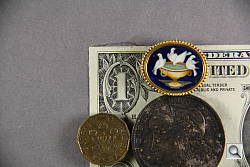 |
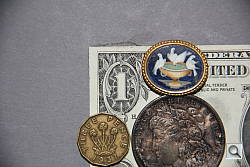 |
| Macro with 18-135mm IS Kit Lens |
Macro with Flash |
The Canon 60D’s macro performance will of course depend entirely on the lens in use. With the 18-135mm IS kit lens set to 135mm, the Canon 60D captured a fairly large (even for an SLR lens) minimum area measuring just 3.92 x 2.62 inches (100 x 67 millimeters). Details were pretty soft in the center, and softer still in the corners. (Most lenses have some softening in the corners at macro distances.) Some noticeable vignetting (corner shading) was also present. Both the softness and vignetting would likely improve by stopping down to f/8, though. (The above macro shots were taken at f/5.6.) The Canon 60D’s flash throttled down for the macro area very well. There was no detectable shadow from the lens barrel, resulting in a good exposure with the flash.
Geometric Distortion
Higher than average barrel distortion at wide-angle and moderate pincushion distortion at telephoto with the 18-135mm IS kit lens.
| Barrel distortion at 18mm is 1.2 percent |
 |
| Pincushion distortion at 135mm is 0.4 percent |
 |
The Canon EF-SÂ 18-135mm ISÂ lens produced about 1.2 percent barrel distortion at wide-angle, which is higher than average and noticeable in some of its images. At the telephoto end, there was about 0.4% pincushion distortion, which is also higher than average though not quite as noticeable. The Canon 60DÂ does not appear to be correcting for any geometric distortion in its JPEGs, as uncorrected RAWÂ files have identical amounts. Geometric Distortion is the tendency for the lens to bend straight lines outward (like a barrel — usually at wide-angle) or inward (like a pincushion — usually at telephoto).
Chromatic Aberration and Corner Sharpness
Moderately high chromatic aberration at wide-angle and telephoto with the 18-135mm IS kit lens. Only slight softening in the corners.
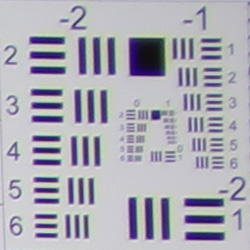 |
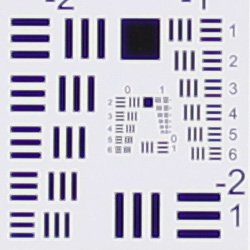 |
| Wide: Upper right C.A.: Moderately high and bright Softness: Slightly soft |
Wide: Center C.A.: Moderate Softness: Sharp |
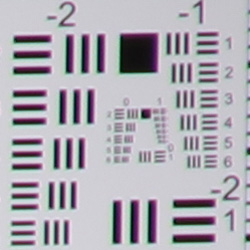 |
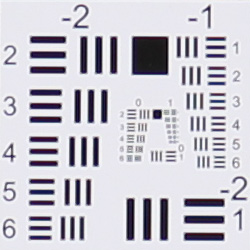 |
| Tele: Upper right
C.A.: Moderately high and bright Softness: Slightly soft |
Tele: Center C.A.: Very low Softness: Sharp |
Chromatic Aberration. Chromatic aberration in the corners with the Canon 60D’s 18-135mm kit lens is moderately high at both wide-angle (18mm) and telephoto (135mm) settings. The amount and intensity of the color fringing reduces as you move toward the center of the image, but is still slightly evident in the center at wide-angle. C.A. is negligible in the center at full telephoto. The Canon 60DÂ does not appear to be correcting for C.A. in its JPEGs, as uncorrected RAWÂ files exhibit similar amounts.
Corner Softness. The Canon 60D’s 18-135mm IS kit lens produced some slightly soft corners in a few shots. At full wide-angle, corners on the right side of our test targets were somewhat softer than the center, but the blurring didn’t extended very far into the frame. The left side, however, showed less softening in the corners. The center of the image was quite sharp. At full telephoto, all four corners were only slightly soft with the top right being the softest. The image was pretty sharp in the center. There is also some corner shading or “vignetting” wide-open, as evident by the darker corner crops above.
Overall, a pretty good performance for a kit lens here, especially one with a 7.5x zoom ratio. Also keep in mind the above lab target shots are taken with the lens “wide-open” and sharpness and corner shading generally improve when a lens is “stopped-down” a couple of f-stops from full aperture. The main optical issues with this lens are chromatic aberration, corner-shading and geometric distortion, all of which can be corrected for or reduced in most advanced image editing software. As mentioned previously, the Canon 60DÂ has the capability of reducing corner shading automatically in-camera by enabling Peripheral Illumination Correction.
The images above were taken from our standardized test shots. For a
collection of more pictorial photos, see our
Canon EOS 60D Photo Gallery
.
Exposure
Canon 60D Exposure
The 60D’s AE system also integrates distance information from the autofocus system into the exposure metering process, thanks to a rather clever assumption: If you’ve identified the subject as being located a certain distance away from the camera, nearby objects that are close to the same distance are most likely part of the subject, too. Thus, rather than simply relying on a spot AE reading centered on the primary AF point, or blindly combining exposure information from a cluster of AE points in some arbitrary geometric grouping around the active AF point, the Canon 60D instead gives stronger weighting to exposure sensor segments that lie beneath adjacent AF points showing a similar distance reading.
Although we’ve not had confirmation of this from Canon, we suspect that the color-sensitive capability of the new AE sensor plays a role here too: It seems highly likely that the 60D’s exposure system takes color into account and considers contiguous areas of similar color to be an indication of the extent of the subject as well.
Metering Options
The Canon 60D’s exposure metering options include 63-zone Evaluative, Center-weighted Average, Partial (6.5% of viewfinder at center), and Spot (2.8% of viewfinder) options. Metering sensitivity range is specified at 1-20 EVÂ (at 23°C/73°F, with EF 50mm f/1.4 USM lens, ISOÂ 100).
The Canon 60D’s Exposure Compensation setting allows the user to increase or decrease the metered exposure by up to five stops positively or negatively, in one-third or one-half EV increments — a much more useful range than the two stops either side of nominal exposure offered in the previous 50D model. Although Evaluative metering is linked to the active AFÂ point (whether automatically or manually selected), Spot metering is fixed to the center of the viewfinder (unlike Nikon SLRs, which can spot meter at any selected AFÂ point).
 |
|
Here you can see the coverage of the 60D’s four metering modes, accompanied by the positions of the nine autofocus points. From left to right: 63-zone Evaluative, Center-weighted Average, 6.5% Partial, and 2.8% Spot metering. |
In Live View mode, evaluative metering is always used, however Canon does not specify how many zones. The sensitivity range for Live View metering is specified at 0-20 EVÂ (again, at 23°C/73°F, with EF 50mm f/1.4 USM lens, ISOÂ 100).When Face Detection AF is enabled in Live View mode, the Canon 60D biases the exposure in an attempt to properly expose for a detected face.
ISO Sensitivity Options
Automatic Exposure Bracketing
AE/FE Lock (” * ” button)
AF-ON button
The AF-ON button also controls autofocus operations in Live View and Movie shooting. The Canon 60D now has two styles of autofocus operation in Live View mode: the standard phase detection method, which requires the reflex mirror to be briefly swung back into the optical path, thus disrupting the live view briefly, or a contrast detection method which does not. Both methods have their advantages and disadvantages, but the contrast-detect method offers an uninterrupted user experience. A third method incorporates a face detection into the contrast detection method, offering the face-detecting mode of autofocus now commonly seen on consumer point-and-shoot cameras. The same three choices are available in Movie shooting, although phase detection isn’t available during movie capture. If set to use phase detection AF before recording, the 60D will seamlessly switch to using contrast detection after the recording is started.
Control Customization
White Balance Options
A fairly sophisticated White Balance Shift tool lets you shift the color balance toward more or less green, amber, magenta, or blue, using a +/-9 step grid format. You move a highlighted square through the grid to adjust the color balance. Also available is a White Balance bracketing option, which snaps only one image, then writes three successive files from that single exposure. Bracketing steps are from +/- 3 stops in whole-stop increments. (Each stop corresponds to five mireds of a color conversion filter, for a total range of +/- 15 mireds. This corresponds to about a +/- 500K shift at a normal daylight color temperature of 5,500K.) WB Bracketing is set on the same grid as the White Balance correction grid.
Picture Styles
Auto Lighting Optimizer (ALO)
Highlight Tone Priority (HTP)
HTP’s action is pretty subtle, but the results are very evident when dealing with strong highlights under harsh lighting. The way it works is to set the camera’s base ISO up one notch, to 200, so it’s only half-filling the sensor’s pixels with charge during the exposure. The Canon 60D then alters its tone curve, basically compressing the top half (that would normally be blown out) into a smaller range, thereby preserving the highlight detail. You can do this yourself when working from RAW files, you just need to significantly underexpose most of the scene, and then fiddle with the tone curve to drastically reduce the contrast, but only in the extreme highlights. If that sounds difficult, it is; it can be a real time-sink, and very difficult to make the end result look natural. Canon’s HTP does this for you automatically, though, and the results look just great: You have no sense that the camera has been making radical adjustments to its tone curve; you just see all the detail in the highlights that otherwise would be missing. HTP is controlled via Custom Function setting II-3, giving you options to Disable (the default) or Enable it.
Noise Reduction Options
Continuous Shooting Mode and Self-Timer
The camera’s Drive setting also accesses two Self-Timer modes, which open the shutter 10 or 2 seconds after the Shutter button is pressed, giving you time to dash around in front of the camera. Either Self-Timer mode can also be used with an optional RC-6, RC-5, or RC-1 infra-red remote control unit, allowing an image to be captured immediately or with a two-second delay after pressing the remote’s shutter release button.
The images above were taken from our standardized test shots. For a
collection of more pictorial photos, see our
Canon EOS 60D Photo Gallery
.
Not sure which camera to buy? Let your eyes be the ultimate judge!
Visit our Comparometer(tm)
to compare images from the Canon EOS 60D with those from other
cameras you may be considering. The proof is in the pictures, so let
your own eyes decide which you like best!
Performance
Canon EOS 60D Performance
Timing and Performance
Average to very good speed for a prosumer digital SLR.
|
Startup/Shutdown
|
||
|
Power on |
~0.4 second
|
Time it takes to turn on and capture a shot. (Short enough that it’s hard to measure.) |
|
Shutdown |
~0 seconds
|
How long it takes camera to turn off before you can remove the memory card. |
|
Buffer clearing time
|
19 seconds
after 34 large/fine JPEGs* |
Worst case buffer clearing time. — This is the delay after a set of shots before you can remove the card.
|
|
22 seconds
after 15 RAW files* |
||
|
24 seconds
after 7 RAW+L/F JPEG files* |
||
|
*Note: Buffer clearing times measured with a SanDisk Extreme III 30MB/sec 8GB SDHC card. Slower cards will produce correspondingly slower clearing times. Slow cards may also limit length of bursts in continuous mode. ISO sensitivity and noise reduction settings can also affect cycle times and burst mode performance.
|
||
The Canon 60D turned in a average startup time for an SLR, which is to say fast enough that it’s difficult to measure. Sensor cleaning was enabled on start-up and shut-down, though at start-up pressing the shutter button aborts sensor cleaning, as it should. The Canon 60D’s buffer clearing times were long but not a surprise given the buffer size and file sizes. Note that the Canon 60D manual says “SDHC and SDXC cards featuring UHS (Ultra High Speed) enable a maximum writing speed of SD Speed Class 10”. We asked Canon for clarification on this, and they said the Canon 60D is not UHS-I compliant but should work with UHS cards at up to SD Class 10 speeds.
| Mode Switching | ||
|---|---|---|
|
Play to Record, |
~0.3 second
|
Time until first shot is captured. |
|
Record to play |
~1.2 seconds
|
Time to display a large/fine file immediately after capture. |
|
Display |
~0.7 second
|
Time to display a large/fine file already on the memory card. |
The Canon 60D’s mode switching times are good, though Record to play is a bit sluggish.
| Shutter Response (Lag Time) | ||
|---|---|---|
|
Full Autofocus |
0.253 second
|
Time from fully pressing shutter button to image capture. (All AF timing measured with Sigma 70mm f/2.8 Macro lens.) |
|
Full Autofocus |
0.159 second
|
Time from fully pressing shutter button to image capture. |
|
Full Autofocus
Single-point AF TTL flash enabled Optical Viewfinder |
0.292 second
|
Time to capture while forcing flash to fire. Metering pulses from flash often slow shutter response.
|
|
Prefocused |
0.063 second
|
Time to capture, after half-pressing and holding |
|
Continuous AF
Optical Viewfinder |
0.251 second
|
This mode usually shows no speed increase with our static subject; we have no way to measure performance with moving subjects.
|
|
Manual Focus
Optical Viewfinder |
0.083 second
|
For most cameras, shutter lag is less in manual focus than autofocus, but usually not as fast as when the camera is “prefocused”.
|
|
Live View
|
||
|
Full Autofocus
Live View “Quick Mode” (Phase Detect) |
0.999 second
|
Time from fully pressing shutter button to image capture. This is phase-detect autofocus, the camera drops the mirror to focus, then raises it to grab the shot.
|
|
Full Autofocus
Live View “Live Mode” (Contrast Detect) |
1.100 seconds
|
Time from fully pressing shutter button to image capture. This is contrast-detect autofocus, the camera reads Live View data from the image sensor to determine focus.
|
|
Prefocused
Live View |
0.122 second
|
Time to capture, after half-pressing and holding shutter button.
|
The Canon 60D’s full autofocus shutter response using our standard single-point AF test was slightly slower than average for an SLR, at 0.253 second. Interestingly, switching to auto selection AF and allowing the camera to choose the focus point reduced shutter lag to 0.159 second, which is very good. As expected, enabling the built-in flash increased full AF lag a bit, to 0.292 second. (The camera emits flash metering pulses and analyses the results before taking the final flash exposure.) “Prefocusing” the camera by half-pressing and holding down the shutter button before the final exposure resulted in a lag time of only 0.063 second which is very good for a prosumer SLR. Shutter lag in Manual focus was a bit slower than prefocused, at 0.083 second, which is still quite fast. In Continuous focus mode, shutter lag was 0.251 second.
The Canon 60D’s AF lag times in Live View mode were longer than using the optical viewfinder (as expected). We measured 0.999 second using “Quick Mode” which is a bit slow for phase-detect AF, and 1.10 seconds using Live Mode AF which is pretty good for contrast-detect on an SLR. Prefocused, the Canon 60D’s shutter lag was very fast for Live View mode, at 0.122 second.
To minimize the effect of different lens’ focusing speed, we test AF-active shutter lag with the lens already set to the correct focal distance. We also use the same Sigma 70mm f/2.8 macro with every camera (on all platforms except Four Thirds/Micro Four Thirds and Nikon consumer models lacking an in-body focus motor), to further reduce variation, and because our tests showed that focus-determination time with this lens was close to the fastest, across multiple camera bodies from different manufacturers. Being an older design with a non-ultrasonic motor, it wouldn’t be the fastest at slewing from one focus setting to another, but that’s exactly the reason we measure focus determination speed, which is primarily a function of the camera body, vs focus adjustment speed, which is primarily a function of the lens.
| Cycle Time (shot to shot) | ||
|---|---|---|
|
Single Shot mode |
0.25 second
|
Time per shot, averaged over >20 shots, 0.3 second to clear. |
|
Single Shot mode |
0.24 second
|
Time per shot, averaged over 14 shots, 22 seconds to clear. |
|
Single Shot mode
RAW + Large/Fine JPEG |
0.24 second
|
Time per shot, averaged over 7 shots, 24 seconds to clear. |
|
Early shutter |
No
|
Some cameras don’t snap another |
|
Continuous Hi mode |
0.19 second (5.26 frames per second);
34 frames total; 19 seconds to clear* |
Time per shot, averaged over 34 shot buffer capacity, then slowed to an average of 0.99 second or 1.01 frames per second when buffer was full, with a lot of variation. |
|
Continuous Hi mode |
0.19 second (5.32 frames per second);
15 frames total; 22 seconds to clear* |
Time per shot, averaged over 15 shot buffer capacity, then slowed to an average of 1.55 seconds or 0.65 frames per second when buffer was full, with a lot of variation. |
|
Continuous Hi mode |
0.19 second (5.36 frames per second);
7 frames total; 24 seconds to clear* |
Time per shot, averaged over 7 shot buffer capacity, then slowed to an average of 1.55 seconds or 0.65 frames per second when buffer was full, with a lot of variation. |
|
Flash recycling |
2.6 seconds
|
Flash at maximum output. |
|
*Note: Buffer clearing times measured with a SanDisk Extreme III 30MB/sec 8GB SDHC card. Slower cards will produce correspondingly slower clearing times. Slow cards may also limit length of bursts in continuous mode. ISO sensitivity and noise reduction settings can also affect cycle times and burst mode performance.
|
||
Shot-to-shot cycle times in the Canon 60D’s single-shot mode were very good for an SLR, at about 0.25 second for any quality. Buffer length was more than 20 shots for JPEGs, but dropped to 14 for RAW and 7 for RAW+ Large/Fine JPEGs in single-shot mode.
Continuous mode speeds were about average for a prosumer model these days, and they matched Canon’s specification of about 5.3 frames/second in any quality mode. A low-speed continuous mode is also available, rated at 3 frames/second.
Measured buffer depths in high-speed continuous mode were good at 34 frames for large/fine JPEGs, 15 frames for RAW mode and 7 frames for RAW+ L/F JPEG. (Note that in our cycle time testing we shoot a target consisting of a fine-grained digital noise pattern, designed to be very hard to compress. This gives us worst-case buffer capacity numbers: You’re likely to see greater buffer capacity when shooting more normal subjects.)
The Canon 60D’s flash took an average of 2.6 seconds to recharge after a full-power discharge. This is very good, though it varied a lot (from 1.09 to 3.14 seconds) in our testing.
| Download Speed | ||
|---|---|---|
|
Windows Computer, USB 2.0 |
8,505 KBytes/sec
|
Typical Values: |
Connected to a computer or printer with USB 2.0, the Canon 60D’s download speeds were quite fast.
Bottom line, the Canon 60D was average to slightly faster than average in most aspects of its operation for a prosumer SLR. While continuous mode speeds weren’t state-of-the-art, they are fast enough for most moving subjects, and shutter lag and cycle times were quite good. Buffer sizes were good, especially considering the size of its 18-megapixel files, though clearing times were sluggish with our 30MB/s SDHC card.
Battery and Storage Capacity
Battery
Excellent battery life for a lithium-ion SLR design.
| Operating Mode | Number of Shots |
|---|---|
|
Lithium-ion Rechargeable Battery,
(CIPA standard, Optical Viewfinder) |
1,100
|
|
Lithium-ion Rechargeable Battery,
(CIPA standard, Live View LCD) |
320
|
The Canon 60D uses a custom rechargeable lithium-ion battery for power, and ships with a charger. Battery life is well above average when using the optical viewfinder, though as expected, Live View really taxes the battery, so we recommend you pick up a spare battery and keep it freshly charged and on-hand for extended outings.
The table above shows the number of shots the Canon 60D is capable of (on a fully-charged rechargeable battery), based on CIPA battery-life and/or manufacturer standard test conditions.
(Interested readers can find an English translation of the CIPA DC-002 standards document here. (180K PDF document))
Storage
The Canon 60D accepts SD/SDHC/SDXC memory cards, and does not ship with a card. Canon recommends a Class 6 card or faster for recording HD movies. UHS-I compliant cards are supported, but the camera does not take advantage of their increased bus speeds.
| Image Capacity with 1GB Memory Card |
Fine | Normal | RAW | MRAW | SRAW | RAW + L/F JPEG |
|
|---|---|---|---|---|---|---|---|
|
5,184 x 3,456
|
Images
(Avg Size) |
122
8.4 MB |
247
4.1 MB |
32
31.5 MB |
– | – |
25
41.0 MB |
|
Approx.
Comp. |
6:1
|
13:1
|
1.0:1
|
– | – |
–
|
|
|
3,456 x 2,304
|
Images
(Avg Size) |
235
4.4 MB |
482
2.1 MB |
–
|
47 21.6 MB |
– |
35
29.3 MB |
|
Approx.
Comp. |
6:1
|
11:1
|
–
|
0.6:1 | – |
–
|
|
|
2,592 x 1,728
|
Images
(Avg Size) |
417
2.5 MB |
795
1.3 MB |
–
|
– | 75 13.7 MB |
45
22.8 MB |
|
Approx.
Comp. |
6:1
|
10:1
|
–
|
– | 0.6:1 |
–
|
|
We strongly recommend buying a fast, large capacity SDHC/SDXC memory card for the Canon 60D: at least a 4GB card, preferably a 8 or 16GB one, to give yourself extra space for extended outings, or when shooting RAW files or video. (Check the shopping link above, cards are really cheap these days, so no reason to skimp.)
Imaging
Canon 60D Image Quality
Color
Saturation & Hue Accuracy
Very good saturation and excellent hue accuracy.
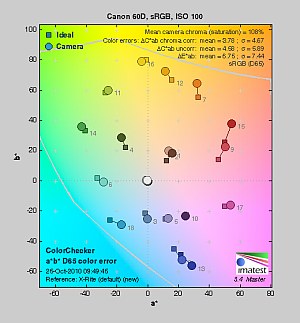 |
| In the diagram above, the squares show the original color, and the circles show the color that the camera captured. More saturated colors are located towards the periphery of the graph. Hue changes as you travel around the center. Thus, hue-accurate, highly saturated colors appear as lines radiating from the center. Click for a larger version. |
Saturation. The Canon 60D produces images with saturation slightly lower than its consumer sibling, the Rebel T2i but slightly higher than its big brother, the 7D. Like most cameras, the Canon 60D pushes reds, oranges, blues, dark browns and some purples and greens a bit. The camera also undersaturates aqua and cyan a bit. The overall saturation of 108% (8% oversaturated) is not too pumped yet not too dull. Most consumer digital cameras
produce color that’s more highly saturated (more intense) than found in
the original subjects. This is simply because most people like their color
a bit brighter than life.
Skin tones. Flesh tones shot with the Canon 60D appeared quite natural, with appropriate saturation levels and accurate color, though slightly on the cool side. When white-balance was adjusted to match the lighting, skin-tones were warmer, with a “healthy looking glow”. Good results here as well. Where oversaturation is most
problematic is on Caucasian skin tones, as it’s very easy for these “memory
colors” to be seen as too bright, too pink, too yellow, etc.
Hue. The Canon 60D’s hue accuracy is very good, just a hair more accurate than the 7D and T2i, and much better than average. There were the usual shifts in cyan toward blue, red toward orange, and orange toward yellow, but they are all pretty minor. (The cyan to blue shift is very common among the digital cameras we test; we think it’s a deliberate choice by camera engineers to produce better-looking sky colors.) Average “delta-C” color error was only 3.78 after correction for saturation, which is one of the best scores we’ve recorded to date. Hue is “what color” the
color is.
Picture Style
The Canon 60D offers six preset “Picture Style” options, plus 3 user defined ones. You can adjust Sharpness (0-7), Contrast (+/-4), Saturation (+/-4) and Color Tone (+/-4) for any of the settings. For B&W images, you can adjust Filter Effect and Toning Effect instead of Saturation and Color Tone.
| Picture Style Options | ||
|
|
||
Mouse over the links above to see the effect of the presets on our Still Life target. Click on a link to load the full resolution image.
Saturation Adjustment
As mentioned above, Canon 60D offers a total of nine saturation settings, four above and four below the default saturation. This covers a very wide range of saturation levels, about as wide a range as you’re likely to find photographically useful, apart from special effects that are arguably better achieved in software. As it should, the Canon 60D’s saturation adjustment affects only the saturation, leaving the contrast of the image more or less unaltered. (In some cameras, saturation tends to affect contrast, and vice versa.) The fine steps between settings mean you can program the camera to just the level of saturation you prefer. Well done.
| Saturation Adjustment Examples | ||||
 |
 |
 |
 |
 |
| -4 | -2 | 0 | +2 | +4 |
The table above shows alternate settings including the default as well as the two extreme saturation settings. Click on any thumbnail above, then click again to see the full-sized image.
Sensor
Exposure and White Balance
Indoors, incandescent lighting
Auto and Incandescent settings both struggle with household incandescent lighting, though Manual and 2,600 Kelvin white balance produced much more neutral images. Slightly higher than average exposure compensation required.
 |
 |
| Auto White Balance +0.7 EV |
Incandescent White Balance +0.7 EV |
 |
 |
| Manual White Balance +0.7 EV |
2,600K White Balance +0.7EV |
Indoors, under incandescent lighting, the Canon 60D’s Auto white balance setting really struggled to produce a decent-looking image, resulting in a strong reddish cast. Unfortunately, this is quite common among cameras we’ve tested, but disappointing nonetheless. The Canon 60D’s Incandescent setting did a little better, but the resulting image was still far too warm for our tastes. (Some may feel that it successfully conveys the warmth of the original lighting, but we’d personally like a more neutral treatment.) The Manual setting produced the most accurate results and the 2,600 Kelvin setting was pretty close, both being just slightly cool. The Canon 60D required a positive exposure compensation of 0.7 EV for this shot, which is slightly higher than the +0.3 EVÂ average among the cameras we’ve tested for this shot. (Our test lighting for this shot is a mixture of 60 and 100 watt household incandescent bulbs, a pretty yellow light source, but a very common one in typical home settings here in the U.S.)
Outdoors, daylight
Color and saturation are very good, though a tendency towards slightly cool color balance and slightly high contrast under harsh lighting. About average exposure accuracy.
 |
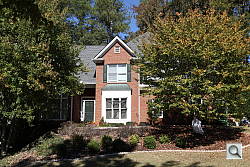 |
| Auto White Balance, +0.7 EV |
Auto White Balance, 0 EV |
Outdoors, the Canon 60D tended toward a slightly cool color balance, as you can see by the skin tones in the above left shot, though overall color was generally excellent. The Canon 60D performed about average in terms of exposure, requiring the typical amount of positive compensation we’re accustomed to seeing among digital cameras. The Canon 60D’s default contrast is a little high, producing some washed-out highlights and dark shadows under the deliberately harsh lighting of our “Sunlit” portrait test shown above left, though the camera’s contrast and highlight tone priority settings do help tame the highlights quite a bit. See below for examples of this. The Far-field House shot (above right) was also a touch cool, though exposure was fairly accurate, with some blown highlights in the white trim but very few lost shadows.
See full set of test images with explanations
See thumbnails of all test and gallery images
Resolution
Very high resolution, 2,000 ~ 2,100 lines of strong detail.
 |
 |
| Strong detail to 2,100 lines horizontal In-Camera JPEG |
Strong detail to 2,000 lines vertical In-Camera JPEG |
 |
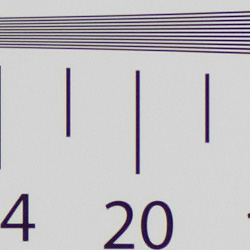 |
| Strong detail to 2,100 lines horizontal ACR Converted RAW |
Strong detail to 2,100 lines vertical ACR Converted RAW |
Our laboratory resolution chart showed the Canon 60D’s images with sharp, distinct line patterns down to about 2,100 lines per picture height horizontally and 2,000 lines vertically. (Some would doubtless argue for an even higher lines/picture height rating, but we judge the aliasing that appears shortly after 2,100 lines as an indication that 2,100 is about the limit of the camera’s true resolution.) Extinction of the pattern occurred at between 3,000 and 3,200 lines in both directions. Adobe Camera Raw converted .CR2 files, show slightly more vertical resolution than the in-camera JPEGs, though complete extinction of the pattern was extended well past 3,200 lines in the converted files. Use these numbers to compare with other cameras of similar resolution, or use them to see just what higher resolution can mean in terms of potential detail.
See full set of test images with explanations
See thumbnails of all test and gallery images
Sharpness & Detail
Good sharpness and loads of detail with a sharp lens. Some detail loss to noise reduction processing even at low ISOs, but surprisingly good for an 18-megapixel subframe sensor.
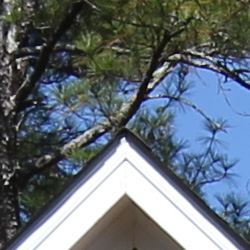 |
 |
| With default sharpening settings, the Canon 60D’s JPEG files show some minor sharpening artifacts. With its 18-megapixel resolution, this yields crisp-looking prints to quite large sizes. |
Subtle detail: Hair Noise suppression blurs detail in areas of subtle contrast, as in the darker parts of the model’s hair here. |
Sharpness. The Canon 60D’s 18-megapixel sensor captures loads of image detail when coupled with a good lens, though some minor edge-enhancement artifacts are visible around high-contrast edges, as shown in the crop above left. (The above crop of our Far-field House shot was taken with Canon’s very sharp 16-35mm f/2.8L II USMÂ lens at f/8.) Edge enhancement
creates the illusion of sharpness by enhancing colors and tones right at
the edge of a rapid transition in color or tone.
Detail. The crop above right shows some detail loss due to noise suppression, but less than we’re accustomed to seeing at this resolution. Very impressive for an 18-megapixel APS-C sensor. (The crop above of the hair taken with our very sharp Sigma 70mm f/2.8 reference lens.)Â Noise-suppression systems in
digital cameras tend to flatten-out detail in areas of subtle contrast.
The effects can often be seen in shots of human hair, where the individual
strands are lost and an almost “watercolor” look appears.
RAW vs In-Camera JPEGs
As mentioned above, the Canon 60DÂ does an excellent job of capturing sharp, detailed JPEGs when coupled with a sharp lens, but as is usually the case, slightly more detail can be preserved by carefully processing its RAW files.
|
|
|||
In the table above, mousing over a link at the bottom will load the corresponding crop in the area above, and clicking on the link will load the full resolution file. Examples include in-camera Fine JPEG, RAW file processed through Canon’s Digital Photo Professional (DPP) software using default settings, another DPP processed RAW file with additional sharpening in DPP, and finally, a RAW file processed through Adobe Camera Raw (ACR) version 6.3rc, then sharpened in Photoshop using 300% unsharp masking with an 0.3 pixel radius.
Canon’s DPP software produced very similar results to the in-camera JPEG, with perhaps just a a touch more detail. The image processed through ACR shows quite a bit more fine detail, but it also shows more noise at default settings. The Canon 60D is clearly a camera that carries a lot of data in its RAW files.
ISO & Noise Performance
Low noise and excellent detail at the lowest ISO settings; ISO 1,600 is very usable for average print sizes. Noise vs detail performance very good for the resolution.
|
Default High ISOÂ Noise Reduction |
||
 |
 |
 |
| ISO 100 | ISO 200 | ISO 400 |
 |
 |
 |
ISO 800 | ISO 1,600 | ISO 3,200 |
 |
 |
 | ISO 6,400 | ISO 12,800 |
The Canon 60D’s high ISOÂ performance is similar to the 7D and T2i, perhaps just slightly better than the later. EOSÂ 60D images are quite clean at ISOs 100 and 200, with just a bit luminance noise seen in the shadows. We start to see a very fine, tight “grain” pattern at ISO 400, but detail is hardly affected, though there is some subtle, blotchy chroma noise in deep shadows. The grain is slightly more evident at ISO 800, but detail remains very strong despite some minor blurring due to noise reduction. At ISO 1,600 we begin to see some moderate detail loss as noise reduction blurs subtly contrasting detail, as well as more evident chroma noise in darker areas, but results are still quite good. At ISO 3,200 noise grain becomes coarser and the blurring stronger, resulting in a more noticeable drop in detail. Noise and the effects of noise reduction really become apparent at ISO 6,400 and especially at ISO 12,800, with strong blurring, bright noise pixels and obvious chroma blotching. Overall, an excellent performance, particularly for a camera with an 18-megapixel APS-C size sensor. See the Print Quality section below for our evaluation of maximum print sizes at each ISO setting.
A note about focus for this shot: We shoot this image at f/4, using one of three very sharp reference lenses (70mm Sigma f/2.8 macro for most cameras, 60mm f/2.8 Nikkor macro for Nikon bodies without a drive motor, and Olympus Zuiko 50mm f/2.0 for Four Thirds and Micro Four Thirds bodies). To insure that the hair detail we use for making critical judgements about camera noise processing and detail rendering is in sharp focus at the relatively wide aperture we’re shooting at, the focus target at the center of the scene is on a movable stand. This lets us compensate for front- or back-focus by different camera bodies, even those that lack micro-focus adjustments. This does mean, though, that the focus target itself may appear soft or slightly out of focus for bodies that front- or back-focused with the reference lens. If you click to view the full-size image for one of these shots and notice that the focus target is fuzzy, you don’t need to email and tell us about it; we already know it. 🙂 The focus target position will simply have been adjusted to insure that the rest of the scene is focused properly.
Extremes: Sunlit and low light tests
Very high resolution with strong overall detail, but slightly high default contrast. Highlight Tone Priority and contrast adjustment options do a great job of dealing with tough lighting, though, and highlight and shadow detail are good even without them. Very good low-light performance, though metering struggled a bit at the lowest light levels.
 |
 |
 |
| +0.3 EV | +0.7 EV | +1.0 EV |
The Canon EOS 60D produced slightly high contrast with some washed-out highlights and deep shadows under the deliberately harsh lighting of the test above. However, highlight and shadow detail are actually pretty good. The model’s face was a little dim at the +0.3 EV setting, so we preferred the image with +0.7 EV of exposure compensation. This resulted in some clipped highlights in the shirt and flowers, mostly in the blue and red channels, but not as much as we’re used to seeing without some sort of dynamic range optimization setting (see below). Exposure compensation of +1.0 EV resulted in a too many clipped highlights for our tastes, though some shooters may prefer the later image for its brighter skin tones.
Because digital cameras are more like slide film than negative film (in that they tend to have a more limited tonal range), we test them in the harshest situations to see how they handle scenes with bright highlights and dark shadows, as well as what kind of sensitivity they have in low light. The shot above is designed to mimic the very harsh, contrasty effect of direct noonday sunlight, a very tough challenge for most digital cameras. (You can read details of this test here. In actual shooting conditions, be sure to use fill flash in situations like the one shown here; it’s better to shoot in open shade whenever possible.)
|
Highlight Tone Priority Example
|
|
 |
 |
|
Off (default)
|
On
|
|
Highlight Retention
|
|
|
Shadow Detail, R.H.S. Brightened in Photoshop
(Levels control, highlight slider down to 40) |
|
Highlight Tone Priority
The Canon 60D’s Highlight Tone Priority (HTP) option did an excellent job of preserving highlight detail, as shown above. Both shots above were captured at the same exposure, the only difference being that HTP was enabled for the shot on the right. (Which necessarily increases the ISO to 200; part of how HTP works.) The result is evident even in the histograms and thumbnails above; the full-size images clearly show the superior highlight preservation when HTP is enabled, while shadow detail is left relatively untouched. The right side of the Shadow Detail crops above have had their histogram levels adjusted equally in Photoshop to reveal the increase noise in the HTP-On case. The increase in noise is because the ISO is boosted from 100 to 200. Except in the very deepest shadows, though, overall noise is so low at ISO 200 that this is really a negligible trade-off for all but the most critical applications.
| Contrast Adjustment Examples | ||||
 |
 |
 |
 |
 |
| -4 | -2 | 0 | +2 | +4 |
The Canon 60D’s contrast-adjustment control also does an excellent job with very difficult lighting like this. It offers a very broad range of control in usefully fine gradations, and does a good job of adjusting contrast without affecting color saturation in the process. (As noted earlier regarding saturation adjustment, something that not all cameras manage to do.)
| Automatic Lighting Optimization Examples | ||
 |
 |
 |
| Low | Standard | High |
 |
||
| Off | ||
Automatic Lighting Optimization
Like the Rebel T2i and EOSÂ 7D, the Canon 60D offers three selectable levels of Automatic Lighting Optimization (ALO), plus Off. In fully automatic and Creative Auto exposure modes, ALO is automatically enabled. All four shots above were taken with the same exposure settings. As you can see, ALO has the effect of shifting shadows and mid-tones in the histograms to the right, lightening the overall image without clipping too many additional highlights. ISO is not boosted for ALO so increased noise is not an issue, though it may be slightly more visible in shadows that have been brightened.
| Face Detection | ||
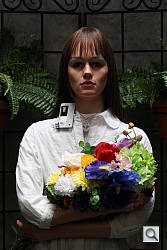 |
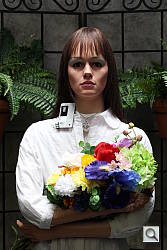 |
|
| Off at 0 EV | On at 0 EV | |
Face Detection
Just like most Point & Shoot cameras these days, the Canon 60D has the ability to detect faces in Live View mode, and adjust exposure and focus accordingly. As you can see from the examples above, it work well, as the image with face detection enabled is much better exposed for the face, even though both images were shot without any exposure compensation.
Because digital cameras are more like slide film than negative film (in that they tend to have a more limited tonal range), we test them in the harshest situations to see how they handle scenes with bright highlights and dark shadows, as well as what kind of sensitivity they have in low light. The shot above is designed to mimic the very harsh, contrasty effect of direct noonday sunlight, a very tough challenge for most digital cameras. (You can read details of this test here.)
| Â | 1 fc 11 lux |
1/2 fc 5.5 lux |
1/4 fc 2.7 lux |
1/8 fc 1.3 lux |
1/16 fc 0.67 lux |
1/16fc No NR |
|---|---|---|---|---|---|---|
| ISO 100 |
 2 sec f2.8 |
 4 sec f2.8 |
 8 sec f2.8 |
 16 sec f2.8 |
 32 sec f2.8 |
 32 sec f2.8 |
| ISO 200 |
 1 sec f2.8 |
 2 sec f2.8 |
 4 sec f2.8 |
 8 sec f2.8 |
 16 sec f2.8 |
 16 sec f2.8 |
| ISO 400 |
 0.5 sec f2.8 |
 1 sec f2.8 |
 2 sec f2.8 |
 4 sec f2.8 |
 8 sec f2.8 |
 8 sec f2.8 |
| ISO 800 |
 1/4 sec f2.8 |
 0.5 sec f2.8 |
 1 sec f2.8 |
 2 sec f2.8 |
 4 sec f2.8 |
 4 sec f2.8 |
| ISO 1600 |
 1/8 sec f2.8 |
 1/4 sec f2.8 |
 0.5 sec f2.8 |
 1 sec f2.8 |
 2 sec f2.8 |
 2 sec f2.8 |
| ISO 3200 |
 1/16 sec f2.8 |
 1/8 sec f2.8 |
 1/4 sec f2.8 |
 0.5 sec f2.8 |
 1 sec f2.8 |
 1 sec f2.8 |
| ISO 6400 |
 1/32 sec f2.8 |
 1/16 sec f2.8 |
 1/8 sec f2.8 |
 1/4 sec f2.8 |
 0.5 sec f2.8 |
 0.5 sec f2.8 |
| ISO 12800 |
 1/64 sec f2.8 |
 1/32 sec f2.8 |
 1/16 sec f2.8 |
 1/8 sec f2.8 |
 1/4 sec f2.8 |
 1/4 sec f2.8 |
Low light. The Canon 60D performed reasonably well on the low-light test, capturing bright images at the lowest light level (1/16 foot-candle), even with the lowest sensitivity setting (ISO 100). The camera’s exposure metering system struggled a bit at the lowest light levels, so Manual exposure mode was used here. As you can see by the linear progression of shutter speeds compared to light level, exposure was very predictable and consistent once a baseline was established. As expected, noise increases as ISO goes up and light levels go down, but noise remains remarkably low up to ISO 1,600. At ISO 3,200 and above, noise is higher and a few bright pixels appear, but there is very little of the horizontal banding that we saw in the 50D’s low light images. Color balance was pretty neutral with Canon 60D’s Auto white balance setting (just a touch cool), even at high ISOs, though at lower light levels white balance became a little warm with a reddish tint.
The Canon 60D’s phase-detect autofocus system was able to focus on the subject down to below the 1/16 foot-candle light level unassisted, and in complete darkness with the AF assist enabled. The Canon 60D performed slightly better than the 7D and T2i in this regard. In Live View mode, the 60D’s contrast-detect autofocus was able to focus down just below the 1/4 foot-candle level without assistance. That’s fairly typical for contrast-detection AF on an SLR.
As always, keep in mind that the longer shutter speeds here demand the use of a tripod to prevent any blurring from camera movement. (A useful trick is to just prop the camera on a convenient surface, and use its self-timer to release the shutter. This avoids any jiggling from your finger pressing the shutter button, and can work quite well when you don’t have a tripod handy.)
How bright is this? The one foot-candle light level
that this test begins at roughly corresponds to the brightness of typical
city street-lighting at night. Cameras performing well at that level should
be able to snap good-looking photos of street-lit scenes.
NOTE: This low light test is conducted with a stationary subject, and the camera mounted on a sturdy tripod. Most digital cameras will fail miserably when faced with a moving subject in dim lighting. (For example, a child’s ballet recital or a holiday pageant in a gymnasium.) Digital SLRs like the Canon 60D do much better than point & shoots, but you still shouldn’t expect a quick autofocus lock with moving subjects.
Output Quality
Print Quality
Excellent prints at 24×36 from ISO 100 and 200; ISO 3,200 shots look good at 11×14; ISO 12,800 images make a good 4×6.
ISO 800 images still look good at 16 x 20 inches. At 20 x 30 we begin to see slight chroma noise in the shadows, and some softening in the reds and other finely detailed areas.
ISO 1,600 shots look quite good at 13 x 19 inches, with only minor noise apparent in some shadowy areas.
ISO 3,200 prints look good and crisp at 11 x 14, again with only minor noise in some flatter areas.
ISO 6,400 images are usable at 8 x 10 inches, though the red swatch is now a foggy blur, while the rest of the image is reasonably sharp. The shadows have slight luminance and chrominance noise. All of this, except for the red swatch, becomes negligible at 5 x 7 inches.
ISO 12,800 make a very usable 5 x 7 inch print, but with noisy shadows. Reducing the image size to 4 x 6 produces a very nice print, however.
Overall, the Canon EOS 60D produces some amazing prints at all ISO ratings, with good color and great detail, and this is only at JPEG with standard noise suppression active. RAW images should deliver considerably more resolution and higher quality when processed with good software.
Testing hundreds of digital cameras, we’ve found that you can only tell just so much about a camera’s image quality by viewing its images on-screen. Ultimately, there’s no substitute for printing a lot of images and examining them closely. For this reason, we now routinely print sample images from the cameras we test on our Canon Pro9000 Mark II studio printer, and on the Canon Pixma MP610 here in the office. (See the Canon Pixma Pro9000 Mark II review for details on that model.)
Viewfinder
Canon EOS 60D Optical Viewfinder
Within the viewfinder display is an array of available AF points, as well as a lower information readout reporting basics such as exposure compensation, exposure settings, flash mode, focus status, etc. See below illustration (courtesy of Canon USA) for details.
Compared to the Canon 50D, the 60D’s viewfinder display adds a battery indicator at bottom left. It also allows display of roll in the same position ordinarily used for the exposure level indicator, using information from the electronic level sensor. Otherwise, the optical viewfinder information is identical.
Focusing Screens. As with the 40D and 50D before it, the EOS 60D has two optional screens available. The first screen shown below is the standard screen that comes with every 60D. The second offers a grid for setting alignment, and the third is what Canon calls Super Precision Matte, which is meant for lenses with maximum apertures under f/2.8. This latter screen will allow for more precise focusing when used with these faster lenses, but it will darken if used with slower lenses. The two optional screens are priced at $45 each.
| Ef-A: the standard screen | Ef-D: the grid | Ef-S: Super Precision Matte |
Viewfinder Test Results
Accuracy
Good accuracy from the optical viewfinder, excellent accuracy from the LCD in Live View mode.
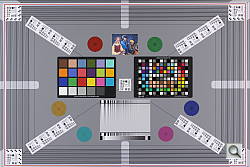 |
 |
| 70mm, Optical | 70mm, LCD Live View |
The Canon 60D’s optical viewfinder proved fairly accurate, showing just over 96% coverage. This is slightly above average coverage for a non-professional digital SLR, and exceeds Canon’s specification of 96%, though we noticed a small vertical shift and a very slight tilt to the viewfinder image compared to the image captured by the sensor. Live View mode coverage using the LCD monitor was very accurate, at almost 100%, and of course there was no offset or tilt.
Live View
Canon 60D Live View
The Canon 60D’s Live View mode feature set is comprehensive, and the display offers a lot of information such as current settings, exposure, and composition aids (see illustration below, courtesy of Canon USA). The Canon 60D groups settings related to Live View shooting in Record Menu 4, as does the EOS 7D. It’s a much more logical location that that used by the EOS-1D Mark IV, 5D Mark II, and recent Rebel-series models, all of which hide these options in a separate Live View / Movie menu accessed through Setup Menu 2. Several options are duplicates of those in the Movie menus, and so if they’re changed in one menu, the equivalent variable will be changed on return to the other menu.
A nice feature of Canon’s Live View mode is that it doesn’t immediately stop the live view feed when you entre the camera’s menu system, or switch between operating modes. Some rival cameras will immediately terminate the live view stream and drop the camera’s mirror in either instance, causing unnecessary wear and tear on the mirror and shutter mechanisms if you were intending to immediately continue live view shooting. The Live View mode also includes a greatly abbreviated equivalent of the Quick Control menu screen that’s available when shooting using the viewfinder, accessed using the rear-panel Quick Control button. Instead of filling the screen, it is shown as a single column of icons at the left of the LCD display, and allows adjustment of AF mode, Drive mode, White Balance, Picture Style, Auto Lighting Optimizer, Image Quality / Size, and Flash Exposure Compensation, as well as selection of the active AF point if using Quick mode autofocus.
The 60D’s Live View mode offers three autofocus modes, selected through the Live View function settings screen or Quick Control menu: “Quick mode,” which employs the camera’s dedicated phase-detection sensor, as it would when using the optical viewfinder, plus two contrast-detection autofocus types — “Live mode” and “Face Detection Live mode” — which both operate on data streamed from the image sensor itself. Face Detection Live mode can detect multiple faces in the frame, but only selects (and indicates) one face on which the camera will set focus and exposure. The selected face can be changed by pressing the left and right arrow keys to jump through the detected faces in either direction. The contrast detection modes are slower than phase-detection focusing, but don’t require the mirror briefly drop to redirect light to the phase-detection AF sensor, which interrupts the live view display in Quick mode. The contrast detection modes can also be more accurate, and allow the AF point to be positioned anywhere within the image frame (except for the extreme edges), rather than being limited to the 60D’s nine fixed AF points. On the flip side, Quick mode AF can be noticeably faster, even when taking account of the time to cycle the mirror, especially when shooting in low-light or with low-contrast subjects. Quick mode is also better suited to moving subjects, which can make it challenging to achieve a focus lock using contrast detection AF.
If you want to be doubly sure of the precise point on which the camera focused using Quick mode AF (since the live view feed ceases during focusing), you can bring your eye to the viewfinder during the AF operation. Even though you’re framing images using the LCD display, the viewfinder becomes visible with the mirror dropped for focusing, and the active AF point(s) are still indicated for the brief time that the optical view is available.
Manual focus is also supported in live view mode, and includes either 5x or 10x image magnification to assist. In Live View mode, evaluative metering is always used to determine correct exposure, though exposure compensation is available. The optional Exposure Simulation function will attempt to recreate the exposure level that would be obtained with your current settings on the LCD display. This may raise noise levels of the live view feed beyond what could be expected in the final image, since it must operate with a fast enough shutter speed to achieve its required refresh rate. The aperture also remains open by default, and so the exposure simulation doesn’t indicate the areas in focus until you press the Depth-of-Field Preview button adjacent to the lens mount. Exposure Simulation will attempt to continue even with depth of field preview active, though this may raise the live view noise levels even further. If you pass outside the range where the live view feed can simulate your exposure, the “Exp. Sim” icon near the bottom right of the LCD will blink, as a warning. You can also disable exposure simulation, if you merely want a clear live view feed with which to judge focus and framing, without being shown the effect of your exposure variable choices.
Three Silent Shooting mode choices are offered, which attempt to reduce the noise produced by the EOS 60D during live view exposure capture. (Of course, if you want to use phase detection autofocusing with live view, the mirror-slap noise this entails can’t be avoided.) Silent Mode 1 is the default, and uses an electronic shutter to initiate the exposure, thereby removing the noise of cocking and operating the first shutter curtain, with only the second shutter curtain being physically operated to complete the exposure. Silent Mode 2 does the same, but also delays reopening of the second curtain, and the process of recocking that shutter curtain. Of course, it also delays resumption of the live view feed until the shutter button is released. This physically separation of the shutter curtain operation noises does definitely reduce perceived noise even further, but prevents use of continuous shooting altogether. Finally, the Disable mode is used for shooting with an extension tube, or for vertical shift images with a TS-E lens. Here, both physical shutter curtains are used, preventing incorrect or irregular exposures, but yielding the most operation noise, since both shutter curtains must be cocked and fired, along with the mirror being raised before the exposure starts, and dropped again to resume the live view feed.
You can enable one of two different overlays, which divides the screen with either a 2×2 grid, or a 5×3 grid, useful for precise image framing. You can also specify how long the camera’s metering system should remain active without user interaction, within a six-step range from four seconds to thirty minutes. It’s overruled by the Auto Power Off function, so whichever timer is shorter will apply. You can also select from one of four different aspect ratios for live view shooting, and the EOS 60D indicates the area of the live view feed that will be cropped from the final image by applying heavy blue lines across the LCD at the relevant points. For JPEG images, only the area within these lines is capture. If shooting with raw images, these will still contain the entirity of the sensor data, but will be tagged with the aspect ratio. The actual cropping is then performed when the raw images are processed, enabling you to revert the cropping after the fact, should you change your mind. Finally, Live View shooting can be disabled altogether if you don’t use it, preventing the mode being accidentally triggered by bumping the Movie / Live View button.
The EOS Utility software (included with the camera) allows you to shoot remotely via USBÂ connection while viewing the Live View image on your computer. You can also display the Live View image on a TV via the provided A/V cable or on an HDTVÂ with an optional HDMI cable. The Canon 60DÂ comes equipped with a temperature sensor, and if the internal temperature exceeds an undisclosed threshold, Live View will be disabled to protect internal circuitry from overheating. A high temperature icon is displayed on the LCDÂ monitor to warn the user that image degradation may be occurring, and that the camera may disable Live View until normal operating temperature is restored.
Like a larger version of the optical viewfinder display, the Live View display reports the exposure information along the bottom of the screen, with additional settings and information overlaid to the left and right, as well as the selected focus area(s). The amount of information displayed can be varied by pressing the INFOÂ button, toggling through five display modes — image only, image plus basic exposure information, image plus detailed exposure information, image plus detailed exposure information and either an RGB or luminance histogram, and finally image plus basic information and a single axis (roll) electronic level gauge. This last is similar to that which is available on the rear panel LCD when shooting with the optical viewfinder, but takes up a much smaller area of the screen, so as to detract less from framing your image.
| Canon 60D Live View options | |
|
The Canon 60D offers a comprehensive set of options for Live View mode, enough to warrant its own page in the Record menu. |
Varying amounts of information can be displayed in Live View mode. Pressing the INFOÂ button adds information in stages, starting with no information, a display with minimal information across the bottom, another with more info overlaid on the left and right sides, and yet another with an added RGB or luminance histogram, depending on which is selected in Playback Menu 2. Finally, there’s a display with basic information and a single-axis electronic level. (Unfortunately neither the histogram or level are movable, and so they unfortunately obscures a good portion of the display.) |
|
A 2×2 grid can be overlaid to aid composition or alignment. |
An alternate 5×3 grid overlay option (Grid 2) is also available. |
|
The 60D’s Live View mode offers an abbreviated equivalent of the Quick Control menu, accessed using the same Quick Control button as when shooting with the optical viewfinder. The vertical arrow keys select which option to adjust, while either dial or the horizontal keys makes the adjustment. The set key will call up a menu showing all available selections for one specific option. |
Here, the effect of changing exposure by adjusting the shutter speed is simulated. (Note that this particular animation comes from our Rebel T2i review, but the function operates similarly on both cameras.) |
|
A white box at the center of the live view feed. indicates the area that can be enlarged to aid in manual focusing or confirmation of precise autofocus, and can be moved around the image frame (except to extreme edges). Pressing the zoom button magnifies what’s in the magnifying frame by 5x. Pressing the zoom button again zooms in to 10x, great for checking critical focus, or for manually focusing. Once zoomed in, you can move the magnified area around in the box, using the legend at bottom right as a guide. If “Face Detection Live AF” mode is enabled, magnifying the image is not possible, though you can always check critical focus by magnifying the captured image, or temporarily switching to Manual focus mode. |
The Canon 60D offers four aspect ratio choices in live view shooting: the native 3:2 aspect ratio of the image sensor, plus 4:3, 16:9, and 1:1 aspect ratios. The extent of these latter three modes are indicated by blue bars across the live view feed, and in JPEG images, only the area between the blue bars is saved. For raw images, the entire frame is saved and the header tagged with the aspect ratio. The cropping is then performed when the raw file is processed, allowing you to change your mind if your framing isn’t perfect.
|
Video
Check out the links below for more sample images, videos and image quality analysis:
-
Canon EOS 60D Optics page
(Crops from images shot with the camera’s kit lens, if sold as a kit) -
Canon EOS 60D Sample Images page
(Index to all standard test shots, with explanations) -
Canon EOS 60D Thumbnails page
(Thumbnails of all shots, including RAWs, with EXIF data) -
Canon EOS 60D Gallery page
(Regular photos taken with the Canon EOS 60D)
Canon 60D Video Recording
High-definition video capture has become commonplace in digital SLRs across the board, all the way from models aimed at amateurs and the budget-conscious to those intended for professional use. The precise feature set on offer varies widely, however, and along with this the utility of video capture for a variety of purposes.
The Canon EOS 60D offers an unusually robust feature set that gives the photographer plenty of control over both the video and audio portions of movie capture. Both shutter and aperture are available for manual control, and the 60D also provides multiple frame rate options, including three that match HD television timing specs. It’s also possible to capture sound from an external microphone, as an alternative to the internal monaural mic, and even to control audio recording levels manually, a very useful but equally rare capability among current video-capable DSLRs. Like most digital SLR video modes, the Canon 60D doesn’t allow continuous autofocus during video recording, but it does offer the ability to perform single AF operations, albeit with AF noise clearly picked up by the 60D’s internal microphone.
Canon EOS 60D Video: Image Size, Frame Rate, and Encoding
Video capability. The Canon EOS 60D offers three resolution levels for video recording, with various frame rates available depending on encoding and resolution.
The Canon 60D’s all-new CMOS sensor records high definition video at a maximum resolution of 1,920 x 1,088 pixels with a 16:9 aspect ratio — approximating what’s sometimes referred to as “Full HD”, or 1080i/1080p, although it actually includes 8 extra rows of pixels beyond the standard 1,920 x 1,080. Both NTSC modes of 23.976 or 29.97 frames/second and PAL modes of 23.976 or 25 frames/second are available at full resolution. The full resolution can be downsampled in-camera to produce 1,280 x 720 (720p) resolution movies, with the NTSC mode using 59.94 frames/second, and the PAL mode offering 50 frames/second. Finally, a standard definition 4:3 aspect ratio mode captures 640×480 pixel (VGA) movies, again with 59.94 frames/second in NTSC or 50 frames/second in PAL. The numerous different frame rates match various broadcast television formats etc., removing the need to transcode to the intended output frame rate after capture.
Individual movie clips captured by the Canon EOS 60D are limited to a maximum of 29 minutes, 59 seconds, thanks to European tax regulations, although as it turns out, the 4GB limit on video file sizes will in practice restrict you to shorter movie clips anyway. The Canon 60D records its movies as .MOV files using variable bitrate MPEG-4 AVC / H.264 compression, which is much more conservative of memory card space than the Motion JPEG format used by some cameras, and avoids some of the severe image quality loss suffered by AVCHD cameras when faced with significant amounts of change in image content between frames. (AVCHD uses a subset of the H.264 standard, among other things mandating a limit in recording bandwidth, which translates into a lesser ability to convey rapidly-changing detail.) The choice of H.264 comes with the requirement of greater processing power, though — not only from the camera when recording, but also when playing back or editing videos. The more sophisticated encoding used in the H.264 standard requires quite a bit of processor power to pull it apart and put it back together again, so frame-accurate editing of H.264 requires a fast processor and capable editing program.
Here’s a list showing what to expect for file sizes with the Canon EOS 60D’s video recording:
|
Canon 60D Video Options
|
||||
|---|---|---|---|---|
|
H.264 Format (.MOV file container)
|
||||
|
Resolution
|
Encoding
|
Frame Rate
|
Clip Length
|
File Size
|
|
1,920 x 1,088 |
NTSC |
24p (23.976 fps)
|
29 minutes, |
~330 MB/min
|
|
NTSC |
30p (29.97 fps)
|
|||
|
PAL |
24p (23.976 fps)
|
|||
|
PAL |
25p (25 fps)
|
|||
|
1,280 x 720 |
NTSC |
60p (59.94 fps)
|
29 minutes, |
~330 MB/min
|
|
PAL |
50p (50 fps)
|
|||
|
640 x 480 |
NTSC |
60p (59.94 fps)
|
29 minutes, |
~165 MB/min
|
|
PAL |
50p (50 fps)
|
|||
Canon recommends using an SD card with at least a Class 6 rating to capture and playback movies.
Here are some examples of video from the Canon EOS 60D, showing typical results under daylight conditions.
|
Canon EOS 60D Video Samples
|
|
|---|---|
|
|
|
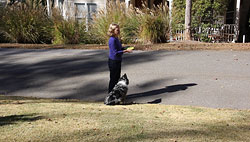 |
 |
 |
 |
Canon EOS 60D Video-Mode Focusing
Unlike some other video-capable digital SLRs, the Canon EOS 60D offers autofocusing during video recording, but it’s only available in single servo mode. You can trigger a contrast-detect AF cycle either before or during a recording by pressing the AF-On button, or optionally, by half-pressing the shutter button. Depending on the lens and microphone in use, and the degree of focus adjustment required, AF noise is likely to be picked up on the audio track. (With the 18-135mm kit lens, and the 60D’s internal microphone, AF noise is audible as a high-pitched whine.) You can also manually focus the lens during a recording, and the true manual operation of AF on Canon’s lenses means you can do this more or less silently, simply by being careful about turning the focus ring. (Some cameras use “fly by wire” focusing, whereby the focus ring only instructs the camera to move the lens elements rather than moving them directly via a mechanical coupling. This can mean that small clicks are heard on the audio track every time the focus setting is changed, regardless of how slowly you turn the focus ring. With true manual operation of its lenses, the Canon EOS 60D doesn’t have this problem, although it’s possible that third-party or older Canon lenses might produce audible noise while their focus was adjusted.)
As we’ve noted in other SLR reviews, the good news with focusing for video is that you can get surprisingly good depth of field in video mode by stopping the lens down, thanks to the relatively low resolution of the video image, something that’s possible with the 60D if you’re also happy to manually set the shutter speed. (ISO sensitivity can still be controlled either automatically or manually, so it’s still possible to let the camera handle the overall exposure level, while manually specifying the aperture and shutter speed.) With a pixel resolution of only 2.1 megapixels in the Canon EOS 60D’s highest-resolution 1080p Full HD mode, 0.9 megapixels in 720p HD mode, and just 0.3 megapixels in VGA mode, images that would be unacceptably blurred as 18 megapixel still shots look perfectly fine as video frames. This not only provides greater depth of field at any given aperture, but is also more forgiving of diffraction limiting at very small lens apertures. Diffraction at small apertures means you’d usually want to avoid f/16 or f/22 for still images, but again, the results generally look perfectly fine at video resolutions. Bottom line, with the EOS 60D’s lens set to f/16 or f/22 (assuming you’re shooting under fairly bright conditions), you’ll be surprised by how little focus adjustment is needed during a typical video recording. An example can be seen at the end of the video samples table above.
Note that if shooting with manual exposure and manual sensitivity, and your exposure level is too low for contrast detection AF, the 60D will automatically raise the exposure level sufficiently to allow AF, then drop it once the operation is complete. This sudden increase in brightness can be extremely noticeable in your recorded video.
|
Canon EOS 60D Depth of Field Control
|
|
|---|---|
 |
 |
Canon EOS 60D VGA Movie Crop
The Canon 60D’s movie mode inherits an option previously seen on the consumer-class Rebel T2i, namely the VGA Movie Crop function, and at the time of this writing, we believe it to still be unique among SLR and SLD movie modes from any brand. The Movie Crop function aims to solve a problem faced by consumers: expensive telephoto lenses generally carry hefty price tags that place them far out of reach of the casual amateur. Ordinarily, the Canon 60D’s movies are recorded using data from across the image sensor area. With Movie Crop mode enabled, however, the 60D instead crops only the centermost pixels from its sensor data for recording, and discards the rest. The feature is only available when recording at VGA (640 x 480 pixel) resolution, and yields an effective 7x magnification.
There’s no free lunch, of course. While magnifying your subject to bring you close to the action, the Movie Crop mode also magnifies image defects. Since lens defects are generally most prominent towards the corners, the crop mode avoids the worst of these issues by using the sweet spot at the center of the lens. The effects of focus errors, diffraction limiting, and high ISO noise can prove another matter entirely. Videos shot in the VGA Crop mode are decidedly soft compared to the standard VGA mode, and can quickly get noisy if ambient lighting isn’t ideal. For consumers and enthuisiastic amateurs, though, such defects will likely prove relatively acceptable, when compared to the cost of obtaining a lens of equivalent focal lengths.
Canon EOS 60D Video Exposure Control
Many video-capable SLRs only offer automatic exposure in their movie modes, but the Canon EOS 60D gives you a choice of either automatic or manual exposure modes. In Auto mode, the camera adjusts the shutter speed and aperture as needed for a correct exposure, keeping things simple. 3.0EV of exposure compensation is available in 1/3 EV steps, to ensure exposure is as intended. Auto exposure mode is the default when you first place the Mode dial in the Movie position, and Manual mode is accessed from the Movie Exposure option in Movie Menu 1.
In Manual mode, simultaneous control of both the shutter speed, aperture, and (optionally) the ISO sensitivity is possible. ISO can be set either in 1/3 EV or 1 EV steps, adjustable through the ISO Speed Setting Increments option in Movie Menu 1. The ability to control depth of field or freeze action is very useful, giving you significantly more creative control over your videos. (Given the slow default shutter times of most video-capable digital SLRs, the 60D included, a higher shutter speed to freeze fast motion is almost a necessity for good-quality video of anything moving.) Note, though, that although you can control shutter speed, this doesn’t prevent the so-called “Jello effect”, more properly known as rolling shutter artifacts. Like other digital SLRs, the progressive manner in which the Canon 60D clocks data off its sensor means that sudden camera or subject movements can cause distortion, although this is less of an issue for the 60D than in some cameras.
The Canon 60D’s movie menus also allows you to enable or disable Highlight Tone Priority, and to set the Auto Lighting Optimizer function to Disable, Low, Standard, or Strong. The two functions can’t be used together, and when enabled, Highlight Tone Priority restricts the ISO sensitivity range to ISO 200 – 6,400 equivalents. Highlight Tone Priority for movies works in much the same manner as it does for stills, by bumping the 60D’s ISO up one notch, and then only half-filling the sensor’s pixels with charge during the exposure. This is coupled with an altered tone curve to prevent loss of highlight detail, albeit at the expense of increased noise levels in shadows and mid-tones. Auto Lighting Optimizer functions at the other end of the scale, adjusting the tone curve so as to open up shadows. Picture styles and white balance can also be set for video recording, in much the same manner as for still images.
|
Canon EOS 60D Low-Light Shooting
|
|---|
|
|
|
1,920 x 1,088, 24fps
Programmed Exposure, f/5.0, ISO 3,200 1 foot-candle (roughly equivalent to city street lighting at night) (14 seconds, 79.4 MB) |
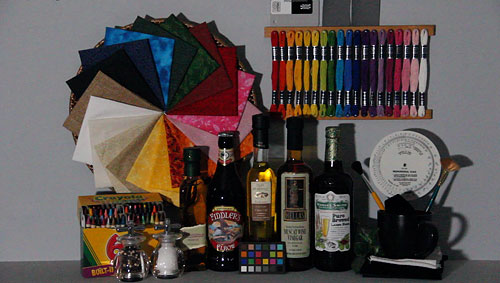
Canon EOS 60D Video: Audio recording
External Mic. The EOS 60D’s Mic jack resides on the camera’s left side under a rubber panel, alongside the camera’s other various connectors.
Like most competing SLRs with video recording capability, the Canon 60D sports an internal monaural microphone that can record an audio track. Internal mics are somewhat problematic, though, in that they’re prone to picking up noise produced by moving your hands on the camera or actuating any controls while recording. We haven’t noticed pronounced differences in how much camera-handling noise various models’ internal mics pick up; the Canon 60D’s seems fairly typical in that regard. In a big bonus for serious video users, the Canon EOS 60D also sports a microphone jack under a rubber flap on its left side, to which you can attach an external stereo microphone.
To assist in setting levels, the 60D provides a stereo levels gauge, as shown in the screenshot above left. 64 levels of adjustment are available, and the recommended procedure when setting levels manually is to watch the gauge for a short period, adjusting levels so that the -12dB mark is reached only occasionally, and the 0dB mark is never exceeded. Of course, you can also let the 60D set levels automatically, in which case it behaves like most other video-capable DSLRs on the market. The same menu provides an optional wind filter which reduces low-frequency noise levels, and also allows audio recording to be disabled entirely through an option in Movie Menu 2.
Canon EOS 60D Movie Recording User Interface
The Canon EOS 60D’s video mode is accessed via a dedicated position on the camera’s mode dial. A Live View / Movie button to the right of the viewfinder is used to start and stop recording when the Mode dial is in the Movie position, and acts as a Live View button in other modes. Setting adjustments in movie mode are made via three dedicated Movie menus, which are only available when the camera is in Movie mode. Still images can be captured in Movie mode, interrupting the movie for about 1 second, by pressing the Shutter button. Autoexposure is used, unless manual exposure is chosen. Flash is not supported. It’s possible to enable or disable autofocus using the Shutter button, and to assign a number of options to the shutter, AF-On and AE-Lock buttons, through Movie Menu 1. (The list of options mirrors that for still image shooting, and is detailed in full on the Modes & Menus page.)
In Playback mode, the Canon 60D allows you edit out or trim the first and/or last scenes of a movie, in one second increments. You can save the trimmed movie to a new file (if there is space on the card), or choose to overwrite the original. Movies can be played back at normal speed, or in slow-motion, with adjustable playback frame rate. There are “VCR” like controls for advancing to the next or last frame, or playing from the previous or first frame.
Computer Requirements for Viewing HD Video
A typical computer these days has little trouble dealing with still images, but high-definition video can be another matter. Depending on the file format involved, it can take a pretty beefy computer to handle HD-resolution video playback without stuttering or dropping frames. The AVC / H.264 image compression used by the Canon EOS 60D is one of the more compute-intensive formats, and its 1,920 x 1088 (1080p) resolution means there’s a lot of data in each frame to deal with at full resolution. The net result is that you’ll want a relatively recent and powerful computer to play full-res high-def video files from the EOS 60D on your computer. At lower resolutions, the requirements will be more modest. We found that we could run the 60D’s video acceptably at half size on an older G5 Power Mac with dual 2.3GHz processors, so long as nothing else was running simultaneously, so it definitely seems less processor intensive than full HD video from many other cameras, including some using Motion JPEG compression.
You can of course view your movies on a TV, either via the composite A/V Output, or on an HDTV via the HDMI output. Both terminals cannot be used simultaneously.
Flash
Canon EOS 60D Flash
The Canon 60D’s built-in flash has a guide number rating of approximately 43 feet (13 meters) at ISO 100, translating to a range of about 12 feet at ISO 100 with the optional kit lens at wide-angle (at f/3.5) and about 7.5 feet at telephoto (at f/5.6). The Canon 60D gives you a lot of control over flash exposure, allowing you to adjust flash and ambient exposure independently of each other, in one-half or one-third EV increments. This makes it easy to balance flash and ambient lighting for more natural-looking pictures. The Canon 60D also uses E-TTL II control for both the built-in and compatible external flashes, a standard that promises, and seems to deliver, better, more balanced exposures. (TTL refers to “Through The Lens” metering.) A manual flash mode is also available, letting you set the output level from 1/128 to full power.
Another nice touch is the Canon 60D’s Flash Exposure Lock button, which fires the flash under manual control before the actual exposure, to determine the proper exposure setting. This struck us as very handy, akin to the more conventional autoexposure lock function for handling difficult ambient lighting conditions. A Flash Exposure Compensation feature controls the flash exposure +/- 3 stops in 1/2 or 1/3-stop increments.
As you’d expect, there is a dedicated flash hot-shoe on the Canon 60D’s pentaprism housing, for use with external flash units. Like most non-professional SLRs, the Canon 60D offers no PC-Sync connector for triggering studio strobes, etc. Maximum flash x-sync speed is 1/250-second.
Several other impressive features of the Canon flash system depend on the dedicated 430EX II and 580EX II Speedlites. Among these is true FP (focal plane, referred to as HS) flash sync. FP sync requires a flash unit to provide uniform light output for a relatively long period of time, long enough for the focal plane shutter curtain to fully traverse the sensor plane. Uniform, long-duration flash pulses like this permit use of shutter speeds as high as the 1/8,000-second maximum that the Canon 60D is capable of. This can be invaluable when you want to exclude ambient light from the exposure, or when using fill flash in bright conditions with a large aperture.
Flash Test Results
Coverage and Range
A fairly powerful built-in flash, with somewhat narrow coverage and inconsistent exposure. Average positive exposure compensation required.
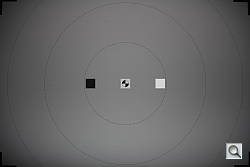 |
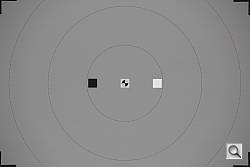 |
| 18mm @ f/3.5 PICÂ On |
135mm @ f/5.6 PICÂ On |
 |
 |
| Normal Flash +0.7 EV |
Slow-Sync Flash +0.3 EV |
Coverage. Canon rates the EOS 60D’s internal flash coverage at approximately 17mm, though as you can see in the top left shot, we’ve found manufacturers’ coverage ratings are usually quite optimistic. Coverage is much more even at full telephoto. (Some of the corner-shading seen above is due to the 18-135mm kit lens itself, so we took these shots with Peripheral Illumination Correction set to On to see how much is related to flash coverage.)
Exposure. Indoors, under incandescent background lighting, the Canon 60D’s flash performed quite well, requiring an average amount of positive exposure compensation of +0.7 EV for a bright image. The camera’s slow-sync flash mode only required +0.3 EV exposure compensation for bright results, though the longer shutter time results in a warmer cast from the ambient background lighting.
| Flash Range: Wide Angle | |||||
|---|---|---|---|---|---|
| 6 ft | 7 ft | 8 ft | 9 ft | 10 ft | 11 ft |
 1/64 sec f3.5 ISO 100 |
 1/64 sec f3.5 ISO 100 |
 1/64 sec f3.5 ISO 100 |
 1/64 sec f3.5 ISO 100 |
 1/64 sec f3.5 ISO 100 |
 1/64 sec f3.5 ISO 100 |
| 12 ft | 13 ft | 14 ft | 15 ft | 16 ft | |
 1/64 sec f3.5 ISO 100 |
 1/64 sec f3.5 ISO 100 |
 1/64 sec f3.5 ISO 100 |
 1/64 sec f3.5 ISO 100 |
 1/64 sec f3.5 ISO 100 |
|
| Flash Range: Telephoto | |||||
|---|---|---|---|---|---|
| 6 ft | 7 ft | 8 ft | 9 ft | 10 ft | 11 ft |
 1/64 sec f5.7 ISO 100 |
 1/64 sec f5.7 ISO 100 |
 1/64 sec f5.7 ISO 100 |
 1/64 sec f5.7 ISO 100 |
 1/64 sec f5.7 ISO 100 |
 1/64 sec f5.7 ISO 100 |
| 12 ft | 13 ft | 14 ft | 15 ft | 16 ft | |
 1/64 sec f5.7 ISO 100 |
 1/64 sec f5.7 ISO 100 |
 1/64 sec f5.7 ISO 100 |
 1/64 sec f5.7 ISO 100 |
 1/64 sec f5.7 ISO 100 |
|
ISO 100 Range. The Canon 60D’s flash was fairly powerful, though its output was sometimes inconsistent. With the kit lens’ maximum 18mm wide-angle setting, the flash range test shots showed slightly dim results at 6 feet and brightness actually started increasing with distance, but there was no appreciable falloff in brightness until about 12 feet. At full telephoto (135mm), flash intensity again started out a little dim, then got brighter at 7 and 8 feet before falling off at about 9 feet.
| Manufacturer-Specified Flash Range | |
|---|---|
| Wide Angle | Telephoto |
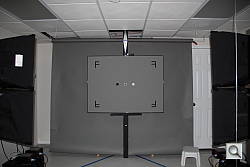 12.3 feet ISO 100 |
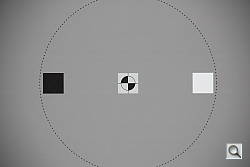 7.7 feet ISO 100 |
Manufacturer Specified Flash Test. The Canon 60D’s built in flash has a rated Guide Number of 13 meters or 43 feet at ISO 100. That works out to 12.3 feet at f/3.5 and 7.7 feet at f/5.6, the maximum apertures of the 18-135mm kit lens. In the shots above, we can see that the Canon 60D’s flash struggles to perform to specification at wide-angle, producing a somewhat dim image that was underexposed by about 1/2 EV. At full telephoto however, result were bright and were actually slightly overexposed, by about 1/3 EV.
Note: Our standard test method for flash range uses a fixed setting of ISO 100, to provide a fair basis of comparison between cameras. We’ve now also begun shooting two shots using the manufacturer-specified camera settings, at the range the company claims for the camera, to assess the validity of the specific claims.
High ISO Noise Reduction
Canon EOS 60D High ISO Noise Reduction
The Canon 60D offers four settings for noise reduction: Disable, Low, Standard and Strong, and NR is applied at all ISOs in JPEGs. Its different noise-reduction settings also allow you quite a bit of flexibility in choosing how you want to make the trade-off between subject detail and noise levels. It’s not clear that the “Disable” setting truly eliminates the noise processing altogether, but it is true that it leaves a lot of fine/subtle subject detail there for you to work with. The combination of shooting with NR “disabled” and using a good noise-filtering program after the fact can produce very clean images with lots of fine detail in them.
See for yourself how the noise reduction works under both daylight and tungsten-balanced lighting. Click on any of the crops below to see the corresponding full-sized image.
| High ISO Noise Reduction Settings Comparison
Daylight-balanced illumination |
||||
|
|
Disable
|
Low
|
Standard
|
Strong
|
|
I
S O 8 |
 |
 |
 |
 |
 |
 |
 |
 |
|
 |
 |
 |
 |
|
|
|
Disable
|
Low
|
Standard
|
Strong
|
|
I
S O 1 |
 |
 |
 |
 |
 |
 |
 |
 |
|
 |
 |
 |
 |
|
|
|
Disable
|
Low
|
Standard
|
Strong
|
|
I
S O 3 |
 |
 |
 |
 |
 |
 |
 |
 |
|
 |
 |
 |
 |
|
|
|
Disable
|
Low
|
Standard
|
Strong
|
|
I
S O 6 |
 |
 |
 |
 |
 |
 |
 |
 |
|
 |
 |
 |
 |
|
|
|
Disable
|
Low
|
Standard
|
Strong
|
|
I
S O 1 |
 |
 |
 |
 |
 |
 |
 |
 |
|
 |
 |
 |
 |
The above crops show the effects of the 4 levels of high ISO noise reduction, under our studio HMI lighting we use to simulate daylight. The Standard setting strikes a good balance between noise and detail, however subtle detail in the red cloth swatch already suffers quite a bit at ISO 1,600.
How does the Canon 60D compare with it predecessor and competing models? See the following table which compares at the default Noise Reduction setting.















As you can see from the above crops, the Nikon D7000 comes out slightly ahead at higher ISOs, especially when dealing with low-contrast reds, but 60D competes surprisingly well, and is a noticeable improvement over the 50D despite having more and therefore smaller pxiels. The Pentax K-7 is clearly outclassed by the others.
Here’s a comparison with the 60D’s two immediate siblings in the current Canon SLR lineup:
| High ISO Comparison with Canon T2i and 7D (All default NR) Daylight-balanced illumination |
|||
|
|
Canon 60D
|
Canon T2i
|
Canon 7D
|
|
I
S O 8 |
 |
 |
 |
 |
 |
 |
|
 |
 |
 |
|
|
|
Canon 60D
|
Canon T2i
|
Canon 7D
|
|
I
S O 1 |
 |
 |
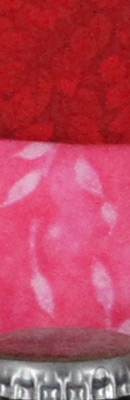 |
 |
 |
 |
|
 |
 |
 |
|
|
|
Canon 60D
|
Canon T2i
|
Canon 7D
|
|
I
S O 3 |
 |
 |
 |
 |
 |
 |
|
 |
 |
 |
|
|
|
Canon 60D
|
Canon T2i
|
Canon 7D
|
|
I
S O 6 |
 |
 |
 |
 |
 |
 |
|
 |
 |
 |
|
|
|
Canon 60D
|
Canon T2i
|
Canon 7D
|
|
I
S O 1 |
 |
 |
 |
 |
 |
 |
|
 |
 |
 |
|
As you can see, very similar performance here compared to the Canon T2i, which is no surprise since they all share very similar (if not identical) sensors and processors. The Canon 7D is a bit noisier, perhaps due to the wider (8 channels vs 4) and faster read circuitry required to reach its 8 fps burst speed.
Keep in mind these are JPEGs with default noise reduction applied, so a lot of the differences are due to the processing that has been applied. To see sensor output without any noise reduction applies, see our Canon 60D RAW crops page.
Imatest Results
Canon 60D Imatest Results
We routinely use Norman Koren’s excellent “Imatest” analysis program for quantitative, thoroughly objective analysis of digicam test images. I highly recommend it to our technically-oriented readers, as it’s far and away the best, most comprehensive analysis program I’ve found to date.
My comments below are just brief observations of what we see in the Imatest results. A full discussion of all the data Imatest produces is really beyond the scope of this review: Visit the Imatest web site for a full discussion of what the program measures, how it performs its computations, and how to interpret its output.
Here’s some of the results produced by Imatest for the Canon 60D:
|
sRGB Accuracy Comparison |
|||||
As we’ve come to expect from Canon, the EOS 60D showed very good color accuracy, as well as fairly accurate saturation levels. Hue accuracy was much better than average, with small hue shifts occurring mainly in the cyans, reds, and oranges. Average “delta-C” color error was only 3.78 after correction for saturation, which is excellent, among the best we’ve tested. (Delta-C is the same as the more commonly referred to delta-E, but delta-C takes into account only color differences, ignoring luminance variation.) Average saturation was 108% (8% oversaturated), which is also very good. Mouse over the links below the illustration above to compare results with competing models.
|
Adobe RGB Accuracy Comparison |
|||||
Like most other cameras, the Canon EOS 60D delivers more highly saturated colors when using the Adobe RGB color space (which provides a much wider gamut, or range of colors that can be expressed). Average saturation was 116.3%, which is higher than the sRGB results. Average saturation-corrected hue error was 4.93 “delta-C” units, less accurate than the sRGB result, but still pretty good. Again, mouse over the links below the illustration above to compare results with other semi-pro APS-C SLRs.
Canon EOS 60D Color Analysis
This image shows how the Canon EOS 60D actually rendered the colors of the MacBeth chart, compared to a numerically ideal treatment. In each color swatch, the outer perimeter shows the color as actually captured by the camera, the inner square shows the numerically correct color after correcting for the luminance of the photographed chart (as determined by a second-order curve fit to the values of the gray swatches), and the small rectangle inside the inner square shows the numerically correct color, without the luminance correction. This image shows the very good hue accuracy of the 60D, as well as a contrast curve that results in moderate overexposure of some of the highest-saturation swatches. (This increase in luminance for the highly-saturated swatches seems to be a fairly common tactic, to produce “bright” color that’s appealing to consumers, without further overdoing the saturation.)
The bottom row of the chart shows exaggerated white balance errors, revealing that the camera produced fairly accurate color balance using Custom white balance, with a WhiBal card as the reference.
Canon EOS 60D Noise Analysis
There’s a lot in this particular graph, a lot more than we have room to go into here. (This set of plots has also changed a few revisions back in Imatest. Some of the plots that were once shown here are now shown in other Imatest output. Since we largely focus on the Noise Spectrum plot, we only show the graphic above, which includes that plot.)
In comparing these graphs with those from competing cameras, we’ve found that the Noise Spectrum graph at lower right is the most important. Cameras that manage to shift their noise spectrum to higher frequencies have much finer-grained noise structures, making their noise less visually objectionable. In the graph above, this would show up as a noise spectrum curve that remained higher on the right side, representing higher noise frequencies.
The Canon 60D does a pretty good job of keeping plenty of the luminance noise energy (indicated by the black line) at high frequencies. What little low-ISO image noise that’s there is more fine-grained as a result. Chroma noise, though, is higher at lower frequencies, especially in the red channel. The overall noise levels are so low in low-ISO shots that the chroma noise in general and the red blotchiness in particular are only slightly visible when inspecting shadow areas of low ISO shots very closely.
Here’s the same set of noise data at ISO 3,200. Here, the Noise Spectrum graph is shifted towards the left-hand, lower-frequency side than it was at ISO 100. This indicates a coarsening of the “grain” of the image noise patterns by quite a bit, and indeed that’s what we see when inspecting the 60D’s ISO 3,200 images. The chrominance channels’ noise spectrum follows that of the luminance channel much more closely, a result of the default high ISO noise reduction applied, but is still a bit higher at very low frequencies. This can be seen in high ISO images as large but subtle blotches of chroma noise in darker areas, spread across multiple pixels. That said, the Canon 60D does a better than average job at keep chrominance noise in check, though default noise reduction does struggle with reds in areas of low contrast.
Here’s the same set of noise data at ISO 6,400. The Noise Spectrum graph has shifted slightly more to the left, and the 60D’s default noise reduction has kept the chroma noise spectrum closely following luminance noise. Notice however that the total noise levels are much higher. (Particularly evident in the pixel noise plot in the upper right corner of the illustration, and in the midtones and below in the graph in the lower left hand corner.)
Here’s the same set of noise data at ISO 12,800. The Noise Spectrum graph has shifted even further to the left. Notice again that the total noise levels are even higher, as expected. When examining the 60D’s ISO 12,800 shots, a few bright noise pixels are evident, especially in the shadows and darker areas, however there is a huge improvement over the 50D in this regard.
This chart compares the Canon EOS 60D’s luminance noise performance at midtone grey density over a range of ISOs against that of other current, semi-pro SLR models. While we continue to show noise plots of this sort because readers ask for them, we each time point out that the noise magnitude is only a small part of the story, the grain pattern being much more important.
Here, we can see that the Canon EOS 60D’s luminance noise magnitude starts out lower than the 7D’s and remains lower or equal to it throughout the ISOÂ range. Compared to its less expensive sibling, the 60D’s curve closely follows the T2i’s curve up to ISO 1,600, then increases to slightly higher levels. This may be an intentional tweak to keep the more pro-oriented 60D’s detail levels a little higher in exchange for a touch more noise compared to the consumer-oriented T2i. Noise levels are also very similar to the Nikon D7000 up to ISO 1,600, but the Nikon shows less at higher ISOs. (Keep in mind these are at default noise reduction settings, so the shape of the curve can be influenced by the noise-reduction settings you employ. The Canon EOS 60D offers 4 levels of high ISO noise-reduction to choose from, including “Off”.)
Canon 60D Dynamic Range Analysis
A key parameter in a digital camera is its Dynamic Range, the range of brightness that can be faithfully recorded. At the upper end of the tonal scale, dynamic range is dictated by the point at which the RGB data “saturates” at values of 255, 255, 255. At the lower end of the tonal scale, dynamic range is determined by the point at which there ceases to be any useful difference between adjacent tonal steps. Note the use of the qualifier “useful” in there: While it’s tempting to evaluate dynamic range as the maximum number of tonal steps that can be discerned at all, that measure of dynamic range has very little relevance to real-world photography. What we care about as photographers is how much detail we can pull out of the shadows before image noise becomes too objectionable. This, of course, is a very subjective matter, and will vary with the application and even the subject matter in question. (Noise will be much more visible in subjects with large areas of flat tints and subtle shading than it would in subjects with strong, highly contrasting surface texture.)
What makes most sense then, is to specify useful dynamic range in terms of the point at which image noise reaches some agreed-upon threshold. To this end, Imatest computes a number of different dynamic range measurements, based on a variety of image noise thresholds. The noise thresholds are specified in terms of f-stops of equivalent luminance variation in the final image file, and dynamic range is computed for noise thresholds of 1.0 (low image quality), 0.5 (medium image quality), 0.25 (medium-high image quality) and 0.1 (high image quality). For most photographers and most applications, the noise thresholds of 0.5 and 0.25 f-stops are probably the most relevant to the production of acceptable-quality finished images, but many noise-sensitive shooters will insist on the 0.1 f-stop limit for their most critical work.
The graphic below shows the test results from Imatest for an in-camera JPEG file from the Canon EOS 60D with a nominally-exposed density step target (Stouffer 4110), and the 60D’s noise reduction, contrast and other exposure-related settings such as Auto Lighting Optimizer at their default values.
Here, with Auto Lighting Optimizer set to Standard by default, we can see that the tone curve shows good gradation in the highlights, but the shadow end trails off abruptly. This can be seen when closely inspecting shots captured by the 60D, where detail is held nicely in strong highlights, but somewhat less so in the deepest shadows. Total dynamic range reported is 10.5 f-stops while dynamic range at the highest quality level is 7.46 f-stops. This is about average for a modern SLR with an APS-C size sensor, and very similar to results from the Canon 7D and T2i. We didn’t shoot with Highlight Tone Priority for this test, as the boost in ISOÂ usually results in a lower Imatest score at the highest quality levels, however we would expect the highlight end of the curve to have a more gentle roll-off.
Processing the Canon EOS 60D’s RAW (.CR2) files through Adobe Camera Raw (ACR) version 6.3 increased dynamic range by only about 0.29 f-stops at the highest quality level (7.75 f-stops), compared to the in-camera JPEG (7.46 f-stops), though total dynamic range reported increased by about 1.4 f-stops from 10.5 to 11.9. These results were obtained by using ACR’s automatic settings, then manually tweaking from there. It’s possible to get slightly better results with more tweaking, but we weren’t able to. It’s worth noting here that ACR’s default noise reduction settings reduced overall noise (see the plot in the lower left-hand corner) relative to the levels in the in-camera JPEG, which would tend to boost the dynamic range numbers for the high quality threshold.
Dynamic Range, the bottom line:
The net result was that the Canon EOS 60D’s JPEGs scored about average in Imatest’s dynamic range analysis when compared against other current APS-C sensor models. ACR converted RAW files scored a little below average at the highest quality level.
To get some perspective, here’s a summary of the Canon EOS 60D’s dynamic range performance, and how it compares to other digital SLRs that we also have Imatest dynamic range data for. (Results are arranged in order of decreasing dynamic range at the “High” quality level.):
| Dynamic Range (in f-stops) vs Image Quality (At camera’s base ISO) (Blue = RAW via ACR, Yellow=Camera JPEG, Green=Current Camera) |
||||
| Model | 1.0 (Low) |
0.5 (Medium) |
0.25 (Med-High) |
0.1 (High) |
| Nikon D7000 (Adobe Camera Raw 6.3) |
12.0 | 11.9 | 11.6 | 10.1 |
|
10.0 Stops
|
||||
| Nikon D3X (Adobe Camera Raw 5.3b) |
— | — | 11.1 | 9.64 |
| Nikon D3S (Adobe Camera Raw 5.6) |
— | — | 10.7 | 9.55 |
| Nikon D700 (Adobe Camera Raw 4.5) |
12.1 | 11.6 | 10.6 | 9.51 |
| Nikon D5000 (Adobe Camera Raw 5.4b) |
— | 11.6 | 10.8 | 9.50 |
|
9.5 Stops
|
||||
| Sony A33 (Adobe Camera Raw 6.2) |
— | — | 10.7 | 9.37 |
| Sony A900 (Adobe Camera Raw 4.6b) |
— | 12.1 | 10.7 | 9.36 |
| Pentax K-x (Adobe Camera Raw 5.6b) |
11.5 | 11.2 | 10.7 | 9.33 |
| Nikon D90 (Adobe Camera Raw 4.6b) |
12.1 | 11.8 | 10.7 | 9.27 |
| Sony A55 (Adobe Camera Raw 6.2) |
11.1 | 10.9 | 10.5 | 9.16 |
| Fujifilm S3 Pro (Adobe Camera Raw 2) |
12.1 | 11.7 | 10.7 | 9.00 |
|
9.0 Stops
|
||||
| Sony NEX-5 (Adobe Camera Raw 6.2b) |
11.9 | 11.5 | 10.4 | 8.95 |
| Sony A230 (Adobe Camera Raw 5.5) |
11.7 | 11.1 | 10.1 | 8.95 |
| Nikon D40x (Adobe Camera Raw 4.1) |
12.0 | 10.9 | 10.3 | 8.90 |
| Nikon D300S (Adobe Camera Raw 5.5) |
— | 11.3 | 10.4 | 8.89 |
| Canon 5D Mark II (Adobe Camera Raw 5.2) |
— | 10.8 | 10.0 | 8.89 |
| Sony NEX-3 (Adobe Camera Raw 6.2b) |
11.8 | 11.4 | 10.1 | 8.87 |
| Sony A330 (Adobe Camera Raw 5.4) |
— | — | 10.1 | 8.86 |
| Canon EOS-1Ds Mark III (Adobe Camera Raw 4.5) |
11.5 | 10.7 | 9.96 | 8.84 |
| Nikon D3 (Adobe Camera Raw 4.5) |
11.7 | 11.0 | 10.0 | 8.75 |
| Canon EOS-1D Mark III (Adobe Camera Raw 4.5) |
11.7 | 10.7 | 9.99 | 8.73 |
| Sony A380 (Adobe Camera Raw 5.5) |
11.8 | 10.9 | 10.1 | 8.62 |
| Nikon D3000 (Adobe Camera Raw 5.5) |
— | 10.8 | 10.1 | 8.61 |
| Pentax K20D (Adobe Camera Raw 4.5) |
11.4 | 10.6 | 9.82 | 8.56 |
| 8.5 Stops | ||||
| Nikon D300 (Adobe Camera Raw 4.3.1) |
11.4 | 10.9 | 9.87 | 8.45 |
| Sony A200 (Adobe Camera Raw 4.3.1) |
11.6 | 10.4 | 9.82 | 8.43 |
| Nikon D60 (Adobe Camera Raw 4.4.1) |
11.6 | 10.5 | 9.74 | 8.31 |
| Nikon D40 (Adobe Camera Raw 4.1) |
11.9 | 10.9 | 9.89 | 8.30 |
| Nikon D3100 (Adobe Camera Raw 6.3b) |
10.9 | 10.2 | 9.28 | 8.24 |
| Canon EOS-1Ds Mark III (Camera JPEG) |
10.9 | 10.2 | 9.71 | 8.23 |
| Pentax K100D (Adobe Camera Raw 3.6) |
11.3 | 10.3 | 9.51 | 8.23 |
| Pentax K200D (Adobe Camera Raw 4.4.1) |
— | 10.5 | 9.54 | 8.19 |
| Pentax K10D (Adobe Camera Raw 3.7) |
10.6 | 10.0 | 9.29 | 8.19 |
| Canon 7D (Adobe Camera Raw 5.6) |
11.2 | 10.3 | 9.52 | 8.18 |
| Sony A100 (Adobe Camera Raw 3.4) |
11.3 | 10.5 | 9.69 | 8.16 |
| Canon EOS-1Ds Mark II (Adobe Camera Raw 3) |
11.2 | 10.3 | 9.40 | 8.14 |
| Canon EOS 50D (Adobe Camera Raw 4.6) |
11.2 | 10.5 | 9.49 | 8.06 |
| Nikon D40x (Camera JPEG) |
10.8 | 10.0 | 9.42 | 8.04 |
| Olympus E-P1 (ISO 200, Adobe Camera Raw 5.5) |
11.5 | 10.4 | 9.26 | 8.04 |
| Canon Rebel XSi (Camera JPEG) (ALO on by default) |
11.3 | 10.1 | 9.34 | 8.01 |
| 8.0 Stops | ||||
| Nikon D7000 (Camera JPEG) |
9.97 | 9.81 | 9.73 | 7.97 |
| Nikon D3S (Camera JPEG) |
— | — | — | 7.96 |
| Fujifilm S3 Pro (Camera JPEG) |
— | 9.90 | 9.40 | 7.94 |
| Canon T2i (Adobe Camera Raw 5.7) |
— | 10.0 | 9.21 | 7.94 |
| Samsung NX10 (Adobe Camera Raw 5.7 beta) |
— | — | 9.18 | 7.91 |
| Sony A350 (Adobe Camera Raw 4.4) |
11.6 | 10.5 | 9.61 | 7.89 |
| Canon EOS-1D Mark III (Camera JPEG) |
— | 10.2 | 9.70 | 7.88 |
| Olympus E-P2 (Adobe Camera Raw 5.6) |
— | 10.2 | 9.44 | 7.88 |
| Canon Rebel XS (Adobe Camera Raw 4.5) |
— | 10.3 | 9.27 | 7.88 |
| Nikon D3 (Camera JPEG) |
— | — | — | 7.87 |
| Canon Digital Rebel XTi (Adobe Camera Raw 3.6) |
10.8 | 9.88 | 9.18 | 7.84 |
| Canon EOS 5D (Adobe Camera Raw 3) |
11.0 | 10.4 | 9.21 | 7.83 |
| Nikon D90 (Camera JPEG) |
— | — | — | 7.77 |
| Panasonic DMC-GH1 (Adobe Camera Raw 5.4b) |
9.88 | — | 9.30 | 7.76 |
| Canon EOSÂ 60D (Adobe Camera Raw 6.3) |
10.7 | 9.88 | 9.12 | 7.75 |
| Sony A55 (Camera JPEG) |
9.59 | 9.36 | 8.70 | 7.74 |
| Canon Rebel T1i (Adobe Camera Raw 5.4b) |
11.2 | 10.2 | 9.16 | 7.73 |
| Pentax K-7 (Adobe Camera Raw 5.4) |
10.6 | 9.93 | 9.07 | 7.73 |
| Canon EOS 40D (Adobe Camera Raw 4.2) |
11.2 | 10.1 | 9.26 | 7.72 |
| Panasonic DMC-GH1 (Camera JPEG) |
8.77 | — | — | 7.70 |
| Canon Rebel XSi (Adobe Camera Raw 4.4.1) |
10.6 | 9.95 | 9.10 | 7.68 |
| Canon EOS 50D (Camera JPEG) (ALO STD by default) |
— | — | 8.90 | 7.68 |
| Sony A33 (Camera JPEG) |
— | 9.95 | 9.17 | 7.67 |
| Nikon D700 (Camera JPEG) |
— | — | 9.05 | 7.67 |
| Canon 5D Mark II (Camera JPEG) (ALO STD by default) |
10.6 | 9.68 | 8.98 | 7.66 |
| Nikon D5000 (Camera JPEG) |
— | — | 8.96 | 7.65 |
| Sony A560 (Camera JPEG) |
10.5 | 10.2 | 8.86 | 7.65 |
| Canon EOS-5D (Camera JPEG) |
10.2 | 9.68 | 8.82 | 7.65 |
| Olympus E-3 (Adobe Camera Raw 4.3) |
10.3 | 10.1 | 9.29 | 7.64 |
| Nikon D3100 (Camera JPEG) |
10.2 | 9.92 | 9.27 | 7.62 |
| Nikon D60 (Camera JPEG) |
10.5 | 9.62 | 8.89 | 7.62 |
| Nikon D200 (Adobe Camera Raw 3) |
10.6 | 9.65 | 8.96 | 7.61 |
| Sony NEX-5 (Camera JPEG) |
10.4 | 9.64 | 8.82 | 7.57 |
| Canon 7D (Camera JPEG) (ALO STD by default) |
— | 9.70 | 8.54 | 7.54 |
| Canon T2i (Camera JPEG) |
— | 9.44 | 8.45 | 7.53 |
| Nikon D80 (Adobe Camera Raw 3.6) |
11.1 | 10.4 | 9.42 | 7.51 |
| 7.5 Stops | ||||
| Nikon D300S (Camera JPEG) |
— | — | — | 7.49 |
| Olympus E-500 (Adobe Camera Raw 3) |
10.7 | 9.97 | 8.90 | 7.46 |
| Canon 60D (Camera JPEG) (ALO=STD by default) |
10.2 | 9.74 | 8.74 | 7.46 |
| Olympus E-510 (Adobe Camera Raw 4.1) |
10.0 | 9.43 | 8.64 | 7.46 |
| Pentax K10D (Camera JPEG) |
— | 9.49 | 8.88 | 7.44 |
| Sony NEX-3 (Camera JPEG) |
10.0 | 9.62 | 8.86 | 7.44 |
| Nikon D300 (Camera JPEG) |
— | — | 8.70 | 7.44 |
| Olympus E-420 (Adobe Camera Raw 4.1.1) |
10.0 | 9.61 | 8.65 | 7.44 |
| Canon Rebel T1i (Camera JPEG) (ALO=STD by default) |
11.3 | 10.1 | 8.67 | 7.43 |
| Nikon D2Xs (Adobe Camera Raw 3.6) |
10.6 | 9.90 | 8.93 | 7.42 |
| Canon EOS 40D (Camera JPEG) |
10.6 | 9.52 | 8.78 | 7.42 |
| Olympus E-PL1 (Adobe Camera Raw 5.7) |
10.4 | 9.89 | 8.76 | 7.39 |
| Nikon D3X (Camera JPEG) |
— | — | — | 7.37 |
| Nikon D50 (Camera JPEG) |
10.7 | 9.93 | 8.70 | 7.36 |
| Panasonic DMC-G2 (Adobe Camera Raw 5.7) |
10.3 | 9.87 | 8.77 | 7.35 |
| Sony A380 (Camera JPEG) (DRO Standard by default) |
— | 9.54 | 8.84 | 7.32 |
| Panasonic DMC-G1 (Adobe Camera Raw 5.2) |
10.7 | 9.78 | 8.70 | 7.32 |
| Nikon D3000 (Camera JPEG) |
10.2 | 9.64 | 8.69 | 7.31 |
| Sony A900 (Camera JPEG) (DRO off by default ) |
10.2 | 9.75 | 8.49 | 7.31 |
| Sony A330 (Camera JPEG) (DRO Standard by default) |
10.1 | 9.37 | 8.59 | 7.30 |
| Sony A200 (Camera JPEG) (DRO on by default) |
10.4 | 9.43 | 8.91 | 7.29 |
| Canon EOS 20D (Camera JPEG) |
10.3 | 9.66 | 8.85 | 7.29 |
| Canon EOS 30D (Camera JPEG) |
10.3 | 9.50 | 8.57 | 7.29 |
| Nikon D40 (Camera JPEG) |
10.4 | 9.80 | 8.89 | 7.28 |
| Sony A230 (Camera JPEG) (DRO Standard by default) |
10.1 | 9.51 | 8.51 | 7.26 |
| Sony A900 (Camera JPEG) (DRO on) |
10.1 | 9.76 | 8.47 | 7.26 |
| Canon Rebel XS (Camera JPEG) |
10.3 | 9.4 | 8.61 | 7.22 |
| Olympus E-520 (Adobe Camera Raw 4.5) |
11.0 | 9.46 | 8.70 | 7.20 |
| Sony A350 (Camera JPEG) (DRO on by default) |
10.3 | 9.55 | 8.85 | 7.19 |
| Pentax K-x Camera JPEG |
9.99 | 8.94 | 8.31 | 7.18 |
| Panasonic DMC-GF1 (Adobe Camera Raw 5.5) |
10.2 | 9.62 | 8.62 | 7.16 |
| Nikon D80 (Camera JPEG) |
10.1 | 9.43 | 8.48 | 7.12 |
| Canon Digital Rebel XT (Camera JPEG) |
10.3 | 9.51 | 8.61 | 7.11 |
| Nikon D200 (Camera JPEG) |
— | 9.07 | 8.36 | 7.11 |
| Olympus E-300 (Camera JPEG) |
10.8 | 9.26 | 8.48 | 7.07 |
| Olympus E-410 (Adobe Camera Raw 4.1) |
10.2 | 9.40 | 8.24 | 7.05 |
| Olympus E-500 (Camera JPEG) |
10.0 | 9.14 | 8.16 | 7.05 |
| Canon Digital Rebel XTi (Camera JPEG) |
9.83 | 9.10 | 8.27 | 7.04 |
| Canon EOS-1Ds Mark II (Camera JPEG) |
10.3 | 9.38 | 8.60 | 7.04 |
| Panasonic DMC-G1 (Camera JPEG) |
— | 9.33 | 8.52 | 7.03 |
| Pentax K200D (Camera JPEG) |
— | 9.50 | 8.30 | 7.01 |
| 7.0 Stops | ||||
| Panasonic DMC-GF1 (Camera JPEG) |
— | 9.33 | 8.44 | 6.99 |
| Canon Digital Rebel (Camera JPEG) |
10.1 | 9.11 | 8.47 | 6.97 |
| Nikon D2Xs (Camera JPEG) |
9.82 | 8.98 | 8.23 | 6.97 |
| Panasonic DMC-L10 (Adobe Camera Raw 4.2) |
10.4 | 9.34 | 8.48 | 6.91 |
| Sigma DP1 (Camera JPEG) |
— | 8.95 | 8.13 | 6.91 |
| Pentax *istDs (Camera JPEG) |
10.2 | 10.0 | 8.87 | 6.90 |
| Sony A100 (Camera JPEG) |
10.2 | 9.24 | 8.39 | 6.89 |
| Samsung NX10 (Camera JPEG, Smart Range, ISO 200) |
10.1 | 8.99 | 8.22 | 6.78 |
| Pentax K100D (Camera JPEG) |
10.3 | 9.30 | 8.39 | 6.73 |
| Panasonic DMC-G2
(Camera JPEG) |
9.72 | 9.18 | 8.15 | 6.68 |
| Pentax K20D (Camera JPEG) |
10.2 | 9.21 | 8.09 | 6.66 |
| Pentax K-7 (Camera JPEG) |
9.59 | 8.87 | 8.03 | 6.54 |
| 6.5 Stops | ||||
| Nikon D2x (Camera JPEG) |
— | 8.93 | 7.75 | 6.43 |
| Olympus E-3 (Camera JPEG) |
9.32 | 9.06 | 8.50 | 6.42 |
| Panasonic DMC-L10 (Camera JPEG) |
— | 8.94 | 8.00 | 6.38 |
| Olympus E-420 (Camera JPEG) |
9.18 | 8.82 | 7.93 | 6.37 |
| 6.0 Stops | ||||
| Olympus E-410 (Camera JPEG) |
— | — | 7.60 | 5.99 |
| Olympus E-PL1 (Camera JPEG, Gradation = Normal) |
— | 8.63 | 7.45 | 5.89 |
| Samsung NX10 (Camera JPEG) |
9.32 | 8.48 | 7.46 | 5.88 |
| Nikon D70s (Camera JPEG) |
9.84 | 8.69 | 7.46 | 5.85 |
| Nikon D70 (Camera JPEG) |
9.81 | 8.76 | 7.58 | 5.84 |
| Olympus E-520 (Camera JPEG) |
9.32 | 8.68 | 7.74 | 5.74 |
| Olympus E-P2 (Camera JPEG, Gradation = Normal) |
10.1 | 8.83 | 7.78 | 5.58 |
| Olympus E-P1 (Camera JPEG, Gradation = Normal) |
— | 8.85 | 7.74 | 5.47 |
Note that this test is repeatable to within 1/3 EV according to the Imatest website, so differences of less than 0.33 can be ignored.
Canon EOS 60D Resolution Chart Test Results
The chart above shows consolidated results from spatial frequency response measurements in both the horizontal and vertical axes. The “MTF 50” numbers tend to correlate best with visual perceptions of sharpness, so those are what we focus on here. The uncorrected resolution figures are 2,210 line widths per picture height in the horizontal direction (corresponding to the vertically-oriented edge), and 2,140 lines along the vertical axis (corresponding to the horizontally-oriented edge), for a combined average of 2,175 LW/PH; almost exactly the same results we got from the 7D. Correcting to a “standardized” sharpening with a one-pixel radius reduced the resolution score by only a bit, for an average of 1,988 LW/PH. The numbers are somewhat lower than we’d expect for an 18-megapixel APS-C SLR.
To see what’s going on, refer to the plots below, which show the actual edge profiles for both horizontal and vertical edges, in both their original and corrected forms. Here, you can see that a fairly aggressive amount of in-camera sharpening is applied in the horizontal direction (Imatest reported oversharpening by 11%), while in the vertical direction, Imatest reports oversharpening of only 0.907%. This is why standardized sharpening actually reduced the 60D’s MTF 50 numbers slightly.
Given these results, power users might want to turn down in-camera sharpening, then add some sharping during post processing. As is almost always the case, you’ll extract the most detail from the Canon EOS 60D’s images by careful processing of its .CR2 RAW files.
Note: We don’t feature SFR-based LW/PH resolution numbers more prominently in our reviews (eg, outside the Imatest pages) because we’ve found that they’re *very* sensitive to minor differences in in-camera image processing. Relatively small changes in the amount of in-camera sharpening can have a large effect on the resulting resolution numbers. Imatest attempts to compensate for this by adjusting to a “standard’ sharpening, but this approach can’t completely undo what happens inside the cameras, and so often gives inconsistent results. Sometimes the “standardized” sharpening happens to just match the shape of the edge profile with the in-camera sharpening applied, and you’ll get wildly high results. At other times, it will tend to correct in the opposite direction. Unfortunately, ignoring the in-camera sharpening entirely can result in even greater discrepancies, particularly between models from different manufacturers. Turning off sharpening in the camera may or may not fully eliminate the sharpening, so simply turning off sharpening in the camera JPEGs isn’t a reliable solution. It also wouldn’t be the way most people shoot the cameras. We could process RAW files with no sharpening, but then that’d only suit the people working primarily or exclusively from RAW, and would open another can of worms as to what RAW converter was used, etc, etc.
The bottom line is that numbers for resolution only take you so far. Detail handling and edge acuity are very complex issues; ones that don’t easily boil down to a single number. The best approach is to simply look look at the broad array of standardized test shots we take with each camera, to the point of downloading and printing them with whatever processing you’d use if you owned the camera and shot with it. See how the differences stack up for you visually, and make your decision on that, rather than on abstract resolution numbers.
RAW Files
Canon EOS 60D RAW Image Quality
We’ve recently started looking at RAW files converted with dcraw, an excellent freeware raw converter. dcraw usually offers timely support for the latest cameras, but more importantly, it does not apply any noise-reduction, sharpening or other corrections such as geometric distortion correction to the output files. (We found that Adobe Camera Raw still applies some limited noise-reduction when its NR settings are set to zero, and it also applies other corrections depending on the make and model of the camera). There will always be differences between RAW converters, in terms of the sort of de-mosaicing algorithms they use (the processes by which they convert the separate Red, Green, and Blue data sets to an array of full-color RGB pixels), but dcraw seems to use a fairly generic algorithm that delivers good sharpness with relatively few artifacts, and can be counted on to not apply any noise reduction if you don’t want it to. (That said, looking at the ISO 6,400 and above examples below, it’s clear that dcraw’s de-mosaicing approach does have some tendency to produce rectilinear artifacts in response to high noise levels.)
Below are crops from Canon 60D’s 14-bit RAW files compared to RAW files from other prosumer SLRs, converted with dcraw.
| High ISO RAW Comparison with Canon EOS 50D, Nikon D7000, and Pentax K-7 RAW files converted with dcraw, no NR, no sharpening Daylight-balanced illumination |
||||
|
Canon 60D
|
Canon 50D
|
Nikon D7000
|
Pentax K-7
|
|
|
I
S O 8 |
 |
 |
 |
 |
 |
 |
 |
 |
|
 |
 |
 |
 |
|
|
Canon 60D
|
Canon 50D
|
Nikon D7000
|
Pentax K-7
|
|
|
I
S O 1 |
 |
 |
 |
 |
 |
 |
 |
 |
|
 |
 |
 |
 |
|
|
Canon 60D
|
Canon 50D
|
Nikon D7000
|
Pentax K-7
|
|
|
I
S O 3 |
 |
 |
 |
 |
 |
 |
 |
 |
|
 |
 |
 |
 |
|
|
Canon 60D
|
Canon 50D
|
Nikon D7000
|
Pentax K-7
|
|
|
I
S O 6 |
 |
 |
 |
 |
 |
 |
 |
 |
|
 |
 |
 |
 |
|
|
Canon 60D
|
Canon 50D
|
Nikon D7000
|
Pentax K-7
|
|
|
I
S O 1 |
 |
 |
 |
N/A
ISO 12,800 Not Supported |
 |
 |
 |
N/A
ISO 12,800 Not Supported |
|
 |
 |
 |
N/A
ISO 12,800 Not Supported |
|
|
Canon 60D
|
Canon 50D
|
Nikon D7000
|
Pentax K-7
|
|
|
I
S O 2 |
N/A
ISO 25,600 Not Supported |
N/A
ISO 25,600 Not Supported |
 |
N/A
ISO 25,600 Not Supported |
|
N/A
ISO 25,600 Not Supported |
N/A
ISO 25,600 Not Supported |
 |
N/A
ISO 25,600 Not Supported |
|
|
N/A
ISO 25,600 Not Supported |
N/A
ISO 25,600 Not Supported |
 |
N/A
ISO 25,600 Not Supported |
|
The crops above compare the Canon 60D’s RAW noise performance to that of its predecessor, as well as to other popular prosumer models, the Nikon D7000 and Pentax K-7. All cameras were equipped with our Sigma 70mm f/2.8 EX DG Macro reference lenses, stopped down to f/8 for maximum sharpness. As you can see, RAW results roughly echo the results we saw from the JPEGs, with the Canon 60D and Nikon D7000 fairly closely matched in terms of noise, though the 60D’s higher resolution is clearly evident. The Canon 50D and Pentax K-7 are both quite a bit noisier at the same ISOs.
Here’s a comparison with the 60D’s two immediate siblings in the current Canon SLR lineup:
| High ISO RAW Comparison with Canon T2i and 7D RAW files converted with dcraw, no NR, no sharpening Daylight-balanced illumination |
|||
|
Canon 60D
|
Canon T2i
|
Canon 7D
|
|
|
I
S O 8 |
 |
 |
 |
 |
 |
 |
|
 |
 |
 |
|
|
Canon 60D
|
Canon T2i
|
Canon 7D
|
|
|
I
S O 1 |
 |
 |
 |
 |
 |
 |
|
 |
 |
 |
|
|
Canon 60D
|
Canon T2i
|
Canon 7D
|
|
|
I
S O 3 |
 |
 |
 |
 |
 |
 |
|
 |
 |
 |
|
|
Canon 60D
|
Canon T2i
|
Canon 7D
|
|
|
I
S O 6 |
 |
 |
 |
 |
 |
 |
|
 |
 |
 |
|
|
Canon 60D
|
Canon T2i
|
Canon 7D
|
|
|
I
S O 1 |
 |
 |
 |
 |
 |
 |
|
 |
 |
 |
|
Again, RAW results echo those of the JPEGs with the Canon 60D and T2i producing similar results and both performing better in terms of noise than the faster Canon 7D.
Press Release
Canon’s New EOS 60D Digital SLR Camera Unleashes The Creative Potential Of Digital Photography And EOS Full HD Video With New In-Camera Imaging Features
New EOS 60D Offers a Vari-Angle LCD Screen, EOS Full HD Video Recording,
In-Camera RAW Processing and Creative Filters and 18-Megapixel Resolution Among Class-Leading Specs
LAKE SUCCESS, N.Y., August 26, 2010 – High-quality digital capture and skillful post-processing go hand-in-hand for superior end results, and more control over in-camera image processing means less time editing and more time shooting. At the same time, the overwhelming popularity of Full HD video recording with other current EOS Digital SLRs has led to customer requests for more advanced features such as manual audio level control and flexible LCD screens. Canon U.S.A., Inc., a leader in digital imaging, delivers all of these features and more with the new EOS 60D Digital SLR Camera. For the first time on an EOS camera, the EOS 60D DSLR boasts a three-inch Vari-Angle Clear View LCD screen, EOS Full HD video recording with manual overrides including audio level control, and in-camera functionality for RAW image processing plus Creative Filters to manipulate images after taking them. Designed primarily for advanced amateurs, the EOS 60D replaces the EOS 50D and boasts a broad array of new features that make it easier for photographers to add personal creativity to their images. Whether it’s capturing an overhead shot on the Vari-Angle screen at a graduation ceremony, or converting a color image to black and white for a nostalgic look, Canon is delivering in-camera features and functions that empower advanced photographers to capture, display and print the images they want.
“The EOS 60D has been designed to offer the image-capture and the Full HD video features customers are looking for as they continue to expand their photographic skills. The exciting new features of the EOS 60D make using a DSLR camera more attractive and easier than ever before. We want everyone to experience the great image quality a Canon DSLR can offer with features and functions that they will appreciate and use,” stated Yuichi Ishizuka, executive vice president and general manager, Consumer Imaging Group, Canon U.S.A.
Exciting EOS “Firsts”
For the first time in the history of the Canon EOS System, the new 60D camera features a large Vari-Angle 3-inch Clear View LCD screen with 1,040,000 dot/VGA resolution plus anti-reflective and smudge-resistant coatings for bright clear viewing from any angle. The new LCD screen is ideal for composing low-angle or overhead shots whether capturing still images or Full HD video clips.
Another first for the EOS system is the EOS 60D camera’s new Multi-Control Dial, which places a Multi-Controller and Set button inside the Quick Control Dial. This new control layout streamlines camera navigation for vertical as well as horizontal shooting and enables a cleaner camera design. Responding to customer requests, the EOS 60D also features a locking mode dial, which makes camera operation more secure by preventing inadvertent changes to the photographer’s selected shooting mode.
While the photography mantra of “get it right in the camera” still stands true, Canon’s new EOS 60D gives advanced photographers an edge with new in-camera features that enable users to enhance their images without a computer even after they have been shot. For the first time ever in an EOS camera, the EOS 60D features in-camera processing of RAW image files, new reduced resolution image copies, and post-processing creative image filters for exceptional flexibility in digital image rendering.
-
In-camera RAW image processing features include Picture Style, White Balance (WB), Color Space, High-ISO Noise Reduction, Peripheral Illumination Correction, linear distortion correction and chromatic aberration correction. These powerful in-camera editing tools will allow photographers in the field to produce optimized images on the spot and generate JPEG files at various resolution and compression settings for immediate sharing, without affecting the original RAW data.
-
Another great new feature for photographers-on-the-go is Canon’s new image resizing function. After capturing full resolution or smaller JPEG images, the camera can generate lower-resolution copies using menu commands. New lower-resolution settings include 1920 x 1280 for optimal display on HD televisions, or 720 x 480, ideal for immediate uploading to social networking and other photo sharing web sites. The original high resolution files remain unaffected by the image resizing function.
-
Available for the first time in an EOS camera are Canon’s new creative image filters. Familiar to Canon PowerShot users, these fun photo effects help make a great image more dynamic, even after it has been shot. Canon provides four artistic filters that allow photographers to capture an image and then create and manipulate a digital copy of it.
-
The Soft Focus effect filter helps dramatize an image and smooth over shiny reflections.
-
The Grainy Black and White filter can give a different nostalgic perspective to any shot.
-
Canon’s “Toy Camera” filter deliberately adds vignetting and color shift for a creative option when shooting a colorful scene.
-
Users can also make a scene appear like a small-scale model, simulating the look from a tilt-shift lens, with Canon’s Miniature Effect filter, great when shooting any scene from a high vantage point.
Each of these filters can be applied to a captured still image in-camera to create a second “filtered” JPEG version, leaving the original RAW or JPEG file unaffected.
Another addition to the camera’s Live View function is Canon’s new Aspect Ratio feature whereby the Live View screen can display cropping lines for 1:1, 16:9 or 4:3 aspect ratios in addition to the standard 3:2 ratio. These cropping lines make it easier to compose images in Live View, and they can help to expedite printing when using Canon’s supplied Digital Photo Professional software. Custom aspect ratios are also applied to JPEG images whether captured directly in-camera or created with the EOS 60D’s in-camera RAW image processing function.
EOS HD Video: Continuing the Video Paradigm Shift
In addition to its new still capture capabilities, the EOS 60D features Full HD video capture at 1920 x 1080 resolution with selectable frame rates of 24p, 25p or 30p. Native 24p recording helps videographers achieve a more cinema-style look for their footage without the need for post-processing. The EOS 60D builds upon the great video capabilities Canon has introduced in recent DSLR cameras and packs them into a camera photo enthusiasts will love. Full HD video capture, along with selectable cinematic frame rates for both NTSC (National Television System Committee) and PAL (Phase Altering Line) standards, will help the EOS 60D to be the camera of choice among film students and photography students alike.
The new EOS 60D camera’s movie mode also includes manual controls for exposure as well as manual audio levels in 64 steps, much like the latest firmware update for the EOS 5D Mark II HD-SLR. Users can set audio levels on the rear menu screen before shooting begins; once recording is initialized, audio adjustments are not possible. In addition, Canon has added an electronic Wind Filter to the audio controls within the movie shooting menu.
Canon has also included an in-camera movie editing feature, allowing users to shorten a video file by clipping segments from the beginning or the end, removing unwanted portions without outside software. This feature can dramatically accelerate workflow by reducing the time needed to upload video clips to a computer for further editing and assembly. The EOS 60D also includes Canon’s Movie Crop mode, which allows users to achieve 7x magnification when shooting SD video. Unlike the digital zoom feature found in many compact digital cameras, Canon’s Movie Crop mode crops the image directly from the CMOS sensor at full SD resolution to preserve image quality and still provide additional telephoto power.
Providing access to the right lens for any given shooting scenario, the EOS 60D DSLR camera is compatible with more than 60 Canon EF and EF-S lenses. The EOS 60D DSLR’s video functions are supported by two key proprietary Canon technologies, a DIGIC 4 Imaging Processor and a large APS-C-sized CMOS sensor capturing fine detail and color with an amazing cinematic depth of field. The Canon EOS 60D allows for three video recording modes – Full HD and HD in a 16:9 aspect ratio and Standard Definition (SD) in a 4:3 aspect ratio, all at selectable frame rates. The EOS 60D Digital SLR camera will record Full HD at 1920 x 1080 pixels in selectable frame rates of 24p (23.976), 25p, or 30p (29.97); 720p HD recording at 50p or 60p (59.94) and SD video at frame rates of 50p or 60p (59.94). The EOS 60D features a dedicated button to initiate live view for both video and still shooting. Once engaged, the same dedicated button will start and stop video recording.
Valuable Additional Features
Along with the adjustable LCD screen, the new EOS 60D DSLR features a class-leading 18-megapixel Canon CMOS sensor, a proprietary DIGIC 4 Imaging Processor, a 9-point Autofocus system and Canon’s exclusive iFCL Metering System (Intelligent Focus, Color, Luminance) giving it the power of a professional-level camera. Capable of capturing fast action, the 60D DSLR can shoot full resolution still images up to 5.3-frames per second (fps). The EOS 60D records its images and video clips to the photographer’s choice of SD, SDHC or new extended capacity SDXC memory cards.
The 9-point AF system on the new EOS 60D features f/5.6-sensitive cross-type focusing on all nine focusing points. Like the EOS 7D, the center AF point is a hybrid of standard cross-type and special diagonally-shaped “X” cross, with high-precision sensitivity for f/2.8 and larger aperture lenses. Complementing the AF system, Canon’s iFCL metering system, identical to that on the EOS 7D and Rebel T2i, takes color information into account and includes a 63-zone dual-layer metering sensor that reads both illumination and color for consistent results in all lighting conditions, keeping exposure levels stable from shot to shot, even as the light source changes.
Photographers will enjoy shooting in low light thanks to the EOS 60D DSLR’s wide ISO range from 100-6400 (adjustable in 1/3-step increments from ISO 100-6400 and expandable to 12,800) allowing it to capture beautiful images without flash during family milestone events such as wedding ceremonies, while still being equipped with a built-in pop-up flash for shooting the cake cutting ceremony and reception. The EOS 60D’s pop-up flash features a built-in Integrated Speedlite Transmitter for control of up to two groups of off-camera EOS Speedlites without the need for an external transmitter, providing an economical solution for multi-flash shoots.
Making accurate composition more convenient, the EOS 60D’s optical viewfinder provides 96 percent coverage along with Canon’s built-in single axis Electronic Level Display, which utilizes the exposure level scale below the picture area to let the photographer know when the camera is level. The Electronic Level Display is also visible on the camera’s LCD screen in both Live View and Movie modes. An artificial horizon display illustrates horizontal roll, allowing the photographer to know when the camera is in a fixed level position. The entire camera has been durability-tested to 100,000 exposures making the EOS 60D a reliable as well as a powerful imaging tool.
Pricing and Availability
The Canon EOS 60D Digital SLR camera is scheduled to be delivered to U.S. dealers toward the end of September, and will be sold in a body-only configuration at an estimated retail price of $1,099.00i. It will also be offered in a kit version with Canon’s EF-S 18-135mm f/3.5-5.6 IS USM zoom lens at an estimated retail price of $1,399.00ii. The Canon BG-E9 battery grip is scheduled to be available toward the end of September and sell at an estimated retail price of $270.00iii.
About Canon U.S.A., Inc.
Canon U.S.A., Inc., is a leading provider of consumer, business-to-business, and industrial digital imaging solutions. Its parent company, Canon Inc. (NYSE:CAJ), a top patent holder of technology, ranked fourth overall in the U.S. in 2009†, with global revenues of US $35 billion, is listed as number six in the computer industry on Fortune Magazine’s World’s Most Admired Companies 2010 list, and is on the 2009 BusinessWeek list of “100 Best Global Brands.” Canon U.S.A. is committed to the highest levels of customer satisfaction and loyalty, providing 100 percent U.S.-based consumer service and support for all of the products it distributes. At Canon, we care because caring is essential to living together in harmony. Founded upon a corporate philosophy of Kyosei – “all people, regardless of race, religion or culture, harmoniously living and working together into the future” – Canon U.S.A. supports a number of social, youth, educational and other programs, including environmental and recycling initiatives. Additional information about these programs can be found at www.usa.canon.com/kyosei. To keep apprised of the latest news from Canon U.S.A., sign up for the Company’s RSS news feed by visiting www.usa.canon.com/rss.
###
† Based on weekly patent counts issued by United States Patent and Trademark Office.
All referenced product names, and other marks, are trademarks of their respective owners.
Availability, prices, and specifications of all products are subject to change without notice. Actual prices are set by individual dealers and may vary.
i Pricing subject to change at any time. Actual prices are determined by individual dealers and may vary.
ii Pricing subject to change at any time. Actual prices are determined by individual dealers and may vary.
iii Pricing subject to change at any time. Actual prices are determined by individual dealers and may vary.
Pricing and availability
The Canon 60D began shipping in September 2010 and comes in a kit with the 18-135mm f/3.5-5.6 IS zoom lens for a list price of US$1,399, or body only for US$1,099.